

編輯:Android 開發實例
一個常見的搜尋框互動模式是:輸入框為空時,右側顯示搜尋圖示;一旦有內容,圖示自動切換成「清除」樣式,點它就清空文字。整個過程不需要額外按鈕,也不額外佔用版面。
核心是利用 TextWatcher 監聽內容變化,並以 setCompoundDrawablesWithIntrinsicBounds() 動態替換右側 compound drawable。這裡額外用一個 isnull 旗標快取上一次的狀態,避免每次輸入都觸發一次不必要的圖示重設。
/**
 * 動態切換搜尋 / 清除圖示
 */
private TextWatcher tbxSearch_TextChanged = new TextWatcher() {

    // 快取上一次輸入框是否為空
    private boolean isnull = true;

    @Override
    public void afterTextChanged(Editable s) {
        if (TextUtils.isEmpty(s)) {
            if (!isnull) {
                mSearchView.setCompoundDrawablesWithIntrinsicBounds(
                        null, null, mIconSearchDefault, null);
                isnull = true;
            }
        } else {
            if (isnull) {
                mSearchView.setCompoundDrawablesWithIntrinsicBounds(
                        null, null, mIconSearchClear, null);
                isnull = false;
            }
        }
    }

    @Override
    public void beforeTextChanged(CharSequence s, int start, int count, int after) {
    }

    /**
     * 隨輸入內容同步更新列表
     */
    @Override
    public void onTextChanged(CharSequence s, int start, int before, int count) {
    }
};
compound drawable 本身不帶點擊事件,因此改用 OnTouchListener 攔下 ACTION_UP,再用 event.getX() 判斷落點是否落在右側圖示區域。若是,且輸入框內容非空,就清空文字。
這裡有個關鍵細節:清空之後要暫時關掉軟鍵盤再還原,否則部分機型會因為輸入法重新__':
mSearchView.setInputType(InputType.TYPE_NULL) 先停用輸入法,呼叫原生 onTouchEvent(event) 完成焦點處理,最後把原本的 inputType 設回去。
private OnTouchListener txtSearch_OnTouch = new OnTouchListener() {
    @Override
    public boolean onTouch(View v, MotionEvent event) {
        switch (event.getAction()) {
        case MotionEvent.ACTION_UP:
            int curX = (int) event.getX();
            if (curX > v.getWidth() - 38
                    && !TextUtils.isEmpty(mSearchView.getText())) {
                mSearchView.setText("");
                int cacheInputType = mSearchView.getInputType(); // 備份輸入類型
                mSearchView.setInputType(InputType.TYPE_NULL);   // 暫時關閉軟鍵盤
                mSearchView.onTouchEvent(event);                 // 呼叫原生處理
                mSearchView.setInputType(cacheInputType);        // 還原輸入類型
                return true;                                     // 消費這次事件
            }
            break;
        }
        return false;
    }
};
值得留意的是 v.getWidth() - 38 這個門檻值。它對應圖示的實際寬度,實作時請依自己的圖示尺寸調整,不要照抄。
private Drawable mIconSearchDefault; // 預設的搜尋圖示
private Drawable mIconSearchClear;   // 清除內容圖示

@Override
protected void onCreate(Bundle savedInstanceState) {
    super.onCreate(savedInstanceState);
    setContentView(R.layout.main);

    final Resources res = getResources();
    mIconSearchDefault = res.getDrawable(R.drawable.txt_search_default);
    mIconSearchClear = res.getDrawable(R.drawable.txt_search_clear);

    mSearchView = (EditText) findViewById(R.id.txtSearch);
    mSearchView.addTextChangedListener(tbxSearch_TextChanged);
    mSearchView.setOnTouchListener(txtSearch_OnTouch);
}
這個範例沒有自訂 View,全靠 EditText 既有的 compound drawable、TextWatcher 與 OnTouchListener 三個機制組合而成。把控制項既有的屬性、方法與事件摸熟,很多看似需要客製元件才能做到的互動,其實用標準 API 就能完成。
 Android MediaPlayer 使用指南:播放控制、進度條與快轉倒轉
要在 App 裡播放音訊或影片,Android 提供了多種途徑,其中最直接的就是 MediaPlayer。它屬於系統內建的媒體播放服務,透過這個類別,你能以幾行程式碼完成
 Android 建立選單與取得螢幕解析度
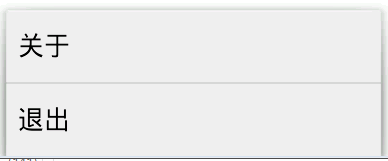
建立選單可覆寫 onCreateOptionsMenu,用 menu.add 加入項目;點擊時在 onOptionsItemSelected 中依 itemId 處理。若
 Android 本地化實戰:用資源限定符自動切換語言
Android App 可能同時被台灣、日本、德國的使用者安裝使用。若介面文字硬寫在程式碼或版面檔中,就永遠只能呈現一種語言。本地化要做的,是把這些文字抽成資源,並依裝置
 Android BroadcastReceiver 使用解析
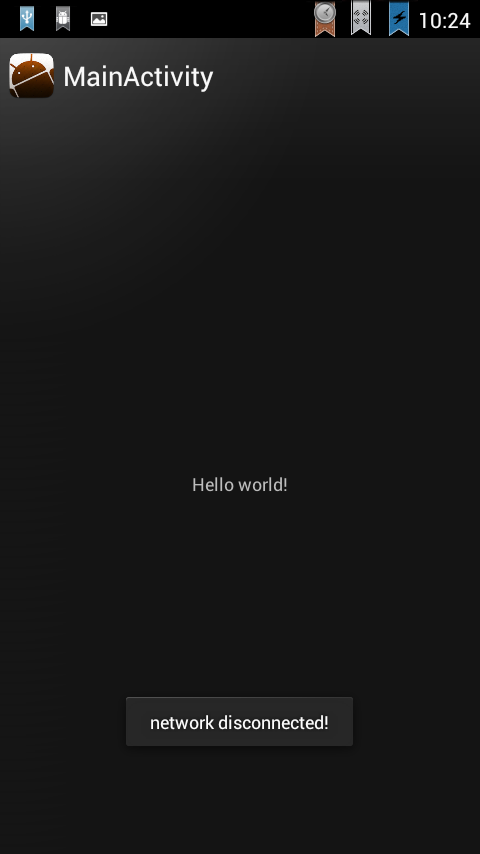
BroadcastReceiver 是 Android 四大元件之一,用於接收系統或應用送出的廣播 Intent。它常用於監聽網路變化、電量、時區、語言切換等事件。 基本