

編輯:Android 開發實例
正文
public class ImageSwitcher extends ViewSwitcher
java.lang.Object
android.view.View
android.view.ViewGroup
android.widget.FrameLayout
android.widget.ViewAnimator
android.widget.ViewSwitcher
android.widget.ImageSwitcher
(譯者註:ImageSwitcher 是 Android 中用來控制圖片展示效果的一個元件,例如幻燈片效果,頗有質感,拿來做相簿一絕。)
public void setImageDrawable (Drawable drawable)
繪製圖片
public void setImageResource (int resid)
設定圖片資源庫
public void setImageURI (Uri uri)
設定圖片位址
4.1 文章鏈接
Android ImageSwitcher
Image Switcher View | Android Developer Tutorial
4.2 範例程式碼(本文程式碼轉載自此處)
java 檔
public class mainactivity extends Activity implements
OnItemSelectedListener, ViewFactory {
private ImageSwitcher is;
private Gallery gallery;
private Integer[] mThumbIds = { R.drawable.b, R.drawable.c,
R.drawable.d, R.drawable.f, R.drawable.g,
};
private Integer[] mImageIds = { R.drawable.b, R.drawable.c,
R.drawable.d, R.drawable.f, R.drawable.g, };
@Override
protected void onCreate(Bundle savedInstanceState) {
super.onCreate(savedInstanceState);
requestWindowFeature(Window.FEATURE_NO_TITLE);
setContentView(R.layout.main);
is = (ImageSwitcher) findViewById(R.id.switcher);
is.setFactory(this);
is.setInAnimation(AnimationUtils.loadAnimation(this,
android.R.anim.fade_in));
is.setOutAnimation(AnimationUtils.loadAnimation(this,
android.R.anim.fade_out));
gallery = (Gallery) findViewById(R.id.gallery);
gallery.setAdapter(new ImageAdapter(this));
gallery.setOnItemSelectedListener(this);
}
@Override
public View makeView() {
ImageView i = new ImageView(this);
i.setBackgroundColor(0xFF000000);
i.setScaleType(ImageView.ScaleType.FIT_CENTER);
i.setLayoutParams(new ImageSwitcher.LayoutParams(
LayoutParams.MATCH_PARENT, LayoutParams.MATCH_PARENT));
return i;
}
public class ImageAdapter extends BaseAdapter {
public ImageAdapter(Context c) {
mContext = c;
}
public int getCount() {
return mThumbIds.length;
}
public Object getItem(int position) {
return position;
}
public long getItemId(int position) {
return position;
}
public View getView(int position, View convertView, ViewGroup parent) {
ImageView i = new ImageView(mContext);
i.setImageResource(mThumbIds[position]);
i.setAdjustViewBounds(true);
i.setLayoutParams(new Gallery.LayoutParams(
LayoutParams.WRAP_CONTENT, LayoutParams.WRAP_CONTENT));
i.setBackgroundResource(R.drawable.e);
return i;
}
private Context mContext;
}
@Override
public void onItemSelected(AdapterView<?> parent, View view, int position,
long id) {
is.setImageResource(mImageIds[position]);
}
@Override
public void onNothingSelected(AdapterView<?> parent) {
}
}
xml 檔
<?xml version="1.0" encoding="utf-8"?>
<RelativeLayout xmlns:android="https://schemas.android.com/apk/res/android"
android:layout_width="match_parent"
android:layout_height="match_parent">
<ImageSwitcher android:id="@+id/switcher"
android:layout_width="match_parent"
android:layout_height="match_parent"
android:layout_alignParentTop="true"
android:layout_alignParentLeft="true"
/>
<Gallery android:id="@+id/gallery"
android:background="#55000000"
android:layout_width="match_parent"
android:layout_height="60dp"
android:layout_alignParentBottom="true"
android:layout_alignParentLeft="true"
android:gravity="center_vertical"
android:spacing="16dp"
/>
</RelativeLayout>
本章內容為 android.widget.ImageSwitcher,版本為 Android 2.2 r1,翻譯來自「wallace2010」。
轉自:https://www.cnblogs.com/over140/archive/2010/11/11/1874932.html
 Android 手勢交互原理與實戰:GestureDetector 與 OnGestureListener 詳解
網上關於 Android 手勢的文章不算多,質量也參差不齊。這篇把自己摸索的結果整理出來,把執行流程、各個回調的含義與觸發順序講清楚。研究不深之處,歡迎指正。 一、一次
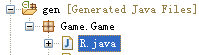 Android XML 靜態資源與 R.java 使用指南
Android 開發中,XML 靜態資源與 Java 程式碼經常搭配使用。XML 負責描述版面與資源,Java 負責控制邏輯,而 R.java 則是兩者之間的橋梁。R.j
 Android 自訂圓角 ListView:讓列表四角落下圓弧的完整做法
系統內建的 ListView 是矩形,點擊回饋也是整齊的方塊。若希望列表呈現「上圓角、下圓角」的卡片造型,需要自訂一個 ListView 子類,依點擊位置切換不同的 se
 Eclipse 中 aapt.exe 停止工作的排查方式
問題現象 在 Eclipse 開發 Android 專案時,若版面配置或 XML 檔有錯誤,可能會突然出現 aapt.exe 停止工作的提示。這類錯誤不一定伴隨明確訊息,