

編輯:關於 Android 程式設計
本文為大家分享 Android 中獲取圖片和視頻縮略圖的方法。
從 Android 2.2 開始,系統新增了 ThumbnailUtils 類(位於 framework 的 android.media.ThumbnailUtils),可以幫助我們從 mediaprovider 中獲取視頻或圖片文件的縮略圖。該類提供了三個靜態方法可直接調用。
static Bitmap createVideoThumbnail(String filePath, int kind) // 獲取視頻文件的縮略圖 // 第一個參數為視頻文件的位置,比如 /sdcard/android123.3gp // 第二個參數可為 MINI_KIND 或 MICRO_KIND,最終和分辨率有關
static Bitmap extractThumbnail(Bitmap source, int width, int height, int options) // 直接對 Bitmap 進行縮略操作 // 最後一個參數定義為 OPTIONS_RECYCLE_INPUT,來回收資源
static Bitmap extractThumbnail(Bitmap source, int width, int height) // 和上面的方法一樣,無 options 選項
public static Bitmap getVideoThumbnail(ContentResolver cr, Uri uri) { Bitmap bitmap = null; BitmapFactory.Options options = new BitmapFactory.Options(); options.inDither = false; options.inPreferredConfig = Bitmap.Config.ARGB_8888; Cursor cursor = cr.query(uri, new String[] { MediaStore.Video.Media._ID }, null, null, null); if (cursor == null || cursor.getCount() == 0) { return null; } cursor.moveToFirst(); String videoId = cursor.getString(cursor.getColumnIndex(MediaStore.Video.Media._ID)); if (videoId == null) { return null; } cursor.close(); long videoIdLong = Long.parseLong(videoId); bitmap = MediaStore.Video.Thumbnails.getThumbnail(cr, videoIdLong, Images.Thumbnails.MICRO_KIND, options); return bitmap; }
import java.io.File; import android.app.Activity; import android.graphics.Bitmap; import android.graphics.BitmapFactory; import android.media.ThumbnailUtils; import android.os.Bundle; import android.os.Environment; import android.provider.MediaStore; import android.widget.ImageView; /** 獲取圖片和視頻的縮略圖,這兩個方法必須在 2.2 及以上版本使用 */ public class AndroidTestActivity extends Activity { private ImageView imageThumbnail; private ImageView videoThumbnail; @Override public void onCreate(Bundle savedInstanceState) { super.onCreate(savedInstanceState); setContentView(R.layout.main); imageThumbnail = (ImageView) findViewById(R.id.image_thumbnail); videoThumbnail = (ImageView) findViewById(R.id.video_thumbnail); String imagePath = Environment.getExternalStorageDirectory().getAbsolutePath() + File.separator + "photo" + File.separator + "yexuan.jpg"; String videoPath = Environment.getExternalStorageDirectory().getAbsolutePath() + File.separator + "video" + File.separator + "醋點燈.avi"; imageThumbnail.setImageBitmap(getImageThumbnail(imagePath, 60, 60)); videoThumbnail.setImageBitmap(getVideoThumbnail(videoPath, 60, 60, MediaStore.Images.Thumbnails.MICRO_KIND)); } /** 根據指定的圖像路徑和大小獲取縮略圖 * 此方法有兩點好處:1. 使用較小的內存空間;2. 縮略圖對原圖像沒有拉伸。 */ private Bitmap getImageThumbnail(String imagePath, int width, int height) { Bitmap bitmap = null; BitmapFactory.Options options = new BitmapFactory.Options(); options.inJustDecodeBounds = true; // 獲取圖片的寬和高,此處 bitmap 為 null bitmap = BitmapFactory.decodeFile(imagePath, options); options.inJustDecodeBounds = false; // 計算縮放比 int h = options.outHeight; int w = options.outWidth; int beWidth = w / width; int beHeight = h / height; int be = 1; if (beWidth < beHeight) { be = beWidth; } else { be = beHeight; } if (be <= 0) { be = 1; } options.inSampleSize = be; // 重新讀入圖片,讀取縮放後的 bitmap bitmap = BitmapFactory.decodeFile(imagePath, options); // 利用 ThumbnailUtils 創建縮略圖 bitmap = ThumbnailUtils.extractThumbnail(bitmap, width, height, ThumbnailUtils.OPTIONS_RECYCLE_INPUT); return bitmap; } /** 獲取視頻的縮略圖 * kind 參照 MediaStore.Images.Thumbnails 類中的常量 MINI_KIND 和 MICRO_KIND * MINI_KIND: 512 x 384,MICRO_KIND: 96 x 96 */ private Bitmap getVideoThumbnail(String videoPath, int width, int height, int kind) { Bitmap bitmap = null; // 獲取視頻的縮略圖 bitmap = ThumbnailUtils.createVideoThumbnail(videoPath, kind); System.out.println("w" + bitmap.getWidth()); System.out.println("h" + bitmap.getHeight()); bitmap = ThumbnailUtils.extractThumbnail(bitmap, width, height, ThumbnailUtils.OPTIONS_RECYCLE_INPUT); return bitmap; } }
<?xml version="1.0" encoding="utf-8"?> <LinearLayout xmlns:android="https://schemas.android.com/apk/res/android" android:layout_width="fill_parent" android:layout_height="fill_parent" android:orientation="vertical" > <TextView android:layout_width="fill_parent" android:layout_height="wrap_content" android:text="圖片縮略圖" /> <ImageView android:id="@+id/image_thumbnail" android:layout_width="wrap_content" android:layout_height="wrap_content" /> <TextView android:layout_width="fill_parent" android:layout_height="wrap_content" android:text="視頻縮略圖" /> <ImageView android:id="@+id/video_thumbnail" android:layout_width="wrap_content" android:layout_height="wrap_content" /> </LinearLayout>
其中,圖片縮略圖採用了「兩次解碼」的技巧:第一次用 inJustDecodeBounds=true 只讀取寬高而不加載像素,據此計算縮放比 inSampleSize,第二次再真正加載壓縮後的圖,最後用 ThumbnailUtils.extractThumbnail 生成不拉伸的縮略圖。希望本文對大家有所幫助。
 自定義 View 入門:跟著 TextView 源碼走一遍四步流程
關於 Android 自定義 View,網上的文章和視頻很多,鴻洋的系列教程就很值得一讀。本文的打算是結合影音系統源碼,把「如何自定義一個 View」這件事講透。 分析對
 Android Studio 2.2 正式版深度體驗:更快、更智慧、更貼心
早在 I/O 2016,Google 就放出了 Android Studio 2.2 的預覽版,揭示了多項改進。但為了不影響公司專案,我通常不碰預覽版——預覽版意味著不穩
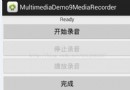 Android 使用 MediaRecorder 錄音與播放
上一篇介紹了以意圖(Intent)錄音的方式,本文則改用 MediaRecorder 類別來錄音,相較之下能提供更高的彈性與控制力,例如自訂音訊來源、輸出格式與編碼器。
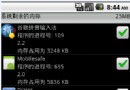 Android 實作任務管理器的核心方法
任務管理器是 Android 中常見的系統工具類型,主要用於查看與管理執行中的應用程式。它可以顯示目前執行的進程、記憶體使用量,並提供結束進程的功能。 主要功能 一個基本