

編輯:關於 Android 程式設計
內部儲存空間在 App 移除時會一併清除,若要放使用者產生的檔案或較大的資料,寫到外部儲存(SD 卡)是常見選擇。以下示範兩個按鈕,一個負責寫入、一個負責讀回,並把外部儲存的判斷與權限處理完整交代。
<?xml version="1.0" encoding="utf-8"?>
<LinearLayout xmlns:android="https://schemas.android.com/apk/res/android"
    android:layout_width="match_parent"
    android:layout_height="match_parent"
    android:orientation="vertical" >
    <Button
        android:id="@+id/save"
        android:layout_width="wrap_content"
        android:layout_height="wrap_content"
        android:text="保存數據(File)" />
    <Button
        android:id="@+id/read"
        android:layout_width="wrap_content"
        android:layout_height="wrap_content"
        android:text="讀取數據(File)" />
</LinearLayout>
package com.example.yanlei.wifi;

import android.os.Bundle;
import android.os.Environment;
import android.support.v7.app.AppCompatActivity;
import android.view.View;
import android.view.View.OnClickListener;
import android.widget.Button;
import android.widget.Toast;
import java.io.File;
import java.io.FileInputStream;
import java.io.FileNotFoundException;
import java.io.FileOutputStream;
import java.io.PrintStream;
import java.util.Scanner;

public class MainActivity extends AppCompatActivity {
    private Button btnSave = null;
    private Button btnRead = null;
    private File file = null;
    private static final String FILENAME = "data.txt";

    @Override
    protected void onCreate(Bundle savedInstanceState) {
        super.onCreate(savedInstanceState);
        setContentView(R.layout.activity_main);
        btnSave = (Button) super.findViewById(R.id.save);
        btnRead = (Button) super.findViewById(R.id.read);

        btnSave.setOnClickListener(new OnClickListener() {
            public void onClick(View v) {
                // 寫入前務必先確認外部儲存已掛載
                if (!Environment.getExternalStorageState().equals(Environment.MEDIA_MOUNTED)) {
                    Toast.makeText(getApplicationContext(), "讀取失敗,SD存儲卡不存在!",
                            Toast.LENGTH_LONG).show();
                    return;
                }

                String path = Environment.getExternalStorageDirectory().toString()
                        + File.separator + "genwoxue" + File.separator + FILENAME;
                file = new File(path);
                // 父目錄不存在時先建立
                if (!file.getParentFile().exists()) {
                    file.getParentFile().mkdirs();
                }

                PrintStream ps = null;
                try {
                    ps = new PrintStream(new FileOutputStream(file));
                    ps.println("跟我學網址:www.genwoxue.com");
                    ps.println("");
                    ps.println("電子郵件:hello@genwoxue.com");
                    Toast.makeText(getApplicationContext(), "保存成功!", Toast.LENGTH_LONG).show();
                } catch (FileNotFoundException e) {
                    e.printStackTrace();
                } finally {
                    if (ps != null) {
                        ps.close();
                    }
                }
            }
        });

        btnRead.setOnClickListener(new OnClickListener() {
            public void onClick(View v) {
                if (!Environment.getExternalStorageState().equals(Environment.MEDIA_MOUNTED)) {
                    Toast.makeText(getApplicationContext(), "讀取失敗,SD存儲卡不存在!",
                            Toast.LENGTH_LONG).show();
                    return;
                }

                String path = Environment.getExternalStorageDirectory().toString()
                        + File.separator + "genwoxue" + File.separator + FILENAME;
                file = new File(path);
                if (!file.exists()) {
                    Toast.makeText(getApplicationContext(), "文件不存在!", Toast.LENGTH_LONG).show();
                    return;
                }

                StringBuffer info = new StringBuffer();
                Scanner scan = null;
                try {
                    scan = new Scanner(new FileInputStream(file));
                    while (scan.hasNext()) {
                        info.append(scan.next()).append("☆☆☆\n");
                    }
                    Toast.makeText(getApplicationContext(), info.toString(),
                            Toast.LENGTH_LONG).show();
                } catch (FileNotFoundException e) {
                    e.printStackTrace();
                } finally {
                    if (scan != null) {
                        scan.close();
                    }
                }
            }
        });
    }
}
<?xml version="1.0" encoding="utf-8"?>
<manifest xmlns:android="https://schemas.android.com/apk/res/android"
    package="com.example.yanlei.wifi" >

    <!-- 在 SDCard 中創建與刪除文件 -->
    <uses-permission android:name="android.permission.MOUNT_UNMOUNT_FILESYSTEMS"/>
    <!-- 讀取外部儲存 -->
    <uses-permission android:name="android.permission.READ_EXTERNAL_STORAGE"/>
    <!-- 寫入外部儲存 -->
    <uses-permission android:name="android.permission.WRITE_EXTERNAL_STORAGE" />

    <application
        android:allowBackup="true"
        android:icon="@mipmap/ic_launcher"
        android:label="@string/app_name"
        android:theme="@style/AppTheme" >
        <activity android:name=".MainActivity" android:label="@string/app_name" >
            <intent-filter>
                <action android:name="android.intent.action.MAIN" />
                <category android:name="android.intent.category.LAUNCHER" />
            </intent-filter>
        </activity>
    </application>
</manifest>
第一,WRITE_EXTERNAL_STORAGE 屬於危險權限,Android 6.0 起僅在 Manifest 宣告不夠,必須在執行期用 requestPermissions 向使用者動態詢問,否則 getExternalStorageDirectory 寫入會直接抛出 SecurityException。
第二,Android 4.4 之後,即使拿到寫入權限,App 也只能在外部儲存中屬於自己的目錄(getExternalFilesDir())自由寫入,對其他目錄的寫入受限。跨版本都安全的做法是改用 getExternalFilesDir(),免權限且不受系統清理策略影響。
第三,範例中的檔案 I/O 寫在主執行緒上,資料量一大就會造成 ANR,實務上請移到背景執行緒,並在 finally 中確保串流關閉。另外 MOUNT_UNMOUNT_FILESYSTEMS 是系統保留權限,一般應用無法取得,可以從宣告中移除。
 Android 動畫開發實踐:View 動畫、屬性動畫與幀動畫
動畫讓介面更有生命力 好的動畫能讓操作更直覺,也能降低畫面切換的生硬感。Android 常見動畫可分為 View 動畫、屬性動畫與幀動畫,三者適用場景不同。 View 動
 Android 監聽應用安裝與卸載廣播實作教學
BroadcastReceiver 的基本觀念 BroadcastReceiver 是系統全域的廣播監聽類,核心方法是 onReceive()。自訂的接收器繼承它並實作自
 Material Design 動畫六大主題:漣漪、揭示、路徑與向量動畫
之前談過 ActivityOptions 那套優雅的轉場動畫,但那份參考資料裡其實還藏了不少好東西。這篇就把剩下的部分一次補齊。 一、觸控回饋:漣漪效果 Materia
 Android ListView 元件解析:結構、XML 屬性與核心方法
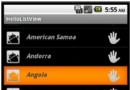
本文整理 Android 中 ListView 的關鍵 API,適合在查閱官方文件時快速定位重點。一、類別結構ListView 是 Android 中常見的列表容器,其繼