

編輯:關於 Android 程式設計
重新開始碰系統層的東西,有點回到兩年前的感覺。之前在公司做方案盒子時沒養成寫筆記的習慣,這篇算是補課,也順便回答網友的提問。內容純粹是工具設定,不涉及原理。
關於 Android Studio 在 App 開發上的設定,前面寫過一篇《Android Studio 入門到精通》,這裡不重複。本篇要講的是用它來看系統原始碼,範例以官方 android-5.1.1_r14 為準。
以前看修改原始碼時用的是 Eclipse 匯入部分模組的方式,一次只能看局部。後來在原始碼裡發現有個 development/tools/idegen 目錄,查了一下才發現這是官方用來產生 IDE 專案檔案的工具(主要是 IntelliJ 的專案檔,也就是 Android Studio 用的那種)。福利就這麼自己送上門了。
三件事要先搞定:安裝並設定好 Android Studio;下載好原始碼;確認原始碼已經完整編譯過,也就是 out 目錄及其產物存在。最後這點常被忽略,但後面的步驟會用到。
先編譯 idegen 模組:
mmm development/tools/idegen/
這行會編出 idegen.jar(寫法依據該模組的 Android.mk)。看到下面這段訊息就代表成功:
#### make completed successfully (7 seconds) ####
接著執行產生的腳本:
development/tools/idegen/idegen.sh
它會在根目錄產出 android.ipr 與 android.iml 這組 IntelliJ 專案檔。看到類似下面的輸出即可:
Read excludes: 21ms
Traversed tree: 194799ms
Eclipse 匯入原始碼很慢,Android Studio 也不快。建議先改 android.iml,把用不到的目錄排除掉再匯入,速度差很多。檔案裡本來就有一批排除規則,從 1887 行左右開始:
<sourceFolder is测试Source="true"
    url="file://$MODULE_DIR$/./sdk/testapps/userLibTest/src" />
<sourceFolder is测试Source="false"
    url="file://$MODULE_DIR$/./tools/external/fat32lib/src/main/java" />
<excludeFolder url="file://$MODULE_DIR$/out/eclipse/" />
<excludeFolder url="file://$MODULE_DIR$/.repo/" />
<excludeFolder url="file://$MODULE_DIR$/external/bluetooth/" />
<excludeFolder url="file://$MODULE_DIR$/external/chromium/" />
<excludeFolder url="file://$MODULE_DIR$/external/icu4c/" />
<excludeFolder url="file://$MODULE_DIR$/external/webkit/" />
<excludeFolder url="file://$MODULE_DIR$/frameworks/base/docs/" />
<excludeFolder url="file://$MODULE_DIR$/out/host/" />
<excludeFolder url="file://$MODULE_DIR$/out/target/common/docs/" />
<excludeFolder url="file://$MODULE_DIR$/out/target/product/" />
<excludeFolder url="file://$MODULE_DIR$/prebuilt/" />
照 .repo/ 那行的寫法,把不需要的目錄一條條補進 excludeFolder 即可。
另一條路是匯入之後,透過 File → Project Structure → Modules,在右側 Sources 頁籤把不要的目錄設為 Excluded。效果一樣,只是要等第一次索引跑完。
開啟 Android Studio,選「Open an existing project」,指定原始碼根目錄下的 android.ipr,然後就是等索引跑完。
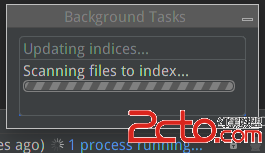
索引完成後,搜尋整棵原始碼樹已經沒問題了。但這時打開任何一個 Service.java,按住 Ctrl 點擊某個方法的 Intent 參數,你會發現跳過去的是 Intent.class——因為它跳到了預設 SDK 的 jar 裡。要看原始碼的人碰到這種情況會很痛苦,所以要手動調整依賴。
第一步,把 Project Structure 裡的依賴清乾淨,只保留必要的兩項:
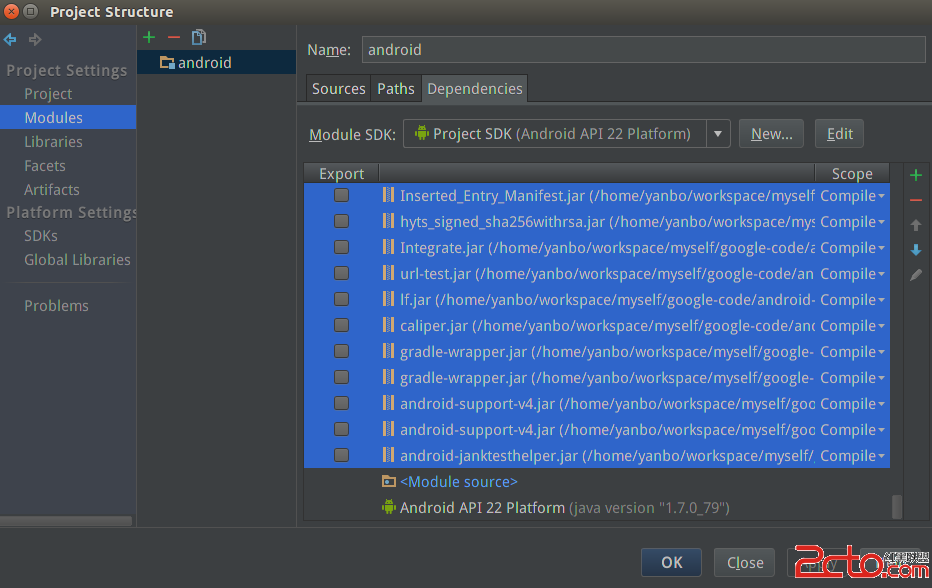
第二步,點擊「+」→ JARs or directories,把原始碼的 frameworks、external 以及其他你想跳轉進去的目錄加進來,Apply 後重新索引。
這時候再試一次從 Service.java 跳到 Intent,就會直接落到原始碼路徑下的 Intent.java:
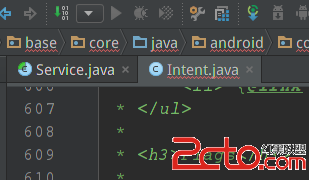
對只是想看原始碼的人來說,到這一步就夠用了。
工欲善其事,必先利其器。實測下來,無論是程式碼提示、跳轉還是各類外掛支援,Android Studio 都比 Eclipse 與 Source Insight 順手(Sublime Text 系列插件仍然很強,但那是另一種用法)。慢慢用就會體會到差異。
順帶一提,Google 的野心確實不小,看架勢是想把 Android Studio 打造成萬能 IDE。
IDEGen automatically generates Android IDE configurations for IntelliJ IDEA and Eclipse. Your IDE should be able to compile everything in a reasonable amount of time with no errors.
If you're using IntelliJ…
If this is your first time using IDEGen...

IDEA needs a lot of memory. Add -Xms748m -Xmx748m to your VM options in
IDEA_HOME/bin/idea.vmoptions on Linux, or
IntelliJ IDEA.app/Contents/Info.plist on OS X.

Create a JDK configuration named "1.6 (No Libraries)" by adding a new JDK
like you normally would and then removing all of the jar entries under the
Classpath tab. This will ensure that you only get access to Android's core
libraries and not those from your desktop VM.

From the project's root directory...

Repeat these steps after each sync...

1) make                       (to produce generated .java source)
2) development/tools/idegen/idegen.sh
3) Open android.ipr in IntelliJ. If you already have the project open, hit
   the sync button in IntelliJ, and it will automatically detect the updated
   configuration. If you get unexpected compilation errors from IntelliJ,
   try running Build -> Rebuild Project. Sometimes IntelliJ gets confused
   after the project changes significantly.
If you're using Eclipse…
If this is your first time using IDEGen...

Edit eclipse.ini (Eclipse.app/Contents/MacOS/eclipse.ini on OS X) and add
-Xms748m -Xmx748m to your VM options.

Configure a JRE named "1.5 (No Libraries)" under
Preferences -> Java -> Installed JREs. Remove all of the jar entries
underneath "JRE system libraries". Eclipse will not let you save your
configuration unless at least one jar is present, so include a random jar
that won't get in the way.

From the project's root directory...

Repeat these steps after each sync...

1) make                       (to produce generated .java source)
2) development/tools/idegen/idegen.sh
3) Import the project root directory into your Eclipse workspace. If you
   already have the project open, simply refresh it (F5).
Excluding source roots and jars
IDEGen keeps an exclusion list in the "excluded-paths" file. This file has
one regular expression per line that matches paths (relative to the project
root) that should be excluded from the IDE configuration. We use Java's
regular expression parser (see java.util.regex.Parser).

You can create your own additional exclusion list by creating an
"excluded-paths" file in the project's root directory. For example, you
might exclude all apps except the Browser in your IDE configuration with
this regular expression:

    ^packages/apps/(?!Browser)
Controlling source root ordering (Eclipse)
You may want some source roots to come before others in Eclipse. Simply
create a file named "path-precedence" in your project's root directory.
Each line in the file is a regular expression that matches a source root
path (relative to the project's root directory). If a given source root's
path matches a regular expression that comes earlier in the file, that
source root will come earlier in the generated configuration. If a source
root doesn't match any of the expressions in the file, it will come last,
so you effectively have an implicit .* rule at the end of the file.

For example, if you want your applications's source root to come first,
you might add an expression like this to the top of the path-precedence
file:

    ^packages/apps/MyApp/src

To make source roots under ./out come last, add this line:

    ^(?!out/)     (matches all paths that don't start with out/)
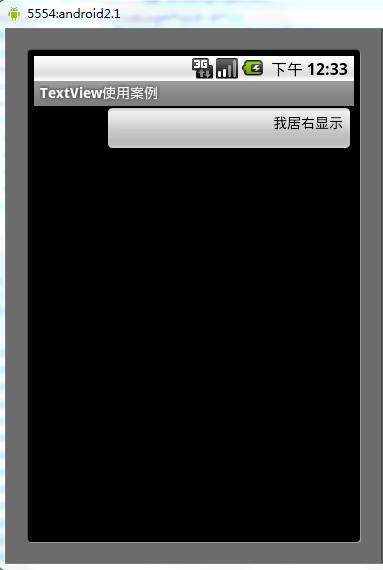 Android 中 gravity 與 layout_gravity 的區別詳解
在 Android 布局開發中,gravity 與 layout_gravity 這兩個屬性名字相近,含義卻截然不同,是很多初學者容易混淆的知識點。 简单来说:andro
 360 Q5 與 Q5 Plus 參數對比:差 200 元差在哪
360 推出了 Q5 與 Q5 Plus 兩款主打安全的機型。名字只差一個字,定位卻分屬中階與旗艦,下面把規格攤開來比。 外觀與螢幕 兩者最直觀的差異是螢幕尺寸。360
 手機QQ聊天記錄怎麼導出?檔案位置與備份路徑完整說明
聊天記錄裡偶爾會藏著重要資訊:一段約定時間的對話、一組別人傳給你的帳號、一張需要留存的截圖。手機QQ內建了導出功能,但入口藏在聊天記錄頁面裡,很多人不知道。此外,直接從檔
 Android RxJava 使用介紹(二):操作符(上)
上一篇我們用一個簡單的例子展示了 RxJava 的基本用法,相信大家已對它有了初步認識。由於上次只是點到為止,也許你還會覺得 RxJava 有點名不副實。那麼這一篇,我們