

編輯:關於 Android 程式設計
專案需要一個外觀特殊的開關,系統預設的 SwitchButton 不合用,於是就自己畫了一顆。成品如下:


1. 畫圓角矩形當背景
2. 畫 ON/OFF 文字
3. 畫滑動的小圓
4. 让小圓左右滑動並附帶動畫
全部靠 Canvas 手繪,不用一張圖片。
public class MySwitchButton extends View {

    private int w, h;                 // 控件寬高
    private boolean flag_switch;      // 開關狀態
    private boolean flag_touch;       // 是否正在被觸碰

    private String ON = "ON";
    private String OFF = "OFF";
    private float textSize = 40;

    private int color1 = 0xff999999;  // 關:背景色
    private int color2 = 0xff3e9edb;  // 開:背景色
    private int color_bg = color1;

    private int circle_bg_nomal = Color.WHITE;
    private int circle_bg_touch = Color.YELLOW;

    private float y;                  // 圓心
    private float x;
    private float radius;             // 圓半徑
    private int distance = 10;        // 左右內距

    private OnCircleClickListner mOnCircleClickListner;

    public MySwitchButton(Context context) { super(context); }

    public MySwitchButton(Context context, AttributeSet attrs, int defStyleAttr) {
        super(context, attrs, defStyleAttr);
    }

    public MySwitchButton(Context context, AttributeSet attrs) {
        super(context, attrs);
    }

    public void setOnCircleClickListner(OnCircleClickListner l) {
        this.mOnCircleClickListner = l;
    }

    public boolean isFlag_switch() { return flag_switch; }

    public void setChecked(boolean flag_switch) {
        this.flag_switch = flag_switch;
        if (flag_switch) {
            x = distance + radius;
            color_bg = color2;
        } else {
            x = w - (distance + radius);
            color_bg = color1;
        }
        circleMove();
    }

    @Override
    public boolean onTouchEvent(MotionEvent event) {
        switch (event.getAction()) {
            case MotionEvent.ACTION_DOWN:
                flag_touch = true;
                invalidate();
                break;
            case MotionEvent.ACTION_MOVE:
                break;
            case MotionEvent.ACTION_UP:
                if (mOnCircleClickListner != null) {
                    mOnCircleClickListner.onClick(MySwitchButton.this, !flag_switch);
                }
                flag_touch = false;
                invalidate();
                break;
        }
        return true;
    }

    @Override
    protected void onSizeChanged(int w, int h, int oldw, int oldh) {
        super.onSizeChanged(w, h, oldw, oldh);
        this.w = w;
        this.h = h;
        y = h / 2;
        radius = h / 2 - distance;
        x = distance + radius;
        circleMove();
    }

    @Override
    protected void onDraw(Canvas canvas) {
        Paint paint = new Paint();
        paint.setAntiAlias(true);
        canvas2RoundRect(canvas, paint);   // 背景
        canvas2Text(canvas, paint);        // 文字
        canvas2Circle(canvas, paint);      // 滑塊
        super.onDraw(canvas);
    }

    public void canvas2RoundRect(Canvas canvas, Paint paint) {
        paint.setColor(color_bg);
        RectF oval = new RectF(0, 0, w, h);
        canvas.drawRoundRect(oval, 45, 45, paint);
    }

    public void canvas2Text(Canvas canvas, Paint paint) {
        paint.setColor(Color.WHITE);
        paint.setTextSize(textSize);
        paint.setAntiAlias(true);
        Rect rect = new Rect();
        float textWight = paint.measureText(ON);
        // 依開關狀態決定畫 ON 還是 OFF,並居中
        String text = flag_switch ? ON : OFF;
        paint.getTextBounds(text, 0, text.length(), rect);
        float textHight = rect.height();
        canvas.drawText(text, w - textWight - 15, h / 2 + textHight / 2, paint);
    }

    public void canvas2Circle(Canvas canvas, Paint paint) {
        paint.setColor(flag_touch ? circle_bg_touch : circle_bg_nomal);
        canvas.drawCircle(x, y, radius, paint);
    }

    Timer timer;
    TimerTask task;

    /** 小圓的移動軌跡 */
    public void circleMove() {
        final float startX = distance + radius;
        final float endX = w - (distance + radius);
        final long upDataDistance = 10;

        if (timer != null) {
            task.cancel();
            timer.cancel();
            timer = null;
            task = null;
        }

        timer = new Timer();
        task = new TimerTask() {
            @Override
            public void run() {
                if (flag_switch) {
                    x += upDataDistance;   // 往右開
                } else {
                    x -= upDataDistance;   // 往左關
                }
                if (x >= endX) {
                    x = endX;
                    this.cancel();
                    timer.cancel();
                    timer = null;
                } else if (x <= startX) {
                    x = startX;
                    this.cancel();
                    timer.cancel();
                    timer = null;
                }
                postInvalidate();
            }
        };
        timer.schedule(task, 0, 10);
    }

    public interface OnCircleClickListner {
        void onClick(MySwitchButton view, boolean checked);
    }
}
<com.example.test_myview.MySwitchButton
    android:id="@+id/msb"
    android:layout_width="70dp"
    android:layout_height="27dp" />
要讓滑塊動起來,別忘了在監聽回呼裡呼叫 setChecked(boolean),它會啟動 circleMove() 這個以 Timer 驅動的逐格位移。
這版實作用 Timer + postInvalidate 做動畫,好懂但效能普通;若要 production 使用,建議改用 ValueAnimator 或 postOnAnimation(),並把 onDraw 裡每次 new 出來的 Paint 提到類別成員,減少不必要的配置。
 非同步載圖第二彈:修掉崩潰、補上進度,並換用 NumberProgressBar
上一節我們用 AsyncTask 完成了非同步下載圖片,但留下了三個問題:無網路時點擊會崩潰、進度條沒有真的更新、以及只能用系統內建的 ProgressBar。這次逐一解
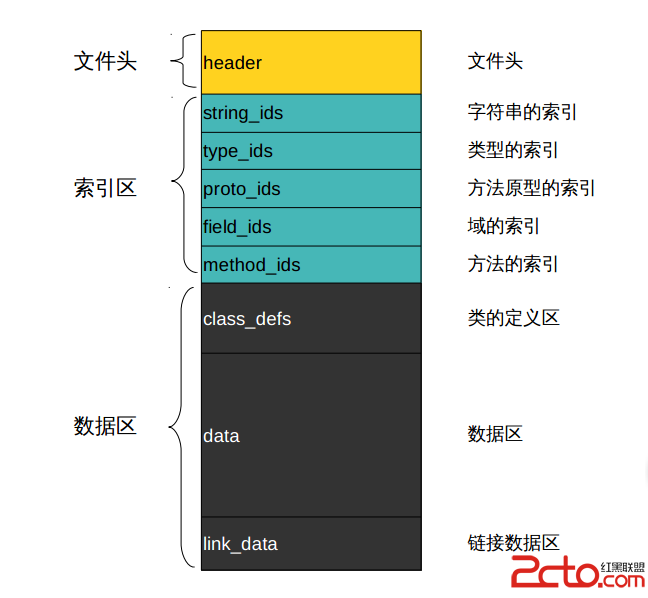 Android 對抗反編譯的一種思路:動一動 dex 的 source_file_idx
本文記錄一種干擾反編譯工具的做法。核心思路並不是加密,而是利用 dex 格式中一個「可有可無」的字段,讓靜態解析工具解析失敗,從而提高逆向的門檻。 一、先認識 dex 與
 Android 6.0 執行期權限機制完整指南
Android 6.0(API 23)對權限模型做了一次結構性的調整:除了繼續在 AndroidManifest.xml 中宣告權限之外,還引入了「執行期權限」的動態檢測
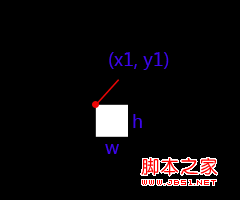 Android 圖像繪製(七)ClipRect 局部繪圖與切割原圖總結
雜語:看了很多工程師都有寫部落格的習慣,看來我也得練練,不管寫得好不好,學到點東西就把體會寫寫。 內容解說 這幾天開始學遊戲地圖製作,今天小小心地總結一下 Canvas