

編輯:關於 Android 程式設計
在使用定位功能前,通常需要先檢測 GPS 是否已開啟,若未開啟則引導用戶前往系統設置頁開啟。
首先在清單文件中加入定位權限:
<uses-permission android:name="android.permission.ACCESS_FINE_LOCATION" />
核心代碼如下:
/**
 * 監聽 GPS 狀態
 */
private void initGPS() {
    LocationManager locationManager = (LocationManager)
            this.getSystemService(Context.LOCATION_SERVICE);

    // 判斷 GPS 模塊是否開啟,若未開啟則引導用戶前往設置
    if (!locationManager.isProviderEnabled(LocationManager.GPS_PROVIDER)) {
        Toast.makeText(TrainDetailsActivity.this, "請打開GPS", Toast.LENGTH_SHORT).show();
        AlertDialog.Builder dialog = new AlertDialog.Builder(this);
        dialog.setMessage("請打開GPS");
        dialog.setPositiveButton("確定", new android.content.DialogInterface.OnClickListener() {
            @Override
            public void onClick(DialogInterface arg0, int arg1) {
                // 跳轉到手機設置界面,由用戶手動開啟 GPS
                Intent intent = new Intent(Settings.ACTION_LOCATION_SOURCE_SETTINGS);
                startActivityForResult(intent, 0);
            }
        });
        dialog.setNeutralButton("取消", new android.content.DialogInterface.OnClickListener() {
            @Override
            public void onClick(DialogInterface arg0, int arg1) {
                arg0.dismiss();
            }
        });
        dialog.show();
    } else {
        // GPS 已開啟,可繼續後續定位邏輯
    }
}
關鍵在於透過 LocationManager.isProviderEnabled() 判斷 GPS 提供者是否可用,若不可用則用 Settings.ACTION_LOCATION_SOURCE_SETTINGS 這個系統意圖,一鍵跳轉到系統的位置信息設置頁,用戶開啟後即可返回原頁面繼續操作。
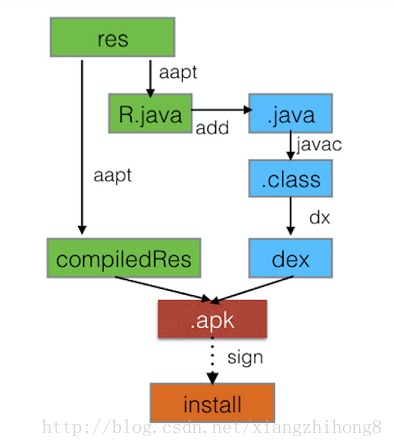 Android aapt 打包工具詳解:常用命令與 APK 資源處理
aapt 是 Android Asset Packaging Tool 的縮寫,是 Android 建置流程中非常重要的資源打包工具。它位於 SDK 的 build-to
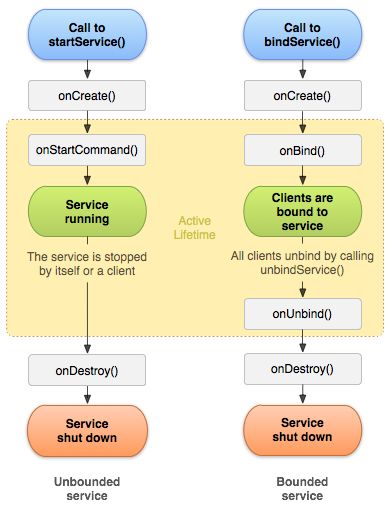 Android Service 與進程間通信(AIDL/IPC)完整解析
Service 是什麼 Service 是在後台長期運作、沒有使用者介面的元件。其他元件可以啟動它讓它在後台跑,也可以綁定它進行互動,甚至藉此實現跨進程通信(IPC)。
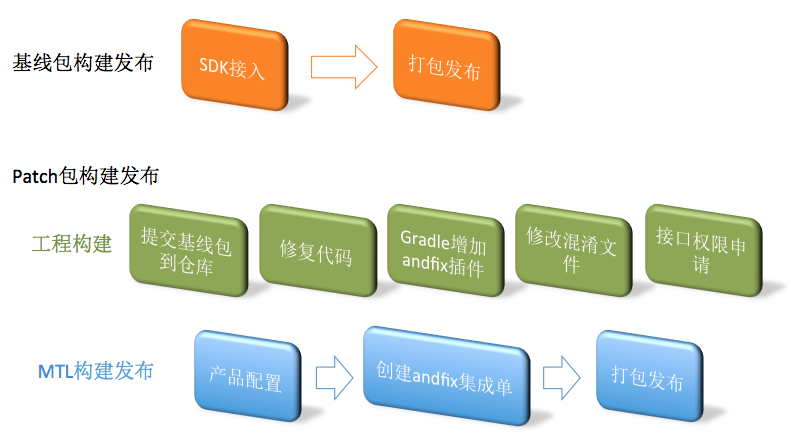 Android Gradle 項目接入 Andfix 熱修復的完整指南
前言 不少團隊都有接入 Android Andfix 的剛性需求,但早期版本的接入成本偏高:只支援 maven 工程、定製打包插件限制很多、摩天輪打包不支援普通(非 bu
 RecyclerView 下拉刷新與加載更多:一次講透封裝思路與踩坑記錄
「下拉刷新 + 上滑加載更多」幾乎是資訊類應用的標配交互。聽起來簡單,真正動手時卻要同時應對 RecyclerView、SwipeRefreshLayout、滑動監聽、