

編輯:關於 Android 程式設計
要在 Android 上進行自訂繪圖,最關鍵的兩個元素就是 Canvas(畫布)與 Paint(畫筆)。Canvas 負責執行實際的作畫動作,而 Paint 則描述繪製的風格,例如顏色、線條樣式與粗細。兩者搭配,就能畫出千變萬化的圖形。
最典型的做法是繼承 View 類別,建立一個名為 MyView 的自訂元件,並在 onDraw 回呼方法中完成繪製:
public class MyView extends View {
    public MyView(Context context, AttributeSet set) {
        super(context, set);
    }

    @Override
    protected void onDraw(Canvas canvas) {
        super.onDraw(canvas);
        canvas.drawColor(Color.WHITE);

        Paint paint = new Paint();
        paint.setColor(Color.RED);
        paint.setStyle(Paint.Style.STROKE);
        canvas.drawRect(new Rect(10, 10, 50, 20), paint);
    }
}
若需要連接多個座標點繪製折線,可以善用 Path:
Path path = new Path();
path.lineTo(x1, y1);
path.lineTo(x2, y2);
path.lineTo(x3, y3);
path.lineTo(x4, y4);
canvas.drawPath(path, paint);
逐幀動畫的原理類似傳統的翻頁動畫,靠連續切換多張靜態圖片來營造動態效果。實作上需要兩個關鍵元素:AnimationDrawable 以及描述動畫的 XML 資源檔。
首先在 res/anim 目錄下建立 XML 檔(例如 anim_pro):
<?xml version="1.0" encoding="utf-8"?>
<animation-list
    xmlns:android="https://schemas.android.com/apk/res/android"
    android:oneshot="false">
    <item android:drawable="@drawable/icon"  android:duration="150" />
    <item android:drawable="@drawable/icon2" android:duration="150" />
    <item android:drawable="@drawable/icon3" android:duration="150" />
</animation-list>
其中 oneshot 屬性用來控制是否循環播放:設為 true 時只播放一次,設為 false 則會不斷重複。
動畫預設不會自動播放,載入資源後可透過 start() 與 stop() 來控制:
// 載入動畫
ImageView imgV = (ImageView) findViewById(R.id.animView);
imgV.setBackgroundResource(R.drawable.anim_pro);      // 載入動畫資源
anim = (AnimationDrawable) imgV.getBackground();       // 取得動畫物件

// 控制播放與停止
anim.start();
anim.stop();
補間動畫透過指定起始與結束狀態,讓系統自動計算中間的過渡畫面,常用於縮放、旋轉、透明度變化等效果。
<?xml version="1.0" encoding="UTF-8" ?>
<set xmlns:android="https://schemas.android.com/apk/res/android"
    android:interpolator="@android:anim/linear_interpolator">

    <!-- 縮放變換 -->
    <scale android:fromXScale="1.0"
        android:toXScale="0.01"
        android:fromYScale="1.0"
        android:toYScale="0.01"
        android:pivotX="50%"
        android:pivotY="50%"
        android:fillAfter="true"
        android:duration="3000"/>

    <!-- 透明度變換 -->
    <alpha
        android:fromAlpha="1"
        android:toAlpha="0.05"
        android:duration="3000"/>

    <!-- 旋轉變換 -->
    <rotate
        android:fromDegrees="0"
        android:toDegrees="1800"
        android:pivotX="50%"
        android:pivotY="50%"
        android:duration="3000"/>
</set>
ImageView imgV = (ImageView) findViewById(R.id.animV);
Animation anim = AnimationUtils.loadAnimation(this, R.anim.anim);
anim.setFillAfter(true);        // 動畫結束後保留最終狀態

imgV.startAnimation(anim);      // 啟動動畫
相較於一般的 View,SurfaceView 在處理高頻率重繪的遊戲動畫場景時表現更為出色。它將繪製內容獨立到一個背景執行緒,能大幅降低主執行緒的負擔,讓畫面更流暢,是開發遊戲時經常採用的方案。
 Android 圖片處理實作:高效高斯模糊與動態過渡效果
這篇文章要和大家分享 Android 圖片處理的高效做法,有需求的時候可以參考一下。 先說明本範例要實現的效果:透過手指在圖片上上下滑動,實現圖片由清晰到模糊的漸變過渡。
 Android MediaPlayer 播放框架 UML 圖解析
本文透過一張 UML 類別圖,講解 mp3 檔案播放的整體框架流程,內容涵蓋以下幾個面向: 1、UML 類別圖; 2、Stagefright Player 是如何被建立的
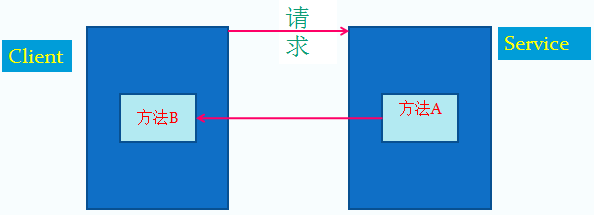 Java 與 Android 回調機制詳解:從介面回調到異步通知
Java 與 Android 回調機制詳解 回調機制是程式中非常常見的設計手法。簡單來說,當 Client 呼叫 Service 的某個方法後,Service 在未來某個
 Android 下載並顯示網路圖片:HttpURLConnection 與 Bitmap 解碼
在 Android 應用中,從網路取得圖片並顯示出來是很常見的需求。整個流程可拆成幾個步驟:取得圖片網址、建立連線、讀取二進位資料、轉換成 Bitmap,最後設定給 Im