

編輯:關於 Android 開發
打包時遇到類似這樣的報錯:
Error: java.lang.RuntimeException: Some file crunching failed, see logs for details
而完整日誌通常更明確:
FAILURE: Build failed with an exception.

* What went wrong:
Execution failed for task ':app:mergeDebugResources'.
> Error: java.lang.RuntimeException: Crunching Cruncher ic_default_home_new.png failed, see logs

* Try:
Run with --stacktrace option to get the stack trace.
Run with --info or --debug option to get more log output.
Gradle 在合併資源階段會對 PNG 圖片執行 crunching(再壓縮)處理,同時會檢查文件後綴名與真實格式是否一致。最常見的觸發原因就是把 jpg 圖片直接改名成 png——文件內容仍是 JPEG,擴展名卻寫著 .png,cruncher 解析失敗,於是整個構建中斷。
另一種可能是圖片本身已損壞或使用了 cruncher 不支援的 PNG 變體。
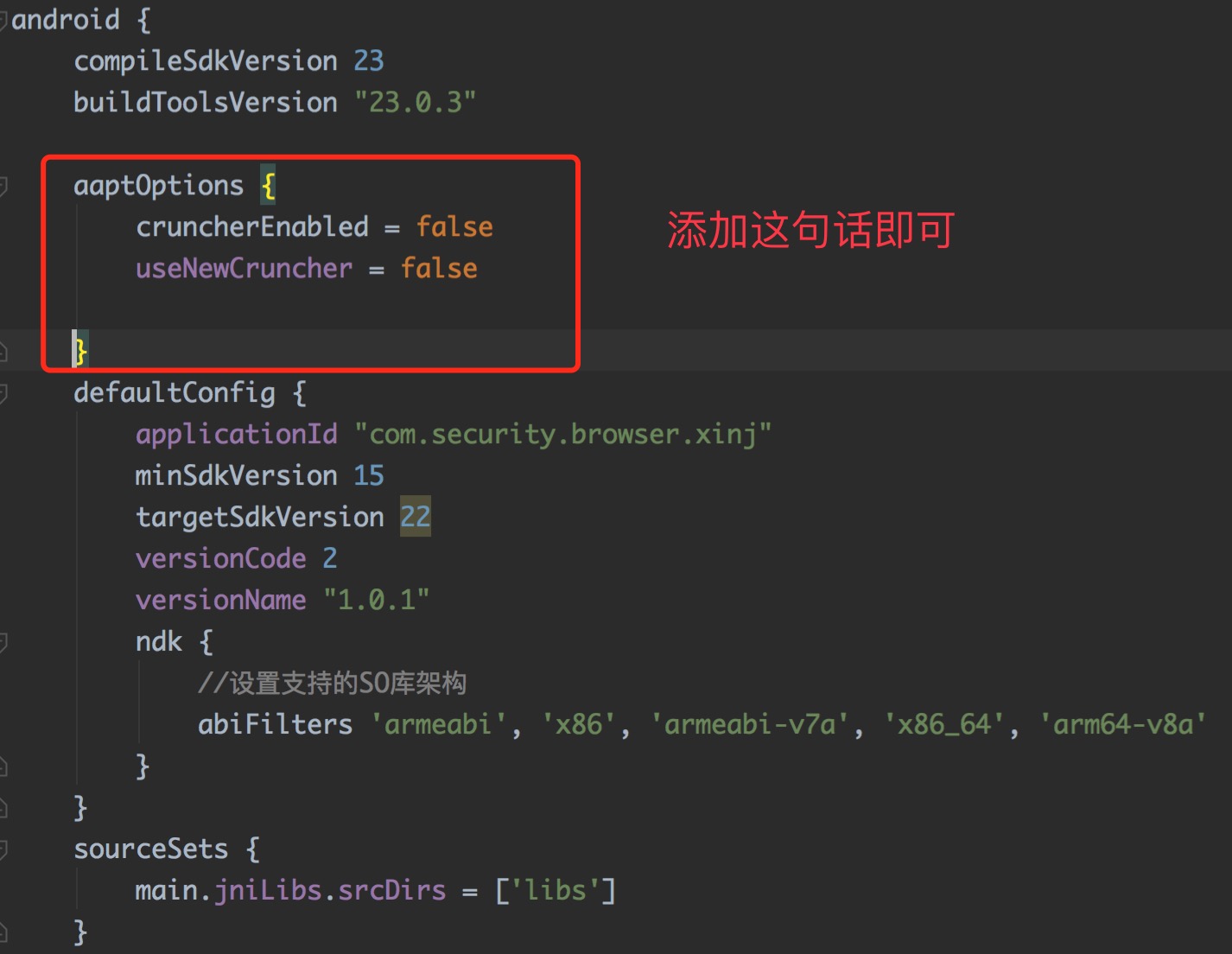
在模塊的 build.gradle 的 android 節點中加入 aaptOptions 配置:
android {
    compileSdkVersion 23
    buildToolsVersion "23.0.3"

    aaptOptions {
        cruncherEnabled = false
        useNewCruncher = false
    }

    defaultConfig {
        applicationId "com.security.browser.xinj"
        minSdkVersion 15
        targetSdkVersion 22
        versionCode 2
        versionName "1.0.1"
        ndk {
            // 設置支持的 SO 庫架構
            abiFilters 'armeabi', 'x86', 'armeabi-v7a', 'x86_64', 'arm64-v8a'
        }
    }
}

加上這段配置後重新 Clean 並 Rebuild,錯誤即可消除。
關閉 cruncher 只是繞過檢查,問題根源仍在。更穩妥的處理方式是:
1、用圖片工具重新打開並另存為標準 PNG,確保格式與擴展名一致;
2、檢查是否存在同名不同格式的殘留文件,反覆清理資源目錄;
3、確認 buildToolsVersion 與 compileSdkVersion 的組合沒有已知的 aapt 缺陷。
如果項目對包體積敏感,關閉 crunching 也意味著放棄了一部分 PNG 再壓縮收益,權衡之後再決定更合適。
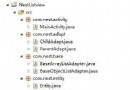 ListView 嵌套 ListView 實戰:可展開的兩級列表(朋友圈評論同款)
在項目中經常會遇到這樣的需求:列表每一項下面還要掛一個子列表,點擊父項時展開或收起,兩層都要能響應點擊。典型場景就是朋友圈的評論列表——每條動態下面掛著若干條評論。本文記
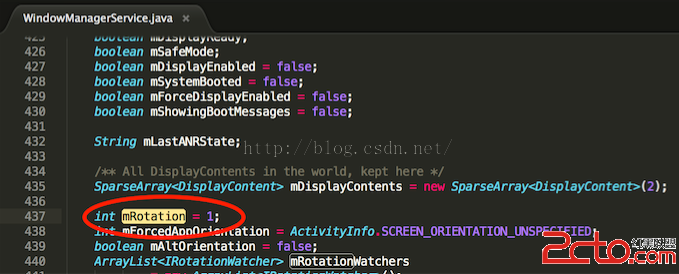 Android 4.4.2 將豎屏強制改為橫屏的修改方案
 某些客製化設備需要將系統預設的豎屏方向改為橫屏。本文以 Android 4.4.2 為例,說明如何從 Frame
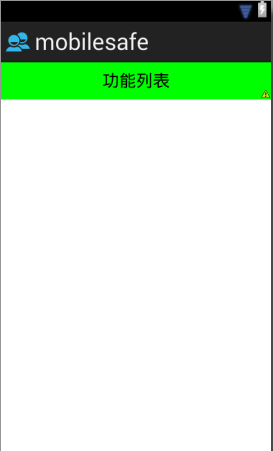 手機衛士實戰:Home 界面布局與淡入動畫
打造手機衛士 Home 界面的淡入動畫與標題欄 本文將實現從 Splash 界面進入 Home 界面時的漸進淡入動畫效果,並逐步搭建 Home 界面的標題欄。 一、為界
 Android 開發環境配置:Eclipse 關聯源碼與源碼/JAR 查看工具
想更深入理解 Android 底層運作,關聯系統源碼、選對查看工具是必備技能。本文介紹三項實用配置。 1、Eclipse 關聯源碼 步驟一:自行下載對應版本的源碼,本文以