編輯:關於android開發
android 提供的了兩種機制你可以用來創建簡單的動畫:tweedned animation(漸變動畫) 和 frame-by-frame animation(逐幀動畫)(有道翻譯的,汗!!!) 。這裡主要介紹tweedned animation中的四種動畫形式:alpha(淡入淡出效果)、scale(放縮)、rotate(旋轉) 、translate(平移)。
那麼怎麼來實現這樣的效果呢?大家向下看:(這裡是在代碼內部實現,雖然容易看,但是不利於維護和重用,下面還會介紹一種在外部實現的方法)
內部實現:
1.創建一個AnimationSet對象
2.創建一個你想要實現效果的Animation對象,如AlphaAnimations
3.為動畫設置一些屬性
4.將alpha對象加入到AnimationSet中
5.對圖片開始執行AnimationSet
    private class alphaButtonListener implements OnClickListener{

        @Override
        public void onClick(View v) {
            //建立一個AnimationSet對象
            AnimationSet animationSet = new AnimationSet(true);
            //創建一個AlphaAnimation對象,設置透明度為由1到0
            AlphaAnimation alphaAnimation = new AlphaAnimation(1, 0);
            //設置整個動畫持續的時間
            alphaAnimation.setDuration(10000);
            //將Animation對象添加到animationSet對象中
            animationSet.addAnimation(alphaAnimation);
            //對圖片開始執行AnimationSet
            imagView.startAnimation(animationSet);
        }
    }
=========================
這裡介紹一些常用的動畫屬性的設置
===========================
下面是具體的ManiActivity.java代碼,對各個動畫都有詳細的解釋:
package com.mecury.animationstest;
import android.app.Activity;
import android.os.Bundle;
import android.view.View;
import android.view.View.OnClickListener;
import android.view.animation.AlphaAnimation;
import android.view.animation.Animation;
import android.view.animation.AnimationSet;
import android.view.animation.RotateAnimation;
import android.view.animation.ScaleAnimation;
import android.view.animation.TranslateAnimation;
import android.widget.Button;
import android.widget.ImageView;

public class MainActivity extends Activity {

    private ImageView imagView;
    private Button alphaButton;
    private Button scaleButton;
    private Button rotateButton;
    private Button translateButton;

    @Override
    protected void onCreate(Bundle savedInstanceState) {
        super.onCreate(savedInstanceState);
        setContentView(R.layout.activity_main);

        imagView = (ImageView) findViewById(R.id.imageView);
        alphaButton = (Button) findViewById(R.id.alphaButton);
        alphaButton.setOnClickListener(new alphaButtonListener());
        scaleButton = (Button) findViewById(R.id.scaleButton);
        scaleButton.setOnClickListener(new scaleButtonListener());
        rotateButton = (Button) findViewById(R.id.rotateButton);
        rotateButton.setOnClickListener(new rotateButtonListener());
        translateButton = (Button) findViewById(R.id.translateButton);
        translateButton.setOnClickListener(new translateButtonListener());
    }

    /*
     * 淡入淡出效果
     */
    private class alphaButtonListener implements OnClickListener{

        @Override
        public void onClick(View v) {
            //建立一個AnimationSet對象
            AnimationSet animationSet = new AnimationSet(true);
            //創建一個AlphaAnimation對象,設置透明度為由1到0
            AlphaAnimation alphaAnimation = new AlphaAnimation(1, 0);
            //設置整個動畫持續的時間
            alphaAnimation.setDuration(10000);
            //將Animation對象添加到animationSet對象中
            animationSet.addAnimation(alphaAnimation);
            //對圖片開始執行AnimationSet
            imagView.startAnimation(animationSet);
        }
    }

    /*
     * 縮放效果
     */
    private class scaleButtonListener implements OnClickListener{

        @Override
        public void onClick(View v) {
            AnimationSet animationSet = new AnimationSet(true);
            /*這裡用的是百分比表示法,f表示浮點型
             * 四個參數代表縮放的比例,前兩個代表了x軸的縮放(這裡用的是百分比表示法:1f代表原來的寬度,0.5f代表原來寬度的一半)後兩個代表了y軸的縮放
             * Animation中有兩個常用的屬性,RELATIVE_TO_SELF(依賴自身),RELATIVE_TO_PARENT(依賴父控件)
             * 後面四個表明縮放的軸為依賴自身的在x為0.5f,y為0.5f的地方
             */
            ScaleAnimation scaleAnimation = new ScaleAnimation(1f, 0.1f, 1f, 0.1f, Animation.RELATIVE_TO_SELF, 0.5f, Animation.RELATIVE_TO_SELF, 0.5f);
            animationSet.addAnimation(scaleAnimation);
            animationSet.setDuration(2000);

            imagView.startAnimation(animationSet);
        }
    }

    /*
     * 旋轉效果
     */
    private class rotateButtonListener implements OnClickListener{

        @Override
        public void onClick(View v) {
            AnimationSet animationSet = new AnimationSet(true);
            /*第一個參數,表示圖片相對於起始位置的角度,
             *第二個參數:表示動畫結束時圖片的偏轉角度。這裡就是由0變到360即原點
             *後面的四個參數是為了設置圖片旋轉圍繞的軸,意思是軸的橫坐標是依賴父控件的0f處,縱坐標是依賴父控件的-1f處
             *這裡要著中說的是:關於坐標的問題。這這個動畫中,坐標原點是圖片的左上角,原點左x軸和下y軸代表正軸
             *此時的圍繞的點的坐標軸就在圖片的正上方
             */
            RotateAnimation rotateAnimation = new RotateAnimation(0, 360, Animation.RELATIVE_TO_PARENT, 0f, Animation.RELATIVE_TO_PARENT, -1f);
            rotateAnimation.setDuration(2000);
            animationSet.addAnimation(rotateAnimation);
            imagView.startAnimation(animationSet);
        }
    }

    /*
     * 移動效果
     */
    private class translateButtonListener implements OnClickListener{

        @Override
        public void onClick(View v) {
            AnimationSet animationSet = new AnimationSet(true);
            /*
             * 前兩個參數決定了動畫開始時圖片的x軸起始位置
             * 第三四個參數表示圖片將要到達位置的x軸
             * 後面四個是表示y軸的和上面類似
             * 代碼中表示:由起始位置位移到右上角
             */
            TranslateAnimation translateAnimation = new TranslateAnimation(Animation.RELATIVE_TO_SELF, 0f,
                    Animation.RELATIVE_TO_PARENT, 1f,
                    Animation.RELATIVE_TO_SELF,0f,
                    Animation.RELATIVE_TO_PARENT, -1f);
            translateAnimation.setDuration(2000);
            animationSet.addAnimation(translateAnimation);
            imagView.startAnimation(animationSet);
        }
    }
}
下面是我的布局文件:
<RelativeLayout xmlns:android="http://schemas.android.com/apk/res/android"
    xmlns:tools="http://schemas.android.com/tools"
    android:layout_width="match_parent"
    android:layout_height="match_parent"
    tools:context="com.mecury.animationstest.MainActivity" >


    <Button
        android:id="@+id/translateButton"
        android:layout_width="match_parent"
        android:layout_height="40dp"
        android:layout_alignParentBottom="true"
        android:text="Translate平移"/>
    <Button
        android:id="@+id/rotateButton"
        android:layout_width="match_parent"
        android:layout_height="40dp"
        android:layout_above="@id/translateButton"
        android:text="Rotate旋轉"/>
    <Button
        android:id="@+id/scaleButton"
        android:layout_width="match_parent"
        android:layout_height="40dp"
        android:layout_above="@id/rotateButton"
        android:text="Scale縮放"/>
    <Button
        android:id="@+id/alphaButton"
        android:layout_width="match_parent"
        android:layout_height="40dp"
        android:layout_above="@id/scaleButton"
        android:text="Alpha淡入淡出"/>

    <ImageView
        android:id="@+id/imageView"
        android:layout_width="50dp"
        android:layout_height="50dp"
     android:layout_centerInParent="true"
        android:src="@drawable/china"/>

</RelativeLayout>
在外部資源中實現:
1.在res文件中新建一個名為anim的文件
2.在文件中中新建.xml文件(這裡以alpha為例),如alpha.xml
3.在文件中設置相應的屬性
4.使用AnimationUtils來裝載動畫設置文件
這裡我的anim中四個動畫代碼文件:
<?xml version="1.0" encoding="utf-8"?>
<!-- aplha是一個淡入淡出的效果
startOffser時間偏移量,在動畫開始之前,停頓500毫秒 -->
<set xmlns:android="http://schemas.android.com/apk/res/android">
    <alpha
        android:fromAlpha="1"
        android:toAlpha="0"
        android:startOffset="500"
        android:duration="2000"/>
</set>

<?xml version="1.0" encoding="utf-8"?>
<set xmlns:android="http://schemas.android.com/apk/res/android">
    <!-- scale是實現縮放
    privat 是設置縮放圍繞的軸的縮放
    privatX="50"使用的是絕對位置
    ="%50"相對控件本身定位,在控件的1/2處
    ="50%p" 相對於父控件的位置定位-->
    <scale
        android:fromXScale="1"
        android:toXScale="0.1"
        android:fromYScale="1"
        android:toYScale="0.1"
        android:pivotX="50%"
        android:pivotY="50%"
        android:startOffset="500"
        android:duration="2000"/>

</set>

<?xml version="1.0" encoding="utf-8"?>
<set xmlns:android="http://schemas.android.com/apk/res/android">
    <rotate
        android:fromDegrees="0"
        android:toDegrees="+360"
        android:pivotX="100%p"
        android:pivotY="0%p"
        android:startOffset="500"
        android:duration="2000"/>
</set>

<?xml version="1.0" encoding="utf-8"?>
<set xmlns:android="http://schemas.android.com/apk/res/android">
    <translate
        android:fromXDelta="0%"
        android:toXDelta="100%p"
        android:fromYDelta="0%"
        android:toYDelta="-100%p"
        android:interpolator="@android:anim/decelerate_interpolator"
        android:startOffset="500"
        android:duration="30000"
        />

</set>
intepolator是用來設置動畫執行的速度
Accelerate_Decelerate_Interpolator:在動畫開始和結束時速率較慢,中間加速
Accelerate_Interpolator:在動畫開始的時候速度較慢,逐漸加速
Cycle_Interpolator:速度改變沿著動畫循環播放的次數,以正弦曲線式變化
Deceletrate_Interpolator:在的動畫開始是速度改變比較慢,然後突然減速
Linear_Interpolator:動畫勻速改變
使用:android:Interpolator="@android:anim/....."
mianActivity.java:
package com.example.animation_01;


import android.app.Activity;
import android.os.Bundle;
import android.view.View;
import android.view.View.OnClickListener;
import android.view.animation.Animation;
import android.view.animation.AnimationUtils;
import android.widget.Button;
import android.widget.ImageView;

public class MainActivity extends Activity {

    private ImageView imagView;
    private Button alphaButton;
    private Button scaleButton;
    private Button rotateButton;
    private Button translateButton;
    @Override
    protected void onCreate(Bundle savedInstanceState) {
        super.onCreate(savedInstanceState);
        setContentView(R.layout.activity_main);
        imagView = (ImageView) findViewById(R.id.imageView);
        alphaButton = (Button) findViewById(R.id.alphaButton);
        alphaButton.setOnClickListener(new alphaButtonListener());
        scaleButton = (Button) findViewById(R.id.scaleButton);
        scaleButton.setOnClickListener(new scaleButtonListener());
        rotateButton = (Button) findViewById(R.id.rotateButton);
        rotateButton.setOnClickListener(new rotateButtonListener());
        translateButton = (Button) findViewById(R.id.translateButton);
        translateButton.setOnClickListener(new translateButtonListener());
    }

    class alphaButtonListener implements OnClickListener{

        @Override
        public void onClick(View v) {
            //使用AnimaionUtils來裝載動畫設置文件
            Animation animation = AnimationUtils.loadAnimation(MainActivity.this, R.anim.alpha);
            imagView.startAnimation(animation);
        }
    }
    class scaleButtonListener implements OnClickListener{

        @Override
        public void onClick(View v) {
            Animation animation = AnimationUtils.loadAnimation(MainActivity.this, R.anim.scale);
            imagView.startAnimation(animation);
        }
    }
    class rotateButtonListener implements OnClickListener{

        @Override
        public void onClick(View v) {
            Animation animation = AnimationUtils.loadAnimation(MainActivity.this, R.anim.rotate);
            imagView.startAnimation(animation);
        }
    }
    class translateButtonListener implements OnClickListener{

        @Override
        public void onClick(View v) {
            Animation animation = AnimationUtils.loadAnimation(MainActivity.this, R.anim.translate);
            imagView.startAnimation(animation);
        }
    }

}
布局文件和第一個一樣。
 Android中View的滑動沖突——Android開發藝術探索筆記
Android中View的滑動沖突——Android開發藝術探索筆記 介紹 相信開發Android的人都會有這種體會:從網上下載的demo運行的好好的,但是只要出現了
 cordova開發自定義插件
cordova開發自定義插件 由於最近工作需要,需要一個自定義插件,本人研究了很久終於做出一個最簡單的插件,是基於android平台來開發的,雖然寫博客很花時間,但是
 【讀書筆記】【Android 開發藝術探索】第3章 View 的事件體系
【讀書筆記】【Android 開發藝術探索】第3章 View 的事件體系 一、 View 的基礎知識 View 是 Android 中所有空間的基類。 1、 View 的
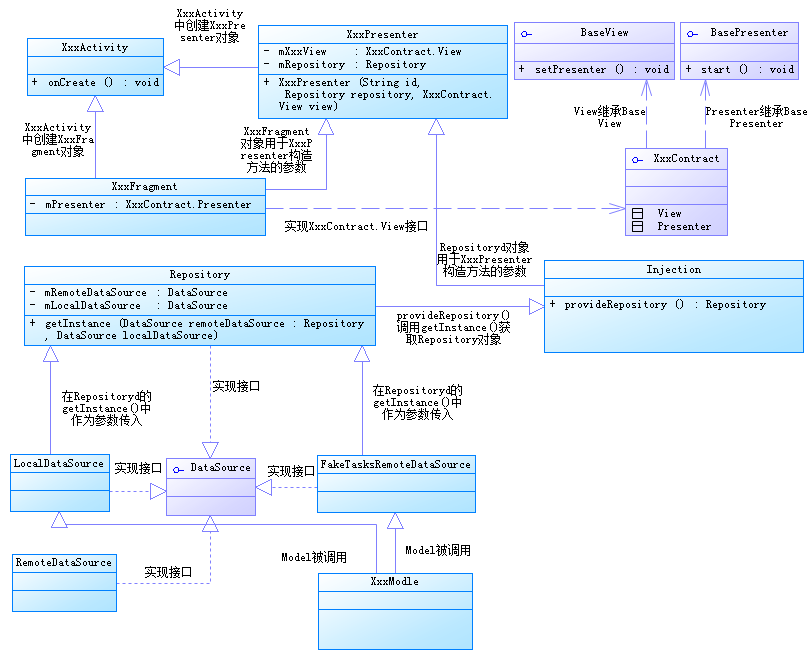 一張圖看Google MVP設計架構,googlemvp
一張圖看Google MVP設計架構,googlemvp 這段時間看了一下Google官方推出的MVP架構案例,決定把對MVP的理解用類圖的形式表述一下。MVP架構的設
 如何在Android的ListView中構建CheckBox和RadioButton列表(Android版支持單選和多選的投票項目),androidlistview多選
如何在Android的ListView中構建CheckBox和Radio