編輯:關於android開發
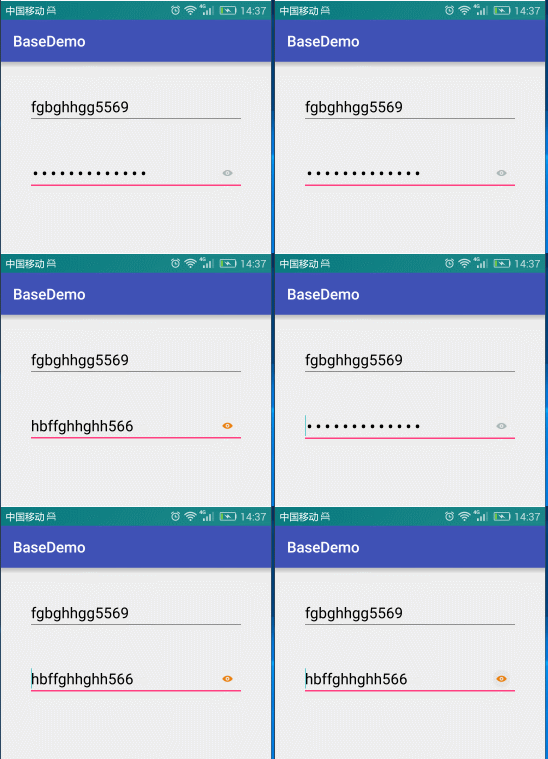
<?xml version="1.0" encoding="utf-8"?>
<LinearLayout
    xmlns:android="http://schemas.android.com/apk/res/android"
    xmlns:tools="http://schemas.android.com/tools"
    android:layout_width="match_parent"
    android:layout_height="match_parent"
    android:orientation="vertical"
    android:paddingBottom="@dimen/activity_vertical_margin"
    android:paddingLeft="@dimen/activity_horizontal_margin"
    android:paddingRight="@dimen/activity_horizontal_margin"
    android:paddingTop="@dimen/activity_vertical_margin"
    tools:context="liu.basedemo.MainActivity">


    <EditText
        android:id="@+id/etUsername"
        android:layout_width="match_parent"
        android:layout_height="wrap_content"
        android:layout_margin="20dp"
        android:hint="請輸入用戶名"
        android:textColor="#000000"
        android:textColorHint="#55000000"
        android:textSize="20sp"/>


    <RelativeLayout
        android:layout_width="match_parent"
        android:layout_height="wrap_content"
        android:gravity="center_vertical">

        <EditText
            android:id="@+id/etPassword"
            android:layout_width="match_parent"
            android:layout_height="wrap_content"
            android:layout_margin="20dp"
            android:hint="請輸入密碼"
            android:inputType="textPassword"
            android:textColor="#000000"
            android:textColorHint="#55000000"
            android:textSize="20sp"/>

        <CheckBox
            android:checked="false"
            android:id="@+id/cbDisplayPassword"
            android:layout_width="50dp"
            android:layout_height="50dp"
            android:layout_alignParentRight="true"
            android:layout_centerVertical="true"
            android:button="@drawable/selector_password"/>
    </RelativeLayout>

</LinearLayout>
selector
<?xml version="1.0" encoding="utf-8"?>
<selector xmlns:android="http://schemas.android.com/apk/res/android">


    <item android:drawable="@mipmap/cb_checked" android:state_checked="true"/>
    <item android:drawable="@mipmap/cb_normaled" android:state_checked="false"/>

</selector>
 private void initListener() {

        mCbDisplayPassword.setOnCheckedChangeListener(new CompoundButton.OnCheckedChangeListener() {
            @Override
            public void onCheckedChanged(CompoundButton buttonView, boolean isChecked) {

                Log.d(TAG, "onCheckedChanged: "+isChecked);
                if(isChecked){
                    //選擇狀態 顯示明文--設置為可見的密碼

                    mEtPassword.setInputType(InputType.TYPE_TEXT_VARIATION_VISIBLE_PASSWORD);
                }else {
                    //默認狀態顯示密碼--設置文本 要一起寫才能起作用  InputType.TYPE_CLASS_TEXT | InputType.TYPE_TEXT_VARIATION_PASSWORD

                    mEtPassword.setInputType(InputType.TYPE_CLASS_TEXT | InputType.TYPE_TEXT_VARIATION_PASSWORD);
                }
            }
        });

    }
private void initListener() {

        mCbDisplayPassword.setOnCheckedChangeListener(new CompoundButton.OnCheckedChangeListener() {
            @Override
            public void onCheckedChanged(CompoundButton buttonView, boolean isChecked) {

                Log.d(TAG, "onCheckedChanged: "+isChecked);
                if(isChecked){
                    //選擇狀態 顯示明文--設置為可見的密碼

                    //mEtPassword.setInputType(InputType.TYPE_TEXT_VARIATION_VISIBLE_PASSWORD);

                    /**
                     * 第二種
                     */
                    mEtPassword.setTransformationMethod(HideReturnsTransformationMethod.getInstance());

                }else {
                    //默認狀態顯示密碼--設置文本 要一起寫才能起作用  InputType.TYPE_CLASS_TEXT | InputType.TYPE_TEXT_VARIATION_PASSWORD

                    //mEtPassword.setInputType(InputType.TYPE_CLASS_TEXT | InputType.TYPE_TEXT_VARIATION_PASSWORD);

                    /**
                     * 第二種
                     */
                    mEtPassword.setTransformationMethod(PasswordTransformationMethod.getInstance());
                }
            }
        });

    }
 Kotlin的擴展函數:擴展Android框架(KAD 08),kotlinandroid
Kotlin的擴展函數:擴展Android框架(KAD 08),kotlinandroid作者:Antonio Leiva 時間:Jan 11, 2017 原文鏈接:ht
 重寫MPAndroidChart顯示標記
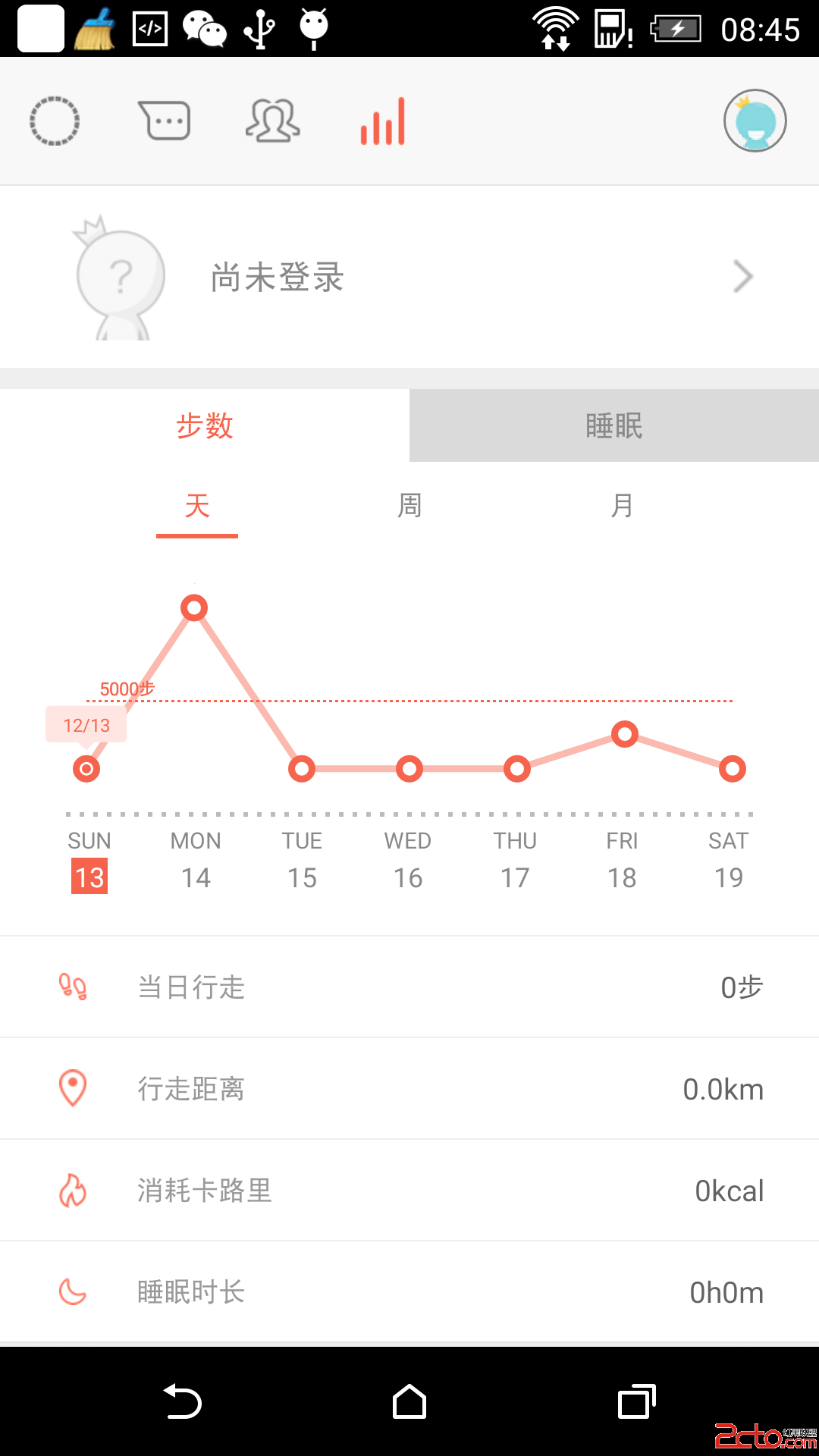
重寫MPAndroidChart顯示標記 MPAndroidChart是實現圖表功能的優秀控件, 可以完成大多數繪制需求. 對於修改第三方庫而言, 優秀的架構是繼承開發,
 使用Kotlin對ViewGroup的視圖進行函數使操作,kotlinviewgroup
使用Kotlin對ViewGroup的視圖進行函數使操作,kotlinviewgroup原文標題:Functional operations over Views in
 [Android] Activity間切換,傳遞數據,androidactivity
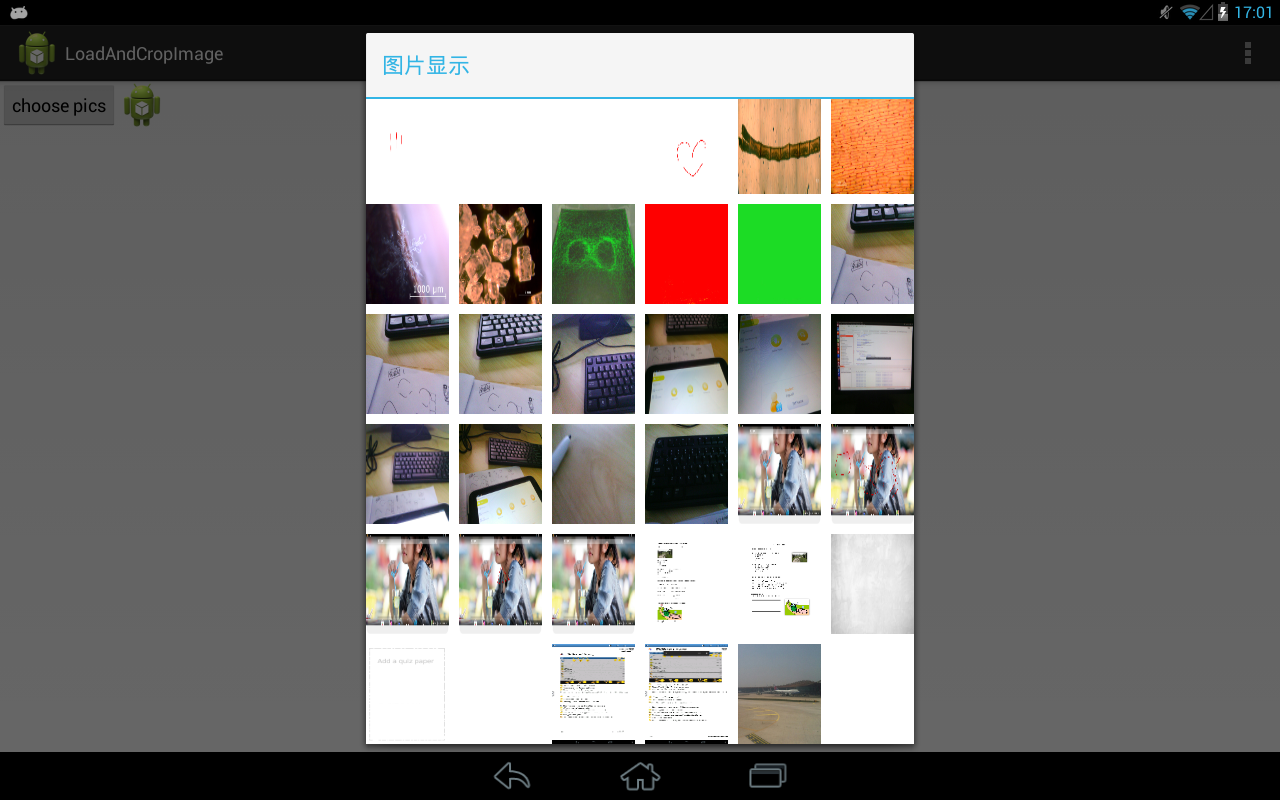
[Android] Activity間切換,傳遞數據,androidactivity前面照著android系統的裁剪圖片的功能自己寫了一個相似的工具。功能是大體上實現了,