編輯:Android資訊
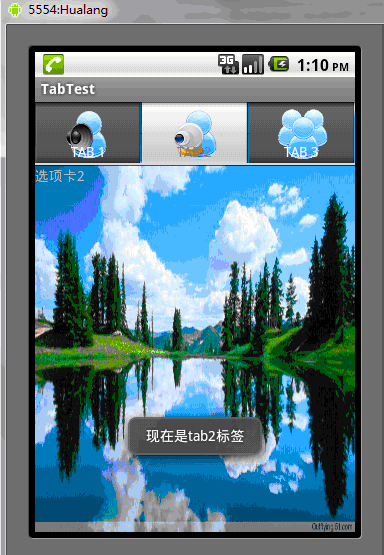
Tab選項卡類似與電話本的界面,通過多個標簽切換不同的內容,要實現這個效果,首先要知道TabHost,它是一個用來存放多個Tab標簽的容器,每一個Tab都可以對應自己的布局,比如,電話本中的Tab布局就是一個線性布局
要使用TabHost,首先要通過getTabHost方法獲取TabHost的對象,然後通過addTab方法來向TabHost中添加Tab,當然每個Tab在切換時都會產生一個事件,要捕捉這個事件,需要設置TabActivity的事件監聽setOnTabChangedListener
下面是個小例子:
TabTest.java
package org.hualang.tab;

import android.app.Activity;
import android.app.TabActivity;
import android.graphics.Color;
import android.os.Bundle;
import android.widget.TabHost;
import android.widget.Toast;
import android.widget.TabHost.OnTabChangeListener;

public class TabTest extends TabActivity {
    /** Called when the activity is first created. */
        TabHost tabhost;
    @Override
    public void onCreate(Bundle savedInstanceState) {
        super.onCreate(savedInstanceState);
        setContentView(R.layout.main);
        //取得TabHost對象
        tabhost = getTabHost();
        //為TabHost添加標簽
        //新建一個newTabSpec(newTabSpec)
        //設置其標簽和圖標(setIndicator)
        //設置內容(setContent)
        tabhost.addTab(tabhost.newTabSpec("tab1")
                        .setIndicator("TAB 1",getResources().getDrawable(R.drawable.img1))
                        .setContent(R.id.text1));
        tabhost.addTab(tabhost.newTabSpec("tab2")
                .setIndicator("TAB 2",getResources().getDrawable(R.drawable.img2))
                .setContent(R.id.text2));
        tabhost.addTab(tabhost.newTabSpec("tab3")
                .setIndicator("TAB 3",getResources().getDrawable(R.drawable.img3))
                .setContent(R.id.text3));
        //設置TabHost的背景顏色
        //tabhost.setBackgroundColor(Color.argb(150,22,70,150));
        //設置TabHost的背景圖片資源
        tabhost.setBackgroundResource(R.drawable.bg0);
        //設置當前顯示哪個標簽
        tabhost.setCurrentTab(0);
        //標簽切換事件處理,setOnTabChangedListener
        tabhost.setOnTabChangedListener(new OnTabChangeListener()
        {
                public void onTabChanged(String tabId)
                {
                        Toast toast=Toast.makeText(getApplicationContext(), "現在是"+tabId+"標簽", Toast.LENGTH_SHORT);
                        toast.show();
                }
        });

    }
}
main.xml
<?xml version="1.0" encoding="utf-8"?>
<TabHost xmlns:android="http://schemas.android.com/apk/res/android"
    android:id="@android:id/tabhost"
    android:layout_width="fill_parent"
    android:layout_height="fill_parent">
    <LinearLayout
        android:orientation="vertical"
        android:layout_width="fill_parent"
        android:layout_height="fill_parent">
        <TabWidget
            android:id="@android:id/tabs"
            android:layout_width="fill_parent"
            android:layout_height="wrap_content" />
        <FrameLayout
            android:id="@android:id/tabcontent"
            android:layout_width="fill_parent"
            android:layout_height="fill_parent">
            <TextView
                android:id="@+id/text1"
                android:layout_width="fill_parent"
                android:layout_height="fill_parent"
                android:text="選項卡1" />
            <TextView
                android:id="@+id/text2"
                android:layout_width="fill_parent"
                android:layout_height="fill_parent"
                android:text="選項卡2" />
            <TextView
                android:id="@+id/text3"
                android:layout_width="fill_parent"
                android:layout_height="fill_parent"
                android:text="選項卡3" />
            </FrameLayout>
    </LinearLayout>
</TabHost>
運行效果如下:
 微軟發布獨立Android模擬器 為開發者提供測試
微軟發布了 Visual Studio 2015 正式版,除了免費的社交版之外,另外也有付費的專業版。這套工具除了提供 Windows 應用程序的整合環境之外,你
 6 個可以讓代碼變得更整潔的 Android 庫
本文由碼農網 – 小峰原創翻譯,轉載請看清文末的轉載要求,歡迎參與我們的付費投稿計劃! Android開發是有趣的——這毫無疑問。然而,還是有很多平台迫使
 10 個你可能不知道的 Android Studio 技巧
Android Studio 是每一個 Android 開發每天都要使用的工具,但是即使你是一個經驗豐富的開發人員,你也可能已經錯過了許多可以節約生命的技巧,這篇
 使用 Go 進行 iOS 和 Android 編程
雖然 Go 並不是一門新語言,不過最近兩年來 Go 還是增加了很多有趣的特性,而且使用這門語言的知名項目的數量也在快速的增長。我寫過一篇文章,介紹了 SitePo