編輯:關於Android編程
一、簡介
最近朋友公司需要實現一個垂直上拉下滑的View,該View最初只有一部分顯示在屏幕最下方,上拉那一部分可以將該View全部拉出來並全部顯示在屏幕上,下滑該View可以將該View隱藏在屏幕下。
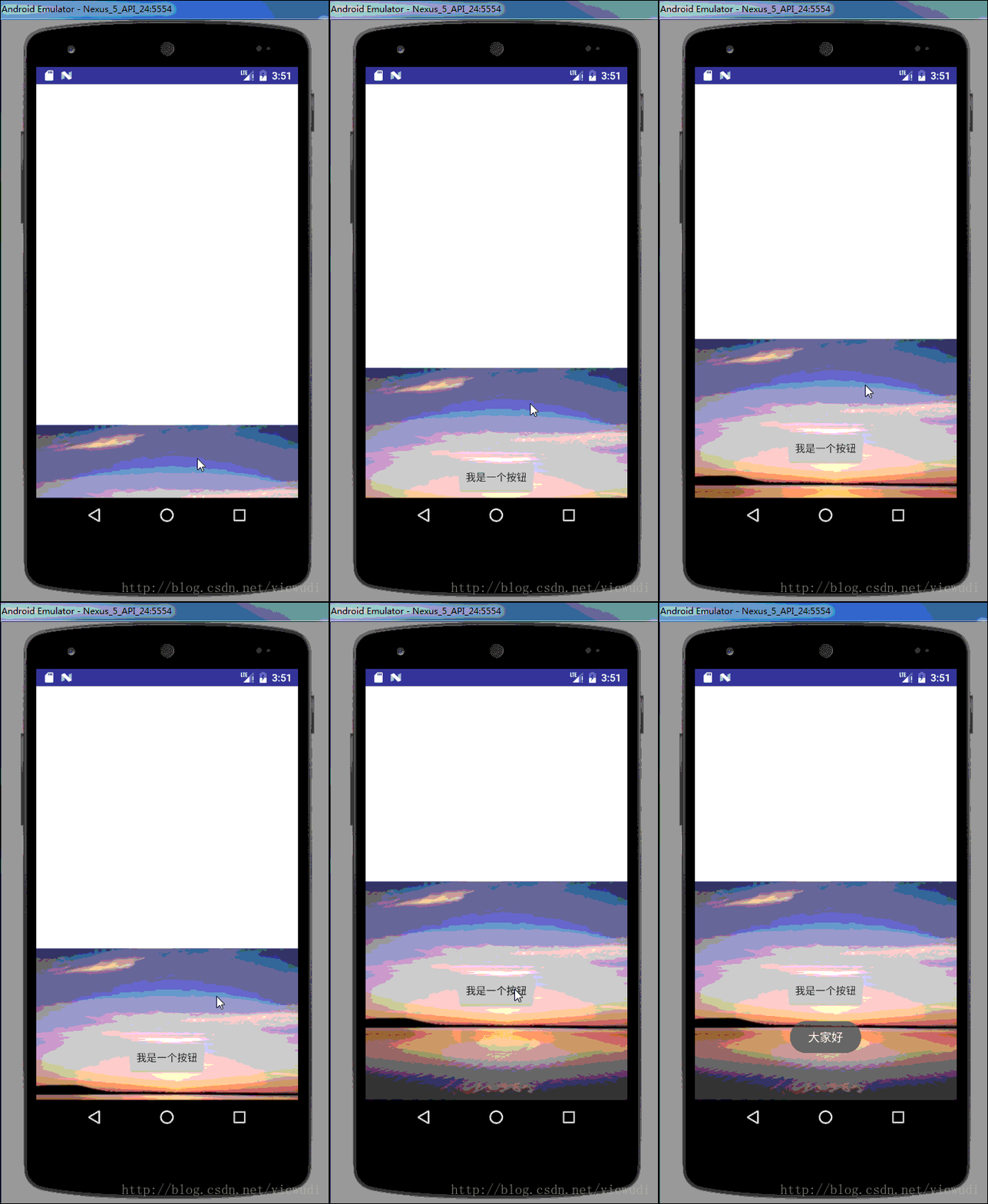
先看一下最終實現效果吧。
二、實現思路
1、這個效果其實有很多實現方法,為了讓松手時有一個viewpager一樣的緩慢滑動的效果我選擇用scrollBy配合Scroller,應該是既方便又實用的。
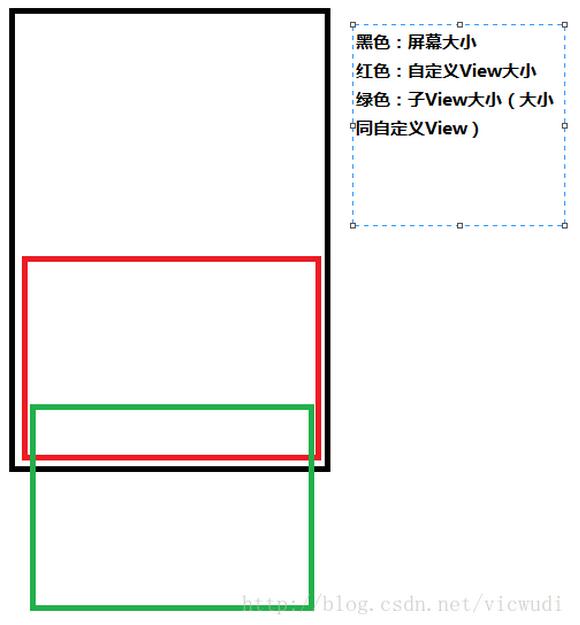
2、這個View的設計是這樣的:
(1)將這個View的子view通過layout放在該View下面;
(2)通過重寫onTouchEvent方法給這個子View滑動效果,在MOVE_UP的動作給這個子View加上Scroller平滑到View的頂部或者底部。
見圖:
三、實現
1、先自定義一個屬性,表示子View應該有多少部分露在外面,也就是上圖中紅色和綠色相交的部分。
在res文件夾-values文件夾下面創建一個attrs.xml文件
attrs.xml :
<resources>
 <declare-styleable name="MyScrollerView">
  <attr name="visibility_height" format="dimension"></attr>
 </declare-styleable>

</resources>
在XML文件中引用該屬性:
<com.zw.myfirstapp.MyScrollerView
   android:layout_width="match_parent"
   android:layout_height="wrap_content"
   android:layout_alignParentBottom="true"
   android:background="@android:color/transparent"
   android:id="@+id/msv"
   app:visibility_height="100dp"
   ></com.zw.myfirstapp.MyScrollerView>
在代碼中調用該屬性(該View名字為MyScrollerView,我圖方便繼承的是LinearLayout,繼承ViewGroup或者其他的布局View都可以):
public MyScrollerView(Context context) {
  this(context,null);
 }

 public MyScrollerView(Context context, AttributeSet attrs) {
  this(context, attrs,0);
 }

 public MyScrollerView(Context context, AttributeSet attrs, int defStyleAttr) {
  super(context, attrs, defStyleAttr);

  TypedArray ta = context.obtainStyledAttributes(attrs,R.styleable.MyScrollerView);
  visibilityHeight = ta.getDimension(R.styleable.MyScrollerView_visibility_height,200);
  ta.recycle();

  init(context);
 }
2、重寫onFinishInflate方法,重寫該方法的原因是我希望我只有一個子View,這樣就好確定滑動的高度,不然我還需要重新計算子View們的高度總和,比較麻煩。這個方法會在onMeasure之前調用。
 @Override
 protected void onFinishInflate() {
  super.onFinishInflate();
  if(getChildCount() == 0 || getChildAt(0) == null){
   throw new RuntimeException("沒有子控件!");
  }
  if(getChildCount() > 1){
   throw new RuntimeException("只能有一個子控件!");
  }
  mChild = getChildAt(0);
 }
3、init方法裡做一些初始化操作,比如說創建一個Scroller對象,給View的背景設為透明:
 private void init(Context context) {
  mScroller = new Scroller(context);
  this.setBackgroundColor(Color.TRANSPARENT);
 }
4、重寫onMeasure方法和onLayout方法,確定可以滑動的最大高度,以及子View的排列位置(其實可以不用重寫onMeasure,我這樣寫只是習慣)。
 @Override
 protected void onMeasure(int widthMeasureSpec, int heightMeasureSpec) {
  super.onMeasure(widthMeasureSpec, heightMeasureSpec);
  mScrollHeight = (int) (mChild.getMeasuredHeight() - visibilityHeight);
 }

 @Override
 protected void onLayout(boolean changed, int l, int t, int r, int b) {
  super.onLayout(changed, l, t, r, b);
  mChild.layout(0,mScrollHeight,mChild.getMeasuredWidth(),mChild.getMeasuredHeight() + mScrollHeight);
 }
5、先看我定義的成員變量的含義吧:
 /**
  * downY:手指按下時距離View頂部的距離
  * moveY:手指在屏幕上滑動的距離(不停變化)
  * movedY:手指在屏幕上總共滑動的距離(為了確定手指一共滑動了多少距離,不能超過可滑動的最大距離)
  */
 private int downY,moveY,movedY;

 //子View
 private View mChild;

 private Scroller mScroller;

 //可滑動的最大距離
 private int mScrollHeight;

 //子View是否在頂部
 private boolean isTop = false;

 //最初子View在View內可見的高度
 private float visibilityHeight;
6、重寫onTouchEvent方法,做滑動判斷,解釋都寫在注釋裡了:
 @Override
 public boolean onTouchEvent(MotionEvent event) {
  switch (event.getAction()){
   case MotionEvent.ACTION_DOWN:
    //手指按下時距離View上面的距離
    downY = (int) event.getY();

    //如果子View不在頂部 && 按下的位置在子View沒有顯示的位置,則不消費此次滑動事件,否則消費
    if(!isTop && downY < mScrollHeight ){
     return super.onTouchEvent(event);
    }
    return true;
   case MotionEvent.ACTION_MOVE:

    moveY = (int) event.getY();
    //deY是滑動的距離,向上滑時deY>0 ,向下滑時deY<0
    int deY = downY - moveY;

    //向上滑動時的處理
    if(deY > 0){
     //將每次滑動的距離相加,為了防止子View的滑動超過View的頂部
     movedY += deY;
     if(movedY > mScrollHeight) movedY = mScrollHeight;

     if(movedY < mScrollHeight){
      scrollBy(0,deY);
      downY = moveY;
      return true;
     }
    }

    //向下滑動時的處理,向下滑動時需要判斷子View是否在頂部,如果不在頂部則不消費此次事件
    if(deY < 0 && isTop){
     movedY += deY;
     if(movedY < 0 ) movedY = 0;
     if(movedY > 0){
      scrollBy(0,deY);
     }
     downY = moveY;
     return true;
    }

    break;
   case MotionEvent.ACTION_UP:
    //手指抬起時的處理,如果向上滑動的距離超過了最大可滑動距離的1/4,並且子View不在頂部,就表示想把它拉上去
    if(movedY > mScrollHeight / 4 && !isTop){
     mScroller.startScroll(0,getScrollY(),0,(mScrollHeight - getScrollY()));
     invalidate();
     movedY = mScrollHeight;
     isTop = true;
    }else {
     //否則就表示放棄本次滑動,讓它滑到最初的位置
     mScroller.startScroll(0,getScrollY(),0, -getScrollY());
     postInvalidate();
     movedY = 0;
     isTop = false;
    }

    break;
  }
  return super.onTouchEvent(event);
 }
7、最後要重寫一個computeScroll方法,該方法是用來配合scroller的:
 @Override
 public void computeScroll() {
  super.computeScroll();
  if(mScroller.computeScrollOffset()){
   scrollTo(0,mScroller.getCurrY());
   postInvalidate();
  }
 }
8、關於scroller的用法,可參考郭霖的這篇博客:http://blog.csdn.net/guolin_blog/article/details/48719871
四、完整代碼:
xml:
<RelativeLayout xmlns:android="http://schemas.android.com/apk/res/android"
 xmlns:tools="http://schemas.android.com/tools"
 xmlns:app="http://schemas.android.com/apk/res-auto"
 android:id="@+id/activity_main"
 android:layout_width="match_parent"
 android:layout_height="match_parent">

  <com.zw.myfirstapp.MyScrollerView
   android:layout_width="match_parent"
   android:layout_height="wrap_content"
   android:layout_alignParentBottom="true"
   android:background="@android:color/transparent"
   android:id="@+id/msv"
   app:visibility_height="100dp"
   >
   <LinearLayout
    android:layout_width="match_parent"
    android:layout_height="300dp"
    android:background="@mipmap/b"
    android:gravity="center"
    android:orientation="vertical">
    <Button
     android:layout_width="wrap_content"
     android:layout_height="wrap_content"
     android:id="@+id/btn"
     android:text="我是一個按鈕"/>
   </LinearLayout>

  </com.zw.myfirstapp.MyScrollerView>

</RelativeLayout>
MyScrollerView:
public class MyScrollerView extends LinearLayout {

 /**
  * downY:手指按下時距離View頂部的距離
  * moveY:手指在屏幕上滑動的距離(不停變化)
  * movedY:手指在屏幕上總共滑動的距離(為了確定手指一共滑動了多少距離,不能超過可滑動的最大距離)
  */
 private int downY,moveY,movedY;

 //子View
 private View mChild;

 private Scroller mScroller;

 //可滑動的最大距離
 private int mScrollHeight;

 //子View是否在頂部
 private boolean isTop = false;

 //最初子View在View內可見的高度
 private float visibilityHeight;

 public MyScrollerView(Context context) {
  this(context,null);
 }

 public MyScrollerView(Context context, AttributeSet attrs) {
  this(context, attrs,0);
 }

 public MyScrollerView(Context context, AttributeSet attrs, int defStyleAttr) {
  super(context, attrs, defStyleAttr);

  TypedArray ta = context.obtainStyledAttributes(attrs,R.styleable.MyScrollerView);
  visibilityHeight = ta.getDimension(R.styleable.MyScrollerView_visibility_height,200);
  ta.recycle();

  init(context);
 }

 @Override
 protected void onMeasure(int widthMeasureSpec, int heightMeasureSpec) {
  super.onMeasure(widthMeasureSpec, heightMeasureSpec);
  mScrollHeight = (int) (mChild.getMeasuredHeight() - visibilityHeight);
 }

 @Override
 protected void onLayout(boolean changed, int l, int t, int r, int b) {
  super.onLayout(changed, l, t, r, b);
  mChild.layout(0,mScrollHeight,mChild.getMeasuredWidth(),mChild.getMeasuredHeight() + mScrollHeight);
 }

 private void init(Context context) {
  mScroller = new Scroller(context);
  this.setBackgroundColor(Color.TRANSPARENT);
 }

 @Override
 protected void onFinishInflate() {
  super.onFinishInflate();
  if(getChildCount() == 0 || getChildAt(0) == null){
   throw new RuntimeException("沒有子控件!");
  }
  if(getChildCount() > 1){
   throw new RuntimeException("只能有一個子控件!");
  }
  mChild = getChildAt(0);
 }


 @Override
 public boolean onTouchEvent(MotionEvent event) {
  switch (event.getAction()){
   case MotionEvent.ACTION_DOWN:
    //手指按下時距離View上面的距離
    downY = (int) event.getY();

    //如果子View不在頂部 && 按下的位置在子View沒有顯示的位置,則不消費此次滑動事件,否則消費
    if(!isTop && downY < mScrollHeight ){
     return super.onTouchEvent(event);
    }
    return true;
   case MotionEvent.ACTION_MOVE:

    moveY = (int) event.getY();
    //deY是滑動的距離,向上滑時deY>0 ,向下滑時deY<0
    int deY = downY - moveY;

    //向上滑動時的處理
    if(deY > 0){
     //將每次滑動的距離相加,為了防止子View的滑動超過View的頂部
     movedY += deY;
     if(movedY > mScrollHeight) movedY = mScrollHeight;

     if(movedY < mScrollHeight){
      scrollBy(0,deY);
      downY = moveY;
      return true;
     }
    }

    //向下滑動時的處理,向下滑動時需要判斷子View是否在頂部,如果不在頂部則不消費此次事件
    if(deY < 0 && isTop){
     movedY += deY;
     if(movedY < 0 ) movedY = 0;
     if(movedY > 0){
      scrollBy(0,deY);
     }
     downY = moveY;
     return true;
    }

    break;
   case MotionEvent.ACTION_UP:
    //手指抬起時的處理,如果向上滑動的距離超過了最大可滑動距離的1/4,並且子View不在頂部,就表示想把它拉上去
    if(movedY > mScrollHeight / 4 && !isTop){
     mScroller.startScroll(0,getScrollY(),0,(mScrollHeight - getScrollY()));
     invalidate();
     movedY = mScrollHeight;
     isTop = true;
    }else {
     //否則就表示放棄本次滑動,讓它滑到最初的位置
     mScroller.startScroll(0,getScrollY(),0, -getScrollY());
     postInvalidate();
     movedY = 0;
     isTop = false;
    }

    break;
  }
  return super.onTouchEvent(event);
 }

 @Override
 public void computeScroll() {
  super.computeScroll();
  if(mScroller.computeScrollOffset()){
   scrollTo(0,mScroller.getCurrY());
   postInvalidate();
  }
 }
}
以上就是本文的全部內容,希望對大家的學習有所幫助,也希望大家多多支持本站。
 記一次內存洩露優化過程
背景項目目前存在使用久了或者重復打開關閉某個頁面,內存會一直飙升,居高不下,頻繁發生GC。靜置一段時間後,情況有所改善,但是問題依舊明顯,如圖1-1、1-2。圖1-1.操
 Android動畫之補間動畫(Tween Animation)基礎學習
前言之前說過了在Android中,動畫Animation的實現有兩種方式:Tween Animation(漸變動畫)和Frame Animation(幀動畫)。漸變動畫是
 RecyclerView的萬能分割線
什麼是RecyclerViewRecyclerView是Android 5.0 materials design中的組件之一,相應的還有CardView、Palette等
 android多媒體SoundPool
之前學習過了MediaPlayer用於播放手機音樂,但是在手機中很多的提示音並不是使用MediaPlayer來播放的比如短信鈴聲,通知鈴聲,android中使用Sound