編輯:關於Android編程
Android 自定義view實現動態進度條
效果圖:

這個是看了梁肖的demo,根據他的思路自己寫了一個,但是我寫的這個貌似計算還是有些問題,從上面的圖就可以看出來,左側、頂部、右側的線會有被截掉的部分,有懂得希望能給說一下,改進一下,這個過程還是有點曲折的,不過還是覺得收獲挺多的。比如通動畫來進行動態的展示(之前做的都是通過Handler進行更新的所以現在換一種思路覺得特別好),還有圓弧的起止角度,矩形區域的計算等!關於繪制我們可以循序漸進,比如最開始先畫圓,然後再畫周圍的線,最後設置動畫部分就可以了。不多說了,上代碼了。
代碼
自定義View
public class ColorProgressBar extends View{
  //下面這兩行在本demo中沒什麼用,只是前幾天看別人的代碼時學到的按一定尺寸,設置其他尺寸的方式,自動忽略或者學習一下也不錯
//  private int defaultStepIndicatorNum= (int) TypedValue.applyDimension(TypedValue.COMPLEX_UNIT_DIP,40,getResources().getDisplayMetrics());
//  int mCircleRadius=0.28f*defaultStepIndicatorNum;


  //布局的寬高
  private int mWidth;
  private int mHeight;
  //直徑
  private int mDiameter=500;

  //底層圓畫筆
  private Paint mPaintbg;
  //頂層圓的畫筆
  private Paint mPaintft;
  //周圍線的畫筆
  private Paint mPaintLine;

  //外層線條的長度
  private int mLongItem=dip2px(20);
  //線條與圓的間距
  private int mDistanceItem=dip2px(10);
  //進度條的最大寬度(取底層進度條與頂層進度條寬度最大的)
  private int mProgressWidth;

  //底層圓的顏色
  private int mBackColor;
  //頂層圓的顏色
  private int mFrontColor;
  //底層圓、頂層圓的寬度
  private float mBackWidth;
  private float mFrontWidth;
  //設置進度
  private float currentvalue;
  //通過動畫演示進度
  private ValueAnimator animator;
  private int curvalue;


  public ColorProgressBar(Context context) {
    this(context,null,0);
  }

  public ColorProgressBar(Context context, AttributeSet attrs) {
    this(context, attrs,0);
  }

  public ColorProgressBar(Context context, AttributeSet attrs, int defStyleAttr) {
    super(context, attrs, defStyleAttr);
    TypedArray ta=context.obtainStyledAttributes(attrs, R.styleable.ColorProgressBar);
    mBackColor= ta.getColor(R.styleable.ColorProgressBar_back_color, Color.BLACK);
    mFrontColor=ta.getColor(R.styleable.ColorProgressBar_front_color,mBackColor);
    mBackWidth=ta.getDimension(R.styleable.ColorProgressBar_back_width,dip2px(10));
    mFrontWidth=ta.getDimension(R.styleable.ColorProgressBar_front_width,dip2px(10));
    mProgressWidth=mBackWidth>mFrontWidth?(int)mBackWidth:(int)mFrontWidth;
    //注意釋放資源
    ta.recycle();
    init();
  }

  /**
   * 都是畫筆初始化
   */
  private void init() {
    mPaintbg=new Paint(Paint.ANTI_ALIAS_FLAG);
    mPaintbg.setStrokeWidth(mProgressWidth);
    mPaintbg.setColor(mBackColor);
    mPaintbg.setStrokeCap(Paint.Cap.ROUND);
    mPaintbg.setStyle(Paint.Style.STROKE);

    mPaintft=new Paint(Paint.ANTI_ALIAS_FLAG);
    mPaintft.setColor(mFrontColor);
    mPaintft.setStyle(Paint.Style.STROKE);
    mPaintft.setStrokeWidth(mFrontWidth);
    mPaintft.setStrokeCap(Paint.Cap.ROUND);

    mPaintLine=new Paint(Paint.ANTI_ALIAS_FLAG);
    mPaintLine.setColor(Color.BLACK);
    mPaintLine.setStrokeWidth(5);

  }

  @Override
  protected void onMeasure(int widthMeasureSpec, int heightMeasureSpec) {
    super.onMeasure(widthMeasureSpec, heightMeasureSpec);
//   寬度=高度=(長指針+指針與圓盤的間距+進度條的粗細+半徑)*2
    Log.e("測量數據","LongItem:"+mLongItem+"mDistanceItem:"+mDistanceItem+"mProgressWidth:"+mProgressWidth+"mDiameter:"+mDiameter/2);
    mWidth=(int)2*(mLongItem+mDistanceItem+mProgressWidth*2+mDiameter/2);
    mHeight=(int)2*(mLongItem+mDistanceItem+mProgressWidth*2+mDiameter/2);
    Log.e("自定義View","高度"+mHeight+"寬度"+mWidth);
    setMeasuredDimension(mWidth,mHeight);
  }


  @Override
  protected void onDraw(Canvas canvas) {
    super.onDraw(canvas);
    //繪制底層圓弧,矩形的具體計算見圖片
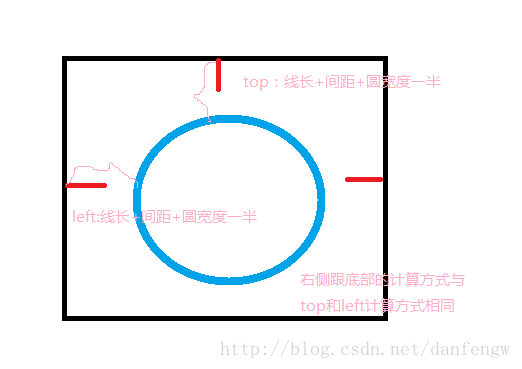
    canvas.drawArc(new RectF(mProgressWidth/2+mDistanceItem+mLongItem,mProgressWidth/2+mDistanceItem+mLongItem,mWidth-mProgressWidth/2-mDistanceItem-mLongItem,mHeight-mProgressWidth/2-mDistanceItem-mLongItem),0,360,true,mPaintbg);
//    SweepGradient gradient=new SweepGradient();
    //繪制邊緣線
    canvas.save();
    canvas.rotate(144,mWidth/2,mHeight/2);
    for(int i=0;i<=30;i++){
      canvas.rotate(-9,mWidth/2,mHeight/2);
      if(i%5==0){
        canvas.drawLine(mWidth/2,5,mWidth/2,mLongItem,mPaintbg);
      }else {
        canvas.drawLine(mWidth/2,25,mWidth/2,mLongItem,mPaintLine);
      }
    }

    canvas.restore();
    //給畫筆設置漸變
    SweepGradient sweepGradient=new SweepGradient(mWidth/2,mHeight/2,Color.RED,Color.YELLOW);
    mPaintft.setShader(sweepGradient);
    //繪制頂層圓弧,currentvalue在改變時呈現動態效果
    canvas.drawArc(new RectF(mProgressWidth/2+mDistanceItem+mLongItem,mProgressWidth/2+mDistanceItem+mLongItem,mWidth-mProgressWidth/2-mDistanceItem-mLongItem,mHeight-mProgressWidth/2-mDistanceItem-mLongItem),135,currentvalue,false,mPaintft);
    mPaintft.setTextSize(100);
    mPaintft.setTextAlign(Paint.Align.CENTER);
    //繪制文本
    canvas.drawText(String.format("%.0f",currentvalue),mWidth/2,mHeight/2+50,mPaintft);
    invalidate();
  }

  /**
   * 設置動畫
   * @param value
   */
  public void setCurrentValue(float value){
//    currentvalue=value;
    animator=ValueAnimator.ofFloat(currentvalue,value);
    animator.setDuration(3000);
    animator.setTarget(currentvalue);
    animator.addUpdateListener(new ValueAnimator.AnimatorUpdateListener() {
      @Override
      public void onAnimationUpdate(ValueAnimator valueAnimator) {
        currentvalue= (float) valueAnimator.getAnimatedValue();
        curvalue=curvalue/10;
      }
    });
    animator.start();

  }
  private int dip2px(float dip){
    float density=getContext().getResources().getDisplayMetrics().density;
    return (int)(dip*density+0.5f);
  }
}
矩形計算
Activity調用
 @Override
  protected void onCreate(@Nullable Bundle savedInstanceState) {
    super.onCreate(savedInstanceState);
    setContentView(R.layout.colorprogressbar);
    mBtStart1= (Button) findViewById(R.id.bt1);

    bar1= (ColorProgressBar) findViewById(R.id.cp1);

    mBtStart1.setOnClickListener(new View.OnClickListener() {
      @Override
      public void onClick(View view) {
        bar1.setCurrentValue(270);
      }
    });

  }
自定義屬性
 <declare-styleable name="ColorProgressBar">
    <attr name="back_color" format="color"></attr>
    <attr name="front_color" format="color"></attr>
    <attr name="back_width" format="dimension"></attr>
    <attr name="front_width" format="dimension"></attr>
  </declare-styleable>
布局
注意:為了使用自定義屬性需要添加一行代碼(AS)
xmlns:app=http://schemas.android.com/apk/res-auto
布局
<LinearLayout
 xmlns:android="http://schemas.android.com/apk/res/android"
  xmlns:app="http://schemas.android.com/apk/res-auto"
    android:layout_width="match_parent"
    android:layout_height="wrap_content"
    android:orientation="vertical">
    <Button
      android:id="@+id/bt1"
      android:layout_width="wrap_content"
      android:layout_height="wrap_content"
      android:text="start1"/>

    <com.demo.demo.networkdemo.colorprogressbar.widget.ColorProgressBar
      android:id="@+id/cp1"
      android:layout_width="232dp"
      android:layout_height="match_parent"
      android:layout_gravity="center_horizontal"
      app:back_color="@color/colorPrimary"
      app:front_color="@color/colorAccent"
      android:background="@mipmap/ic_launcher"/>


  </LinearLayout>
感謝閱讀,希望能幫助到大家,謝謝大家對本站的支持!
 Android setContentView()源碼解析
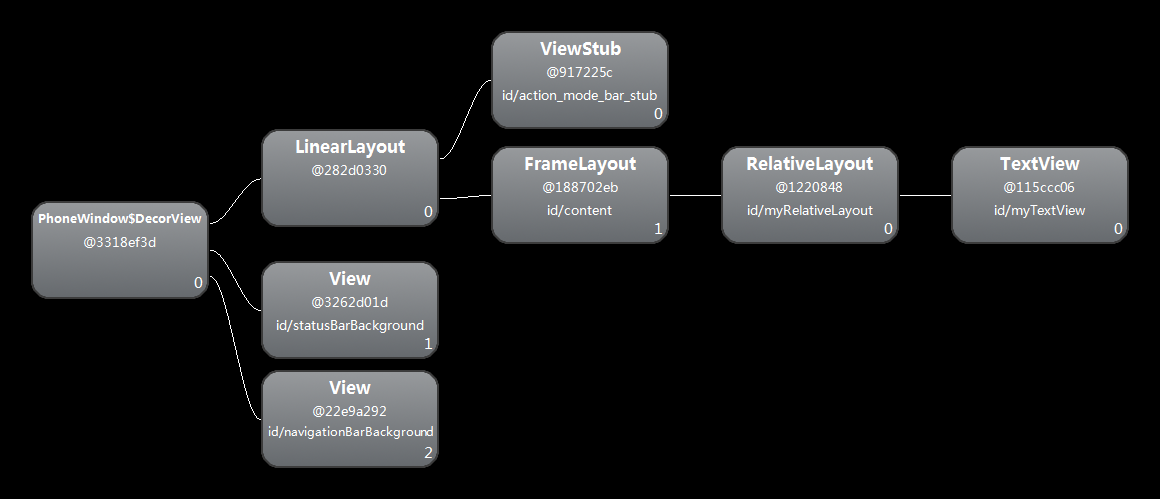
前言在Activity中一般第一句就是調用setContentView(R.layout.XXX),但這其中系統做了那些工作?我們知道,在ClassLoader裝載了Ma
 Android 帶有刪除按鈕的EditText
MainActivity如下:package cc.textview5; import android.os.Bundle; import android.text.Te
 Android學習筆記(十八)——使用意圖篩選器和實現浏覽網頁(附源碼)
使用意圖篩選器 點擊下載源碼 1、創建一個Intents項目,給該項目添加一個新類,命名為MyBrowserActivity,在res/layout文件夾下
 Android framework回顧 sp 和 wp sp對象
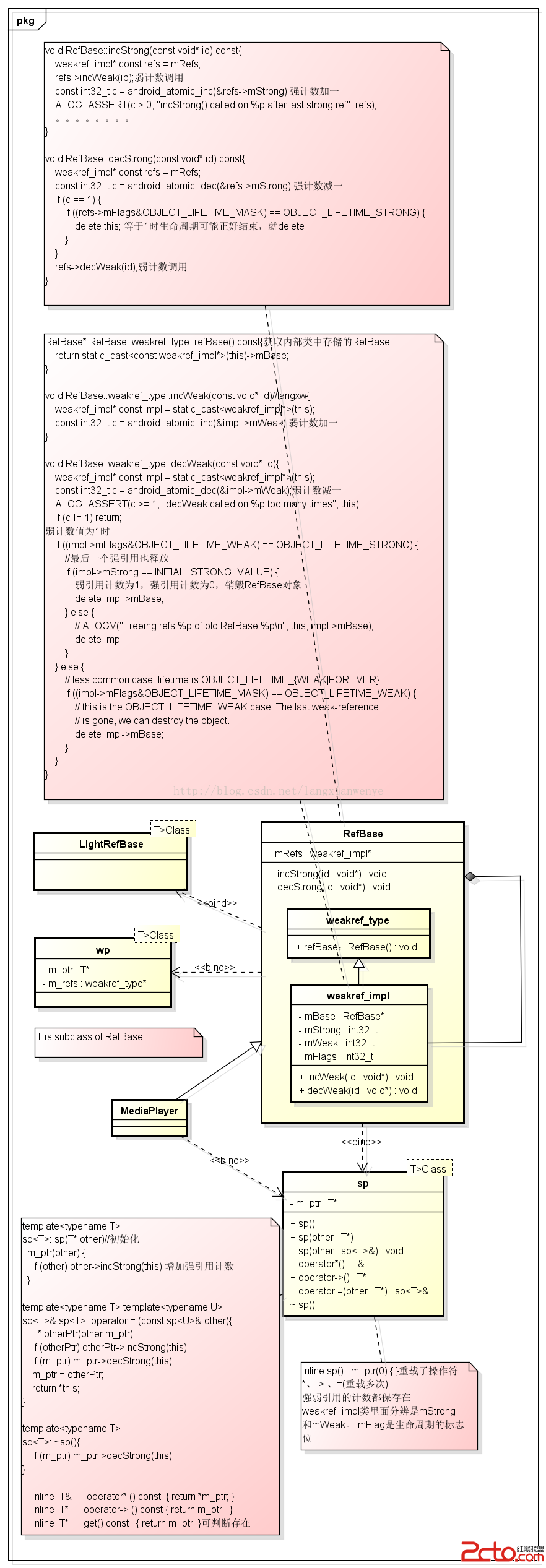
用MediaPlayer說明sp的實現。sp是一個模板類,T是RefBase的子類。只要繼承於RefBase的類都可以使用sp。binder類也繼承RefBase類,bi