編輯:關於Android編程
微信右上角的操作菜單看起來很好用,就照著仿了一下,不過是舊版微信的,手裡剛好有一些舊版微信的資源圖標,給大家分享一下。
不知道微信是用什麼實現的,我使用popupwindow來實現,主要分為幾塊內容:
1、窗口布局文件:popwin_share.xml
 <?xml version="1.0" encoding="utf-8"?>
<LinearLayout xmlns:android="http://schemas.android.com/apk/res/android"
  android:layout_width="wrap_content"
  android:layout_height="wrap_content"
  android:background="@drawable/title_tools_bg"
  android:orientation="vertical" >

  <LinearLayout
    android:id="@+id/layout_share"

    android:orientation="horizontal"
    android:background="@drawable/menu_left_item_selector"
    android:padding="5dp">

    <ImageView
      android:layout_marginLeft="7dp"

      android:scaleType="fitCenter"
      android:src="@drawable/share" />

    <TextView

      android:textColor="@color/white"
      android:textSize="@dimen/text18"
      android:layout_marginLeft="5dp"
      android:text="分享內容" />
  </LinearLayout>

  <LinearLayout
    android:id="@+id/layout_copy"

    android:orientation="horizontal"
    android:background="@drawable/menu_left_item_selector"
    android:padding="5dp">

    <ImageView
      android:layout_marginLeft="5dp"

      android:scaleType="fitCenter"
      android:src="@drawable/copy_pressed" />

    <TextView

      android:textColor="@color/white"
      android:textSize="@dimen/text18"
      android:layout_marginLeft="5dp"
      android:text="復制結果" />
  </LinearLayout>

</LinearLayout>
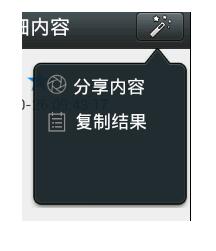
采用線性布局,因為裡面是一行一行豎排的菜單,線性布局更容易控制。大布局裡面放了兩個垂直排列的線性布局,每個線性布局中分別有橫向排列的imageview和textview,很簡單的布局。大布局的背景用了一個圖片,當然也可以自定義一些其他顏色。
2、popupwindow代碼,我這裡是自定義一個popupwindows類,繼承自PopupWindow:
 package com.xjw.view;

import com.xjw.translate.R;

import android.app.Activity;
import android.graphics.drawable.ColorDrawable;
import android.view.LayoutInflater;
import android.view.View;
import android.widget.AdapterView;
import android.widget.BaseAdapter;
import android.widget.LinearLayout;
import android.widget.ListView;
import android.widget.PopupWindow;
  /**
 * 項目名稱:translate
 * 實現功能: 翻譯詳情界面,分享彈出窗口
 * 類名稱:PopWinShare
 * 類描述:(該類的主要功能)
 * 創建人:徐紀偉
 * E-mail: xujiwei558@126.com
 * 創建時間:2014年10月18日 下午4:37:25
 * @version
 */
public class PopWinShare extends PopupWindow{
  private View mainView;
  private LinearLayout layoutShare, layoutCopy;

 public PopWinShare(Activity paramActivity, View.OnClickListener paramOnClickListener, int paramInt1, int paramInt2){
     super(paramActivity);
     //窗口布局
    mainView = LayoutInflater.from(paramActivity).inflate(R.layout.popwin_share, null);
    //分享布局
    layoutShare = ((LinearLayout)mainView.findViewById(R.id.layout_share));
    //復制布局
    layoutCopy = (LinearLayout)mainView.findViewById(R.id.layout_copy);
    //設置每個子布局的事件監聽器
    if (paramOnClickListener != null){
      layoutShare.setOnClickListener(paramOnClickListener);
      layoutCopy.setOnClickListener(paramOnClickListener);
    }
    setContentView(mainView);
    //設置寬度
    setWidth(paramInt1);
    //設置高度
    setHeight(paramInt2);
    //設置顯示隱藏動畫
    setAnimationStyle(R.style.AnimTools);
    //設置背景透明
    setBackgroundDrawable(new ColorDrawable(0));
  }
}
裡面提供了一個構造方法,包含四個參數,第一個參數是上下文的activity,第二個是菜單的點擊事件,從外邊傳遞進來的,要綁定給每一行的菜單,具體的事件實現當然要寫在activity中,後面兩個分別是彈出窗口的寬度和高度。裡面還包含了一個動畫樣式,窗口打開和關閉時出現動畫的樣式。
3、動畫樣式,顯示動畫,縮放動畫:push_in.xml
<?xml version="1.0" encoding="utf-8"?>
<scale  xmlns:android="http://schemas.android.com/apk/res/android"
    android:interpolator="@android:anim/accelerate_decelerate_interpolator"
    android:fromXScale="1.0"
    android:toXScale="1.0"
    android:fromYScale="0"
    android:toYScale="1.0"
    android:pivotX="0"
    android:pivotY="10%"
    android:duration="200" />
關閉動畫,也是縮放動畫:push_out.xml
 <?xml version="1.0" encoding="utf-8"?>

<scale  xmlns:android="http://schemas.android.com/apk/res/android"
    android:interpolator="@android:anim/accelerate_decelerate_interpolator"
    android:fromXScale="1.0"
    android:toXScale="1.0"
    android:fromYScale="1.0"
    android:toYScale="0"
    android:pivotX="0"
    android:pivotY="10%"
    android:duration="200" />
style樣式定義:
 <style name="AnimTools" parent="@android:style/Animation">
   <item name="android:windowEnterAnimation">@anim/push_in</item>
   <item name="android:windowExitAnimation">@anim/push_out</item>
 </style>
到此為止我們的自定義窗口已經定義好了。接下來看使用。
 if (popWinShare == null) {
  //自定義的單擊事件
  OnClickLintener paramOnClickListener = new OnClickLintener();
  popWinShare = new PopWinShare(TranslateDataContentActivity.this, paramOnClickListener, DisplayUtil.dip2px(context, 160), DisplayUtil.dip2px(context, 160));
  //監聽窗口的焦點事件,點擊窗口外面則取消顯示
  popWinShare.getContentView().setOnFocusChangeListener(new View.OnFocusChangeListener() {

    @Override
    public void onFocusChange(View v, boolean hasFocus) {
      if (!hasFocus) {
        popWinShare.dismiss();
      }
    }
  });
}
//設置默認獲取焦點
popWinShare.setFocusable(true);
//以某個控件的x和y的偏移量位置開始顯示窗口
popWinShare.showAsDropDown(btnTools, 0, 0);
//如果窗口存在,則更新
popWinShare.update();
每個子菜單的單擊事件自定義內部類,在裡面就可以寫每個子菜單的單擊事件啦,
class OnClickLintener implements OnClickListener{

    @Override
    public void onClick(View v) {
      switch (v.getId()) {
      case R.id.layout_share:

        break;
      case R.id.layout_copy:

        break;

      default:
        break;
      }

    }

  }
效果預覽:
以上就是本文的全部內容,希望對大家的學習有所幫助,也希望大家多多支持本站。
 Android中制作自定義dialog對話框的實例分享
自定義dialog基礎版很多時候,我們在使用android sdk提供的alerdialog的時候,會因為你的系統的不同而產生不同的效果,就好比如你刷的是MIUI的系統,
 Android屏幕旋轉 處理Activity與AsyncTask的最佳解決方案
一、概述運行時變更就是設備在運行時發生變化(例如屏幕旋轉、鍵盤可用性及語言)。發生這些變化,Android會重啟Activity,這時就需要保存activity的狀態及與
 [Android] 獲取WebView的頁面標題(Title)-----WebChromeClient.onReceivedTitle()方法的重寫
應用開發中需要獲取WebView當前頁面的標題,可能通過對WebChromeClient.onReceivedTitle()方法的重寫來實現 效果圖如下: 代碼如下:
 安卓使用ES文件浏覽器看電腦上的共享媒體文件
安卓使用ES文件浏覽器看電腦上的共享媒體文件。手機多大多很難大過電腦,有時手機都裝不下一步藍光的高清電影,可是我們要看,那怎麼辦?現在小編教你使用ES浏覽器