編輯:關於Android編程
支付寶咻一咻在過年的時候很火熱。那麼咻一咻具體有哪些實現方式呢?下面我們將一一介紹這幾種思路的實現過程。
1.自定義View實現咻一咻
那麼這種實現方法需要掌握Canvas以及Paint幾乎所有的方法。其對程序員的專業知識要求極高。
用該種方式實現的優點有:
㈠這種是最復雜的實現方法,但其兼容性最高,其支持Android的所有設備。
㈡其對內存要求不大,幾乎不占用任何內存。
下面我們來看看是怎樣實現其效果的:
public class XiuYiXiuView extends View {
  /***
   * 中心圖片畫筆
   */
  private Paint paint;
  /***
   * 水波圓圈畫筆
   */
  private Paint circlePaint;
  /***
   * 用bitmap創建畫布
   */
  private Bitmap bitmap;
  /***
   * 中心圖片
   */
  private Bitmap imageBit;
  /***
   * 畫布
   */
  private Canvas canvas;
  /***
   * 屏幕的寬
   */
  private int screenWidth;
  /***
   * 屏幕的高
   */
  private int screenHeight;
  /***
   * 圖片右上角坐標
   */
  private Point pointLeftTop;
  /***
   * 圖片右下角坐標
   */
  private Point pointRightBottom;
  /***
   * 記錄圓圈
   */
  private List<LYJCircle> lyjCircleList;
  /***
   * 標記是否按下按鈕,並且源泉是否擴散消失
   */
  private boolean isSpread=false;
  /***
   * 默認沒有按動時候的圓圈
   */
  private LYJCircle defaultCircle;
  public XiuYiXiuView(Context context, AttributeSet attrs) {
    super(context, attrs);
    this.lyjCircleList=new ArrayList<>();
    screenWidth=LYJUtils.getScreenWidth((Activity) context);
    screenHeight=LYJUtils.getScreenHeight((Activity) context);
    bitmap = Bitmap.createBitmap(screenWidth, screenHeight, Bitmap.Config.ARGB_8888); // 設置位圖的寬高
    canvas = new Canvas();
    canvas.setBitmap(bitmap);
    paint=new Paint(Paint.DITHER_FLAG);
    paint.setAntiAlias(true);
    circlePaint=new Paint(Paint.DITHER_FLAG);
    circlePaint.setAntiAlias(true);
    imageBit= BitmapFactory.decodeResource(getResources(), R.drawable.bwa_homepage_yuyin);
    pointLeftTop=new Point((screenWidth/2)-(imageBit.getWidth()/2),(screenHeight/2)-(imageBit.getHeight()/2));
    pointRightBottom=new Point(pointLeftTop.x+imageBit.getWidth(),pointLeftTop.y+imageBit.getHeight());
    canvas.drawBitmap(imageBit,pointLeftTop.x,pointLeftTop.y,paint);
    //取圖片上的顏色
    Palette.generateAsync(imageBit, new Palette.PaletteAsyncListener() {
      @Override
      public void onGenerated(Palette palette) {
        Palette.Swatch swatch1 = palette.getVibrantSwatch(); //充滿活力的色板
        circlePaint.setColor(swatch1.getRgb());
        circlePaint.setStyle(Paint.Style.STROKE);
        circlePaint.setStrokeWidth(10);
        circlePaint.setAlpha(100);
        paint.setShadowLayer(15, 0, 0, swatch1.getRgb());//設置陰影效果
        int[] mColors = new int[] {//渲染顏色
            Color.TRANSPARENT,swatch1.getRgb()
        };
        //范圍,這裡可以微調,實現你想要的漸變
        float[] mPositions = new float[] {
            0f, 0.1f
        };
        Shader shader=new RadialGradient(screenWidth / 2,screenHeight / 2,imageBit.getWidth() / 2 + 10,mColors, mPositions,
            Shader.TileMode.MIRROR);
        circlePaint.setShader(shader);
        defaultCircle=new LYJCircle(screenWidth / 2, screenHeight / 2, imageBit.getWidth() / 2 + 10);
        clearScreenAndDrawList();
        Message message = handler.obtainMessage(1);
        handler.sendMessageDelayed(message, 1000); //發送message

      }
    });
  }

  @Override
  public boolean onTouchEvent(MotionEvent event) {
    switch (event.getAction()){
      case MotionEvent.ACTION_DOWN:
        break;
      case MotionEvent.ACTION_MOVE:
        break;
      case MotionEvent.ACTION_UP:
        isSpread=true;//是否按下圖片
        lyjCircleList.add(new LYJCircle(screenWidth / 2, screenHeight / 2, imageBit.getWidth() / 2 + 10));
        clearScreenAndDrawList();
        invalidate();
        break;
      default:
        break;
    }
    return true;
  }

  private Handler handler = new Handler(){
    public void handleMessage(Message msg){
      switch (msg.what) {
        case 1:
          //定時更新界面
          clearScreenAndDrawList();
          invalidate();
          Message message = handler.obtainMessage(1);
          handler.sendMessageDelayed(message, 200);
      }
      super.handleMessage(msg);
    }
  };


  /**
   * 清掉屏幕上所有的圓圈,然後畫出集合裡面的圓圈
   */
  private void clearScreenAndDrawList() {
    canvas.drawColor(Color.TRANSPARENT, PorterDuff.Mode.CLEAR);
    //判斷是否按下圖片,並且外圈執行完成沒有。
    if(!isSpread){
        circlePaint.setMaskFilter(null);
        canvas.drawCircle(defaultCircle.getRoundX(), defaultCircle.getRoundY(),defaultCircle.getRadiuLoop(), circlePaint);// 畫線
    }else{
      for (LYJCircle lyjCircle : lyjCircleList) {
        if(lyjCircle.getSpreadRadiu()==0){

        }else if(lyjCircle.getSpreadRadiu()>(lyjCircle.getRadiu()+99)){
          //如果圓圈擴散半徑大於圖片半徑+99,那麼設置邊緣模糊,也就是淡出的效果
          circlePaint.setMaskFilter(new BlurMaskFilter(5, BlurMaskFilter.Blur.OUTER));
          canvas.drawCircle(lyjCircle.getRoundX(), lyjCircle.getRoundY(),lyjCircle.getSpreadRadiu(), circlePaint);// 畫線
        }else{
          //不是則按正常的環形渲染來
          circlePaint.setMaskFilter(null);
          canvas.drawCircle(lyjCircle.getRoundX(), lyjCircle.getRoundY(),lyjCircle.getSpreadRadiu(), circlePaint);// 畫線
        }
      }
    }
    canvas.drawBitmap(imageBit,pointLeftTop.x,pointLeftTop.y,paint);
    //釋放小時了的圓圈
    for(int i=0;i<lyjCircleList.size();i++){
      if(lyjCircleList.get(i).getSpreadRadiu()==0){
        lyjCircleList.remove(i);
      }
    }
    //如果沒有點擊圖片發射出去的圓圈,那麼就恢復默認縮放。
    if(lyjCircleList.size()<=0){
      isSpread=false;
    }
  }

  @Override
  protected void onDraw(Canvas canvas) {
    canvas.drawBitmap(bitmap, 0, 0, null);
  }
}
圓類:
package com.example.liyuanjing.model;

/**
 * Created by liyuanjing on 2016/2/3.
 */
public class LYJCircle {
  private int roundX;//圓中心點X坐標
  private int roundY;//圓中心點Y坐標
  private int radiu;//圓半徑
  private int currentRadiu;//當前radiu
  private int lastRadiu;//歷史radiu
  private int spreadRadiu;//加速半徑
  private int[] speed=new int[]{6,6,6,6,6,6,6,6,6,6,6,6,6,6,6,6,6,6,6,6,6,6};//半徑擴大速度。這裡為勻速
  private int speedLast=0;//記錄歷史值
  public LYJCircle(int roundX,int roundY,int radiu){
    this.roundX=roundX;
    this.roundY=roundY;
    this.radiu=radiu;
    this.spreadRadiu=radiu;
    this.currentRadiu=this.radiu;
    this.lastRadiu=this.currentRadiu;
  }

  //獲取半徑
  public int getRadiu() {
    return radiu;
  }

  public void setRadiu(int radiu) {
    this.radiu = radiu;
  }

  //獲取加速半徑
  public int getSpreadRadiu(){
    if(speedLast>=speed.length){
      return 0;
    }
    spreadRadiu+=speed[speedLast];
    ++speedLast;
    return spreadRadiu;
  }

  //獲取循環縮放半徑
  public int getRadiuLoop() {
    if(currentRadiu==lastRadiu){
      ++currentRadiu;
    }else if(currentRadiu>lastRadiu){
      if(currentRadiu>(radiu+20)){
        currentRadiu=19+radiu;
        lastRadiu=20+radiu;
      }else{
        lastRadiu=currentRadiu;
        currentRadiu+=5;
      }
    }else{
      if(currentRadiu<(radiu+9)){
        currentRadiu=10+radiu;
        lastRadiu=9+radiu;
      }else{
        lastRadiu=currentRadiu;
        currentRadiu-=5;
      }
    }
    return currentRadiu;
  }

  public int getRoundX() {
    return roundX;
  }

  public int getRoundY() {
    return roundY;
  }
}
看看其效果圖:

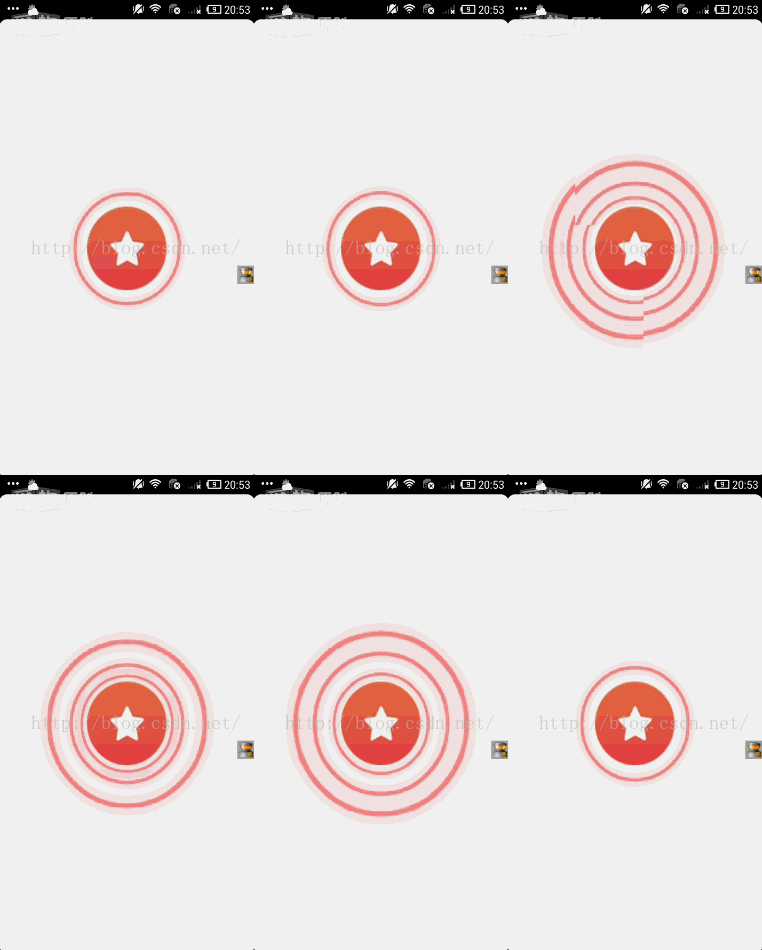
你可以修改如下兩個地方,會產生視覺上真真的波紋效果:
①支付寶的背景圖片是淡紅色,襯托了紅色的波紋。當然了你也可以將畫布設置為透明淡紅色。
②其為填充圓圈渲染,不是我的邊框渲染效果,你可以將circlePaint.setStyle(Paint.Style.STROKE);換成Paint.Style.FILL.然後,微調shader的mPositions實現環形填充漸變。你也許會覺得,你看支付寶咻一咻圓圈彈開的時候內圈有波紋也像外彈開,其實那就是環形漸變,當你圓圈變大後,其漸變的范圍也就變大了,自然你看到有顏色周圍擴散的跡象。
2.屬性動畫實現咻一咻
其要掌握的只是基本只需要屬性動畫,在加一點線程方面有關的知識而已。
下面我們看看其實現步驟:
㈠自定義View實現一個圓即可,代碼如下:
public class LYJCircleView extends View {
  private Bitmap bitmap;
  private Paint paint;
  private Canvas canvas;
  private int screenWidth;
  private int screenHeight;
  private boolean isSpreadFlag=false;//標記是否發射完成

  public boolean isSpreadFlag() {
    return isSpreadFlag;
  }

  public void setIsSpreadFlag(boolean isSpreadFlag) {
    this.isSpreadFlag = isSpreadFlag;
  }

  public LYJCircleView(Context context,int width,int height,int statusHeight) {
    super(context);
    screenWidth= LYJUtils.getScreenWidth((Activity) context);
    screenHeight=LYJUtils.getScreenHeight((Activity) context);
    bitmap = Bitmap.createBitmap(screenWidth, screenHeight, Bitmap.Config.ARGB_8888); // 設置位圖的寬高
    canvas = new Canvas();
    canvas.setBitmap(bitmap);
    paint=new Paint(Paint.DITHER_FLAG);
    paint.setAntiAlias(true);
    paint.setColor(Color.RED);
    paint.setStyle(Paint.Style.STROKE);
    paint.setStrokeWidth(5);
    paint.setAlpha(100);
    paint.setShadowLayer(10, 0, 0, Color.RED);
    int[] mColors = new int[] {
        Color.TRANSPARENT,Color.RED
    };
    float[] mPositions = new float[] {
        0f, 0.1f
    };
    Shader shader=new RadialGradient(screenWidth / 2,screenHeight / 2,width / 2 + 10,mColors, mPositions,
        Shader.TileMode.MIRROR);
    paint.setShader(shader);
    canvas.drawCircle(screenWidth / 2, (screenHeight - statusHeight) / 2, width / 2 + 10, paint);
    invalidate();
  }

  @Override
  protected void onDraw(Canvas canvas) {
    canvas.drawBitmap(bitmap,0,0,null);
  }
}
代碼與上面差不多,就不注釋了。
㈡實現Activity即可
public class XiuYiXiuActivity extends AppCompatActivity {
  private ImageButton mImageButton;
  private LYJCircleView lyjCircleView;
  private RelativeLayout relativeLayout;
  private List<LYJCircleView> lyjCircleViewList;
  private int statusBarHeight;
  private Animator anim;
  @Override
  protected void onCreate(Bundle savedInstanceState) {
    super.onCreate(savedInstanceState);
    setContentView(R.layout.xiuyixiu_activity_main);
    this.mImageButton=(ImageButton)findViewById(R.id.xiuyixiu_imagebutton);
    this.relativeLayout=(RelativeLayout)findViewById(R.id.xiuyixiu_relativelayout);
    this.lyjCircleViewList=new ArrayList<>();
    this.mImageButton.setOnClickListener(new View.OnClickListener() {
      @Override
      public void onClick(View v) {
        lyjCircleView.setVisibility(View.GONE);//發射圓圈,即將循環動畫View隱藏
        final LYJCircleView item=new LYJCircleView(XiuYiXiuActivity.this, mImageButton.getWidth(), mImageButton.getHeight(), statusBarHeight);
        Animator spreadAnim = AnimatorInflater.loadAnimator(XiuYiXiuActivity.this, R.animator.circle_spread_animator);
        spreadAnim.addListener(new Animator.AnimatorListener() {
          @Override
          public void onAnimationStart(Animator animation) {

          }

          @Override
          public void onAnimationEnd(Animator animation) {
            item.setIsSpreadFlag(true);//動畫執行完成,標記一下
          }

          @Override
          public void onAnimationCancel(Animator animation) {

          }

          @Override
          public void onAnimationRepeat(Animator animation) {

          }
        });
        spreadAnim.setTarget(item);
        spreadAnim.start();
        lyjCircleViewList.add(item);
        relativeLayout.addView(item);
        relativeLayout.invalidate();
        Message message = handler.obtainMessage(1);
        handler.sendMessageDelayed(message, 10); //發送message,定時釋放LYJCircleView
      }
    });
  }

  private Handler handler = new Handler(){
    public void handleMessage(Message msg){
      switch (msg.what) {
        case 1:
          for(int i=0;i<lyjCircleViewList.size();i++){
            if(lyjCircleViewList.get(i).isSpreadFlag()){
              relativeLayout.removeView(lyjCircleViewList.get(i));
              lyjCircleViewList.remove(i);
              relativeLayout.invalidate();
            }
          }
          if(lyjCircleViewList.size()<=0){
            lyjCircleView.setVisibility(View.VISIBLE);
          }
          Message message = handler.obtainMessage(1);
          handler.sendMessageDelayed(message, 10);
      }
      super.handleMessage(msg);
    }
  };

  @Override
  public void onWindowFocusChanged(boolean hasFocus) {
    super.onWindowFocusChanged(hasFocus);
    //獲取狀態欄高度
    Rect frame = new Rect();
    getWindow().getDecorView().getWindowVisibleDisplayFrame(frame);
    statusBarHeight = frame.top;
    this.mImageButton.post(new Runnable() {
      @Override
      public void run() {
        lyjCircleView = new LYJCircleView(XiuYiXiuActivity.this, mImageButton.getWidth(), mImageButton.getHeight(), statusBarHeight);
        relativeLayout.addView(lyjCircleView);
        relativeLayout.postInvalidate();
        // 加載動畫
        anim = AnimatorInflater.loadAnimator(XiuYiXiuActivity.this, R.animator.circle_scale_animator);
        anim.addListener(new Animator.AnimatorListener() {
          @Override
          public void onAnimationStart(Animator animation) {

          }

          @Override
          public void onAnimationEnd(Animator animation) {
            anim.start();//循環執行動畫
          }

          @Override
          public void onAnimationCancel(Animator animation) {

          }

          @Override
          public void onAnimationRepeat(Animator animation) {

          }
        });
        anim.setTarget(lyjCircleView);
        anim.start();
      }
    });
  }
}
㈢布局文件代碼如下:
<?xml version="1.0" encoding="utf-8"?>
<RelativeLayout xmlns:android="http://schemas.android.com/apk/res/android"
  android:id="@+id/xiuyixiu_relativelayout"
  android:layout_width="match_parent"
  android:layout_height="match_parent">

  <ImageButton
    android:id="@+id/xiuyixiu_imagebutton"
    android:layout_width="wrap_content"
    android:layout_height="wrap_content"
    android:layout_centerInParent="true"
    android:background="@drawable/bwa_homepage_yuyin"/>

</RelativeLayout>
當然上面兩個實現方法,我都只設置圓邊框,沒有填充,你可以設置為填充後,在微調漸變值。
其屬性動畫文件circle_scale_animator.xml:
<?xml version="1.0" encoding="utf-8"?>
<set xmlns:android="http://schemas.android.com/apk/res/android"
  android:ordering="together">
  <objectAnimator
    android:duration="1000"
    android:propertyName="scaleX"
    android:valueFrom="1.0"
    android:valueTo="1.2"
    android:valueType="floatType">
  </objectAnimator>
  <objectAnimator
    android:duration="1000"
    android:propertyName="scaleY"
    android:valueFrom="1.0"
    android:valueTo="1.2"
    android:valueType="floatType">
  </objectAnimator>
  <objectAnimator
    android:startOffset="1000"
    android:duration="1000"
    android:propertyName="scaleX"
    android:valueFrom="1.2"
    android:valueTo="1.0"
    android:valueType="floatType">
  </objectAnimator>
  <objectAnimator
    android:startOffset="1000"
    android:duration="1000"
    android:propertyName="scaleY"
    android:valueFrom="1.2"
    android:valueTo="1.0"
    android:valueType="floatType">
  </objectAnimator>
</set>
另一個circle_spread_animator.xml為:
<?xml version="1.0" encoding="utf-8"?>
<set xmlns:android="http://schemas.android.com/apk/res/android">
  <objectAnimator
    android:duration="1000"
    android:propertyName="scaleY"
    android:valueFrom="1.0"
    android:valueTo="2.0"
    android:valueType="floatType">
  </objectAnimator>
  <objectAnimator
    android:duration="1000"
    android:propertyName="scaleX"
    android:valueFrom="1.0"
    android:valueTo="2.0"
    android:valueType="floatType">
  </objectAnimator>
</set>
其效果圖如下:
以上就是本文的全部內容,希望對大家的學習有所幫助,也希望大家多多支持本站。
 Android Studio中Spinner控件的數據綁定實現
這裡介紹使用集合在程序中為Spinner控件設定數據源,步驟如下:1、在Android Studio界面中,選擇“Project”,然後展開&qu
 Android開發環境的搭建
1,首先需要保證自己的jdk安裝配置完成http://www.eclipse.org/babel/downloads.php 2 sdk的下載,http:/
 Android Studio之修改module名稱
當我們第一次創建一個project,Android Studio會自動幫我們創建一個app的module,這裡的module相當於Eclipse中的project,只是A
 android ExpandableListView詳解
點擊顯示展開項,先看效果:開始,1.先搞個XML顯示主界面:main_activity.xml: 2.進入main_activity開始搞顯示工作: