編輯:關於Android編程
寫在前面
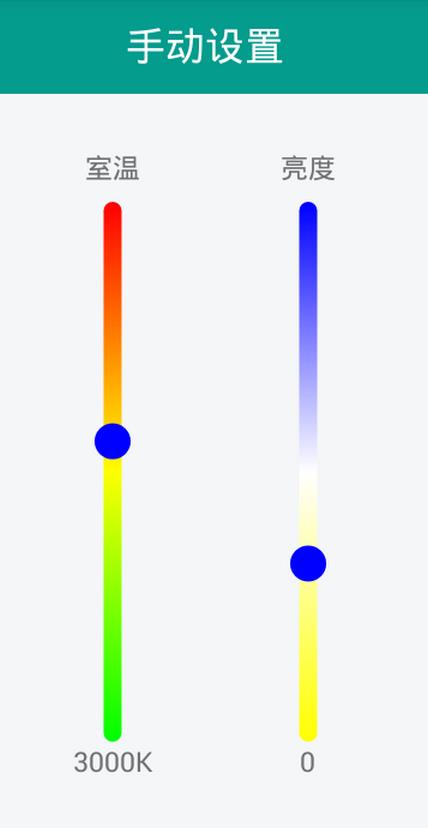
因為有這樣的一個場景,需要實現豎直方向的多色進度條,然後在網上也找了下,沒看到符合需要的,於是自定義了一個,效果如下:
具體實現
本來想定義水平的,然後旋轉一下,後來發現還不如直接定義豎直方向來的直接,就直接在豎直方向畫了下。
首先講一下思路,就是通過繼承View,然後通過onDraw()方法進行繪制。具體繪制的時候,需要處理一些小細節。
比如,我們需要畫一個圓形的滑動塊,那麼我們的背景色帶就不能把整個寬度占滿,要不然,小圓塊只能和色帶一樣寬了,效果不是很好看,所以在繪制的時候應該把背景畫的寬度小於View的實際寬度。
接下來我要貼代碼了:
 @Override
 protected void onDraw(Canvas canvas) {
  super.onDraw(canvas);
  int h = getMeasuredHeight();
  int w = getMeasuredWidth();
  mRadius = (float) w/2;
  sLeft = w * 0.25f; // 背景左邊緣坐標
  sRight = w * 0.75f;// 背景右邊緣坐標
  sTop = 0;
  sBottom = h;
  sWidth = sRight - sLeft; // 背景寬度
  sHeight = sBottom - sTop; // 背景高度
  x = (float) w/2;//圓心的x坐標
  y = (float) (1-0.01*progress)*sHeight;//圓心y坐標
  drawBackground(canvas);
  drawCircle(canvas);
  paint.reset();
 }
再看下畫背景:
private void drawBackground(Canvas canvas){
  RectF rectBlackBg = new RectF(sLeft, sTop, sRight, sBottom);
  linearGradient=new LinearGradient(sLeft,sTop,sWidth,sHeight,colorArray,null, Shader.TileMode.MIRROR);
  paint.setAntiAlias(true);
  paint.setStyle(Paint.Style.FILL);
  //設置渲染器
  paint.setShader(linearGradient);
  canvas.drawRoundRect(rectBlackBg, sWidth/2, sWidth/2, paint);
}
這裡使用LinearGradient實現多種顏色漸變,默認初始化定義如下:
 private int endColor=Color.WHITE;
 private int thumbColor=Color.BLACK;
 private int thumbBorderColor=Color.WHITE;
 private int colorArray[]={startColor, middleColor, endColor};
然後看下畫圓的操作:
 private void drawCircle(Canvas canvas){
  Paint thumbPaint = new Paint();
  y = y < mRadius ? mRadius : y;//判斷thumb邊界
  y = y > sHeight-mRadius ? sHeight-mRadius : y;
  thumbPaint.setAntiAlias(true);
  thumbPaint.setStyle(Paint.Style.FILL);
  thumbPaint.setColor(thumbColor);
  canvas.drawCircle(x, y, mRadius, thumbPaint);
  thumbPaint.setStyle(Paint.Style.STROKE);
  thumbPaint.setColor(thumbBorderColor);
  thumbPaint.setStrokeWidth(2);
  canvas.drawCircle(x, y, mRadius, thumbPaint);
 }
這裡通過畫布畫了一個圓形,內部填充和外邊沿。
上面的過程已經可以使效果展示出來了,但是無法操作,我們還需要給它加上事件才行:
 @Override
 public boolean onTouchEvent(MotionEvent event) {
  this.y = event.getY();
  progress= (sHeight-y)/sHeight*100;
  switch(event.getAction()) {
   case MotionEvent.ACTION_DOWN:
    break;
   case MotionEvent.ACTION_UP:
    if (onStateChangeListener!=null){
     onStateChangeListener.onStopTrackingTouch(this, progress);
    }
    break;
   case MotionEvent.ACTION_MOVE:
    if (onStateChangeListener!=null){
     onStateChangeListener.OnStateChangeListener(this, progress);
    }
    setProgress(progress);
    this.invalidate();
    break;
  }

  return true;
 }
 public interface OnStateChangeListener{
  void OnStateChangeListener(View view, float progress);
  void onStopTrackingTouch(View view, float progress);
 }

 public void setOnStateChangeListener(OnStateChangeListener onStateChangeListener){
  this.onStateChangeListener=onStateChangeListener;
 }
這裡寫了個回調接口,然後我們在Activity中就可以接收到相應的滑動進度,進而進行操作,當然,這裡我們還得再加一個方法,以便改變seekbar的狀態:
 public void setProgress(float progress) {
  this.progress = progress;
  invalidate();
 }
到這裡,功能基本就OK了,然後我們可以在Activity中去使用它了,下面是布局中的引用:
<?xml version="1.0" encoding="utf-8"?>
<LinearLayout xmlns:android="http://schemas.android.com/apk/res/android"
    android:orientation="vertical"
    android:layout_width="match_parent"
    android:layout_height="match_parent"
    android:background="@color/bgColor"
 >
 <include layout="@layout/bar_simple_title" />

 <LinearLayout
  android:layout_width="match_parent"
  android:layout_height="match_parent"
  android:orientation="horizontal"
  android:gravity="center"
  >

  <RelativeLayout
   android:layout_marginTop="20dp"
   android:layout_width="wrap_content"
   android:layout_height="match_parent"
   android:layout_marginRight="35dp"
   >
   <TextView
    android:id="@+id/tv_inner_temper"
    android:layout_width="wrap_content"
    android:layout_height="wrap_content"
    android:text="@string/inner_temperature"
    android:layout_centerHorizontal="true"
    />

   <com.tfxiaozi.widget.VerticalColorSeekBar
    android:id="@+id/vpb_inner_temper"
    android:layout_width="20dp"
    android:layout_height="300dp"
    android:layout_centerHorizontal="true"
    android:layout_marginTop="30dp"/>

   <TextView
    android:id="@+id/tv_current_temper"
    android:layout_below="@id/vpb_inner_temper"
    android:layout_width="wrap_content"
    android:layout_height="wrap_content"
    android:text="@string/current_temperature"
    />
  </RelativeLayout>
  <RelativeLayout
   android:layout_marginLeft="35dp"
   android:layout_marginTop="20dp"
   android:layout_width="wrap_content"
   android:layout_height="match_parent"
   >
   <TextView
    android:id="@+id/tv_brightness"
    android:layout_width="wrap_content"
    android:layout_height="wrap_content"
    android:text="@string/brightness"
    android:layout_centerHorizontal="true"
    />

   <com.tfxiaozi.widget.VerticalColorSeekBar
    android:id="@+id/vpb_brightness"
    android:layout_width="20dp"
    android:layout_height="300dp"
    android:layout_centerHorizontal="true"
    android:layout_marginTop="30dp"/>

   <TextView
    android:id="@+id/tv_current_brightness"
    android:layout_below="@id/vpb_brightness"
    android:layout_width="wrap_content"
    android:layout_height="wrap_content"
    android:layout_centerHorizontal="true"
    android:text="0"
    />
  </RelativeLayout>
 </LinearLayout>
</LinearLayout>
怎麼使用就很簡單了:
package com.tfxiaozi.activity.setting;
import android.graphics.Color;
import android.os.Bundle;
import android.view.View;
import android.widget.ImageView;
import android.widget.TextView;

import com.tfxiaozi.R;
import com.tfxiaozi.activity.BaseActivity;
import com.tfxiaozi.utils.ToastUtils;
import com.tfxiaozi.widget.VerticalColorSeekBar;

/**
 * Created by dongqiang on 2016/10/16.
 */
public class ManualSettingActivity extends BaseActivity implements View.OnClickListener, VerticalColorSeekBar.OnStateChangeListener {

 private TextView tvCurrentTemper, tvCurrentBrightness, tvMainTitle;
 private ImageView ivBack;
 private VerticalColorSeekBar vpbInnerTemper;
 private VerticalColorSeekBar vpbBrightness;

 @Override
 protected void onCreate(Bundle savedInstanceState) {
  super.onCreate(savedInstanceState);
  setContentView(R.layout.activity_manual_setting);
  initViews();
  initEvents();
  initData();
 }

 private void initViews() {
  tvMainTitle = (TextView) findViewById(R.id.title_main_text);
  tvMainTitle.setText(getString(R.string.manual_setting));
  tvMainTitle.setVisibility(View.VISIBLE);
  ivBack = (ImageView) findViewById(R.id.title_back);
  ivBack.setVisibility(View.VISIBLE);

  tvCurrentTemper = (TextView) findViewById(R.id.tv_current_temper);
  tvCurrentBrightness = (TextView) findViewById(R.id.tv_current_brightness);
  vpbInnerTemper = (VerticalColorSeekBar)findViewById(R.id.vpb_inner_temper);
  vpbBrightness = (VerticalColorSeekBar) findViewById(R.id.vpb_brightness);
  vpbInnerTemper.setColor(Color.RED, Color.YELLOW, Color.GREEN, Color.BLUE, Color.TRANSPARENT);
  vpbBrightness.setColor(Color.BLUE, Color.WHITE, Color.YELLOW, Color.BLUE, Color.TRANSPARENT);
 }

 private void initEvents() {
  ivBack.setOnClickListener(this);
  vpbInnerTemper.setOnStateChangeListener(this);
  vpbBrightness.setOnStateChangeListener(this);
 }

 private void initData() {
  vpbInnerTemper.setProgress(50);
  vpbBrightness.setProgress(70);
 }

 @Override
 public void onClick(View v) {
  switch (v.getId()) {
   case R.id.title_back:
    finish();
    break;
  }
 }

 @Override
 public void OnStateChangeListener(View view, float progress) {

 }

 @Override
 public void onStopTrackingTouch(View view, float progress) {
  int viewId = view.getId();
  switch (viewId) {
   case R.id.vpb_inner_temper:
    if (progress < 0) {
     progress = 0;
    }
    if(progress > 100) {
     progress = 100;
    }
    ToastUtils.showShort(this, "progress= " + progress);
    break;

   case R.id.vpb_brightness:
    if (progress < 0) {
     progress = 0;
    }
    if(progress > 100) {
     progress = 100;
    }
    ToastUtils.showShort(this, "progress1= " + progress);
    break;
  }

 }
}
到這裡就結束了,最後還是附上自定義View的整個代碼吧:
package com.tfxiaozi.widget;

import android.content.Context;
import android.graphics.Canvas;
import android.graphics.Color;
import android.graphics.LinearGradient;
import android.graphics.Paint;
import android.graphics.RectF;
import android.graphics.Shader;
import android.util.AttributeSet;
import android.util.Log;
import android.view.MotionEvent;
import android.view.View;

/**
 * Created by dongqiang on 2016/10/21.
 */
public class VerticalColorSeekBar extends View{

 private static final String TAG = VerticalColorSeekBar.class.getSimpleName();
 private int startColor= Color.BLACK;
 private int middleColor = Color.GRAY;
 private int endColor=Color.WHITE;
 private int thumbColor=Color.BLACK;
 private int thumbBorderColor=Color.WHITE;
 private int colorArray[]={startColor, middleColor, endColor};
 private float x,y;
 private float mRadius;
 private float progress;
 private float maxCount = 100f;
 private float sLeft, sTop, sRight, sBottom;
 private float sWidth,sHeight;
 private LinearGradient linearGradient;
 private Paint paint = new Paint();
 protected OnStateChangeListener onStateChangeListener;

 public VerticalColorSeekBar(Context context) {
  this(context, null);
 }

 public VerticalColorSeekBar(Context context, AttributeSet attrs) {
  super(context, attrs);
 }

 @Override
 protected synchronized void onMeasure(int widthMeasureSpec, int heightMeasureSpec) {
  super.onMeasure(widthMeasureSpec, heightMeasureSpec);
  setMeasuredDimension(getMeasuredWidth(), getMeasuredHeight());
 }

 public void setColor(int startColor,int middleColor, int endColor,int thumbColor,int thumbBorderColor){
  this.startColor= startColor;
  this.middleColor = middleColor;
  this.endColor= endColor;
  this.thumbColor= thumbColor;
  this.thumbBorderColor= thumbBorderColor;
  colorArray[0] = startColor;
  colorArray[1] = middleColor;
  colorArray[2] = endColor;
 }


 @Override
 protected void onDraw(Canvas canvas) {
  super.onDraw(canvas);
  int h = getMeasuredHeight();
  int w = getMeasuredWidth();
  mRadius = (float) w/2;
  sLeft = w * 0.25f; // 背景左邊緣坐標
  sRight = w * 0.75f;// 背景右邊緣坐標
  sTop = 0;
  sBottom = h;
  sWidth = sRight - sLeft; // 背景寬度
  sHeight = sBottom - sTop; // 背景高度
  x = (float) w/2;//圓心的x坐標
  y = (float) (1-0.01*progress)*sHeight;//圓心y坐標
  drawBackground(canvas);
  drawCircle(canvas);
  paint.reset();
 }

 private void drawBackground(Canvas canvas){
  RectF rectBlackBg = new RectF(sLeft, sTop, sRight, sBottom);
  linearGradient=new LinearGradient(sLeft,sTop,sWidth,sHeight,colorArray,null, Shader.TileMode.MIRROR);
  paint.setAntiAlias(true);
  paint.setStyle(Paint.Style.FILL);
  //設置渲染器
  paint.setShader(linearGradient);
  canvas.drawRoundRect(rectBlackBg, sWidth/2, sWidth/2, paint);
 }

 private void drawCircle(Canvas canvas){
  Paint thumbPaint = new Paint();
  y = y < mRadius ? mRadius : y;//判斷thumb邊界
  y = y > sHeight-mRadius ? sHeight-mRadius : y;
  thumbPaint.setAntiAlias(true);
  thumbPaint.setStyle(Paint.Style.FILL);
  thumbPaint.setColor(thumbColor);
  canvas.drawCircle(x, y, mRadius, thumbPaint);
  thumbPaint.setStyle(Paint.Style.STROKE);
  thumbPaint.setColor(thumbBorderColor);
  thumbPaint.setStrokeWidth(2);
  canvas.drawCircle(x, y, mRadius, thumbPaint);
 }

 @Override
 public boolean onTouchEvent(MotionEvent event) {
  this.y = event.getY();
  progress= (sHeight-y)/sHeight*100;
  switch(event.getAction()) {
   case MotionEvent.ACTION_DOWN:
    break;
   case MotionEvent.ACTION_UP:
    if (onStateChangeListener!=null){
     onStateChangeListener.onStopTrackingTouch(this, progress);
    }
    break;
   case MotionEvent.ACTION_MOVE:
    if (onStateChangeListener!=null){
     onStateChangeListener.OnStateChangeListener(this, progress);
    }
    setProgress(progress);
    this.invalidate();
    break;
  }

  return true;
 }


 public interface OnStateChangeListener{
  void OnStateChangeListener(View view, float progress);
  void onStopTrackingTouch(View view, float progress);
 }

 public void setOnStateChangeListener(OnStateChangeListener onStateChangeListener){
  this.onStateChangeListener=onStateChangeListener;
 }

 public void setProgress(float progress) {
  this.progress = progress;
  invalidate();
 }
}
結束
到這裡就真的結束啦,就當記錄一下吧,然後也希望幫到有需要的人。有更好的實現也可以告訴我哈~
以上就是本文的全部內容,希望對大家的學習有所幫助,也希望大家多多支持本站。
 OpenglES2.0 for Android:來畫個球吧
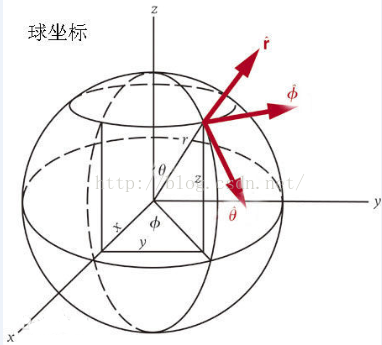
理解球坐標系首先看下球的坐標系 ,如圖 : (圖來自百度百科 ) 設球上有一點 A ,球心為O ,OA在 xOy上的投影與X軸夾角為φ (范圍
 Android 安全加密:對稱加密詳解
Android安全加密專題文章索引 Android安全加密:對稱加密 Android安全加密:非對稱加密 Android安全加密:消息摘要Message D
 android開發小知識點之Activity總結
在做android項目開發時,就不得不遇到一個Activity的狀態組件,這個組件描述的是一個控件、一個窗體等的當前狀態信息。下面詳細介紹這個組件 一、Activit
 android-----帶你一步一步優化ListView(一)
ListView作為android中最常使用的控件,可以以條目的形式顯示大量的數據,經常被用於顯示最近聯系人列表,對於每一個 Item,均要求adapter的getVie