編輯:關於Android編程
記錄下一個很實用的小控件EditTextWithDel,就是在Android系統的輸入框右邊加入一個小圖標,點擊小圖標可以清除輸入框裡面的內容,由於Android原生EditText不具備此功能,所以要想實現這一功能我們需要重寫EditText。
效果圖如下:
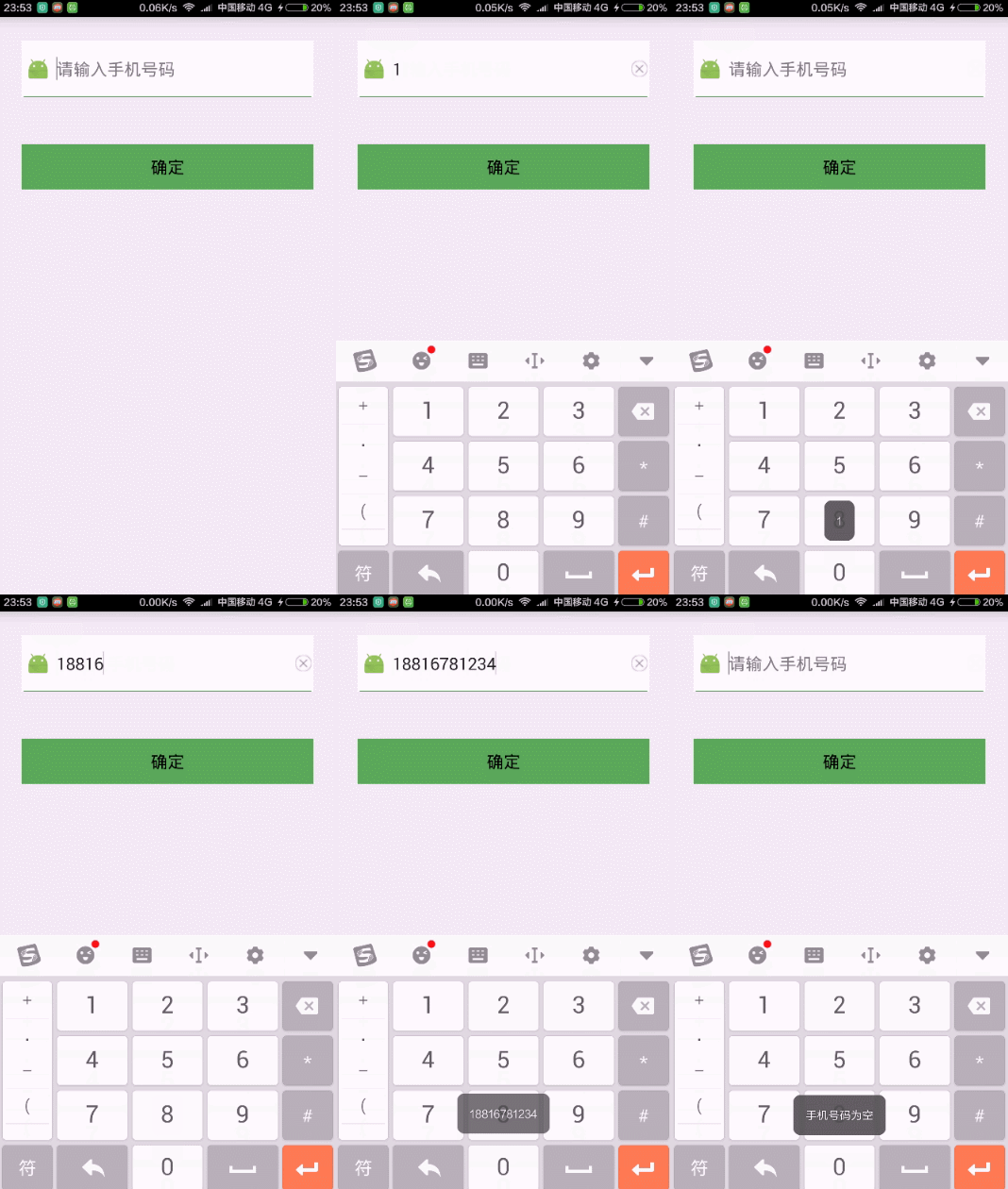
主要的思路就是為右邊的圖片設置監聽,點擊右邊的圖片清除輸入框的內容並隱藏刪除圖標,因為我們不能直接給EditText設置點擊事件,所以我們用記住我們按下的位置來模擬點擊事件,用輸入框的的onTouchEvent()方法來模擬.
package com.xiaolijuan.edittextwithdeldome;

import android.content.Context;
import android.graphics.Rect;
import android.graphics.drawable.Drawable;
import android.text.Editable;
import android.text.TextWatcher;
import android.util.AttributeSet;
import android.util.Log;
import android.view.MotionEvent;
import android.widget.EditText;

/**
 * @author: adan
 * @description: 自定義帶有刪除功能的EditText
 * @projectName: EditTextWithDelDome
 * @date: 2016-02-28
 * @time: 23:34
 */
public class EditTextWithDel extends EditText {
 private final static String TAG = "EditTextWithDel";
 private Drawable imgInable;
 private Drawable imgAble;
 private Context mContext;

 public EditTextWithDel(Context context) {
 super(context);
 mContext = context;
 init();
 }

 public EditTextWithDel(Context context, AttributeSet attrs, int defStyle) {
 super(context, attrs, defStyle);
 mContext = context;
 init();
 }
 public EditTextWithDel(Context context, AttributeSet attrs) {
 super(context, attrs);
 mContext = context;
 init();
 }

 private void init() {
 imgAble = mContext.getResources().getDrawable(
  R.mipmap.icon_delete_gray);
 addTextChangedListener(new TextWatcher() {
  @Override
  public void onTextChanged(CharSequence s, int start, int before,
     int count) {
  }

  @Override
  public void beforeTextChanged(CharSequence s, int start, int count,
      int after) {
  }

  @Override
  public void afterTextChanged(Editable s) {
  setDrawable();
  }
 });
 setDrawable();
 }

 // 設置刪除圖片
 private void setDrawable() {
 if (length() < 1) {
  setCompoundDrawablesWithIntrinsicBounds(null, null, null, null);
 } else {
  setCompoundDrawablesWithIntrinsicBounds(null, null, imgAble, null);
 }
 }

 // 處理刪除事件
 @Override
 public boolean onTouchEvent(MotionEvent event) {
 if (imgAble != null && event.getAction() == MotionEvent.ACTION_UP) {
  int eventX = (int) event.getRawX();
  int eventY = (int) event.getRawY();
  Log.e(TAG, "eventX = " + eventX + "; eventY = " + eventY);
  Rect rect = new Rect();
  getGlobalVisibleRect(rect);
  rect.left = rect.right - 50;
  if (rect.contains(eventX, eventY))
  setText("");
 }
 return super.onTouchEvent(event);
 }

 @Override
 protected void finalize() throws Throwable {
 super.finalize();
 }
}
setDrawable()方法,setCompoundDrawablesWithIntrinsicBounds(Drawable left, Drawable top, Drawable right, Drawable bottom)來在上、下、左、右設置圖標,如果不想在某個地方顯示,則設置為null。
接下來我們來使用它設置Activity的布局,一個我們自定義的輸入框,一個按鈕
<?xml version="1.0" encoding="utf-8"?>
<LinearLayout xmlns:android="http://schemas.android.com/apk/res/android"
 android:layout_width="match_parent"
 android:layout_height="match_parent"
 android:orientation="vertical">

 <RelativeLayout
 android:layout_width="match_parent"
 android:layout_height="60dp"
 android:layout_margin="25dp"
 android:background="#ffffff">

 <ImageView
  android:id="@+id/img"
  android:layout_width="25dp"
  android:layout_height="30dp"
  android:layout_alignParentLeft="true"
  android:layout_centerVertical="true"
  android:layout_margin="5dp"
  android:src="@mipmap/ic_launcher" />

 <ImageView
  android:layout_width="match_parent"
  android:layout_height="1dp"
  android:layout_alignParentBottom="true"
  android:layout_marginLeft="2dp"
  android:layout_marginRight="2dp"
  android:background="#56AB55" />

 <com.xiaolijuan.edittextwithdeldome.EditTextWithDel
  android:id="@+id/et_phoneNumber"
  android:layout_width="wrap_content"
  android:layout_height="wrap_content"
  android:layout_alignParentBottom="true"
  android:layout_alignParentRight="true"
  android:layout_alignParentTop="true"
  android:layout_margin="2dp"
  android:layout_toRightOf="@+id/img"
  android:background="#ffffff"
  android:hint="請輸入手機號碼"
  android:maxLength="11"
  android:phoneNumber="true"
  android:singleLine="true" />
 </RelativeLayout>

 <Button
 android:id="@+id/btn"
 android:layout_width="match_parent"
 android:layout_height="wrap_content"
 android:layout_margin="25dp"
 android:background="#56AB55"
 android:text="確定" />
</LinearLayout>
然後就是界面代碼的編寫,主要測試下輸入框
package com.xiaolijuan.edittextwithdeldome;

import android.app.Activity;
import android.os.Bundle;
import android.text.TextUtils;
import android.view.View;
import android.widget.EditText;
import android.widget.Toast;


public class MainActivity extends Activity {
 private EditText userName;
 @Override
 protected void onCreate(Bundle savedInstanceState) {
 super.onCreate(savedInstanceState);
 setContentView(R.layout.activity_main);
 userName = (EditText) findViewById(R.id.et_phoneNumber);
 findViewById(R.id.btn).setOnClickListener(new View.OnClickListener() {
  @Override
  public void onClick(View v) {
  if (TextUtils.isEmpty(userName.getText().toString())){
   Toast.makeText(getApplicationContext(),"手機號碼為空",Toast.LENGTH_LONG).show();
   return;
  }
  Toast.makeText(getApplicationContext(),userName.getText().toString(),Toast.LENGTH_LONG).show();
  }
 });
 }
}
源碼下載:http://xiazai.jb51.net/201609/yuanma/EditTextWithDel(jb51.net).rar
以上就是本文的全部內容,希望對大家的學習有所幫助,也希望大家多多支持本站。
 Android開發技巧之ViewStub控件惰性裝載
在4.5.6節介紹過一個<include>標簽,該標簽可以在布局文件中引用另外一個布局文件,並可以覆蓋被引用布局文件根節點所有與布局相關的屬性,也就是以and
 Android仿微信主界面設計
先來一張效果圖 一.ActionBar的設計首先是main.xml,先定義這些菜單,界面稍後在調整<menu xmlns:android=http://schema
 Android自定義控件之組合控件學習筆記分享
我們來講一下自定義組合控件,相信大家也接觸過自定義組合控件吧,話不多說,直接干(哈~哈~):大家看到這個覺得這不是很簡單的嗎,這不就是寫個布局文件就搞定嘛,沒錯,確實直接
 在Android中通過Intent使用Bundle傳遞對象的使用方法
Android開發中有時需要在應用中或進程間傳遞對象,下面詳細介紹Intent使用Bundle傳遞對象的方法。被傳遞的對象需要先實現序列化,而序列化對象有兩種方式:jav