編輯:關於Android編程
View的簡單理解和實例
1.View的基本概念
在Activity顯示的控件 都叫做View(View類 是所有的控件類的父類 比如 文本 按鈕)
2.在Activity當中獲取代表View的對象
Activity讀取布局文件生成相對應的 各種View對象
TextView textView=(TextView)findViewBy(R.id.textView)
3.設置view的屬性
Activity_mian.xml 這樣的xml布局文件中發現了,類似@+id/和@id/到底有什麼區別呢? 這裡@可以理解為引用,而多出的+代表自己新聲明的
4.為View設置監聽器
一個控件可以綁定多個監聽器 不通過的監聽器響應不同的事件:
(1)獲取代表控件的對象
(2)定義一個類,實現監聽接口 implements OnClickListener
(3)生成監聽對象
(4)為控件綁定監聽對象
5.實例
布局文件(改成垂直布局)
<LinearLayout xmlns:android="http://schemas.android.com/apk/res/android"
  xmlns:tools="http://schemas.android.com/tools"
  android:layout_width="match_parent"
  android:layout_height="match_parent"
  android:orientation="vertical"
  tools:context=".MainActivity" >

  <TextView
    android:id="@+id/textView"
    android:layout_width="match_parent"
    android:layout_height="wrap_content"
    android:textSize="80px"
    android:background="#FF0000"
    android:text="hello_world 熊" />

  <Button
    android:id="@+id/button"
    android:layout_width="match_parent"
    android:layout_height="wrap_content"
    android:text="點擊"/>

</LinearLayout>
MianActivity文件
package com.xiong.fisrt_android;

import android.app.Activity;
import android.graphics.Color;
import android.os.Bundle;
import android.view.Menu;
import android.view.View;
import android.view.View.OnClickListener;
import android.widget.Button;
import android.widget.TextView;

public class MainActivity extends Activity {

  private TextView textView;
  private Button button;
  private int count = 0;

  @Override
  protected void onCreate(Bundle savedInstanceState) {
    super.onCreate(savedInstanceState);
    setContentView(R.layout.activity_main);
    textView = (TextView) findViewById(R.id.textView);
    button = (Button) findViewById(R.id.button);
    textView.setText("hello Android!!!");
    textView.setBackgroundColor(Color.BLUE);
    ButtoneListener buttoneListener = new ButtoneListener();// 生成監聽對象
    button.setOnClickListener(buttoneListener);// 按鈕綁定一個監聽器
  }

  @Override
  public boolean onCreateOptionsMenu(Menu menu) {
    // Inflate the menu; this adds items to the action bar if it is present.
    getMenuInflater().inflate(R.menu.main, menu);
    return true;
  }

  class ButtoneListener implements OnClickListener// 創建一個類實現監聽事件的接口
  {

    @Override
    public void onClick(View arg0) {
      // TODO Auto-generated method stub
      count++;
      textView.setText(Integer.toString(count));

    }

  }

}
View的自定義
通過繼承View,可以很方便地定制出有個性的控件出來。
實現自定義View的最主要的是重寫onDraw(Canvas canvas)函數,當每次系統重繪界面的時候,都會調用這個函數,並傳下一個Canvas,在這個函數內,應該將這個View所要顯示的內容都draw到這個Canvas上,界面顯示出來的內容幾乎都由這個Canvas來決定。Canvas的具體畫法可以很容易查得到,應該說Android內所有函數的命名都是很直觀,一目了然的,自己看一下函數名都大概可以明白這個函數是有什麼用的。SDK也是查詢Android API的最好的工具,多使用些肯定有好處的。
View的顯示出來的大小最主要的決定者是Parent Layout,View可以自定義自己的寬高的最小值,但這並不能保證能到達這種最小值,如果Parent本身的大小已經比這個值小了。
View的重繪——系統不會經常去調用View的OnDraw函數,為了能夠在View上實現動畫效果,比如說游戲(但好像很多游戲是用更高效的SurfaceView為實現的),在主線程是執行完程序的邏輯後,應該要調用postInvalidate(),通知系統去調用onDraw函數去重繪界面,才能將動畫的效果給顯示出來。
下面的代碼是我自己寫的一個模擬兩個球不斷碰撞的View,主要由一個線程來不斷更新View內兩個球的位置,在發現兩個球和牆壁發生碰撞後,改變球的邏輯參數,更新完後,調用postInvalidate(),重繪界面。來實現效果
package com.androidclub.elfman.homework3;
import java.util.ArrayList;
import java.util.Random;
import android.app.Activity;
import android.content.Context;
import android.graphics.Canvas;
import android.graphics.Color;
import android.graphics.Paint;
import android.graphics.Paint.Style;
import android.os.Bundle;
import android.view.View;
public class Main extends Activity {
  TheScreen mScreen;
  @Override
  public void onCreate(Bundle savedInstanceState) {
    super.onCreate(savedInstanceState);
    //mScreen是自定義的View
    mScreen = new TheScreen(this);
    setContentView(mScreen);
  }

  //為避免在程序退出後線程仍在進行,造成不必要的系統資源浪費,在Activity退出是時候,主動將線程停止
  @Override
  public void onDestroy()
  {
    mScreen.stopDrawing();
    super.onDestroy();
  }
}
/**
 * 自定義的View類,為兩個球的碰撞模擬
 * @author windy
 *
 */
class TheScreen extends View
{

  private static final String TAG = "Draw";
  //界面主線程的控制變量
  private boolean drawing = false;
  //儲存當前已有的球的信息
  private ArrayList<Circle> circles;
  private Paint mPaint;
  //兩個球的運動范圍
  public static final int WIDTH = 300;
  public static final int HEIGHT = 400;
  public static final double PI = 3.14159265;
  Paint mPaint2 = new Paint();
  public TheScreen(Context context)
  {
    super(context);
    circles = new ArrayList<Circle>();
    //加入了兩個球
    circles.add(new Circle());
    circles.add(new Circle(20, 30, 10));
    mPaint = new Paint();
    mPaint.setColor(Color.YELLOW);
    mPaint.setAntiAlias(true);
    mPaint2.setStyle(Style.STROKE);
    mPaint2.setColor(Color.RED);
    mPaint2.setAntiAlias(true);
    //啟動界面線程,開始自動更新界面
    drawing = true;
    new Thread(mRunnable).start();
  }

  private Runnable mRunnable = new Runnable() {
    //界面的主線程
    @Override
    public void run() {
      while( drawing )
      {
        try {
          //更新球的位置信息
          update();
          //通知系統更新界面,相當於調用了onDraw函數
          postInvalidate();
          //界面更新的頻率,這裡是每30ms更新一次界面
          Thread.sleep(30);
          //Log.e(TAG, "drawing");
        } catch (InterruptedException e) {
          e.printStackTrace();
        }
      }
    }
  };

  public void stopDrawing()
  {
    drawing = false;
  }


  @Override
  public void onDraw(Canvas canvas)
  {
    //在canvas上繪上邊框
    canvas.drawRect(0, 0, WIDTH, HEIGHT, mPaint2);
    //在canvas上繪上球
    for( Circle circle : circles)
    {
      canvas.drawCircle(circle.x, circle.y, circle.radius, mPaint);
    }
  }

  //界面的邏輯函數,主要檢查球是否發生碰撞,以及更新球的位置
  private void update()
  {
    if( circles.size()>1)
    {
      for( int i1=0; i1<circles.size()-1; i1++)
      {
        //當兩個球發生碰撞,交換兩個球的角度值
        for( int i2=i1+1; i2<circles.size(); i2++)
          if( checkBumb(circles.get(i1),circles.get(i2)))
          {
            circles.get(i1).changeDerection(circles.get(i2));
          }
      }

    }
    //更新球的位置
    for( Circle circle: circles)
      circle.updateLocate();
  }

  private boolean checkBumb(Circle c1, Circle c2)
  {
    return (c1.x-c2.x)*(c1.x-c2.x) + (c1.y-c2.y)*(c1.y-c2.y) <= (c1.radius+c2.radius)*(c1.radius+c2.radius);
  }

  /**
   * 自定義的View的內部類,存儲每一個球的信息
   * @author windy
   *
   */
  class Circle
  {
    float x=50;
    float y=70;
    double angle= (new Random().nextFloat())*2*PI;;
    int speed=4;
    int radius=10;

    public Circle() {
    }

    public Circle( float x, float y, int r )
    {
      this.x = x;
      this.y = y;
      radius = r;
    }

    //利用三角函數計算出球的新位置值,當與邊界發生碰撞時,改變球的角度
    public void updateLocate()
    {
      x = x+ (float)(speed *Math.cos(angle));
      //Log.v(TAG, Math.cos(angle)+"");
      y = y+ (float)(speed *Math.sin(angle));
      //Log.v(TAG, Math.cos(angle)+"");
      if( (x+radius)>=WIDTH )
      {
        if( angle >=0 && angle <= (PI/2))
          angle = PI - angle;
        if( angle > 1.5 * PI && angle <= 2*PI)
          angle = 3 * PI - angle;
      }
      if( x-radius <=0 )
      {
        if( angle >= PI && angle <= 1.5*PI )
          angle = 3*PI - angle;
        if( angle >= PI/2 && angle < PI)
          angle = PI - angle;
      }
      if( y-radius<=0 || y+radius>=HEIGHT)
        angle = 2*PI - angle;

    }
    //兩球交換角度
    public void changeDerection(Circle other)
    {
      double temp = this.angle;
      this.angle = other.angle;
      other.angle = temp;
    }
  }
}
這段代碼已經寫有注釋了,具體下次再介紹了。。。應該不難的看懂的吧。
 android BaseAdapter多布局緩存
ListView是App開發中最常見的控件之一了,與之相隨的則是BaseAdapter的使用,BaseAdapter的作用則是為我們的ListView提供數據源,普通的用
 [Android開發系列]IT博客應用
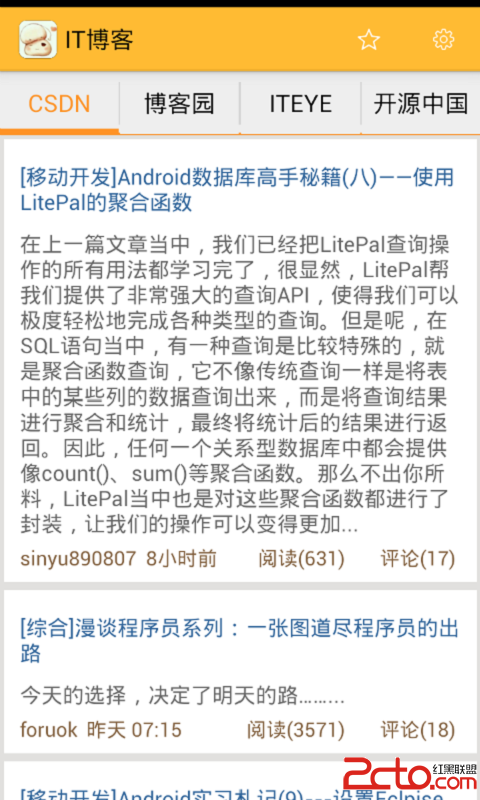
1.關於坑 好吧,在此之前先來說一下,之前開的坑,恩,確實是坑,前面開的兩個android開發教程的坑,對不起,實在是沒什麼動力了,不過源碼都有的,大家可以參照githu
 Android開發筆記(一百零九)利用網盤實現雲存儲
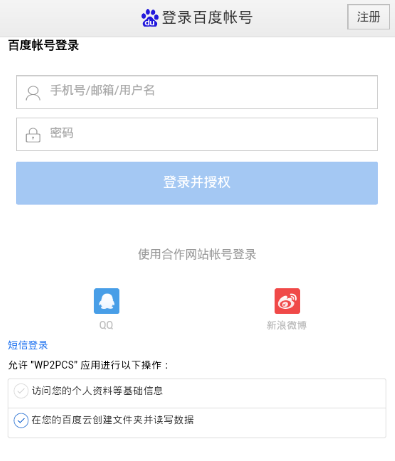
網盤存儲個人開發者往往沒有自己的後台服務器,但同時又想獲取app的運行信息,這就要借助於第三方的網絡存儲(也叫網盤、雲盤、微盤等等)。通過讓app自動在網盤上存取文件,可
 Android開發之監聽手機來電
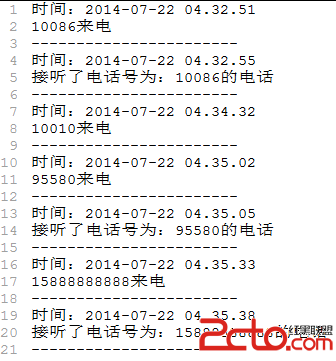
TelephonyManager是一個管理手機通話狀態、電話網絡信息的服務類,該類提供了大量的getXxx(),方法獲取電話網絡的相關信息。關於TelephonyMana