編輯:關於Android編程
XML對開發者來說十分的方便,不僅使用起來簡單,而且能夠及時調試,修改界面之後馬上能看到效果。
Java設置布局不具有這個優勢。但是java卻可以動態對布局進行操作,這是xml所做不到的。筆者認為,新手索要掌握的java動態設置布局主要有兩點,一方面是對布局的屬性進行修改,另一方面是增添和刪除控件。
首先說一下動態設置布局在項目中的應用,拿高德地圖舉個例子,如下圖:
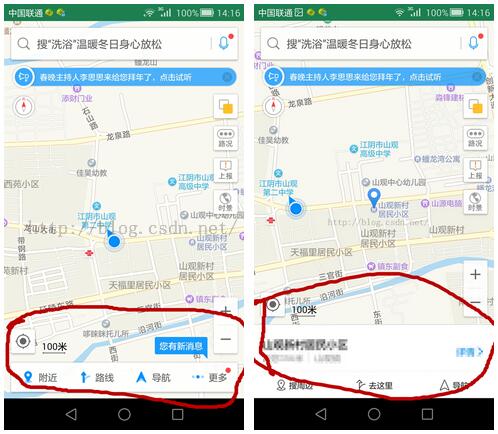
我們可以看到,高德地圖的默認界面與點擊地圖之後的界面是不一樣的,上面同樣的控件在layout中的位置也不一樣,這個用xml便是難以實現的了,於是java動態設置布局便有了其重要性。
接下來看一下分享的demo效果:
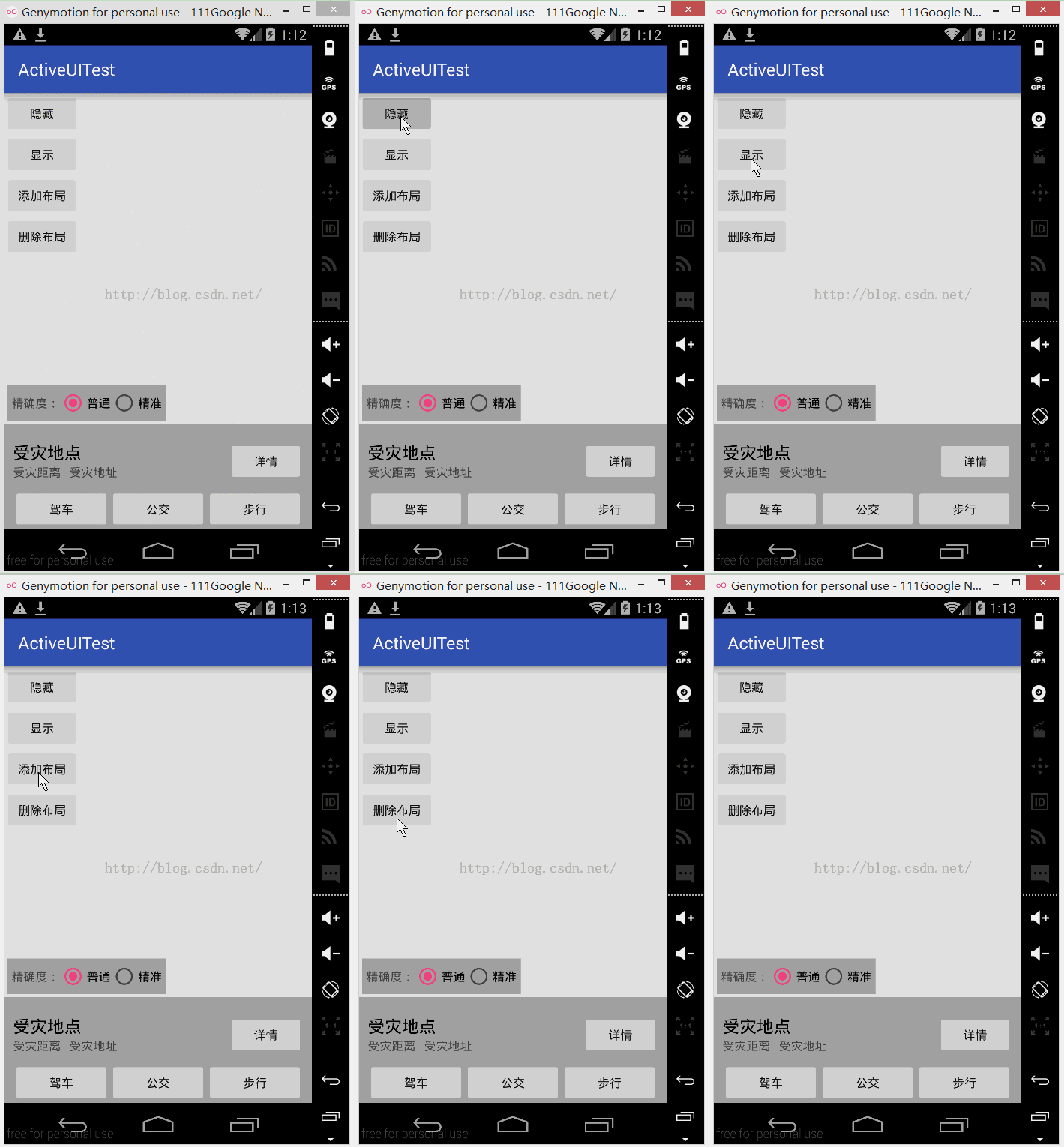
代碼其實比較容易理解,具體的解釋已經注釋在代碼中了,讀者可以自己寫了理解一下。
MainActivity:
package com.example.activeuitest;

import android.support.v7.app.AppCompatActivity;
import android.os.Bundle;
import android.view.LayoutInflater;
import android.view.View;
import android.view.ViewGroup;
import android.widget.Button;
import android.widget.LinearLayout;
import android.widget.RadioGroup;
import android.widget.RelativeLayout;

public class MainActivity extends AppCompatActivity implements View.OnClickListener{

  private Button BT_Gone;//讓布局隱藏
  private Button BT_Visiable;//讓布局顯示
  private Button BT_Add;//增添布局
  private Button BT_Delete;//刪除布局

  private RelativeLayout RL_main;
  private RadioGroup RL_RadioGroup;
  private RelativeLayout RL_InfoTip;
  private LinearLayout LL_test;

  @Override
  protected void onCreate(Bundle savedInstanceState) {
    super.onCreate(savedInstanceState);
    setContentView(R.layout.activity_main);

    init();//初始化
  }

  private void init() {
    BT_Gone= (Button) findViewById(R.id.button1);
    BT_Visiable= (Button) findViewById(R.id.button2);
    BT_Add= (Button) findViewById(R.id.button3);
    BT_Delete= (Button) findViewById(R.id.button4);

    RL_main=(RelativeLayout)findViewById(R.id.main_layout);
    RL_RadioGroup=(RadioGroup)findViewById(R.id.radio_group);
    RL_InfoTip=(RelativeLayout)findViewById(R.id.info_tip);

    //此處要獲取其他xml的控件需要先引入改layout的view(這個linearlayout用於演示添加和刪除)
    View view= LayoutInflater.from(this).inflate(R.layout.test_linear_layout,null,false );
    LL_test=(LinearLayout)view.findViewById(R.id.test_layout);

    BT_Gone.setOnClickListener(this);
    BT_Visiable.setOnClickListener(this);
    BT_Add.setOnClickListener(this);
    BT_Delete.setOnClickListener(this);
  }

  @Override
  public void onClick(View v) {
    switch(v.getId()){
      case R.id.button1:
        RL_InfoTip.setVisibility(View.GONE);//底部tip設置不可見
        //初始化寬高屬性
        RelativeLayout.LayoutParams lp1 = new RelativeLayout.LayoutParams(
            ViewGroup.LayoutParams.WRAP_CONTENT, ViewGroup.LayoutParams.WRAP_CONTENT);
        lp1.addRule(RelativeLayout.ALIGN_PARENT_BOTTOM);//設置置底
        lp1.setMargins(10, 0, 0, 10);//設置margin,此處單位為px
        RL_RadioGroup.setLayoutParams(lp1);//動態改變布局
        break;
      case R.id.button2:
        RL_InfoTip.setVisibility(View.VISIBLE);//底部tip設置可見
        //初始化寬高屬性
        RelativeLayout.LayoutParams lp2 = new RelativeLayout.LayoutParams(
            ViewGroup.LayoutParams.WRAP_CONTENT, ViewGroup.LayoutParams.WRAP_CONTENT);
        lp2.setMargins(10, 0, 0, 10);//設置margin,此處單位為px
        lp2.addRule(RelativeLayout.ABOVE, R.id.info_tip);//設置above,讓控件於R.id.info_tip之上
        RL_RadioGroup.setLayoutParams(lp2);//動態改變布局
        break;
      case R.id.button3:
        //初始化寬高屬性,此處單位為px
        RelativeLayout.LayoutParams lp3 = new RelativeLayout.LayoutParams(200, 200);
        lp3.addRule(RelativeLayout.BELOW, R.id.button4);//設置below,讓控件於R.id.button4之下
        RL_main.addView(LL_test, lp3);//動態改變布局
        LL_test.setVisibility(View.VISIBLE);//此處需要設置布局顯示,否則會不顯示
        break;
      case R.id.button4:
        RL_main.removeView(LL_test);//動態改變布局
        break;
    }
  }
}
activity_main:
<?xml version="1.0" encoding="utf-8"?>
<RelativeLayout xmlns:android="http://schemas.android.com/apk/res/android"
  android:layout_width="match_parent"
  android:layout_height="match_parent"
  android:id="@+id/main_layout"
   >


  <Button
    android:id="@+id/button1"
    android:layout_width="wrap_content"
    android:layout_height="wrap_content"
    android:text="隱藏"/>
  <Button
    android:id="@+id/button2"
    android:layout_below="@+id/button1"
    android:layout_width="wrap_content"
    android:layout_height="wrap_content"
    android:text="顯示"/>
  <Button
    android:id="@+id/button3"
    android:layout_below="@+id/button2"
    android:layout_width="wrap_content"
    android:layout_height="wrap_content"
    android:text="添加布局"/>
  <Button
    android:id="@+id/button4"
    android:layout_below="@+id/button3"
    android:layout_width="wrap_content"
    android:layout_height="wrap_content"
    android:text="刪除布局"/>
  <RadioGroup
    android:id="@+id/radio_group"
    android:layout_width="wrap_content"
    android:layout_height="wrap_content"
    android:padding="5dp"
    android:layout_marginLeft="10px"
    android:layout_marginBottom="10px"
    android:orientation="horizontal"
    android:layout_above="@+id/info_tip"
    android:background="@android:color/darker_gray"
    >

    <TextView
      android:layout_width="wrap_content"
      android:layout_height="wrap_content"
      android:text="精確度:"/>

    <RadioButton
      android:layout_width="wrap_content"
      android:layout_height="wrap_content"
      android:checked="true"
      android:text="普通"
      android:textColor="@android:color/black" />

    <RadioButton
      android:layout_width="wrap_content"
      android:layout_height="wrap_content"
      android:text="精准"
      android:textColor="@android:color/black" />
  </RadioGroup>

  <RelativeLayout
    android:id="@+id/info_tip"
    android:layout_width="match_parent"
    android:layout_height="wrap_content"
    android:layout_alignParentBottom="true"
    android:paddingLeft="10dp"
    android:paddingRight="10dp"
    android:paddingTop="20dp"
    android:background="@android:color/darker_gray"
    >

    <TextView
      android:id="@+id/info_tip_name"
      android:layout_width="wrap_content"
      android:layout_height="wrap_content"
      android:text="受災地點"
      android:textColor="@android:color/black"
      android:textSize="20dp"/>
    <TextView
      android:id="@+id/info_tip_distance"
      android:layout_below="@+id/info_tip_name"
      android:layout_width="wrap_content"
      android:layout_height="wrap_content"
      android:text="受災距離"/>
    <TextView
      android:id="@+id/info_tip_address"
      android:layout_toRightOf="@+id/info_tip_distance"
      android:layout_below="@+id/info_tip_name"
      android:layout_width="wrap_content"
      android:layout_height="wrap_content"
      android:layout_marginLeft="10dp"
      android:text="受災地址"/>

    <Button
      android:layout_alignParentRight="true"
      android:layout_width="wrap_content"
      android:layout_height="wrap_content"
      android:text="詳情"/>

    <LinearLayout
      android:layout_below="@+id/info_tip_address"
      android:layout_width="match_parent"
      android:layout_height="wrap_content"
      android:layout_marginTop="10dp"
      android:orientation="horizontal">
      <Button
        android:layout_width="0dp"
        android:layout_weight="1"
        android:layout_height="wrap_content"
        android:text="駕車"/>
      <Button
        android:layout_width="0dp"
        android:layout_weight="1"
        android:layout_height="wrap_content"
        android:text="公交"/>
      <Button
        android:layout_width="0dp"
        android:layout_weight="1"
        android:layout_height="wrap_content"
        android:text="步行"/>
    </LinearLayout>

  </RelativeLayout>
</RelativeLayout>
test_linear_layout:
<?xml version="1.0" encoding="utf-8"?>
<LinearLayout
  xmlns:android="http://schemas.android.com/apk/res/android"
  android:layout_width="200dp"
  android:layout_height="200dp"
  android:background="@android:color/holo_blue_bright"
  android:id="@+id/test_layout"
  android:orientation="horizontal"
  >

</LinearLayout>
以上就是本文的全部內容,希望對大家的學習有所幫助。
 Android:ImageView
ImageViewImageView,圖像視圖,直接繼承自View類,它的主要功能是用於顯示圖片,實際上它不僅僅可以用來顯示圖片,任何Drawable對象都可以使用Ima
 微信小程序首頁數據初始化失敗的解決方法
一、 問題描述 用戶首次後再次進入小程序時,我們通常需要通過獲取用戶openid或unionid用作唯一標示與後台進行數據交流,初始化用戶信息。當我們通過第三方服務器跟微
 Android編程布局(Layout)之AbsoluteLayout用法實例分析
本文實例講述了Android編程布局(Layout)之AbsoluteLayout用法。分享給大家供大家參考,具體如下:AbsoluteLayout,顧名思義,就是絕對位
 Android學習教程之圓形Menu菜單制作方法(1)
本文實例為大家分享了Android圓形菜單的使用方法,供大家參考,具體內容如下MainActivity.java代碼:package siso.handlerdemo;i