編輯:關於Android編程
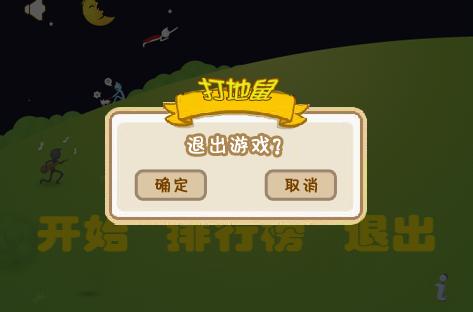
有時候我們需要在游戲或應用中用一些符合我們樣式的提示框(AlertDialog),以下是我在開發一個小游戲中總結出來的.希望對大家有用.
先上效果圖:
下面是用到的背景圖或按鈕的圖片
經過查找資料和參考了一下例子後才知道,要實現這種效果很簡單.就是在設置alertDialog的contentView.
以下的代碼是寫在Activity下的,代碼如下:
public boolean onKeyDown(int keyCode, KeyEvent event) {
// 如果是返回鍵,直接返回到桌面
if(keyCode == KeyEvent.KEYCODE_BACK || keyCode == KeyEvent.KEYCODE_HOME){
showExitGameAlert();
}
return super.onKeyDown(keyCode, event);
}
private void showExitGameAlert() {
final AlertDialog dlg = new AlertDialog.Builder(this).create();
dlg.show();
Window window = dlg.getWindow();
// *** 主要就是在這裡實現這種效果的.
// 設置窗口的內容頁面,shrew_exit_dialog.xml文件中定義view內容
window.setContentView(R.layout.shrew_exit_dialog);
// 為確認按鈕添加事件,執行退出應用操作
ImageButton ok = (ImageButton) window.findViewById(R.id.btn_ok);
ok.setOnClickListener(new View.OnClickListener() {
public void onClick(View v) {
exitApp(); // 退出應用...
}
});
// 關閉alert對話框架
ImageButton cancel = (ImageButton) window.findViewById(R.id.btn_cancel);
cancel.setOnClickListener(new View.OnClickListener() {
public void onClick(View v) {
dlg.cancel();
}
});
}以下的是layout文件,定義了對話框中的背景與按鈕.點擊事件在Activity中添加.
文件名為 : shrew_exit_dialog.xml
<?xml version="1.0" encoding="utf-8"?>
<RelativeLayout
xmlns:Android="http://schemas.android.com/apk/res/android"
android:layout_height="wrap_content"
android:layout_width="wrap_content">
<!-- 退出游戲的背景圖 -->
<ImageView android:id="@+id/exitGameBackground"
android:layout_centerInParent="true"
android:layout_height="wrap_content"
android:layout_width="wrap_content"
android:src="@drawable/bg_exit_game" />
<!-- 確認按鈕 -->
<ImageButton android:layout_alignBottom="@+id/exitGameBackground"
android:layout_alignLeft="@+id/exitGameBackground"
android:layout_marginBottom="30dp"
android:layout_marginLeft="35dp"
android:id="@+id/btn_ok"
android:layout_height="wrap_content"
android:layout_width="wrap_content"
android:background="@drawable/btn_ok" />
<!-- 取消按鈕 -->
<ImageButton android:layout_alignBottom="@+id/exitGameBackground"
android:layout_alignRight="@+id/exitGameBackground"
android:layout_marginBottom="30dp"
android:layout_marginRight="35dp"
android:id="@+id/btn_cancel"
android:layout_height="wrap_content"
android:layout_width="wrap_content"
android:background="@drawable/btn_cancel" />
</RelativeLayout>就這樣經過了以上幾步,就可以實現自定義AlertDialog的效果了. 用同樣的思路可以實現其它更復雜的效果.
alertdialog實現確認退出按鈕實例代碼:
package com.example.alertdialog;
import android.os.Bundle;
import android.app.Activity;
import android.app.AlertDialog;
import android.content.DialogInterface;
import android.view.Menu;
import android.view.View;
import android.widget.Toast;
public class MainActivity extends Activity {
@Override
protected void onCreate(Bundle savedInstanceState) {
super.onCreate(savedInstanceState);
setContentView(R.layout.activity_main);
}
//名字如果是onBackPressed,那就是按下手機返回鍵的效果,參數為空即可。
public void onBackPressed1(View v) {
new AlertDialog.Builder(this).setTitle("確認退出嗎?")
.setIcon(android.R.drawable.ic_dialog_info)
.setPositiveButton("確定", new DialogInterface.OnClickListener() {
@Override
public void onClick(DialogInterface dialog, int which) {
// 點擊“確認”後的操作
MainActivity.this.finish();
}
})
.setNegativeButton("返回", new DialogInterface.OnClickListener() {
@Override
public void onClick(DialogInterface dialog, int which) {
// 點擊“返回”後的操作,這裡不設置沒有任何操作
Toast.makeText(MainActivity.this, "你點擊了返回鍵", Toast.LENGTH_LONG).show();
}
}).show();
}
}
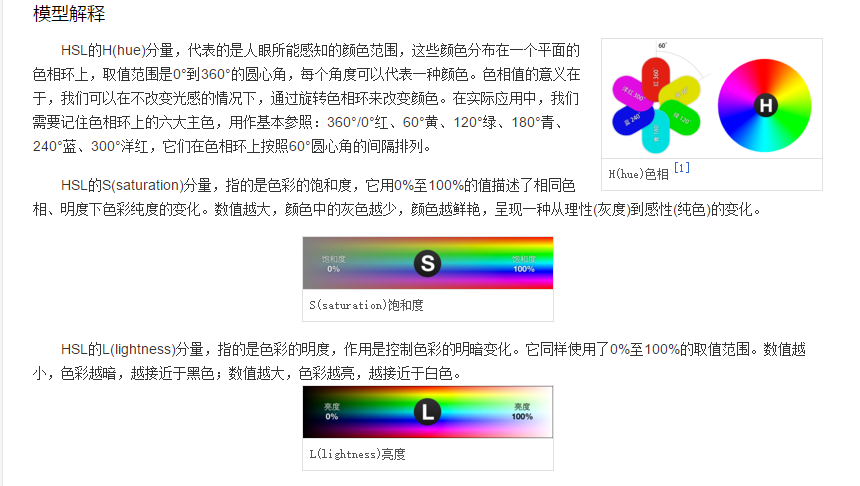 android L Palette 實現原理
有時候,看到一些界面上的色彩,心情可能會很舒暢,有時候,看到一些其他色彩,就覺得很討厭,不爽,看到android L Palette 從圖片中提取篩選出來的顏色,覺得都挺
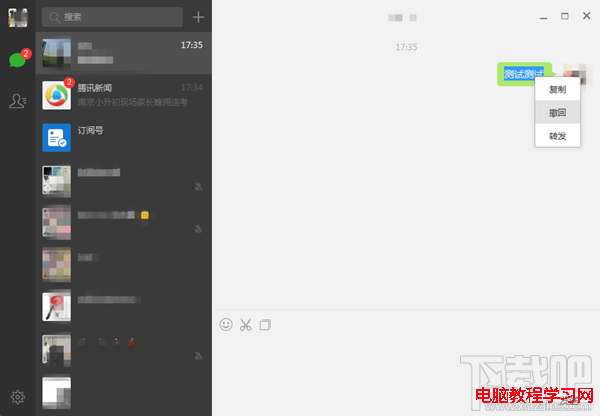 微信電腦版如何撤回消息 微信電腦版撤回信息教程
新版微信電腦版加了一個消息撤回功能,讓我們使用微信過程中因為誤操作發錯信息後提供解決辦法。小編大家介紹一下微信電腦版圖如何撤回信息教程,一起來看看吧!微信電
 Android-自定義滑動菜單(抽屜效果)
在Andoird使用Android自帶的那些組件,像SlidingDrawer和DrawerLayout都是抽屜效果的菜單,但是在項目很多要實現的功能都收到Android
 Android圓形的Imageview
網上找的圓形imageview自定義控件:‘package com.wangll.widget;import android.content.Context;