編輯:關於Android編程
private void init() {
		if (aMap == null) {
			aMap = mapView.getMap();
		}
	}
aMap.setTrafficEnabled(true);
private void setUpMap() {
	MyLocationStyle locationStyle=new MyLocationStyle();
	locationStyle.strokeColor(Color.BLACK);
	locationStyle.strokeWidth(1.0f);
	locationStyle.radiusFillColor(0x8333);
	locationStyle.myLocationIcon(BitmapDescriptorFactory.fromResource(R.drawable.location_marker));
	aMap.setMyLocationStyle(locationStyle);//設置定位點樣式
	aMap.setLocationSource(this);//設置監聽
	aMap.setMyLocationEnabled(true);//啟動定位圖層
}
@Override
public void activate(OnLocationChangedListener arg0) {
	mLocationChangedListener=arg0;
	if (mLocationManager==null) {
		mLocationManager=LocationManagerProxy.getInstance(this);
		//調用控制 每2秒更新1次,其主要的實時更改在最後一個參數AMapLocationListener
		mLocationManager.requestLocationUpdates(LocationProviderProxy.AMapNetwork, 2000, 10, this);
	}
}


@Override
public void deactivate() {
	mLocationChangedListener=null;
	if (mLocationManager!=null) {
		mLocationManager.removeUpdates(this);
		mLocationManager.destroy();
		mLocationManager=null;
	}
}
@Override
public void onLocationChanged(AMapLocation arg0) {
	if (mLocationChangedListener!=null && arg0!=null) {
		mLocationChangedListener.onLocationChanged(arg0);
	}
}
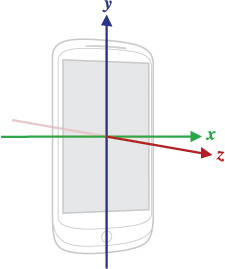
mSensorManager=(SensorManager)getSystemService(Context.SENSOR_SERVICE);
mSensor=mSensorManager.getDefaultSensor(Sensor.TYPE_ORIENTATION);
private void setUpMap() {

	mGPSMarker=aMap.addMarker(new MarkerOptions()
		.icon(BitmapDescriptorFactory.fromResource(R.drawable.location_marker))
		.anchor(0.5f, 0.5f));

	aMap.setLocationSource(this);
	aMap.setMyLocationEnabled(true);
}
@Override
public void activate(OnLocationChangedListener arg0) {
	//....
	mSensorManager.registerListener(this, mSensor, SensorManager.SENSOR_DELAY_NORMAL);
}


@Override
public void deactivate() {
	//.....
	mSensorManager.unregisterListener(this, mSensor);
}
@Override
public void onLocationChanged(AMapLocation arg0) {
	if (mLocationChangedListener!=null && arg0!=null) {
		mLocationChangedListener.onLocationChanged(arg0);
		mGPSMarker.setPosition(new LatLng(arg0.getLatitude(),arg0.getLongitude()));
	}
}
@Override
public void onSensorChanged(SensorEvent event) {
	if (System.currentTimeMillis() - lastTime < TIME_SENSOR) {
		return;
	}
	switch (event.sensor.getType()) {
	case Sensor.TYPE_ORIENTATION: {
		float x = event.values[0];

		x += getScreenRotationOnPhone(this);
		x %= 360.0F;
		if (x > 180.0F)
			x -= 360.0F;
		else if (x < -180.0F)
			x += 360.0F;
		if (Math.abs(mAngle -90+ x) < 3.0f) {
			break;
		}
		mAngle = x;
		if (mGPSMarker != null) {
			mGPSMarker.setRotateAngle(-mAngle);
			aMap.invalidate();
		}
		lastTime = System.currentTimeMillis();
	}
	}
}


/**
 * 獲取當前屏幕旋轉角度
 *
 * @param activity
 * @return 0表示是豎屏; 90表示是左橫屏; 180表示是反向豎屏; 270表示是右橫屏
 */
public static int getScreenRotationOnPhone(Context context) {
	final Display display = ((WindowManager) context
			.getSystemService(Context.WINDOW_SERVICE)).getDefaultDisplay();


	switch (display.getRotation()) {
		case Surface.ROTATION_0:
			return 0;
		case Surface.ROTATION_90:
			return 90;
		case Surface.ROTATION_180:
			return 180;
		case Surface.ROTATION_270:
			return -90;
	}
	return 0;
}
LatLngBounds bounds=new LatLngBounds.Builder()
				.include(new LatLng(22.117719,112.323274))
				.include(new LatLng(22.117719,114.323274))
				.include(new LatLng(24.117719,112.323274))
				.include(new LatLng(24.117719,114.323274))
				.build();
aMap.moveCamera(CameraUpdateFactory.newLatLngBounds(bounds, 10));
aMap.moveCamera(CameraUpdateFactory.zoomBy(8));


aMap.setOnMapLoadedListener(this);//設置地圖顯示監聽器
ArrayListicons=new ArrayList (); icons.add(BitmapDescriptorFactory.defaultMarker(BitmapDescriptorFactory.HUE_BLUE)); //... aMap.addMarker(new MarkerOptions().icons(icons)//顯示多圖片 .period(2)//變化周期 .position(new LatLng(23.118674,113.321614)) .anchor(0.5f, 0.5f)//錨點位置 .title(fuliyinkai)//點擊顯示文字 ).showInfoWindow();//默認顯示 aMap.setInfoWindowAdapter(this);//點擊標記 顯示自定義浮動View
aMap.addCircle(
	new CircleOptions().center(new LatLng(23.118674,113.321614))
	.fillColor(0x88888888).strokeColor(Color.BLACK)
	.strokeWidth(5).radius(400));
Inputtips inputtips=new Inputtips(this,new InputtipsListener() {
			@Override
			public void onGetInputtips(List tips, int arg1) {
				tip.getName()//獲取匹配的單個數據名字
			}
		});
try {
	inputtips.requestInputtips(content,);
} catch (AMapException e) {
	e.printStackTrace();
}
// 第一個參數表示搜索字符串,第二個參數表示poi搜索類型,第三個參數表示poi搜索區域(空字符串代表全國)
query = new PoiSearch.Query(keyWord, , editCity.getText().toString());
query.setPageSize(10);// 設置每頁最多返回多少條poiitem
query.setPageNum(currentPage);// 設置查第一頁
poiSearch = new PoiSearch(this, query);
poiSearch.setOnPoiSearchListener(this);//主要執行onPoiSearched()
poiSearch.searchPOIAsyn();


@Override
public void onPoiSearched(PoiResult result, int rCode) {
	dissmissProgressDialog();// 隱藏對話框
	if (rCode == 0) {
		if (result != null && result.getQuery() != null) {// 搜索poi的結果
			if (result.getQuery().equals(query)) {// 是否是同一條
				poiResult = result;
				// 取得搜索到的poiitems有多少頁
				List poiItems = poiResult.getPois();// 取得第一頁的poiitem數據,頁數從數字0開始
				List suggestionCities = poiResult
						.getSearchSuggestionCitys();// 當搜索不到poiitem數據時,會返回含有搜索關鍵字的城市信息


				if (poiItems != null && poiItems.size() > 0) {
					aMap.clear();// 清理之前的圖標
					PoiOverlay poiOverlay = new PoiOverlay(aMap, poiItems);
					poiOverlay.removeFromMap();
					poiOverlay.addToMap();
					poiOverlay.zoomToSpan();
				} else if (suggestionCities != null
						&& suggestionCities.size() > 0) {
					showSuggestCity(suggestionCities);
				} else {
					ToastUtil.show(PoiKeywordSearchActivity.this,
							R.string.no_result);
				}
			}
		} else {
			ToastUtil.show(PoiKeywordSearchActivity.this,
					R.string.no_result);
		}
	} else if (rCode == 27) {
		ToastUtil.show(PoiKeywordSearchActivity.this,
				R.string.error_network);
	} else if (rCode == 32) {
		ToastUtil.show(PoiKeywordSearchActivity.this, R.string.error_key);
	} else {
		ToastUtil.show(PoiKeywordSearchActivity.this,
				getString(R.string.error_other) + rCode);
	}


}
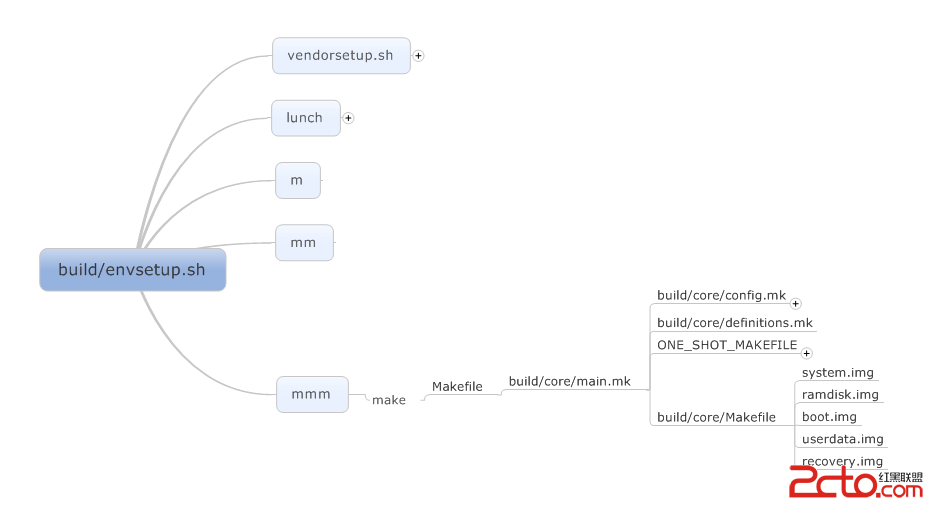 Android系統鏡像文件的打包過程分析
在前面一篇文章中,我們分析了Android模塊的編譯過程。當Android系統的所有模塊都編譯好之後,我們就可以對編譯出來的模塊文件進行打包了。打包結果是獲得一系列的鏡像
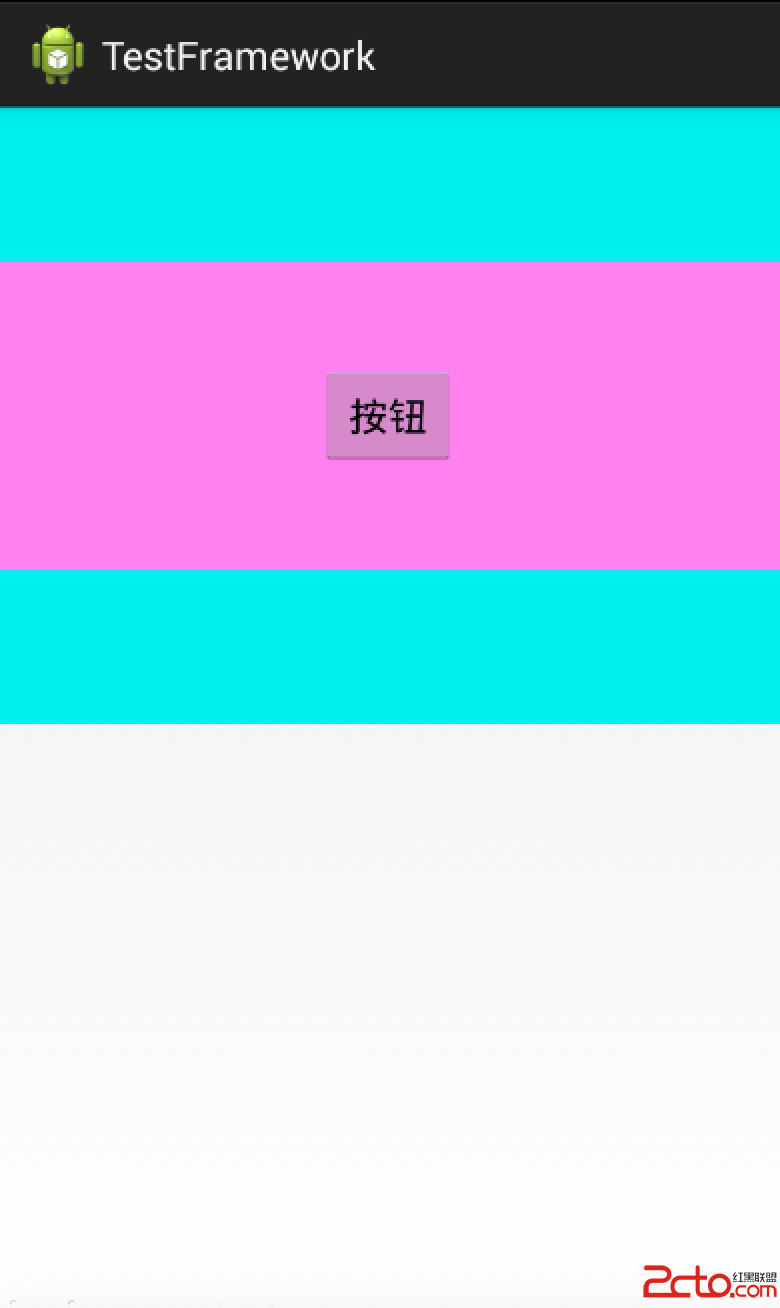 Android 事件分發
在安卓四大組件中(Activity、Service、BroadCast、ContentProvider),最常用的當是Activity。因為Activity負責提供直觀的
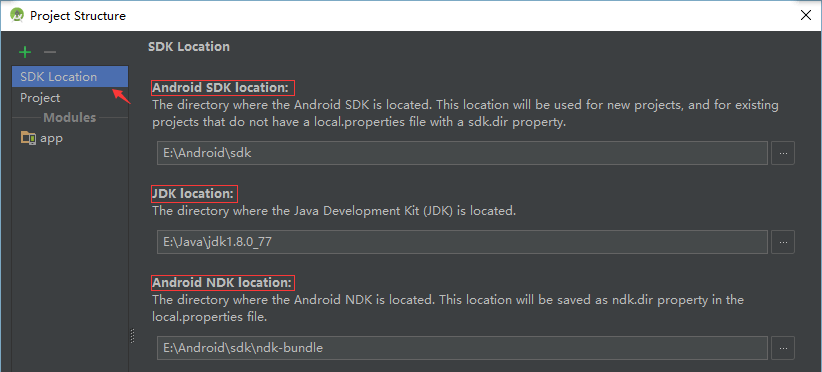 Android JNI/NDK開發之基本姿勢(一)
開發環境信息列舉下本篇文章編寫的Demo基本信息 操作系統 Windows 10 家庭中文版 開發工具 Android Studio 2.1 SDK n
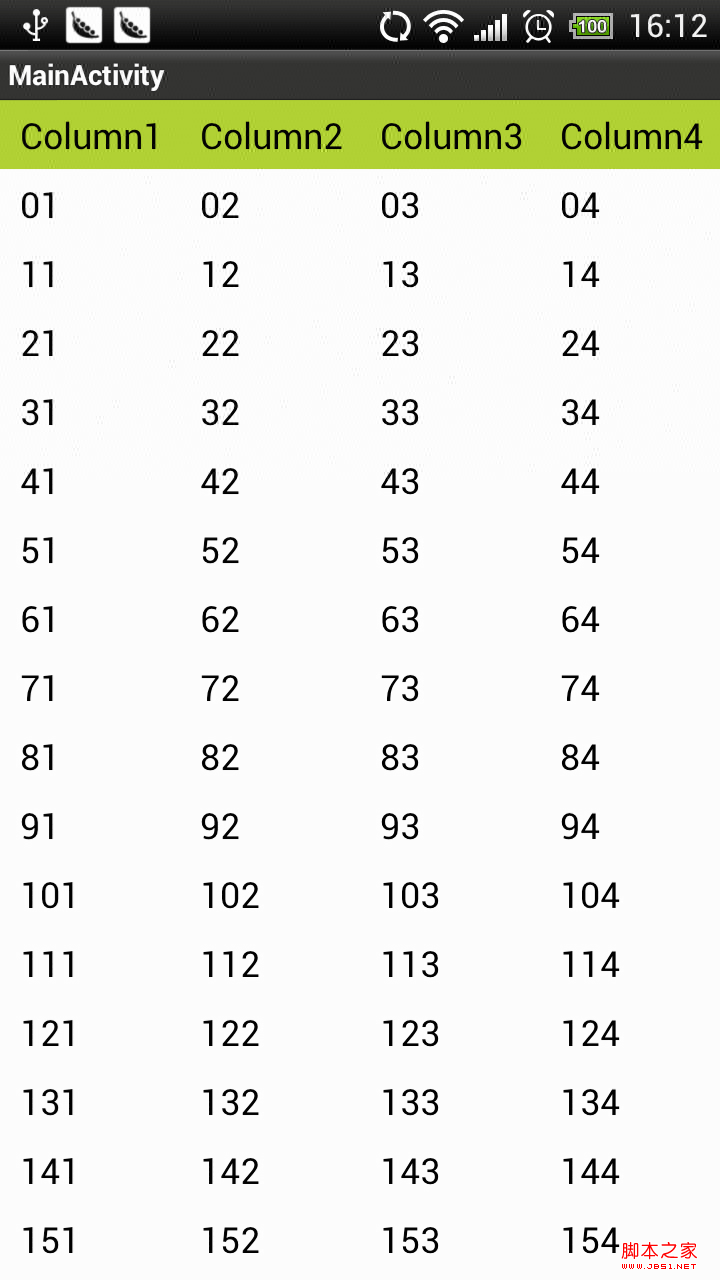 android開發之橫向滾動/豎向滾動的ListView(固定列頭)
由於項目需要,我們需要一個可以橫向滾動的,又可以豎向滾動的 表格。而且又要考慮大數據量(行)的展示視圖。經過幾天的研究終於搞定,做了一個演示。貼圖如下: &nb