編輯:關於Android編程
在圖表裡面,常用的圖標一般為折線圖、柱形圖和餅圖,上周,博主已經將柱形圖分享。在博主的項目裡面其實還用到了餅圖,但沒用到折線圖。其實學會了其中一個,再去寫其他的,應該都是知道該怎麼寫的,原理都是自己繪制圖形,然後獲取觸摸位置判定點擊事件。好了,廢話不多說,直接上今天的餅圖的效果圖
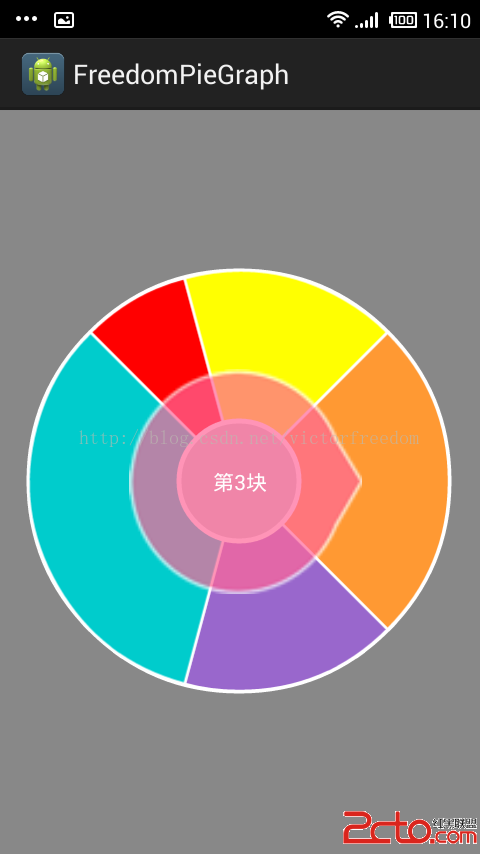
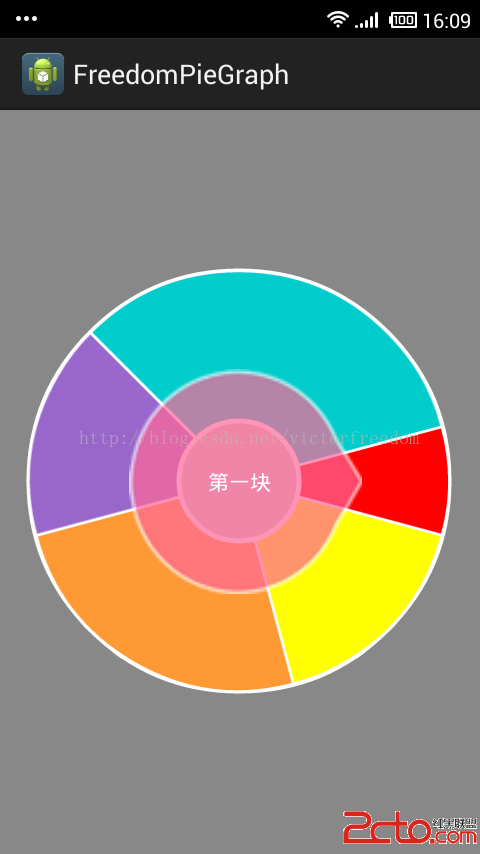
這次也是博主從項目裡面抽離出來的,這次的代碼注釋會比上次的柱形圖更加的詳細,更加便於有興趣的朋友一起學習。圖中的那個圓形指向箭頭不屬於餅圖的部分,是在布局文件中為了美化另外添加進去的,有興趣的朋友可以下載完整的項目下來研究學習。
下載地址:www.2cto.com
本來想上傳到github的,但是網絡不給力,過幾天再上傳吧。
代碼部分就直接貼出自定義餅圖部分,支持xml文件寫入構造,也支持new方法構造。
package com.freedom.piegraph;

import android.annotation.SuppressLint;
import android.content.Context;
import android.content.res.TypedArray;
import android.graphics.Canvas;
import android.graphics.Color;
import android.graphics.Paint;
import android.graphics.RectF;
import android.os.Handler;
import android.util.AttributeSet;
import android.view.MotionEvent;
import android.view.View;

/**
 * @ClassName: PiegraphView
 * @author victor_freedom (x_freedom_reddevil@126.com)
 * @createddate 2015年1月3日 下午4:30:10
 * @Description: 自定義餅狀圖
 */
@SuppressLint({ DrawAllocation })
public class PiegraphView extends View implements Runnable {

	// 動畫速度
	private float moveSpeed = 3.0F;
	// 總數值
	private double total;
	// 各餅塊對應的數值
	private Double[] itemValuesTemp;
	// 各餅塊對應的數值
	private Double[] itemsValues;
	// 各餅塊對應的顏色
	private String[] itemColors;
	// 各餅塊的角度
	private float[] itemsAngle;
	// 各餅塊的起始角度
	private float[] itemsStartAngle;
	// 各餅塊的占比
	private float[] itemsPercent;
	// 旋轉起始角度
	private float rotateStartAng = 0.0F;
	// 旋轉結束角度
	private float rotateEndAng = 0.0F;
	// 正轉還是反轉
	private boolean isClockWise;
	// 正在旋轉
	private boolean isRotating;
	// 是否開啟動畫
	private boolean isAnimEnabled = true;
	// 邊緣圓環的顏色
	private String loopStrokeColor;
	// 邊緣圓環的寬度
	private float strokeWidth = 0.0F;
	// 餅圖半徑,不包括圓環
	private float radius;
	// 當前item的位置
	private int itemPostion = -1;
	// 停靠位置
	private int stopPosition = 0;
	// 停靠位置
	public static final int TO_RIGHT = 0;
	public static final int TO_BOTTOM = 1;
	public static final int TO_LEFT = 2;
	public static final int TO_TOP = 3;

	// 顏色值
	private final String[] DEFAULT_ITEMS_COLORS = { #FF0000, #FFFF01,
			#FF9933, #9967CC, #00CCCC, #00CC33, #0066CC, #FF6799,
			#99FF01, #FF67FF, #4876FF, #FF00FF, #FF83FA, #0000FF,
			#363636, #FFDAB9, #90EE90, #8B008B, #00BFFF, #FFFF00,
			#00FF00, #006400, #00FFFF, #00FFFF, #668B8B, #000080,
			#008B8B };
	// 消息接收器
	private Handler piegraphHandler = new Handler();

	// 監聽器集合
	private OnPiegraphItemSelectedListener itemSelectedListener;

	public PiegraphView(Context context, String[] itemColors,
			Double[] itemSizes, float total, int radius, int strokeWidth,
			String strokeColor, int stopPosition, int separateDistence) {
		super(context);

		this.stopPosition = stopPosition;

		if ((itemSizes != null) && (itemSizes.length > 0)) {
			itemValuesTemp = itemSizes;
			this.total = total;
			// 重設總值
			reSetTotal();
			// 重設各個模塊的值
			refreshItemsAngs();
		}

		if (radius < 0)
			// 默認半徑設置為100
			this.radius = 100.0F;
		else {
			this.radius = radius;
		}
		// 默認圓環寬度設置為2
		if (strokeWidth < 0)
			strokeWidth = 2;
		else {
			this.strokeWidth = strokeWidth;
		}

		loopStrokeColor = strokeColor;

		if (itemColors == null) {
			// 如果沒有設定顏色,則使用默認顏色值
			setDefaultColor();
		} else if (itemColors.length < itemSizes.length) {
			this.itemColors = itemColors;
			// 如果設置的顏色值和設定的集合大小不一樣,那麼需要充默認顏色值集合裡面補充顏色,一般是不會出現這種情況。
			setDifferentColor();
		} else {
			this.itemColors = itemColors;
		}

		invalidate();
	}

	public PiegraphView(Context context, AttributeSet attrs) {
		super(context, attrs);
		loopStrokeColor = #000000;
		// 把我們自定義的屬性,放在attrs的屬性集合裡面
		TypedArray a = context.obtainStyledAttributes(attrs,
				R.styleable.PiegraphView);
		radius = ScreenUtil.dip2px(getContext(),
				a.getFloat(R.styleable.PiegraphView_radius, 100));
		strokeWidth = ScreenUtil.dip2px(getContext(),
				a.getFloat(R.styleable.PiegraphView_strokeWidth, 2));
		moveSpeed = a.getFloat(R.styleable.PiegraphView_moveSpeed, 5);
		if (moveSpeed < 1F) {
			moveSpeed = 1F;
		}
		if (moveSpeed > 5.0F) {
			moveSpeed = 5.0F;
		}
		invalidate();
		a.recycle();
	}

	/**
	 * @Title: setRaduis
	 * @Description: 設置半徑
	 * @param radius
	 * @throws
	 */
	public void setRaduis(float radius) {
		if (radius < 0)
			this.radius = 100.0F;
		else {
			this.radius = radius;
		}
		invalidate();
	}

	public float getRaduis() {
		return radius;
	}

	/**
	 * @Title: setStrokeWidth
	 * @Description: 設置圓環寬度
	 * @param strokeWidth
	 * @throws
	 */
	public void setStrokeWidth(int strokeWidth) {
		if (strokeWidth < 0)
			strokeWidth = 2;
		else {
			this.strokeWidth = strokeWidth;
		}
		invalidate();
	}

	public float getStrokeWidth() {
		return strokeWidth;
	}

	/**
	 * @Title: setStrokeColor
	 * @Description: 設置圓環顏色
	 * @param strokeColor
	 * @throws
	 */
	public void setStrokeColor(String strokeColor) {
		loopStrokeColor = strokeColor;
		invalidate();
	}

	public String getStrokeColor() {
		return loopStrokeColor;
	}

	/**
	 * @Title: setitemColors
	 * @Description: 設置個餅塊的顏色
	 * @param colors
	 * @throws
	 */
	public void setitemColors(String[] colors) {
		if ((itemsValues != null) && (itemsValues.length > 0)) {
			// 如果傳入值未null,則使用默認的顏色
			if (colors == null) {
				setDefaultColor();
			} else if (colors.length < itemsValues.length) {
				// 如果傳入顏色不夠,則從默認顏色中填補
				itemColors = colors;
				setDifferentColor();
			} else {
				itemColors = colors;
			}
		}

		invalidate();
	}

	public String[] getitemColors() {
		return itemColors;
	}

	/**
	 * @Title: setitemsValues
	 * @Description: 設置各餅塊數據
	 * @param items
	 * @throws
	 */
	public void setitemsValues(Double[] items) {
		if ((items != null) && (items.length > 0)) {
			itemValuesTemp = items;
			// 重設總值,默認為所有值的和
			reSetTotal();
			refreshItemsAngs();
			setitemColors(itemColors);
		}
		invalidate();
	}

	public Double[] getitemsValues() {
		return itemValuesTemp;
	}

	public void setTotal(int total) {
		this.total = total;
		reSetTotal();

		invalidate();
	}

	public double getTotal() {
		return total;
	}

	/**
	 * @Title: setAnimEnabled
	 * @Description: 設置是否開啟旋轉動畫
	 * @param isAnimEnabled
	 * @throws
	 */
	public void setAnimEnabled(boolean isAnimEnabled) {
		this.isAnimEnabled = isAnimEnabled;
		invalidate();
	}

	public boolean isAnimEnabled() {
		return isAnimEnabled;
	}

	public void setmoveSpeed(float moveSpeed) {
		if (moveSpeed < 1F) {
			moveSpeed = 1F;
		}
		if (moveSpeed > 5.0F) {
			moveSpeed = 5.0F;
		}
		this.moveSpeed = moveSpeed;
	}

	public float getmoveSpeed() {
		if (isAnimEnabled()) {
			return moveSpeed;
		}
		return 0.0F;
	}

	/**
	 * @Title: setShowItem
	 * @Description: 旋轉到指定位置的item
	 * @param position
	 *            位置
	 * @param anim
	 *            是否動畫
	 * @param listen
	 *            是否設置監聽器
	 * @throws
	 */
	public void setShowItem(int position, boolean anim) {
		if ((itemsValues != null) && (position < itemsValues.length)
				&& (position >= 0)) {
			// 拿到需要旋轉的角度
			rotateEndAng = getLastrotateStartAngle(position);
			itemPostion = position;

			if (anim) {
				rotateStartAng = 0.0F;
				if (rotateEndAng > 0.0F) {
					// 如果旋轉角度大於零,則順時針旋轉
					isClockWise = true;
				} else {
					// 如果小於零則逆時針旋轉
					isClockWise = false;
				}
				// 開始旋轉
				isRotating = true;
			} else {
				rotateStartAng = rotateEndAng;
			}

			// 如果有監聽器
			if (null != itemSelectedListener) {
				itemSelectedListener.onPieChartItemSelected(position,
						itemColors[position], itemsValues[position],
						itemsPercent[position],
						getAnimTime(Math.abs(rotateEndAng - rotateStartAng)));
			}
			// 開始旋轉
			piegraphHandler.postDelayed(this, 1L);
		}
	}

	private float getLastrotateStartAngle(int position) {
		float result = 0.0F;
		// 拿到旋轉角度,根據停靠位置進行修正
		result = itemsStartAngle[position] + itemsAngle[position] / 2.0F
				+ getstopPositionAngle();
		if (result >= 360.0F) {
			result -= 360.0F;
		}

		if (result <= 180.0F)
			result = -result;
		else {
			result = 360.0F - result;
		}

		return result;
	}

	/**
	 * @Title: getstopPositionAngle
	 * @Description: 根據停靠位置修正旋轉角度
	 * @return
	 * @throws
	 */
	private float getstopPositionAngle() {
		float resultAngle = 0.0F;
		switch (stopPosition) {
		case TO_RIGHT:
			resultAngle = 0.0F;
			break;
		case TO_LEFT:
			resultAngle = 180.0F;
			break;
		case TO_TOP:
			resultAngle = 90.0F;
			break;
		case TO_BOTTOM:
			resultAngle = 270.0F;
			break;
		}

		return resultAngle;
	}

	public int getShowItem() {
		return itemPostion;
	}

	public void setstopPosition(int stopPosition) {
		this.stopPosition = stopPosition;
	}

	public int getstopPosition() {
		return stopPosition;
	}

	/**
	 * @Title: refreshItemsAngs
	 * @Description: 初始化各個角度
	 * @throws
	 */
	private void refreshItemsAngs() {
		if ((itemValuesTemp != null) && (itemValuesTemp.length > 0)) {
			// 如果出現總值比設定的集合的總值還大,那麼我們自動的增加一個模塊出來(幾乎不會出現這種情況)
			if (getTotal() > getAllSizes()) {
				itemsValues = new Double[itemValuesTemp.length + 1];
				for (int i = 0; i < itemValuesTemp.length; i++) {
					itemsValues[i] = itemValuesTemp[i];
				}
				itemsValues[(itemsValues.length - 1)] = (getTotal() - getAllSizes());
			} else {
				itemsValues = new Double[itemValuesTemp.length];
				itemsValues = itemValuesTemp;
			}

			// 開始給各模塊賦值
			itemsPercent = new float[itemsValues.length];
			itemsStartAngle = new float[itemsValues.length];
			itemsAngle = new float[itemsValues.length];
			float startAngle = 0.0F;

			for (int i = 0; i < itemsValues.length; i++) {
				itemsPercent[i] = ((float) (itemsValues[i] * 1.0D / getTotal() * 1.0D));
			}

			for (int i = 0; i < itemsPercent.length; i++) {
				itemsAngle[i] = (360.0F * itemsPercent[i]);
				if (i != 0) {
					itemsStartAngle[i] = startAngle + itemsAngle[i - 1];
					startAngle = 360.0F * itemsPercent[(i - 1)] + startAngle;
				} else {
					// Android默認起始位置設定是右側水平,初始化默認停靠位置也在右邊。有興趣的同學可以根據自己的喜好修改
					itemsStartAngle[i] = -itemsAngle[i] / 2;
					startAngle = itemsStartAngle[i];
				}
			}
		}
	}

	/**
	 * 繪圖
	 */
	protected void onDraw(Canvas canvas) {
		super.onDraw(canvas);
		// 餅圖半徑加圓環半徑
		float realRadius = radius + strokeWidth;
		Paint paint = new Paint();
		paint.setAntiAlias(true);
		float lineLength = 2.0F * radius + strokeWidth;
		if (strokeWidth != 0.0F) {
			// 空心的畫筆,先畫外層圓環
			paint.setStyle(Paint.Style.STROKE);
			paint.setColor(Color.parseColor(loopStrokeColor));
			paint.setStrokeWidth(strokeWidth);
			canvas.drawCircle(realRadius, realRadius, realRadius - 5, paint);
		}

		if ((itemsAngle != null) && (itemsStartAngle != null)) {
			// 旋轉角度
			canvas.rotate(rotateStartAng, realRadius, realRadius);
			// 設定餅圖矩形
			RectF oval = new RectF(strokeWidth, strokeWidth, lineLength,
					lineLength);
			// 開始畫各個扇形
			for (int i = 0; i < itemsAngle.length; i++) {
				oval = new RectF(strokeWidth, strokeWidth, lineLength,
						lineLength);
				// 先畫實體
				paint.setStyle(Paint.Style.FILL);
				paint.setColor(Color.parseColor(itemColors[i]));
				canvas.drawArc(oval, itemsStartAngle[i], itemsAngle[i], true,
						paint);
				// 再畫空心體描邊
				paint.setStyle(Paint.Style.STROKE);
				paint.setStrokeWidth(strokeWidth / 2);
				paint.setColor(Color.WHITE);
				canvas.drawArc(oval, itemsStartAngle[i], itemsAngle[i], true,
						paint);

			}
		}
		// 畫中心的小圓
		paint.setStyle(Paint.Style.FILL);
		paint.setColor(Color.LTGRAY);
		canvas.drawCircle(realRadius, realRadius,
				ScreenUtil.dip2px(getContext(), 40), paint);
		// 描邊
		paint.setStyle(Paint.Style.STROKE);
		paint.setColor(Color.WHITE);
		paint.setStrokeWidth(strokeWidth);
		canvas.drawCircle(realRadius, realRadius,
				ScreenUtil.dip2px(getContext(), 40), paint);

	}

	/**
	 * 觸摸事件
	 */
	public boolean onTouchEvent(MotionEvent event) {
		if ((!isRotating) && (itemsValues != null) && (itemsValues.length > 0)) {
			float x1 = 0.0F;
			float y1 = 0.0F;
			switch (event.getAction()) {
			// 按下
			case MotionEvent.ACTION_DOWN:
				x1 = event.getX();
				y1 = event.getY();
				float r = radius + strokeWidth;
				if ((x1 - r) * (x1 - r) + (y1 - r) * (y1 - r) - r * r <= 0.0F) {
					// 拿到位置
					int position = getShowItem(getTouchedPointAngle(r, r, x1,
							y1));
					// 旋轉到指定位置
					setShowItem(position, isAnimEnabled());
				}
				break;
			}

		}

		return super.onTouchEvent(event);
	}

	/**
	 * @Title: getTouchedPointAngle
	 * @Description: 計算觸摸角度
	 * @param radiusX
	 *            圓心
	 * @param radiusY
	 *            圓心
	 * @param x1
	 *            觸摸點
	 * @param y1
	 *            觸摸點
	 * @return
	 * @throws
	 */
	private float getTouchedPointAngle(float radiusX, float radiusY, float x1,
			float y1) {
		float differentX = x1 - radiusX;
		float differentY = y1 - radiusY;
		double a = 0.0D;
		double t = differentY
				/ Math.sqrt(differentX * differentX + differentY * differentY);

		if (differentX > 0.0F) {
			// 0~90
			if (differentY > 0.0F)
				a = 6.283185307179586D - Math.asin(t);
			else
				// 270~360
				a = -Math.asin(t);
		} else if (differentY > 0.0F)
			// 90~180
			a = 3.141592653589793D + Math.asin(t);
		else {
			// 180~270
			a = 3.141592653589793D + Math.asin(t);
		}
		return (float) (360.0D - a * 180.0D / 3.141592653589793D % 360.0D);
	}

	/**
	 * @Title: getShowItem
	 * @Description: 拿到觸摸位置
	 * @param touchAngle
	 *            觸摸位置角度
	 * @return
	 * @throws
	 */
	private int getShowItem(float touchAngle) {
		int position = 0;
		for (int i = 0; i < itemsStartAngle.length; i++) {
			if (i != itemsStartAngle.length - 1) {
				if ((touchAngle >= itemsStartAngle[i])
						&& (touchAngle < itemsStartAngle[(i + 1)])) {
					position = i;
					break;
				}

			} else if ((touchAngle > itemsStartAngle[(itemsStartAngle.length - 1)])
					&& (touchAngle < itemsStartAngle[0])) {
				position = itemsValues.length - 1;
			} else {
				// 如果觸摸位置不對,則旋轉到最大值得位置
				position = getPointItem(itemsStartAngle);
			}

		}

		return position;
	}

	private int getPointItem(float[] startAngle) {
		int item = 0;

		float temp = startAngle[0];
		for (int i = 0; i < startAngle.length - 1; i++) {
			if (startAngle[(i + 1)] - temp > 0.0F)
				temp = startAngle[i];
			else {
				return i;
			}
		}

		return item;
	}

	protected void onDetachedFromWindow() {
		super.onDetachedFromWindow();
		piegraphHandler.removeCallbacks(this);
	}

	protected void onMeasure(int widthMeasureSpec, int heightMeasureSpec) {
		super.onMeasure(widthMeasureSpec, heightMeasureSpec);
		float widthHeight = 2.0F * (radius + strokeWidth + 1.0F);
		// 重設view的寬高
		setMeasuredDimension((int) widthHeight, (int) widthHeight);
	}

	/**
	 * 旋轉動作
	 */
	public void run() {
		if (isClockWise) {
			// 順時針旋轉
			rotateStartAng += moveSpeed;
			invalidate();
			piegraphHandler.postDelayed(this, 10L);
			if (rotateStartAng - rotateEndAng >= 0.0F) {
				rotateStartAng = 0.0F;
				// 如果已經轉到指定位置,則停止動畫
				piegraphHandler.removeCallbacks(this);
				// 重設各模塊起始角度值
				resetStartAngle(rotateEndAng);
				isRotating = false;
			}
		} else {
			// 逆時針旋轉
			rotateStartAng -= moveSpeed;
			invalidate();
			piegraphHandler.postDelayed(this, 10L);
			if (rotateStartAng - rotateEndAng <= 0.0F) {
				rotateStartAng = 0.0F;
				piegraphHandler.removeCallbacks(this);
				resetStartAngle(rotateEndAng);

				isRotating = false;
			}
		}
	}

	private float getAnimTime(float ang) {
		return (int) Math.floor(ang / getmoveSpeed() * 10.0F);
	}

	/**
	 * @Title: resetStartAngle
	 * @Description: 重設個模塊角度
	 * @param angle
	 * @throws
	 */
	private void resetStartAngle(float angle) {
		for (int i = 0; i < itemsStartAngle.length; i++) {
			float newStartAngle = itemsStartAngle[i] + angle;

			if (newStartAngle < 0.0F)
				itemsStartAngle[i] = (newStartAngle + 360.0F);
			else if (newStartAngle > 360.0F)
				itemsStartAngle[i] = (newStartAngle - 360.0F);
			else
				itemsStartAngle[i] = newStartAngle;
		}
	}

	/**
	 * @Title: setDefaultColor
	 * @Description: 設置默認顏色
	 * @throws
	 */
	private void setDefaultColor() {
		if ((itemsValues != null) && (itemsValues.length > 0)
				&& (itemColors == null)) {
			itemColors = new String[itemsValues.length];
			if (itemColors.length <= DEFAULT_ITEMS_COLORS.length) {
				System.arraycopy(DEFAULT_ITEMS_COLORS, 0, itemColors, 0,
						itemColors.length);
			} else {
				int multiple = itemColors.length / DEFAULT_ITEMS_COLORS.length;
				int difference = itemColors.length
						% DEFAULT_ITEMS_COLORS.length;

				for (int a = 0; a < multiple; a++) {
					System.arraycopy(DEFAULT_ITEMS_COLORS, 0, itemColors, a
							* DEFAULT_ITEMS_COLORS.length,
							DEFAULT_ITEMS_COLORS.length);
				}
				if (difference > 0)
					System.arraycopy(DEFAULT_ITEMS_COLORS, 0, itemColors,
							multiple * DEFAULT_ITEMS_COLORS.length, difference);
			}
		}
	}

	/**
	 * @Title: setDifferentColor
	 * @Description: 補差顏色
	 * @throws
	 */
	private void setDifferentColor() {
		if ((itemsValues != null) && (itemsValues.length > itemColors.length)) {
			String[] preitemColors = new String[itemColors.length];
			preitemColors = itemColors;
			int leftall = itemsValues.length - itemColors.length;
			itemColors = new String[itemsValues.length];
			System.arraycopy(preitemColors, 0, itemColors, 0,
					preitemColors.length);

			if (leftall <= DEFAULT_ITEMS_COLORS.length) {
				System.arraycopy(DEFAULT_ITEMS_COLORS, 0, itemColors,
						preitemColors.length, leftall);
			} else {
				int multiple = leftall / DEFAULT_ITEMS_COLORS.length;
				int left = leftall % DEFAULT_ITEMS_COLORS.length;
				for (int a = 0; a < multiple; a++) {
					System.arraycopy(DEFAULT_ITEMS_COLORS, 0, itemColors, a
							* DEFAULT_ITEMS_COLORS.length,
							DEFAULT_ITEMS_COLORS.length);
				}
				if (left > 0) {
					System.arraycopy(DEFAULT_ITEMS_COLORS, 0, itemColors,
							multiple * DEFAULT_ITEMS_COLORS.length, left);
				}
			}
			preitemColors = null;
		}
	}

	/**
	 * @Title: reSetTotal
	 * @Description: 重設總值
	 * @throws
	 */
	private void reSetTotal() {
		double totalSizes = getAllSizes();
		if (getTotal() < totalSizes)
			total = totalSizes;
	}

	private double getAllSizes() {
		float tempAll = 0.0F;
		if ((itemValuesTemp != null) && (itemValuesTemp.length > 0)) {
			for (double itemsize : itemValuesTemp) {
				tempAll += itemsize;
			}
		}

		return tempAll;
	}

	public void setItemSelectedListener(
			OnPiegraphItemSelectedListener itemSelectedListener) {
		this.itemSelectedListener = itemSelectedListener;
	}

}
後續還有2期的自定義view的專題。一期是關於自定義gridView的(可以拖動gridView,但是不是和網上其他的那種拖動item,而是將item裡面的內容拖動切換位置),一期是關於自定義viewGroup(類似線性布局,相對布局那種,可以往裡面添加控件的)。希望能夠幫助到看到此篇文章的人。
 《第一行代碼》——第6章 數據存儲全方案,詳解持久化技術
瞬時數據是指那些存儲在內存當中,有可能會因為程序關閉或其他原因導致內存被回收而丟失的數據。這對於一些關鍵性的數據信息來說是絕對不能容忍的,誰都不希望自己剛發出去的一條微博
 學習Android Studio開發工具之Activity2(&Fragment)
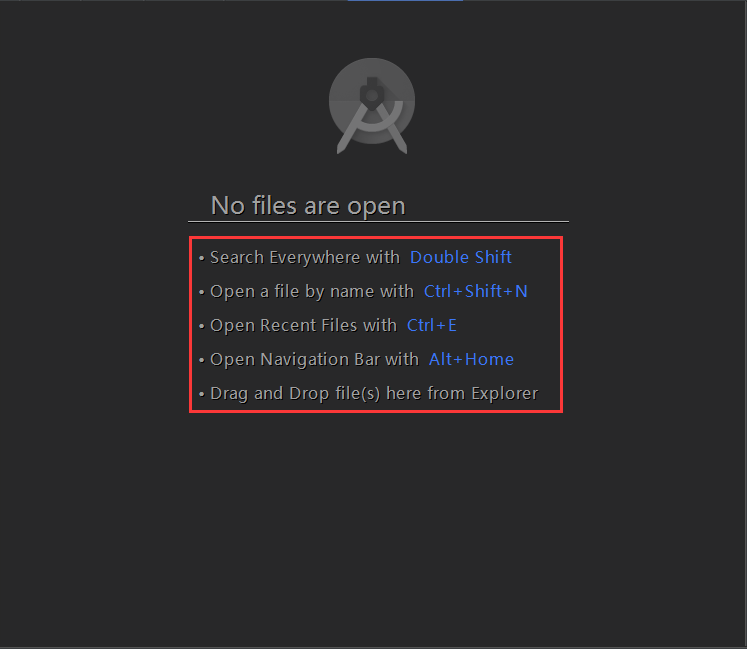
開篇先介紹幾個放在眼前卻經常忽視的快捷鍵如圖:展現出android Studio超強的搜索能力,提高大工程的開發維護效率。雙擊Shift按鍵效果Ctrl+Shift+N
 activity 啟動模式
最近新參加的項目中使用到了activity的singleInstance 模式並在開發中產生了一些bug,發現組內的同事們對launchmode這件事情還缺少一些基本的認
 Android中解析Json數據
一、原理分析 package com.njupt.action; import java.io.IOException; import java.io.Pr