編輯:關於Android編程
前一篇文章講述了Android拍照、截圖、保存並顯示在ImageView控件中,該篇文章繼續講述Android圖像處理技術,主要操作包括:通過打開相冊裡的圖片,使用Matrix對圖像進行縮放、旋轉、移動、對比度、亮度、飽和度操作,希望對大家有所幫助.
首先,設置activity_main.xml布局如下所示:
然後,在Mainctivity.java中public class MainActivity extends Activity函數添加代碼如下:
private Button selectBn;
private ImageView imageShow;
private ImageView imageCreate;
private TextView textview1;
private TextView textview2;
private Bitmap bmp; //原始圖片

@Override
protected void onCreate(Bundle savedInstanceState) {
    super.onCreate(savedInstanceState);
    setContentView(R.layout.activity_main);
    selectBn = (Button) findViewById(R.id.button1);
    imageShow = (ImageView) findViewById(R.id.imageView1);
    imageCreate = (ImageView) findViewById(R.id.imageView2);
    textview1 = (TextView) findViewById(R.id.textView1);
    textview2 = (TextView) findViewById(R.id.textView2);

    //選擇圖片
    selectBn.setOnClickListener(new OnClickListener() {
    	@Override
    	public void onClick(View v) {
    		Intent intent = new Intent(Intent.ACTION_PICK,
    				android.provider.MediaStore.Images.Media.EXTERNAL_CONTENT_URI);
    		startActivityForResult(intent, 0 );
    	}
    });
    if (savedInstanceState == null) {
        getFragmentManager().beginTransaction()
                .add(R.id.container, new PlaceholderFragment())
                .commit();
    }
}
//顯示兩張圖片
protected void onActivityResult(int requestCode, int resultCode, Intent data) {
	super.onActivityResult(requestCode, resultCode, data);
	if(resultCode==RESULT_OK) {
		ShowPhotoByImageView(data);     //顯示照片
		CreatePhotoByImageView();          //創建圖片
	}
}
再調用自定義函數實現顯示圖片:
//自定義函數 顯示打開的照片在ImageView1中
public void ShowPhotoByImageView(Intent data) {
	Uri imageFileUri = data.getData();
	DisplayMetrics dm = new DisplayMetrics();
	getWindowManager().getDefaultDisplay().getMetrics(dm);
	int width = dm.widthPixels;    //手機屏幕水平分辨率
	int height = dm.heightPixels;  //手機屏幕垂直分辨率
	Log.v("height", ""+height );
	Log.v("width", ""+width);
	try {
		// Load up the image's dimensions not the image itself
		BitmapFactory.Options bmpFactoryOptions = new BitmapFactory.Options();
		bmpFactoryOptions.inJustDecodeBounds = true;
		bmp = BitmapFactory.decodeStream(getContentResolver().openInputStream(imageFileUri), null, bmpFactoryOptions);
		int heightRatio = (int)Math.ceil(bmpFactoryOptions.outHeight/(float)height);
		int widthRatio = (int)Math.ceil(bmpFactoryOptions.outWidth/(float)width);
		Log.v("bmpheight", ""+bmpFactoryOptions.outHeight);
		Log.v("bmpheight", ""+bmpFactoryOptions.outWidth);
		if(heightRatio>1&&widthRatio>1) {
			if(heightRatio>widthRatio) {
				bmpFactoryOptions.inSampleSize = heightRatio*2;
			}
			else {
				bmpFactoryOptions.inSampleSize = widthRatio*2;
			}
		}
		 //圖像真正解碼
	    bmpFactoryOptions.inJustDecodeBounds = false;
	    bmp = BitmapFactory.decodeStream(getContentResolver().openInputStream(imageFileUri), null, bmpFactoryOptions);
	    imageShow.setImageBitmap(bmp); //將剪裁後照片顯示出來
	    textview1.setVisibility(View.VISIBLE);
	} catch(FileNotFoundException e) {
		e.printStackTrace();
	}
}
//創建第二張圖片並顯示
public void CreatePhotoByImageView() {
	try {
	    Bitmap createBmp = Bitmap.createBitmap(bmp.getWidth(), bmp.getHeight(), bmp.getConfig());
    	Canvas canvas = new Canvas(createBmp); //畫布 傳入位圖用於繪制
    	Paint paint = new Paint(); //畫刷 改變顏色 對比度等屬性
    	canvas.drawBitmap(bmp, 0, 0, paint);    //錯誤:沒有圖片 因為參數bmp寫成createBmp
    	imageCreate.setImageBitmap(createBmp);
    	textview2.setVisibility(View.VISIBLE);
	} catch(Exception e) {
		e.printStackTrace();
	}
}
顯示的效果如下圖所示,該圖叫萊娜圖(Lenna),是圖像處理中經常使用的樣例圖.
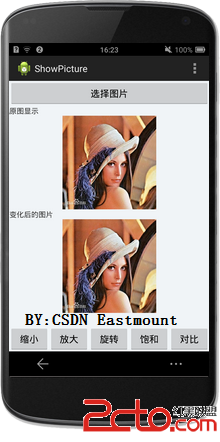
然後通過Matrix對圖像進行處理操作,在onCreate函數中添加點擊事件:
//縮小圖片
Button button2=(Button)findViewById(R.id.button2);
button2.setOnClickListener(new OnClickListener() {
	@Override
	public void onClick(View v) {
		SmallPicture();
	}
});
//放大圖片
    Button button3=(Button)findViewById(R.id.button3);
    button3.setOnClickListener(new OnClickListener() {
		@Override
		public void onClick(View v) {
			BigPicture();
		}
	});
   //旋轉圖片
Button button4=(Button)findViewById(R.id.button4);
button4.setOnClickListener(new OnClickListener() {
	@Override
	public void onClick(View v) {
		TurnPicture();
	}
});
//圖片飽和度改變
Button button5=(Button)findViewById(R.id.button5);
button5.setOnClickListener(new OnClickListener() {
	@Override
	public void onClick(View v) {
		SaturationPicture();
	}
});
//圖片對比度改變
Button button6=(Button)findViewById(R.id.button6);
button6.setOnClickListener(new OnClickListener() {
	@Override
	public void onClick(View v) {
		ContrastPicture();
	}
});
最後分別自定義函數各操作實現,代碼如下:
//縮小圖片
private void SmallPicture() {
	Matrix matrix = new Matrix();
	//縮放區間 0.5-1.0
	if(smallbig>0.5f)
		smallbig=smallbig-0.1f;
	else
		smallbig=0.5f;
	//x y坐標同時縮放
	matrix.setScale(smallbig,smallbig,bmp.getWidth()/2,bmp.getHeight()/2);
	Bitmap createBmp = Bitmap.createBitmap(bmp.getWidth(), bmp.getHeight(), bmp.getConfig());
	Canvas canvas = new Canvas(createBmp); //畫布 傳入位圖用於繪制
	Paint paint = new Paint(); //畫刷 改變顏色 對比度等屬性
    	canvas.drawBitmap(bmp, matrix, paint);
    	imageCreate.setBackgroundColor(Color.RED);
    	imageCreate.setImageBitmap(createBmp);
    	textview2.setVisibility(View.VISIBLE);
    }
  //放大圖片
private void BigPicture() {
	Matrix matrix = new Matrix();
	//縮放區間 0.5-1.0
	if(smallbig<1.5f)
		smallbig=smallbig+0.1f;
	else
		smallbig=1.5f;
	//x y坐標同時縮放
	matrix.setScale(smallbig,smallbig,bmp.getWidth()/2,bmp.getHeight()/2);
	Bitmap createBmp = Bitmap.createBitmap(bmp.getWidth(), bmp.getHeight(), bmp.getConfig());
	Canvas canvas = new Canvas(createBmp);
	Paint paint = new Paint();
	canvas.drawBitmap(bmp, matrix, paint);
	imageCreate.setBackgroundColor(Color.RED);
	imageCreate.setImageBitmap(createBmp);
	textview2.setVisibility(View.VISIBLE);
}
//旋轉圖片
private void TurnPicture() {
	Matrix matrix = new Matrix();
	turnRotate=turnRotate+15;
	//選擇角度 饒(0,0)點選擇 正數順時針 負數逆時針 中心旋轉
	matrix.setRotate(turnRotate,bmp.getWidth()/2,bmp.getHeight()/2);
	Bitmap createBmp = Bitmap.createBitmap(bmp.getWidth(), bmp.getHeight(), bmp.getConfig());
	Canvas canvas = new Canvas(createBmp);
	Paint paint = new Paint();
	canvas.drawBitmap(bmp, matrix, paint);
	imageCreate.setBackgroundColor(Color.RED);
	imageCreate.setImageBitmap(createBmp);
	textview2.setVisibility(View.VISIBLE);
}
//改變圖像飽和度
private void SaturationPicture() {
	//設置飽和度 0表示灰度圖像 大於1飽和度增加 0-1飽和度減小
	ColorMatrix cm = new ColorMatrix();
	cm.setSaturation(saturation);
	Paint paint = new Paint();
	paint.setColorFilter(new ColorMatrixColorFilter(cm));
	//顯示圖片
	Matrix matrix = new Matrix();
	Bitmap createBmp = Bitmap.createBitmap(bmp.getWidth(), bmp.getHeight(), bmp.getConfig());
	Canvas canvas = new Canvas(createBmp);
	canvas.drawBitmap(bmp, matrix, paint);
	imageCreate.setImageBitmap(createBmp);
	textview2.setVisibility(View.VISIBLE);
	saturation=saturation+0.1f;
	if(saturation>=1.5f) {
		saturation=0f;
	}
}
//設置圖片對比度
private void ContrastPicture() {
	ColorMatrix cm = new ColorMatrix();
	float brightness = -25;  //亮度
	float contrast = 2;        //對比度
	cm.set(new float[] {
		contrast, 0, 0, 0, brightness,
		0, contrast, 0, 0, brightness,
		0, 0, contrast, 0, brightness,
		0, 0, 0, contrast, 0
	});
	Paint paint = new Paint();
	paint.setColorFilter(new ColorMatrixColorFilter(cm));
	//顯示圖片
	Matrix matrix = new Matrix();
	Bitmap createBmp = Bitmap.createBitmap(bmp.getWidth(), bmp.getHeight(), bmp.getConfig());
	Canvas canvas = new Canvas(createBmp);
	canvas.drawBitmap(bmp, matrix, paint);
	imageCreate.setImageBitmap(createBmp);
	textview2.setVisibility(View.VISIBLE);
}
同時自定義變量如下:
//圖片變換參數
private float smallbig=1.0f;   //縮放比例
private int turnRotate=0;       //旋轉度數
private float saturation=0f;    //飽和度
它的運行結果如下圖所示:
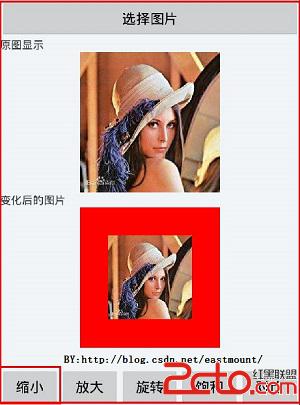
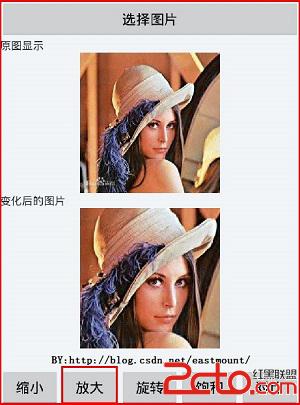
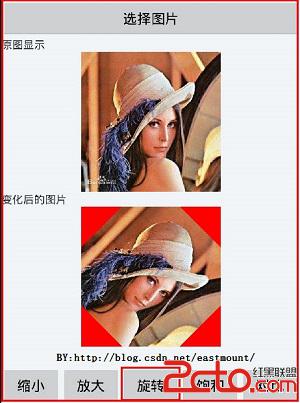
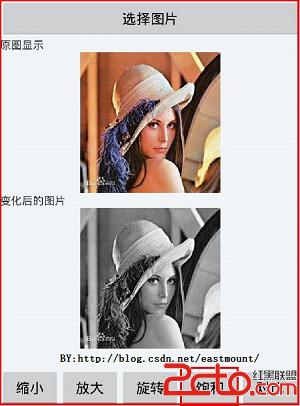
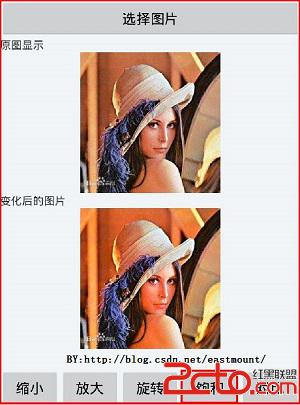
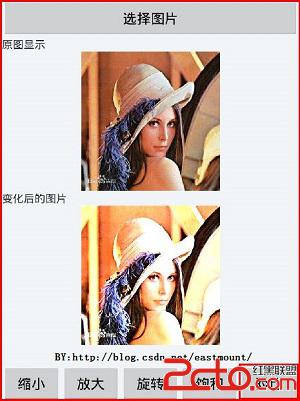
需要指出的是:該項目僅僅講述處理的過程,並沒有考慮很多因素,如:有的圖像顯示可能超出屏幕,沒有載入圖片點擊處理按鈕報錯,橫豎屏切換導致不顯示圖片,最下面按鈕可能被遮擋,圖像放大畫布沒有變,因為為認為顯示一張改變後的圖片效果更好,而該工程僅僅是對比.圖像縮放移動觸屏變換更好,下一篇講述.
XML布局推薦:http://www.apkbus.com/forum.php?mod=viewthread&tid=44949
解決畫布跟著圖片放大:http://www.eoeandroid.com/thread-3162-1-1.html
Android中可以通過Matrix和ColorMatrix對圖像進行處理.
1.Matrix
圖像空間變換,包括旋轉、剪裁、縮放或移動.Matrix類中每個數字都將應用於圖像上每個點的3個坐標x\y\z之一.
如下代碼通過setValues設置值.(1,0,0)表示x坐標轉換x=1x+0y+0z,同樣y=0x+1y+0z,z=0x+0y+1z.該矩陣不做任何變換.如果第一行改為(.5f,0,0),那麼圖像在x軸上將圖像壓縮50%.移動見setTranslate()函數.
Matrix matrix = new Matrix();
matrix.setValues(new float[] {
        1, 0, 0,
        0, 1, 0,
        0, 0, 1
});
2.ColorMatrix
在Canvas(畫布)對象上繪制時既可使用Matrix方法,也可使用ColorMatrix來改變在Canvas對象上繪制的Paint(畫刷)對象.對圖像的像素處理時,每個像素由RGBA值組成(Red Green Blue Alpha).具體方法推薦博文:http://www.cnblogs.com/leon19870907/articles/1978065.html
最後希望該文章對大家有所幫助,尤其是Android初學者.該文章是講述Android使用Matrix處理圖片的基礎文章,如果有不足或錯誤地方,請見諒~參考資料《Android多媒體開發高級編程 著:Shawn Van Every》
下載地址:
(By:Eastmount 2014-10-26 夜2點
http://blog.csdn.net/eastmount)
 Android提高之TelephonyManager功能探秘
前面文章介紹了如何使用JAVA的反射機制來調用藍牙的隱藏API,本文繼續來練習JAVA的反射機制,探秘TelephonyManager在Framework裡包含卻在SDK
 android開發教程之使用listview顯示qq聯系人列表
首先還是xml布局文件,在其中添加ListView控件:主布局layout_main.xml復制代碼 代碼如下:<RelativeLayout xmlns:andr
 Android shape和selector 結合使用實例代碼
shape和selector是Android UI設計中經常用到的,比如我們要自定義一個圓角Button,點擊Button有些效果的變化,就要用到shape和select
 【Android】Android自定義帶board的圓角控件
介紹圓角控件常用於頭像,按鈕,圖標等,用途十分廣泛,而且常常配合board使用。在IOS中,UIVIew的CALayer層已經提供了圓角和board的方法,所以圓角控件的