編輯:關於Android編程
本文介紹calabash-android的命令行的使用,通過例子,熟悉calabash-android所調用的ruby api和常用控制台命令, 如query, touch, wait等。,。熟悉這些API有助於我們編寫自定義feature。
第一步:下載app
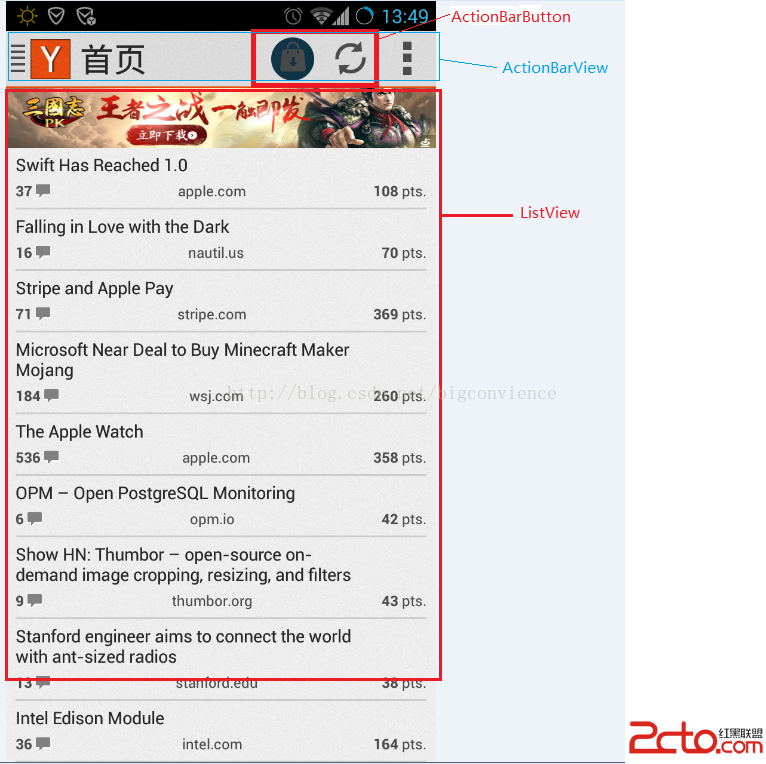
本文所用的測試app為黑客頭條,點此下載。app中view的元素如下圖所示:
第二步:打開命令行,進入app的下載目錄,輸入如下命令
calabash-android console HackerNews.apk
如果一切運行正常,則會進入calabash命令行,同時可以看到提示符變為:irb(main):001:0>此時可在命令行裡輸入如下命令
irb(main):001:0> reinstall_apps
irb(main):002:0> start_test_server_in_background
  第一條命令用來安裝被測試app和test_server, 第二天命令啟動test_server,此時可以進入到程序的主界面。
每個Android應用程序都是有一系列的View組成.Button, ImageView, chekbox都是屏幕上的View。每個View都有對應的類型,程序界面可以看做是View的集合。
query(uiquery, *args)此函數返會一個數組,每一個數組項包含View的信息,如id,坐標,類型。在命令行中輸入
irb(main):003:0> query("ActionBarButton")由於在ControllerBar中有兩個ActionBarButton,故輸出結果如下所示:
[
    [0] {
                        "id" => nil,
                   "enabled" => true,
        "contentDescription" => nil,
                     "class" => "com.airlocksoftware.holo.actionbar.ActionBarBut
ton",
                      "rect" => {
            "center_y" => 98,
            "center_x" => 480,
              "height" => 96,
                   "y" => 50,
               "width" => 96,
                   "x" => 432
        },
                       "tag" => nil,
               "description" => "ActionBarButton: \"推廣\""
    },
    [1] {
                        "id" => nil,
                   "enabled" => true,
        "contentDescription" => nil,
                     "class" => "com.airlocksoftware.holo.actionbar.ActionBarBut
ton",
                      "rect" => {
            "center_y" => 98,
            "center_x" => 576,
              "height" => 96,
                   "y" => 50,
               "width" => 96,
                   "x" => 528
        },
                       "tag" => nil,
               "description" => "ActionBarButton: \"刷新內容\""
    }
]
由於返回的結果是個ruby array,我們可以使用array的方法,如獲取size
irb(main):004:0> query("ActionBarButton").size返回的結果是2
查詢keys
irb(main):013:0> query("ImageView").first.keys
[
    [0] "id",
    [1] "enabled",
    [2] "contentDescription",
    [3] "class",
    [4] "rect",
    [5] "tag",
    [6] "description"
]
index
query("*")[0]query("* index:0")irb(main):006:0> query("*")返回屏幕中的所有元素
通過類名來過濾元素
簡單類名
之前查詢元素的方法是通過簡單類名,且大小寫不敏感。如
irb(main):010:0> query("ImageView")
[
    [0] {
                        "id" => "img_up_icon",
                   "enabled" => true,
        "contentDescription" => nil,
                     "class" => "android.widget.ImageView",
                      "rect" => {
            "center_y" => 97,
            "center_x" => 74,
              "height" => 67,
                   "y" => 64,
               "width" => 67,
                   "x" => 41
        },
                       "tag" => nil,
               "description" => "android.widget.ImageView{41f4c740 V.ED.... ....
.... 41,14-108,81 #7f060091 app:id/img_up_icon}"
    }
]
和
irb(main):010:0> query("ImageVIew")結果一樣。 含有包作用域的類名
若輸入以下查詢命令,
irb(main):011:0> query("android.widget.ImageView")結果如下:[
[ 0] {
"id" => "icv_up_indicator",
"enabled" => true,
"contentDescription" => nil,
"class" => "com.airlocksoftware.holo.image.IconView",
"rect" => {
"center_y" => 98,
"center_x" => 20,
"height" => 50,
"y" => 73,
"width" => 41,
"x" => 0
},
"tag" => nil,
"description" => "com.airlocksoftware.holo.image.IconView{41f41cc
8 V.ED.... ........ 0,23-41,73 #7f060090 app:id/icv_up_indicator}"
},
[ 1] {
"id" => "img_up_icon",
"enabled" => true,
"contentDescription" => nil,
"class" => "android.widget.ImageView",
"rect" => {
"center_y" => 97,
"center_x" => 74,
"height" => 67,
"y" => 64,
"width" => 67,
"x" => 41
},
"tag" => nil,
"description" => "android.widget.ImageView{41f4c740 V.ED.... ....
.... 41,14-108,81 #7f060091 app:id/img_up_icon}"
},
[ 2] {
"id" => "icv",
"enabled" => true,
"contentDescription" => nil,
"class" => "com.airlocksoftware.holo.image.IconView",
"rect" => {
"center_y" => 98,
"center_x" => 480,
"height" => 96,
"y" => 50,
"width" => 96,
"x" => 432
},
"tag" => nil,
"description" => "com.airlocksoftware.holo.image.IconView{4241f03
8 V.ED.... ........ 0,0-96,96 #7f060096 app:id/icv}"
},
[ 3] {
"id" => "icv",
"enabled" => true,
"contentDescription" => nil,
"class" => "com.airlocksoftware.holo.image.IconView",
"rect" => {
"center_y" => 98,
"center_x" => 576,
"height" => 96,
"y" => 50,
"width" => 96,
"x" => 528
},
"tag" => nil,
"description" => "com.airlocksoftware.holo.image.IconView{424aa62
8 V.ED.... ........ 0,0-96,96 #7f060096 app:id/icv}"
},
[ 4] {
"id" => "icv_overflow",
"enabled" => true,
"contentDescription" => nil,
"class" => "com.airlocksoftware.holo.image.IconView",
"rect" => {
"center_y" => 98,
"center_x" => 672,
"height" => 96,
"y" => 50,
"width" => 96,
"x" => 624
},
"tag" => nil,
"description" => "com.airlocksoftware.holo.image.IconView{41f6a6b
0 V.ED..C. ........ 500,0-596,96 #7f060095 app:id/icv_overflow}"
},
[ 5] {
"id" => "icv_comment",
"enabled" => true,
"contentDescription" => nil,
"class" => "com.airlocksoftware.holo.image.IconView",
"rect" => {
"center_y" => 317,
"center_x" => 63,
"height" => 33,
"y" => 301,
"width" => 26,
"x" => 50
},
"tag" => nil,
"description" => "com.airlocksoftware.holo.image.IconView{42075eb
8 V.ED.... ........ 50,55-76,88 #7f060120 app:id/icv_comment}"
},
[ 6] {
"id" => "icv_comment",
"enabled" => true,
"contentDescription" => nil,
"class" => "com.airlocksoftware.holo.image.IconView",
"rect" => {
"center_y" => 454,
"center_x" => 49,
"height" => 33,
"y" => 438,
"width" => 26,
"x" => 36
},
"tag" => nil,
"description" => "com.airlocksoftware.holo.image.IconView{4240c4d
0 V.ED.... ........ 36,89-62,122 #7f060120 app:id/icv_comment}"
},
[ 7] {
"id" => "icv_comment",
"enabled" => true,
"contentDescription" => nil,
"class" => "com.airlocksoftware.holo.image.IconView",
"rect" => {
"center_y" => 557,
"center_x" => 63,
"height" => 33,
"y" => 541,
"width" => 26,
"x" => 50
},
"tag" => nil,
"description" => "com.airlocksoftware.holo.image.IconView{42368ad
0 V.ED.... ........ 50,55-76,88 #7f060120 app:id/icv_comment}"
},
[ 8] {
"id" => "icv_comment",
"enabled" => true,
"contentDescription" => nil,
"class" => "com.airlocksoftware.holo.image.IconView",
"rect" => {
"center_y" => 660,
"center_x" => 63,
"height" => 33,
"y" => 644,
"width" => 26,
"x" => 50
},
"tag" => nil,
"description" => "com.airlocksoftware.holo.image.IconView{41c8a72
0 V.ED.... ........ 50,55-76,88 #7f060120 app:id/icv_comment}"
},
[ 9] {
"id" => "icv_comment",
"enabled" => true,
"contentDescription" => nil,
"class" => "com.airlocksoftware.holo.image.IconView",
"rect" => {
"center_y" => 797,
"center_x" => 77,
"height" => 33,
"y" => 781,
"width" => 26,
"x" => 64
},
"tag" => nil,
"description" => "com.airlocksoftware.holo.image.IconView{423685d
8 V.ED.... ........ 64,89-90,122 #7f060120 app:id/icv_comment}"
},
[10] {
"id" => "icv_comment",
"enabled" => true,
"contentDescription" => nil,
"class" => "com.airlocksoftware.holo.image.IconView",
"rect" => {
"center_y" => 900,
"center_x" => 77,
"height" => 33,
"y" => 884,
"width" => 26,
"x" => 64
},
"tag" => nil,
"description" => "com.airlocksoftware.holo.image.IconView{424c065
8 V.ED.... ........ 64,55-90,88 #7f060120 app:id/icv_comment}"
},
[11] {
"id" => "icv_comment",
"enabled" => true,
"contentDescription" => nil,
"class" => "com.airlocksoftware.holo.image.IconView",
"rect" => {
"center_y" => 1037,
"center_x" => 49,
"height" => 33,
"y" => 1021,
"width" => 26,
"x" => 36
},
"tag" => nil,
"description" => "com.airlocksoftware.holo.image.IconView{423b43f
8 V.ED.... ........ 36,89-62,122 #7f060120 app:id/icv_comment}"
},
[12] {
"id" => "icv_comment",
"enabled" => true,
"contentDescription" => nil,
"class" => "com.airlocksoftware.holo.image.IconView",
"rect" => {
"center_y" => 1140,
"center_x" => 63,
"height" => 33,
"y" => 1124,
"width" => 26,
"x" => 50
},
"tag" => nil,
"description" => "com.airlocksoftware.holo.image.IconView{420c0dd
8 V.ED.... ........ 50,55-76,88 #7f060120 app:id/icv_comment}"
},
[13] {
"id" => "icv_comment",
"enabled" => true,
"contentDescription" => nil,
"class" => "com.airlocksoftware.holo.image.IconView",
"rect" => {
"center_y" => 1277,
"center_x" => 63,
"height" => 33,
"y" => 1261,
"width" => 26,
"x" => 50
},
"tag" => nil,
"description" => "com.airlocksoftware.holo.image.IconView{423ab81
0 V.ED.... ........ 50,89-76,122 #7f060120 app:id/icv_comment}"
}
]此時返回的結果有14個元素1.當僅給出簡單類名時,僅查詢該類名所對應的對象
2.當查詢含有包名的類名時,會給出該類的對象和該類的子類的對象。
過濾操作
可以通過id,text或class來對結果進行過濾。
指定id:
irb(main):018:0> query("android.widget.ImageView id:'icv_comment'")主要id後面的單引號
指定text:
query("* text:'Login'")該操作會返回屏幕中含有"Login"文本的View
其它屬性
query("* width:200")
query("* enabled:false")
注意,此處無單引號
可以同時指定多個屬性,如:
query("* enabled:true height:50") 查詢原理calabash過濾屬性的語法如下:
prop:valueprop是屬性名,value是一個字符串,布爾值或整數。
上面的例子,我們使用的屬性有id,text,enabled和width.除此之外,還有更多的可以用。
每一個View對象都有一系列方法,如View有isEnabled方法。當calabash准備去解析query中傳入的屬性時,它會以如下的順序調用View的方法:prop(),getProp()和isProp().
故對於enabled屬性,它會嘗試調用enabled(),getEnabled()或isEnabled().最後將返回結果與query中指定的值進行比較。
有用的技巧
除了以上的查詢語句,還有其它有用的技巧
marked
此關鍵字通過名稱來標識一個View,用來比較id, text或contentDescription屬性。
qeuery("button marked:'login_button'")返回屬性返回id
irb(main):005:0> query("android.widget.ImageView", :id)
[
    [ 0] "icv_up_indicator",
    [ 1] "img_up_icon",
    [ 2] "icv",
    [ 3] "icv",
    [ 4] "icv_overflow",
    [ 5] "icv_comment",
    [ 6] "icv_comment",
    [ 7] "icv_comment",
    [ 8] "icv_comment",
    [ 9] "icv_comment",
    [10] "icv_comment",
    [11] "icv_comment",
    [12] "icv_comment",
    [13] "icv_comment"
]
可以將屬性過濾與指定的屬性配合使用,如
irb(main):006:0> query("android.widget.ImageView enabled:true", :id)屬性也可以寫成如下形式 query("android.widget.ImageView enabled:true", "id")鏈式調用:
query(android.widget.ImageView", "text", "toLowerCase")先對放回的對象調用getText(),然後再調用toLowerCase函數。
設置元素的值:(暫未調試)
irb(main):034:0> query("edittext index:1", :setText => "1234")暫時介紹到這兒,後續會繼續更新。
 讓UITableView支持長按拖動排序
效果項目地址DraggableTableView所有Cell都可以拖拽。固定第一個Cell限制長按區域實現原理對UITableView添加LongPress手勢 在lon
 Android中進程間通信 (一)
在Android系統中,每一個應用程序都是由一些Activity和Service組成的,這些Activity和Service有可能運行在同一個進程中,也有可能運行在不同的
 Android與JS之間跨平台異步調用實例詳解
Android與JS之間跨平台異步調用 為什麼突然要搞這個問題呢? 在開發浏覽器的時候遇到這個狗血的問題,花了將近1天的時間才想到這個解決方案,Androi
 Android編程之ProgressBar圓形進度條顏色設置方法
本文實例講述了Android ProgressBar圓形進度條顏色設置方法。分享給大家供大家參考,具體如下:你是不是還在為設置進度條的顏色而煩惱呢……別著急,且看如下如何