編輯:關於Android編程
開發android的同學可能會抱怨Toast設定顯示的時長無效,只能是Toast.LENGTH_LONG 或者Toast.LENGTH_SHORT 之一,為了解決這些辦法,有多種實現方式:
1.使用定時器,定時調用show()方法.
2.使用CountDownTimer類,也是調用show()方法.
3.使用WindownManager類實現.
本文使用方法三進行實現,難度不大,直接看代碼吧.
package com.open.toast;

import android.content.Context;
import android.graphics.Color;
import android.graphics.PixelFormat;
import android.os.Handler;
import android.view.Gravity;
import android.view.View;
import android.view.WindowManager;
import android.widget.LinearLayout;
import android.widget.TextView;

/**
 * 自定義時長的Toast
 * @author DexYang
 *
 */
public class CToast {

    public static CToast makeText(Context context, CharSequence text, int duration)
    {
    	CToast result = new CToast(context);

    	LinearLayout mLayout=new LinearLayout(context);
        TextView tv = new TextView(context);
        tv.setText(text);
        tv.setTextColor(Color.WHITE);
        tv.setGravity(Gravity.CENTER);
        mLayout.setBackgroundResource(R.drawable.widget_toast_bg);

        int w=context.getResources().getDisplayMetrics().widthPixels / 2;
        int h=context.getResources().getDisplayMetrics().widthPixels / 10;
        mLayout.addView(tv, w, h);
        result.mNextView = mLayout;
        result.mDuration = duration;

        return result;
    }

    public static final int LENGTH_SHORT = 2000;
    public static final int LENGTH_LONG = 3500;

    private final Handler mHandler = new Handler();
    private int mDuration=LENGTH_SHORT;
    private int mGravity = Gravity.CENTER;
    private int mX, mY;
    private float mHorizontalMargin;
    private float mVerticalMargin;
    private View mView;
    private View mNextView;

    private WindowManager mWM;
	private final WindowManager.LayoutParams mParams = new WindowManager.LayoutParams();


	 public CToast(Context context) {
	        init(context);
	    }

	/**
     * Set the view to show.
     * @see #getView
     */
    public void setView(View view) {
        mNextView = view;
    }

    /**
     * Return the view.
     * @see #setView
     */
    public View getView() {
        return mNextView;
    }

    /**
     * Set how long to show the view for.
     * @see #LENGTH_SHORT
     * @see #LENGTH_LONG
     */
    public void setDuration(int duration) {
        mDuration = duration;
    }

    /**
     * Return the duration.
     * @see #setDuration
     */
    public int getDuration() {
        return mDuration;
    }

    /**
     * Set the margins of the view.
     *
     * @param horizontalMargin The horizontal margin, in percentage of the
     *        container width, between the container's edges and the
     *        notification
     * @param verticalMargin The vertical margin, in percentage of the
     *        container height, between the container's edges and the
     *        notification
     */
    public void setMargin(float horizontalMargin, float verticalMargin) {
        mHorizontalMargin = horizontalMargin;
        mVerticalMargin = verticalMargin;
    }

    /**
     * Return the horizontal margin.
     */
    public float getHorizontalMargin() {
        return mHorizontalMargin;
    }

    /**
     * Return the vertical margin.
     */
    public float getVerticalMargin() {
        return mVerticalMargin;
    }

    /**
     * Set the location at which the notification should appear on the screen.
     * @see android.view.Gravity
     * @see #getGravity
     */
    public void setGravity(int gravity, int xOffset, int yOffset) {
        mGravity = gravity;
        mX = xOffset;
        mY = yOffset;
    }

     /**
     * Get the location at which the notification should appear on the screen.
     * @see android.view.Gravity
     * @see #getGravity
     */
    public int getGravity() {
        return mGravity;
    }

    /**
     * Return the X offset in pixels to apply to the gravity's location.
     */
    public int getXOffset() {
        return mX;
    }

    /**
     * Return the Y offset in pixels to apply to the gravity's location.
     */
    public int getYOffset() {
        return mY;
    }

    /**
     * schedule handleShow into the right thread
     */
    public void show() {
        mHandler.post(mShow);

        if(mDuration>0)
        {
        	 mHandler.postDelayed(mHide, mDuration);
        }
    }

    /**
     * schedule handleHide into the right thread
     */
    public void hide() {
        mHandler.post(mHide);
    }

    private final Runnable mShow = new Runnable() {
        public void run() {
            handleShow();
        }
    };

    private final Runnable mHide = new Runnable() {
        public void run() {
            handleHide();
        }
    };

    private void init(Context context)
    {
    	 final WindowManager.LayoutParams params = mParams;
         params.height = WindowManager.LayoutParams.WRAP_CONTENT;
         params.width = WindowManager.LayoutParams.WRAP_CONTENT;
         params.flags = WindowManager.LayoutParams.FLAG_NOT_FOCUSABLE
                 | WindowManager.LayoutParams.FLAG_NOT_TOUCHABLE
                 | WindowManager.LayoutParams.FLAG_KEEP_SCREEN_ON;
         params.format = PixelFormat.TRANSLUCENT;
         params.windowAnimations = android.R.style.Animation_Toast;
         params.type = WindowManager.LayoutParams.TYPE_TOAST;
         params.setTitle("Toast");

         mWM = (WindowManager) context.getApplicationContext()
                 .getSystemService(Context.WINDOW_SERVICE);
    }


    private void handleShow() {

        if (mView != mNextView) {
            // remove the old view if necessary
            handleHide();
            mView = mNextView;
//            mWM = WindowManagerImpl.getDefault();
            final int gravity = mGravity;
            mParams.gravity = gravity;
            if ((gravity & Gravity.HORIZONTAL_GRAVITY_MASK) == Gravity.FILL_HORIZONTAL)
            {
                mParams.horizontalWeight = 1.0f;
            }
            if ((gravity & Gravity.VERTICAL_GRAVITY_MASK) == Gravity.FILL_VERTICAL)
            {
                mParams.verticalWeight = 1.0f;
            }
            mParams.x = mX;
            mParams.y = mY;
            mParams.verticalMargin = mVerticalMargin;
            mParams.horizontalMargin = mHorizontalMargin;
            if (mView.getParent() != null)
            {
                mWM.removeView(mView);
            }
            mWM.addView(mView, mParams);
        }
    }

    private void handleHide()
    {
        if (mView != null)
        {
            if (mView.getParent() != null)
            {
                mWM.removeView(mView);
            }
            mView = null;
        }
    }
}
測試類的代碼如下:
package com.open.toast;

import android.app.Activity;
import android.os.Bundle;
import android.text.TextUtils;
import android.view.View;
import android.widget.EditText;

public class MainActivity extends Activity {


	private EditText mEditText;
	private CToast mCToast;

	@Override
	protected void onCreate(Bundle savedInstanceState) {
		super.onCreate(savedInstanceState);
		setContentView(R.layout.activity_main);
		init();
	}


	private void init()
	{
		mEditText=(EditText)findViewById(R.id.timeEditText);
		findViewById(R.id.showToastBtn).setOnClickListener(listener);
		findViewById(R.id.hideToastBtn).setOnClickListener(listener);
	}

	private View.OnClickListener listener=new View.OnClickListener() {

		@Override
		public void onClick(View v) {
			switch(v.getId())
			{
				case R.id.showToastBtn:
					if(null!=mCToast)
					{
						mCToast.hide();
					}
					int time=TextUtils.isEmpty(mEditText.getText().toString())?CToast.LENGTH_SHORT:Integer.valueOf(mEditText.getText().toString());
					mCToast=CToast.makeText(getApplicationContext(), "我來自CToast!",time);
					mCToast.show();
					break;

				case R.id.hideToastBtn:
					if(null!=mCToast)
					{
						mCToast.hide();
					}
					break;
			}

		}
	};

}
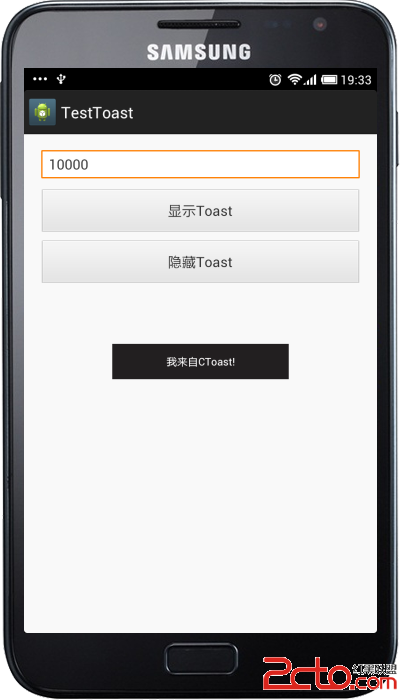
效果如下:
代碼地址:http://download.csdn.net/detail/zz7zz7zz/7019077
 Android Studio導入項目的幾種方法
本篇教程中使用到的Android Studio版本為1.0, Eclipse ADT版本23.0.4。請嘗試更新到該版本。Android Studio默認使用 Gradl
 Android7.0 PackageManagerService (4) Intent匹配Activity的過程
通過前面的分析,我們知道PKMS負責維護終端全部的Package信息,因此可以想到PKMS具有能力對外提供統一的Package信息查詢接口。我們以查詢匹配指定Intent
 GreenDao的實用封裝
前面簡單介紹了下GreenDao的使用,從前面的介紹看來是不是覺得有點 so easy。對就是這麼簡單。曾經有位大神說作為一位合格的程序員就要在學習別人的東西時,有點自己
 Android NDK學習筆記15-配置AndroidStudio
現在大家越來越多的使用AndroidStudio進行Android開發,那麼今天就和大家一起交流一下AndroidStudio開發NDK的配置方法。AndroidStud