

編輯:Android 程式設計入門
學 ListView 最好的方式就是做一個能跑的小工具。這里實現的是一個簡易文件瀏覽器:進入頁面列出根目錄下的文件與文件夾,點擊文件夾進入下一層,點擊文件則彈出提示。麻雀雖小,卻把 ListView 的數據源管理、適配器綁定、項點擊回調三件事都串了起來。
public class TestFileActivity extends ListActivity {

    private ArrayList<String> items = null;   // 顯示用的名稱列表
    private ArrayList<String> paths = null;   // 與 items 一一對應的完整路徑
    private String rootPath = "/";
    private TextView mPath;

    @Override
    protected void onCreate(Bundle savedInstanceState) {
        super.onCreate(savedInstanceState);
        setContentView(R.layout.main);
        mPath = (TextView) findViewById(R.id.mPath);
        mPath.setTextColor(Color.RED);
        getFileDir(rootPath);
    }

    /** 加載指定路徑下的文件列表 */
    private void getFileDir(String filePath) {
        mPath.setText(filePath);
        items = new ArrayList<String>();
        paths = new ArrayList<String>();

        File file = new File(filePath);
        File[] files = file.listFiles();

        // 非根目錄時,加上「返回根目錄」和「返回上一級」兩個特殊項
        if (!filePath.equals(rootPath)) {
            items.add("Back To " + rootPath);
            paths.add(rootPath);
            items.add("Back to ../");
            paths.add(file.getParent());
        }

        if (files != null) {
            for (File temp : files) {
                items.add(temp.getName());
                paths.add(temp.getPath());
            }
        }

        ArrayAdapter<String> adapter =
                new ArrayAdapter<String>(this, R.layout.file_now, items);
        setListAdapter(adapter);
    }

    @Override
    protected void onListItemClick(ListView l, View v, int position, long id) {
        File file = new File(paths.get(position));
        if (file.canRead()) {
            if (file.isDirectory()) {
                getFileDir(paths.get(position));   // 目錄:鑽進去
            } else {
                new AlertDialog.Builder(this)
                        .setTitle("Message")
                        .setMessage("[" + file.getName() + "] is a file")
                        .setPositiveButton("ok", new DialogInterface.OnClickListener() {
                            @Override
                            public void onClick(DialogInterface dialog, int which) { }
                        }).show();
            }
        } else {
            new AlertDialog.Builder(this)
                    .setTitle("Message")
                    .setMessage("操作無效")
                    .setPositiveButton("ok", new DialogInterface.OnClickListener() {
                        @Override
                        public void onClick(DialogInterface dialog, int which) { }
                    }).show();
        }
    }
}
main.xml 里有一個顯示當前路徑的 TextView 和一個 ListView。注意 ListView 的 id 必須寫成 @android:id/list,這是 ListActivity 默認尋找列表的約定:
<?xml version="1.0" encoding="utf-8"?>
<LinearLayout xmlns:android="https://schemas.android.com/apk/res/android"
    android:orientation="vertical"
    android:layout_width="fill_parent"
    android:layout_height="fill_parent">

    <TextView
        android:id="@+id/mPath"
        android:layout_width="fill_parent"
        android:layout_height="wrap_content"
        android:text="@string/hello" />

    <ListView
        android:id="@android:id/list"
        android:layout_width="fill_parent"
        android:layout_height="wrap_content" />
</LinearLayout>
單項布局 file_now.xml 更簡單,一個 TextView 即可:
<?xml version="1.0" encoding="utf-8"?>
<TextView xmlns:android="https://schemas.android.com/apk/res/android"
    android:layout_width="match_parent"
    android:layout_height="20px"
    android:textSize="14sp" />
File.listFiles() 返回當前目錄下的文件數組,記得判空——路徑不存在或無權限時它會返回 null,直接 for-each 就是空指針。ListActivity 讓列表綁定變得極簡,但也犧牲了布局自由度。真實項目里更常用普通 Activity 加 ListView,配合 BaseAdapter 做視圖復用。READ_EXTERNAL_STORAGE 權限,Android 6.0 以上還要動態申請,否則 listFiles() 只會返回空。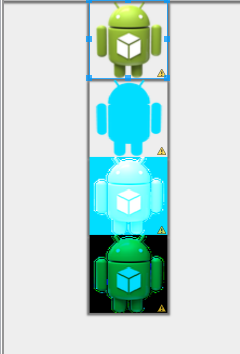 Android 5.x 特性概覽(五):著色 Tinting 與裁剪 Clipping
上一節介紹了 Material Design 對陰影效果的實現,本節則聚焦 Android 5.x 在圖像處理上新增的兩個特性——Tinting(著色)與 Clippin
 自定義 SurfaceView 實作飄雪動畫效果
SurfaceView 特點可直接取得 Canvas。可在非 UI 執行緒繪製。支援雙緩衝,繪圖效率較高。雪花物件可建立 SnowFlake 類別,保存寬高、座標與水平垂
 Android是什麼?從開源架構、版本歷史到API Level入門
Android簡介 Android是一個以Linux為基礎的開源行動作業系統,主要用於智慧型手機與平板電腦。它由Google與開放手機聯盟共同推動,提供開發者統一的應用開
 Android Touch 事件傳遞機制解析
Android 的觸控事件由 MotionEvent 表示,包含觸碰位置、時間、動作類型與多指觸控資訊。事件處理主要圍繞分發、攔截與消費三個概念。事件類型常見事件包含 A