

編輯:Android 開發實例
Toast 是最輕量的提示機制,不搶焦點、幾秒後自動消失。但預設那個灰底白字實在很樸素,而且位置固定在螢幕下方。以下示範五種客製化方式:預設樣式、自訂位置、加上圖片、完全自訂版面,以及從其他執行緒彈出。
package com.wjq.toast;

import android.app.Activity;
import android.os.Bundle;
import android.os.Handler;
import android.view.Gravity;
import android.view.LayoutInflater;
import android.view.View;
import android.view.ViewGroup;
import android.view.View.OnClickListener;
import android.widget.ImageView;
import android.widget.LinearLayout;
import android.widget.TextView;
import android.widget.Toast;

public class Main extends Activity implements OnClickListener {
    Handler handler = new Handler();

    @Override
    public void onCreate(Bundle savedInstanceState) {
        super.onCreate(savedInstanceState);
        setContentView(R.layout.main);
        findViewById(R.id.btnSimpleToast).setOnClickListener(this);
        findViewById(R.id.btnSimpleToastWithCustomPosition).setOnClickListener(this);
        findViewById(R.id.btnSimpleToastWithImage).setOnClickListener(this);
        findViewById(R.id.btnCustomToast).setOnClickListener(this);
        findViewById(R.id.btnRunToastFromOtherThread).setOnClickListener(this);
    }

    public void showToast() {
        handler.post(new Runnable() {
            @Override
            public void run() {
                Toast.makeText(getApplicationContext(), "我來自其他線程!",
                    Toast.LENGTH_SHORT).show();
            }
        });
    }

    @Override
    public void onClick(View v) {
        Toast toast = null;
        switch (v.getId()) {
        case R.id.btnSimpleToast:
            Toast.makeText(getApplicationContext(), "默認Toast樣式",
                Toast.LENGTH_SHORT).show();
            break;

        case R.id.btnSimpleToastWithCustomPosition:
            toast = Toast.makeText(getApplicationContext(),
                    "自定義位置Toast", Toast.LENGTH_LONG);
            toast.setGravity(Gravity.CENTER, 0, 0);
            toast.show();
            break;

        case R.id.btnSimpleToastWithImage:
            toast = Toast.makeText(getApplicationContext(),
                    "帶圖片的Toast", Toast.LENGTH_LONG);
            toast.setGravity(Gravity.CENTER, 0, 0);
            LinearLayout toastView = (LinearLayout) toast.getView();
            ImageView imageCodeProject = new ImageView(getApplicationContext());
            imageCodeProject.setImageResource(R.drawable.icon);
            toastView.addView(imageCodeProject, 0);
            toast.show();
            break;

        case R.id.btnCustomToast:
            LayoutInflater inflater = getLayoutInflater();
            View layout = inflater.inflate(R.layout.custom,
                    (ViewGroup) findViewById(R.id.llToast));
            ImageView image = (ImageView) layout
                    .findViewById(R.id.tvImageToast);
            image.setImageResource(R.drawable.icon);
            TextView title = (TextView) layout.findViewById(R.id.tvTitleToast);
            title.setText("Attention");
            TextView text = (TextView) layout.findViewById(R.id.tvTextToast);
            text.setText("完全自定義Toast");
            toast = new Toast(getApplicationContext());
            toast.setGravity(Gravity.RIGHT | Gravity.TOP, 12, 40);
            toast.setDuration(Toast.LENGTH_LONG);
            toast.setView(layout);
            toast.show();
            break;

        case R.id.btnRunToastFromOtherThread:
            new Thread(new Runnable() {
                public void run() {
                    showToast();
                }
            }).start();
            break;
        }
    }
}
<?xml version="1.0" encoding="utf-8"?>
<LinearLayout xmlns:android="https://schemas.android.com/apk/res/android"
android:orientation="vertical" android:layout_width="fill_parent"
android:layout_height="fill_parent" android:padding="5dip" android:gravity="center">
<Button android:layout_height="wrap_content"
  android:layout_width="fill_parent" android:id="@+id/btnSimpleToast"
  android:text="默認"></Button>
<Button android:layout_height="wrap_content"
  android:layout_width="fill_parent" android:text="自定義顯示位置"
  android:id="@+id/btnSimpleToastWithCustomPosition"></Button>
<Button android:layout_height="wrap_content"
  android:layout_width="fill_parent" android:id="@+id/btnSimpleToastWithImage"
  android:text="帶圖片"></Button>
<Button android:layout_height="wrap_content"
  android:layout_width="fill_parent" android:text="完全自定義"
  android:id="@+id/btnCustomToast"></Button>
<Button android:layout_height="wrap_content"
  android:layout_width="fill_parent" android:text="其他線程"
  android:id="@+id/btnRunToastFromOtherThread"></Button>
</LinearLayout>
<?xml version="1.0" encoding="utf-8"?>
<LinearLayout
xmlns:android="https://schemas.android.com/apk/res/android"
android:layout_height="wrap_content" android:layout_width="wrap_content"
android:background="#ffffffff" android:orientation="vertical"
android:id="@+id/llToast" >
<TextView
  android:layout_height="wrap_content"
  android:layout_margin="1dip"
  android:textColor="#ffffffff"
  android:layout_width="fill_parent"
  android:gravity="center"
  android:background="#bb000000"
  android:id="@+id/tvTitleToast" />
<LinearLayout
  android:layout_height="wrap_content"
  android:orientation="vertical"
  android:id="@+id/llToastContent"
  android:layout_marginLeft="1dip"
  android:layout_marginRight="1dip"
  android:layout_marginBottom="1dip"
  android:layout_width="wrap_content"
  android:padding="15dip"
  android:background="#44000000" >
  <ImageView
    android:layout_height="wrap_content"
    android:layout_gravity="center"
    android:layout_width="wrap_content"
    android:id="@+id/tvImageToast" />
  <TextView
    android:layout_height="wrap_content"
    android:paddingRight="10dip"
    android:paddingLeft="10dip"
    android:layout_width="wrap_content"
    android:gravity="center"
    android:textColor="#ff000000"
    android:id="@+id/tvTextToast" />
</LinearLayout>
</LinearLayout>
Toast.makeText(context, text, duration).show(),一行搞定。duration 只能取 LENGTH_SHORT 或 LENGTH_LONG,無法自訂秒數。setGravity(Gravity.CENTER, 0, 0),後兩個參數是 x / y 偏移量,單位為像素。toast.getView()),再 addView() 塞入 ImageView。這種做法能動到系統預設版面,相容性較不穩,僅供參考。setView() 換掉整個內容,是彈性最高也最推薦的方式。Handler.post() 拋回主執行緒,直接呼叫會拋出 CalledFromWrongThreadException。最後提醒一個實務陷阱:自訂 view 的 Toast 在部分新版 Android 系統上不會依 your layout 顯示,因為系統改為使用文字模式渲染。若要在正式專案中確保一致性,改用 Snackbar 或自繪的浮動元件會更可靠。
 封裝 SQLite 分頁表格控件 GVTable:表格區與分頁列的完整實作
前一篇談了 SQLite 的分頁讀取,但那個版本只是把資料印在文字方塊裡。這次往前一步:把「分頁 + 表格呈現」封裝成一個可重複使用的自訂控件。 執行結果: 為什
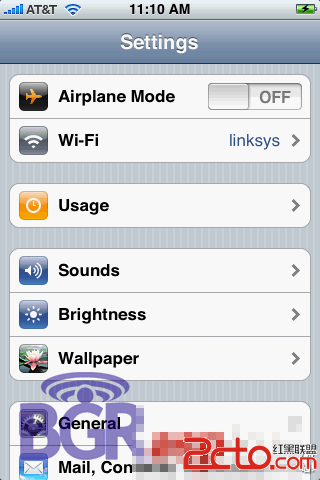 Android 打造圓角 ListView:四種 Selector 的分段處理
本文示範如何在 Android 中實作出圓角外觀的 ListView。 不論是網頁還是 App,使用者總愛新鮮的視覺效果。直角看久了就想換換口味,這幾年圓角設計風潮興起
 Android 載入 Spinner 用法:讓使用者知道系統正在忙
在 Android 中,可以透過進度條向使用者回報任務的執行狀況。進度條大致有兩種外觀:能標示百分比的橫向進度列,以及不停旋轉的圓圈,後者一般稱為 Loading Spi
 一支 App 多種語言:Android 本地化的資料夾命名規則與實作
App 上架之後,使用者可能來自任何國家。若介面只有單一語言,即便功能再好,也會在語言這一關流失不少潛在用戶。Android 的資源系統把這件事處理得非常優雅:你只要按命