

編輯:Android 開發實例
Android 的動畫系統以 Animation 抽象類為核心,能為 View、Surface 等物件加上視覺變化,其中最常用的是控制位置位移的 TranslateAnimation。本文整理它的屬性、方法、常用常數,並以一個完整的「震蕩 + 翻轉 + 位移」範例收尾。
所有繼承自 View 的控件都具備 startAnimation(Animation) 方法,呼叫它即可為該控件套用動畫。若要從 XML 載入動畫資源,則透過 AnimationUtils.loadAnimation(Context, int) 取得 Animation 實例,這是 AnimationUtils 提供的核心方法。
<?xml version="1.0" encoding="utf-8"?>
<LinearLayout xmlns:android="https://schemas.android.com/apk/res/android"
    android:orientation="vertical"
    android:padding="10dip"
    android:layout_width="match_parent"
    android:layout_height="wrap_content">

    <ImageView android:id="@+id/pw"
        android:background="@drawable/a"
        android:layout_width="match_parent"
        android:layout_height="wrap_content"
        android:layout_marginBottom="10dip" />

    <Button android:id="@+id/login"
        android:layout_width="wrap_content"
        android:layout_height="wrap_content"
        android:textSize="26sp"
        android:text="震蕩" />

    <ViewFlipper android:id="@+id/flipper"
        android:layout_width="match_parent"
        android:layout_height="wrap_content"
        android:flipInterval="2000">

        <TextView
            android:layout_width="match_parent"
            android:layout_height="wrap_content"
            android:gravity="center_horizontal"
            android:textSize="26sp"
            android:text="吳建強" />
        <TextView
            android:layout_width="match_parent"
            android:layout_height="wrap_content"
            android:gravity="center_horizontal"
            android:textSize="26sp"
            android:text="李秀婷" />
        <TextView
            android:layout_width="match_parent"
            android:layout_height="wrap_content"
            android:gravity="center_horizontal"
            android:textSize="26sp"
            android:text="張美靜" />
        <TextView
            android:layout_width="match_parent"
            android:layout_height="wrap_content"
            android:gravity="center_horizontal"
            android:textSize="26sp"
            android:text="吳美音" />

    </ViewFlipper>

    <TextView
        android:layout_width="match_parent"
        android:layout_height="wrap_content"
        android:layout_marginBottom="5dip"
        android:text="請選擇你喜歡的人" />

    <Spinner android:id="@+id/spinner"
        android:layout_width="match_parent"
        android:layout_height="wrap_content" />

    <TextView android:id="@+id/target"
        android:layout_width="wrap_content"
        android:layout_height="wrap_content"
        android:textSize="26sp"
        android:text="java 語言" />

    <TextView
        android:layout_width="match_parent"
        android:layout_height="wrap_content"
        android:layout_marginTop="20dip"
        android:layout_marginBottom="5dip"
        android:text="C# 語言" />

    <Spinner
        android:id="@+id/spinner1"
        android:layout_width="match_parent"
        android:layout_height="wrap_content" />

</LinearLayout>
<?xml version="1.0" encoding="utf-8"?>
<translate xmlns:android="https://schemas.android.com/apk/res/android"
    android:fromXDelta="0"
    android:toXDelta="10"
    android:duration="1000"
    android:interpolator="@anim/cycle_7" />
package wjq.WidgetDemo;

import android.app.Activity;
import android.os.Bundle;
import android.view.View;
import android.view.View.OnClickListener;
import android.view.animation.Animation;
import android.view.animation.AnimationUtils;
import android.view.animation.TranslateAnimation;
import android.widget.AdapterView;
import android.widget.ArrayAdapter;
import android.widget.Spinner;
import android.widget.ViewFlipper;
import android.widget.AdapterView.OnItemSelectedListener;

/**
 * 動畫 Animation 示例
 */
public class AnimationDemo extends Activity
        implements OnClickListener, OnItemSelectedListener {

    private View v;

    private String[] mStrings = { "向上", "向右", "穿越", "旋轉" };

    private static final String[] INTERPOLATORS = {
        "加速", "Decelerate", "減速", "左右",
        "Overshoot", "Anticipate/Overshoot", "彈回"
    };

    private ViewFlipper mFlipper;
    private Spinner spinner;
    private Spinner spinner1;
    private ArrayAdapter<String> aa;
    private ArrayAdapter<String> aa1;

    @Override
    protected void onCreate(Bundle savedInstanceState) {
        super.onCreate(savedInstanceState);
        setContentView(R.layout.animationpage);

        v = findViewById(R.id.login);
        v.setOnClickListener(this);

        mFlipper = (ViewFlipper) findViewById(R.id.flipper);
        mFlipper.startFlipping();

        spinner = (Spinner) findViewById(R.id.spinner);
        aa = new ArrayAdapter<String>(this,
                android.R.layout.simple_spinner_item, mStrings);
        aa.setDropDownViewResource(
                android.R.layout.simple_spinner_dropdown_item);
        spinner.setAdapter(aa);
        spinner.setOnItemSelectedListener(this);

        spinner1 = (Spinner) findViewById(R.id.spinner1);
        aa1 = new ArrayAdapter<String>(this,
                android.R.layout.simple_spinner_item, INTERPOLATORS);
        aa1.setDropDownViewResource(
                android.R.layout.simple_spinner_dropdown_item);
        spinner1.setAdapter(aa1);
        spinner1.setOnItemSelectedListener(this);
    }

    @Override
    public void onClick(View v) {
        Animation shake = AnimationUtils.loadAnimation(this, R.anim.animlayout);
        findViewById(R.id.pw).startAnimation(shake);
    }

    @Override
    public void onItemSelected(AdapterView<?> parent, View view,
            int position, long id) {
        if (parent.getAdapter() == aa) {
            switch (position) {
            case 0:
                mFlipper.setInAnimation(AnimationUtils.loadAnimation(this,
                        R.anim.push_up_in));
                mFlipper.setOutAnimation(AnimationUtils.loadAnimation(this,
                        R.anim.push_up_out));
                break;
            case 1:
                mFlipper.setInAnimation(AnimationUtils.loadAnimation(this,
                        R.anim.push_left_in));
                mFlipper.setOutAnimation(AnimationUtils.loadAnimation(this,
                        R.anim.push_left_out));
                break;
            case 2:
                mFlipper.setInAnimation(AnimationUtils.loadAnimation(this,
                        android.R.anim.fade_in));
                mFlipper.setOutAnimation(AnimationUtils.loadAnimation(this,
                        android.R.anim.fade_out));
                break;
            default:
                mFlipper.setInAnimation(AnimationUtils.loadAnimation(this,
                        R.anim.hyperspace_in));
                mFlipper.setOutAnimation(AnimationUtils.loadAnimation(this,
                        R.anim.hyperspace_out));
                break;
            }
        } else {
            final View target = findViewById(R.id.target);
            final View targetParent = (View) target.getParent();

            Animation anm = new TranslateAnimation(
                    0.0f,
                    targetParent.getWidth() - target.getWidth()
                            - targetParent.getPaddingLeft()
                            - targetParent.getPaddingRight(),
                    0.0f, 0.0f);

            anm.setDuration(1000);
            anm.setStartOffset(300);
            anm.setRepeatMode(Animation.RESTART);
            anm.setRepeatCount(Animation.INFINITE);

            switch (position) {
            case 0:
                anm.setInterpolator(AnimationUtils.loadInterpolator(this,
                        android.R.anim.accelerate_interpolator));
                break;
            case 1:
                anm.setInterpolator(AnimationUtils.loadInterpolator(this,
                        android.R.anim.decelerate_interpolator));
                break;
            case 2:
                anm.setInterpolator(AnimationUtils.loadInterpolator(this,
                        android.R.anim.accelerate_decelerate_interpolator));
                break;
            case 3:
                anm.setInterpolator(AnimationUtils.loadInterpolator(this,
                        android.R.anim.anticipate_interpolator));
                break;
            case 4:
                anm.setInterpolator(AnimationUtils.loadInterpolator(this,
                        android.R.anim.overshoot_interpolator));
                break;
            case 5:
                anm.setInterpolator(AnimationUtils.loadInterpolator(this,
                        android.R.anim.anticipate_overshoot_interpolator));
                break;
            case 6:
                anm.setInterpolator(AnimationUtils.loadInterpolator(this,
                        android.R.anim.bounce_interpolator));
                break;
            }

            target.startAnimation(anm);
        }
    }

    @Override
    public void onNothingSelected(AdapterView parent) {
    }
}
這個範例示範了 Android 動畫的三個關鍵組合:Animation 物件描述「怎麼動」,Interpolator描述「以什麼速度曲線動」,startAnimation則是「把動畫套上去」的動作。位移量的計算方式值得留意:targetParent.getWidth() - target.getWidth() - paddingLeft - paddingRight,這樣寫能讓目標物件精準移到父容器的右側邊界,而不會超出畫面。
另外要提醒的是,這套 Animation 屬於 View 動畫(Tween Animation),它只改變「繪製時的視覺位置」,並不會真正改變 View 的點擊區域。若需要互動位置同步,應改用 API 21 之後提供的屬性動畫(Property Animation)。
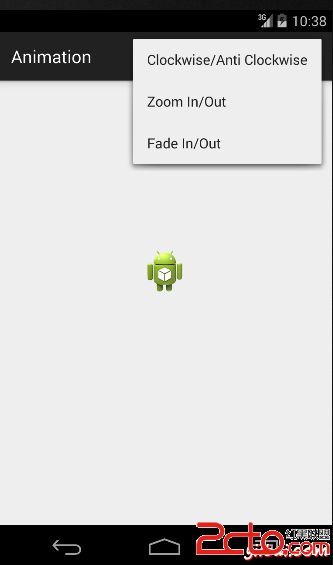 Android 補間動畫入門:縮放、旋轉與淡入淡出一次學會
Android 上的動畫方案不少,其中最簡單也最廣泛使用的莫過於補間動畫(Tween Animation)。你只需要給定起始值、結束值、尺寸、時間長度、旋轉角度等參數,系
 Android MediaPlayer 音訊播放教學
Android 的 MediaPlayer 類別封裝了音訊與影片播放所需的狀態管理,適合開發簡易播放器或播放提示音。本文將說明如何建立 MediaPlayer、控制播放狀
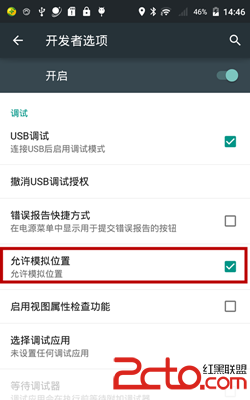 Android 模擬定位實作教學:權限宣告、狀態偵測與座標注入
想在 App 裡驗證定位功能,卻不方便真的出門跑一條路線?Android 系統本身內建了「模擬位置」機制:只要在開發者選項中指定一支代理程式,系統 GPS 就會回報你自己
 Android JSON 解析教學:從 API 抓資料到顯示
JSON 是 JavaScript Object Notation 的縮寫,是一種與程式語言無關的資料交換格式。憑藉著輕量且易於讀寫的優勢,它成為 XML 以外相當主流的