

編輯:Android 開發實例
今天來學習 Android 中 Toast 的用法。Toast 會在手機螢幕上向使用者顯示一則訊息,一段時間後自動消失。訊息內容可以是簡單的文字,也可以是較複雜的圖片或其他內容(也就是顯示一個 View)。
看效果圖:
今天示範兩種用法,如上圖所示。
main.xml:
<?xml version="1.0" encoding="utf-8"?> <LinearLayout xmlns:android="https://schemas.android.com/apk/res/android" android:orientation="vertical" android:layout_width="fill_parent" android:layout_height="fill_parent" > <Button android:id="@+id/button1" android:layout_width="fill_parent" android:layout_height="wrap_content" android:text="Toast 顯示 View" /> <Button android:id="@+id/button2" android:layout_width="fill_parent" android:layout_height="wrap_content" android:text="Toast 直接輸出" /> </LinearLayout>
兩個按鈕,很簡單。
程式碼:
package com.pocketdgig.toast; import android.app.Activity; import android.content.Context; import android.os.Bundle; import android.view.LayoutInflater; import android.view.View; import android.view.View.OnClickListener; import android.widget.Button; import android.widget.TextView; import android.widget.Toast; public class main extends Activity { /** Called when the activity is first created. */ @Override public void onCreate(Bundle savedInstanceState) { super.onCreate(savedInstanceState); setContentView(R.layout.main); Button button1=(Button)findViewById(R.id.button1); button1.setOnClickListener(bt1lis); Button button2=(Button)findViewById(R.id.button2); button2.setOnClickListener(bt2lis); } OnClickListener bt1lis=new OnClickListener(){ @Override public void onClick(View v) { showToast(); } }; OnClickListener bt2lis=new OnClickListener(){ @Override public void onClick(View v) { Toast.makeText(main.this,"直接輸出測試", Toast.LENGTH_LONG).show(); } }; public void showToast(){ LayoutInflater li=(LayoutInflater)getSystemService(Context.LAYOUT_INFLATER_SERVICE); View view=li.inflate(R.layout.toast,null); //把布局文件toast.xml轉換成一個view Toast toast=new Toast(this); toast.setView(view); //載入view,即顯示toast.xml的內容 TextView tv=(TextView)view.findViewById(R.id.tv1); tv.setText("Toast 顯示 View 內容"); //修改 TextView 裡的內容 toast.setDuration(Toast.LENGTH_SHORT); //設置顯示時間,長時間 Toast.LENGTH_LONG,短時間為 Toast.LENGTH_SHORT,不可以自己編輯 toast.show(); } }
以下是 toast.xml 的內容:
<?xml version="1.0" encoding="utf-8"?> <LinearLayout xmlns:android="https://schemas.android.com/apk/res/android" android:orientation="vertical" android:layout_width="fill_parent" android:layout_height="fill_parent" > <ImageView android:src="@drawable/toast" android:layout_width="wrap_content" android:layout_height="wrap_content" /> <TextView android:id="@+id/tv1" android:text="" android:layout_width="wrap_content" android:layout_height="wrap_content" /> </LinearLayout>
源碼下載:Toast 演示 (21)
轉自:
 Android JSON 解析教學:用 JSONObject 取出你要的欄位
JSON(JavaScript Object Notation)是一種輕量、獨立於語言的資料交換格式,語法比 XML 精簡得多,因此在行動端 API 的往來中幾乎已成標準
 Android 登入畫面實作教學:帳密驗證與三次錯誤鎖定
登入畫面是許多 App 的第一道門。使用者可能要先登入 Facebook、微博或其他服務才能使用完整功能。本章從版面出發,依序完成輸入欄位、帳密比對,以及防止連續猜錯的保
 Android 組件樣式定製方法詳解(以 RadioButton 為例)
前言Android 中有許多現成的組件可以使用,但實際開發時,系統自帶的組件往往不太合用,主要是樣式可能並非我們想要的。這個時候,我們就需要定製一些樣式。本文將講解如何修
 Android 手機衛士(六):打包簽名並將 apk 部署到伺服器
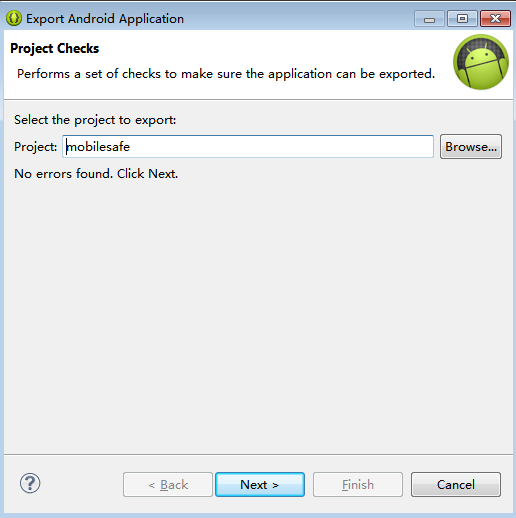
本文記錄將專案打包生成 apk 並部署到伺服器的完整過程。整個流程可分為兩大步驟:1. 生成簽名檔,並指定其存放位置。2. 使用該簽名檔,為專案打包生成 apk。第一步: