

編輯:Android 開發實例
有些問題不大,卻卡關很久;搜尋時又因為關鍵字太通用而翻不到答案。這裡整理四個實務上真的會遇到的小技巧。
過去要共用一段布局,通常得複製貼上,或用 Java 端的 LayoutInflater 動態 inflate。其實 XML 本身就有 <include>。
先寫一個名為 title.xml 的公用布局:
<?xml version="1.0" encoding="UTF-8"?>
<LinearLayout xmlns:android="https://schemas.android.com/apk/res/android"
    android:id="@+id/FrameLayout01"
    android:background="@drawable/layout_background"
    android:layout_width="fill_parent"
    android:layout_height="wrap_content">

    <TextView
        android:id="@+id/TextView01"
        android:text="歡迎你使用本軟件"
        android:textColor="#f0f0f0"
        android:layout_width="wrap_content"
        android:layout_height="wrap_content" />
</LinearLayout>
在其他布局檔裡一行引入:
<include layout="@layout/title" />
Tip:include 進來的 View 依然留在同一棵 View 樹上,所以可以直接用 findViewById(R.id.TextView01) 取到並操作,不需要額外處理。
傳統做法是丟一張 PS 做的漸變圖進 drawable,但這會增加 APK 體積,而且不同解析度還要各做一版。Android 支援用 shape 直接描述漸變:
在 res/drawable/ 新增 gradient_bg.xml:
<?xml version="1.0" encoding="UTF-8"?>
<shape xmlns:android="https://schemas.android.com/apk/res/android"
    android:shape="rectangle">

    <gradient
        android:startColor="#52adcd"
        android:endColor="#1c87b1"
        android:angle="270.0" />
</shape>
然後在布局中當背景使用:android:background="@drawable/gradient_bg"。
角度是這裡唯一需要試出感覺的參數:270 由上往下漸變,改成 0 變成由左往右,改成 90 則方向反轉。多試幾個值就會有直覺。
Tip:想再多一層層次,可以搭配 <shape> 裡的 <corners> 做圓角,或用 <layer-list> 疊兩層 shape 模擬更細緻的光影。
三行程式碼即可換成自訂布局標題:
requestWindowFeature(Window.FEATURE_CUSTOM_TITLE);
setContentView(R.layout.main);
getWindow().setFeatureInt(Window.FEATURE_CUSTOM_TITLE, R.layout.title);
Tip:順序不能調動。requestWindowFeature() 必須在 setContentView() 之前呼叫,否則會直接拋出 AndroidRuntimeException,這是新手最常踩的坑。
要操作子 Activity 的介面,得先能把它放進 ActivityGroup。這裡封裝一個小方法:
/**
 * 為 ActivityGroup 的容器設定動態的子 Activity View
 *
 * @param context     上下文
 * @param lam         LocalActivityManager 物件
 * @param layout_load 用來承載子 Activity 的容器
 * @param cls         要啟動的 Activity 類別
 * @param Id          設定的識別字串
 */
public static void getView(Context context, LocalActivityManager lam,
                           LinearLayout layout_load, Class<?> cls, String Id) {
    Intent intent = new Intent(context, cls);
    intent.addFlags(Intent.FLAG_ACTIVITY_CLEAR_TOP);

    Window w = lam.startActivity(Id, intent);
    View v = w.getDecorView();

    layout_load.removeAllViews();
    layout_load.setPadding(5, 5, 5, 5);
    layout_load.addView(v, new LinearLayout.LayoutParams(
            LinearLayout.LayoutParams.FILL_PARENT,
            LinearLayout.LayoutParams.FILL_PARENT));
}
在 ActivityGroup 頁面取得 manager:
private LocalActivityManager manager;
manager = getLocalActivityManager();
初始化時帶入容器與識別碼:
void init() {
    comonHelp.getView(this, manager, main, preferenceSet.class, "swc");
}
有了這個 Id,之後就能把子 Activity 取回來操作它的內容:
SharedPreferences.Editor editor = getSharedPreferences(
        "com.swc.yaomei_preferences", Activity.MODE_PRIVATE).edit();

LocalActivityManager manager = getLocalActivityManager();
PreferenceActivity acitivty = (PreferenceActivity) manager.getActivity("swc");

for (int i = 0; i < 9; i++) {
    editor.putString("KEY_" + i, "N/A");

    PreferenceScreenExt ext = (PreferenceScreenExt) acitivty.findPreference("KEY_" + i);
    RelativeLayout layout = (RelativeLayout) ext.getLayout();
    TextView summary = (TextView) layout.getChildAt(1);
    summary.setText("N/A");
}
editor.commit();
System.gc();
這裡因為要改的是 Preference,所以轉型成 PreferenceActivity;若子頁面是一般 Activity,直接轉型成 Activity 即可,後續操作邏輯相同。
不過要誠實說一句:ActivityGroup 與 LocalActivityManager 在後續 Android 版本中已被標記為老舊機制,官方建議改用 Fragment 或 ViewPager 來做多頁面切換。上面這套寫法仍有理解價值(它揭示了 Activity 的 Window 如何被當成 View 掛載),但新專案請優先選 Fragment。
原文出處:https://www.cnblogs.com/TerryBlog/archive/2010/10/20/1856737.html
 Android 九宮格圖文菜單實現:GridView + SimpleAdapter 完整示例
九宮格圖文菜單是很常見的界面形態,實現起來並不複雜,核心就是 GridView 加一個 SimpleAdapter。下面把佈局、適配器與點擊事件串起來走一遍。 一、佈局
 Android 自定義滑動式抽屜菜單的完整實現
Android 雖然自帶了 SlidingDrawer 和 DrawerLayout 這類抽屜效果控制項,但實際項目中,這些內建控制項往往會限制功能的發揮,難以精準滿足設
 Android ApiDemo 系列八:Hello World 置中顯示
ApiDemo 中的 Hello World 範例看似簡單,卻能說明 Android 版面配置中常見的對齊概念。此範例的 TextView 使用 match_parent
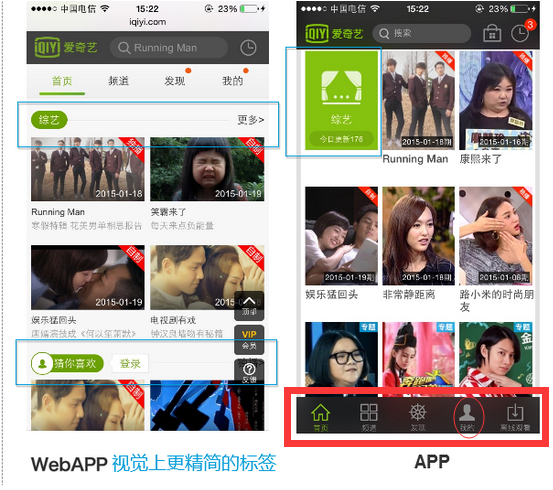 Web App 與原生 App 的差異與選擇
在移動產品開發中,HTML5 封裝的 Web App 與原生 App 各有適用場景。兩者最大的差異在於執行方式、能力邊界與使用者體驗。功能與體驗差異HTML5 適合輕量頁