

編輯:Android 資訊
做過 Android 動畫的人對 Interpolator 應該不陌生。它的職責是控制動畫的執行速率。默認情況下,動畫並不是等速的——系統給的默認節奏是先加速再減速。
還記得上篇用屬性動畫做的旋轉效果嗎?沒設 Interpolator 時,它就是先快後慢。現在換成系統提供的 LinearInterpolator,動畫便會變成等速。先看個對照實驗:兩個 TextView 疊放,點擊後同時旋轉,其中一個設了 LinearInterpolator,另一個什麼都不設。
LinearInterpolator ll = new LinearInterpolator();

ObjectAnimator animator = ObjectAnimator.ofFloat(tv, "rotation", 0f, 360f);
animator.setInterpolator(ll);
animator.setDuration(5000);
animator.start();

ObjectAnimator animator2 = ObjectAnimator.ofFloat(tv2, "rotation", 0f, 360f);
animator2.setDuration(5000);
animator2.start();
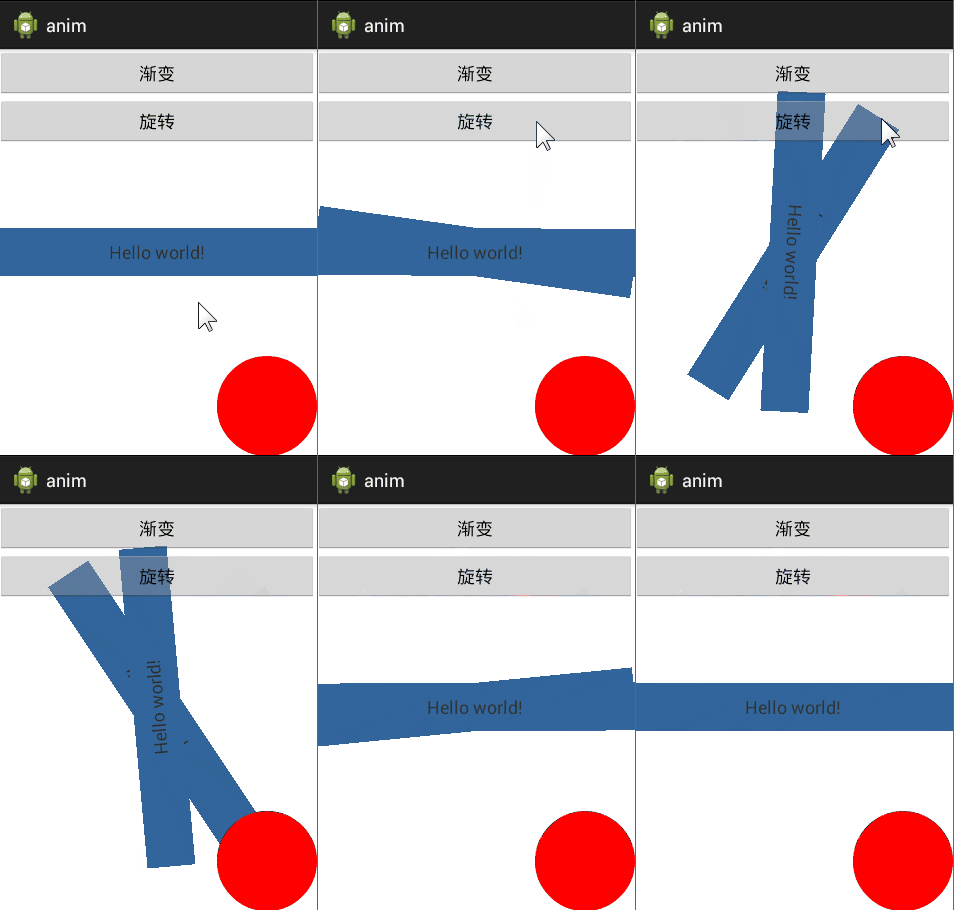
差異一目了然:一個先加速後減速,一個全程勻速。
於是問題來了——LinearInterpolator 到底做了什麼?我們去翻源碼。
調用 animator.setInterpolator(ll) 時,實際走的是 ValueAnimator 的這個方法:
public void setInterpolator(TimeInterpolator value) {
    if (value != null) {
        mInterpolator = value;
    } else {
        mInterpolator = new LinearInterpolator();
    }
}
注意這裡有個 mInterpolator 成員。那如果我們完全不調這個方法,它的默認值是什麼?搜索一下:
// The time interpolator to be used if none is set on the animation
private static final TimeInterpolator sDefaultInterpolator = new AccelerateDecelerateInterpolator();
private TimeInterpolator mInterpolator = sDefaultInterpolator;
真相浮現:默認用的是 AccelerateDecelerateInterpolator。繼續往下挖:
public class AccelerateDecelerateInterpolator extends BaseInterpolator
        implements NativeInterpolatorFactory {

    public AccelerateDecelerateInterpolator() {
    }

    public AccelerateDecelerateInterpolator(Context context, AttributeSet attrs) {
    }

    public float getInterpolation(float input) {
        return (float)(Math.cos((input + 1) * Math.PI) / 2.0f) + 0.5f;
    }

    /** @hide */
    @Override
    public long createNativeInterpolator() {
        return NativeInterpolatorFactoryHelper.createAccelerateDecelerateInterpolator();
    }
}
核心就是 getInterpolation,裡面用了餘弦函數。傳入的 input 落在 0 到 1 之間,輸出值的增長率先升後降——對應到動畫上,就是先加速後減速。有興趣可以用 MATLAB 把這條曲線畫出來看看。
反觀 LinearInterpolator:
public class LinearInterpolator extends BaseInterpolator
        implements NativeInterpolatorFactory {

    public LinearInterpolator() {
    }

    public LinearInterpolator(Context context, AttributeSet attrs) {
    }

    public float getInterpolation(float input) {
        return input;
    }

    /** @hide */
    @Override
    public long createNativeInterpolator() {
        return NativeInterpolatorFactoryHelper.createLinearInterpolator();
    }
}
乾脆俐落,原樣返回 input,不做任何加工。input 本身是均勻遞增的,動畫自然勻速。
看到這裡,猜想就成立了:想自定義節奏,覆寫 getInterpolation 即可。
我們日常用的各種 Interpolator 都繼承自 Interpolator,而 Interpolator 實現了 TimeInterpolator 介面:
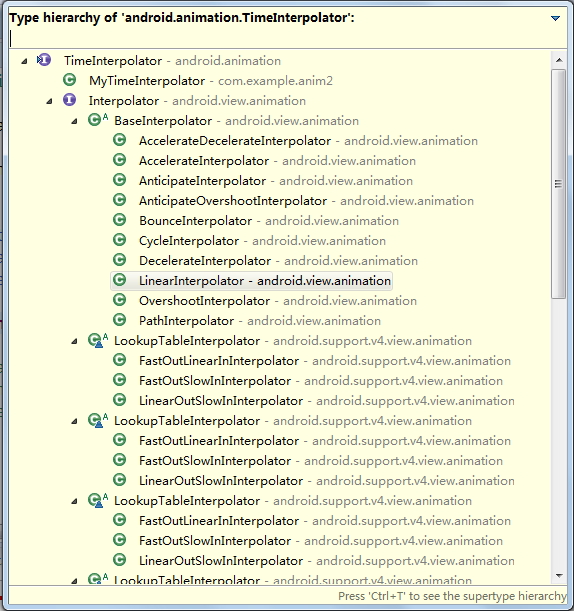
那麼這位「終極 Boss」長什麼樣?
package android.animation;

/**
 * A time interpolator defines the rate of change of an animation.
 * This allows animations to have non-linear motion, such as
 * acceleration and deceleration.
 */
public interface TimeInterpolator {

    /**
     * Maps a value representing the elapsed fraction of an animation to a
     * value that represents the interpolated fraction.
     *
     * @param input A value between 0 and 1.0 indicating our current point
     *              in the animation where 0 represents the start and 1.0
     *              represents the end
     * @return The interpolation value. This value can be more than 1.0 for
     *         interpolators which overshoot their targets, or less than 0 for
     *         interpolators that undershoot their targets.
     */
    float getInterpolation(float input);
}
源碼簡單到只有一個方法。注意文檔裡那句話:返回值可以大於 1.0(衝過頭),也可以小於 0(沒到位)——這正是各類回弹效果的實現原理。
既然介面只有一個方法,那自定義就毫無門檻:
public class TanInterpolator implements TimeInterpolator {
    @Override
    public float getInterpolation(float t) {
        return (float) Math.sin((t / 2) * Math.PI);
    }
}
掛上去用:
TanInterpolator tl = new TanInterpolator();
ObjectAnimator animator = ObjectAnimator.ofFloat(tv, "rotation", 0f, 360f);
animator.setInterpolator(tl);
animator.setDuration(5000);
animator.start();
效果是什麼?一開始速度很快,然後逐漸減弱到 0。
原因看正弦曲線就明白了:
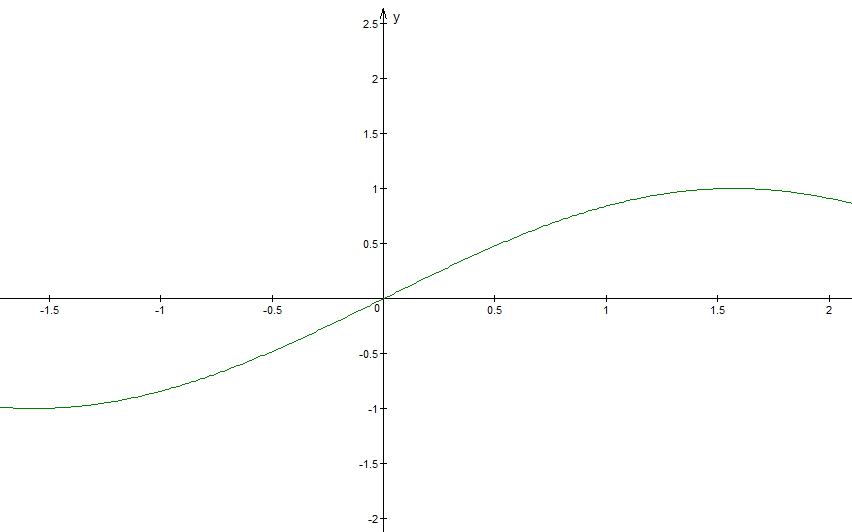
x 取 0 到 0.5π 這一段,y 從 0 升到 1,而這段曲線的斜率不斷變小直至為 0——對應到動畫上,就是起步飛快、尾聲緩停。
把這層關係看透,你之後想調出任何手感,都只是換一條數學曲線的事。
 駭客如何遠端攻破你的 Android 手機
想像一下:你走進一家咖啡店坐下,等咖啡的空檔,掏出智慧型手機玩一款前幾天剛下載的遊戲,接著一邊工作一邊在電梯裡收郵件。而在你渾然不察之際,攻擊者已經取得了公司網路位址,並
 用公司派活的例子,講透 Android Touch 事件傳遞機制
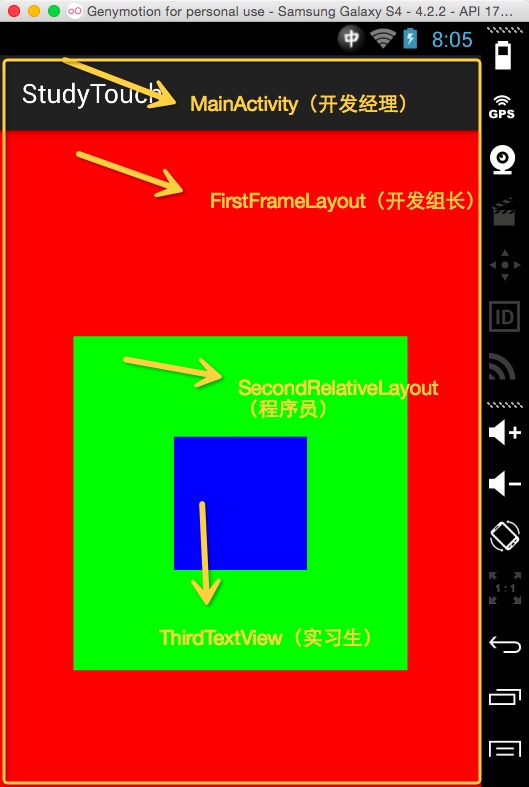
先講個故事,後面的機制就好懂了。 某軟件公司來了個任務,分派給開發經理。 經理一看:簡單,轉給開發組長。 組長:再轉給組員(程式員)。 程式員:轉給自己帶的實習生。
 Android Dialog 對話框使用與原理解析
Dialog 的定位 Dialog 是用於提示用戶、確認操作或收集額外信息的窗口。它通常不會佔滿整個屏幕,而是出現在當前界面之上,引導用戶完成某個明確動作。 為何推薦
 Android UI 控件系列:RadioButton 單選按鈕
單選按鈕 RadioButton 在 Android 平台上應用得非常廣泛,比如一些選擇項的場景就會用到它。實現單選按鈕通常由兩部分組成:RadioButton 與 Ra