

編輯:Android 資訊
工作以來,公司 UI 設計師給的 Android 效果圖一直是 iOS 風格的 Titlebar。新項目還要沿用同一套,實在不想重複造輪子,於是趁著這次練習「仿新浪微博 Android 客戶端」,順手抽出一個通用的 iOS 風格 Titlebar。
不過身為 Android 開發者,平時練習還是應該緊跟 Google 的節奏,說不定哪天設計師們就換成一套 MD 風格的效果圖了。
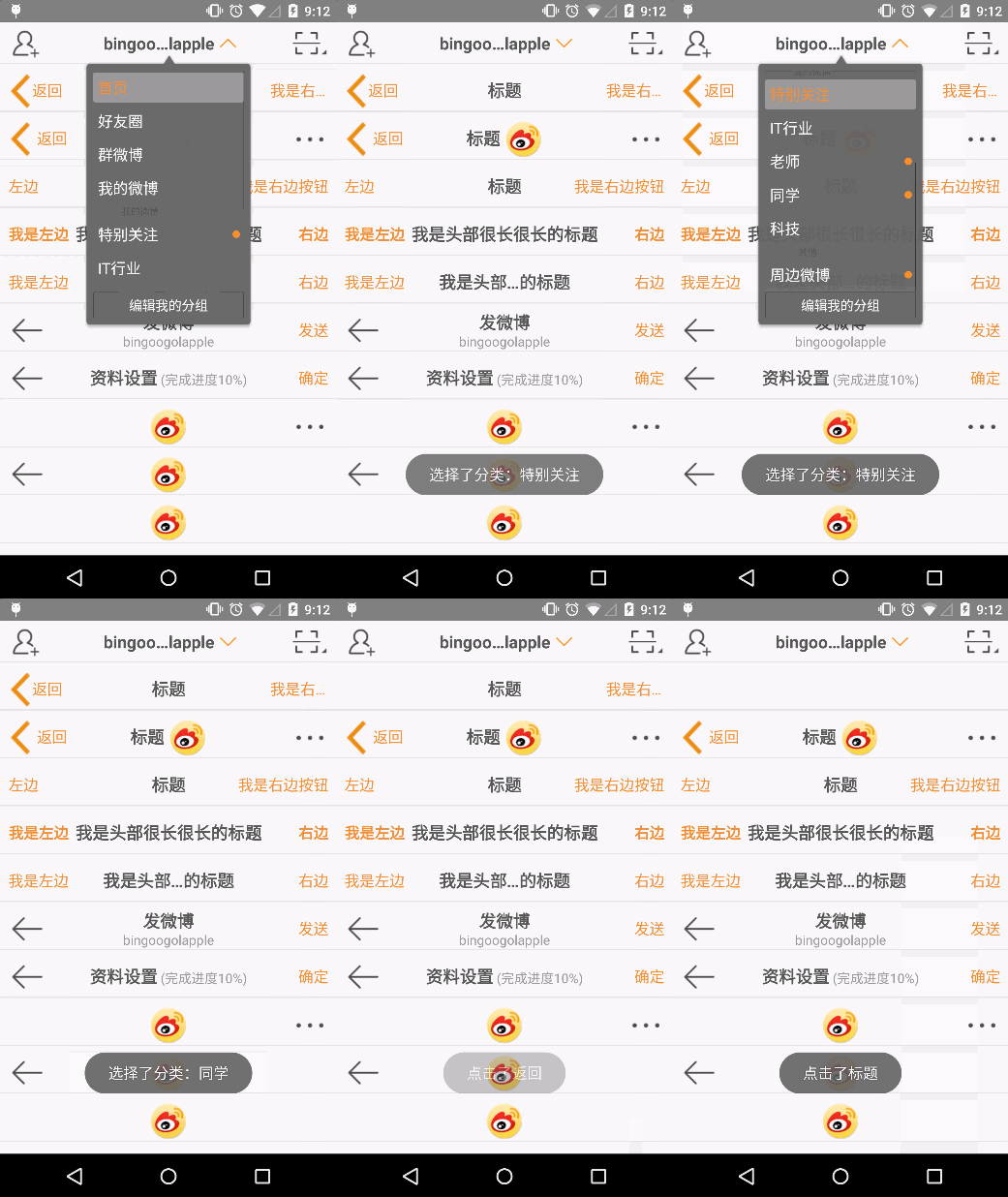
Demo 中演示了各種標題形態,以及新浪微博首頁選擇微博分類的案例。
dependencies {
    compile 'com.android.support:appcompat-v7:22.2.0'
    compile 'cn.bingoogolapple:bga-titlebar:latestVersion@aar'
}
<cn.bingoogolapple.titlebar.BGATitlebar
    android:id="@+id/titlebar"
    app:bgatitlebar_leftDrawable="@drawable/selector_nav_friendsearch"
    app:bgatitlebar_rightDrawable="@drawable/selector_nav_pop"
    app:bgatitlebar_titleDrawable="@drawable/selector_nav_arrow_orange"
    app:bgatitlebar_titleDrawablePadding="3dp"
    app:bgatitlebar_titleText="bingoogolapple" />
mTitlebar = (BGATitlebar) findViewById(R.id.titlebar);
mTitlebar.setDelegate(new BGATitlebar.BGATitlebarDelegate() {
    @Override
    public void onClickLeftCtv() {
        // 可選,根據實際業務重寫該方法
    }

    @Override
    public void onClickTitleCtv() {
        // 可選,根據實際業務重寫該方法
    }

    @Override
    public void onClickRightCtv() {
        // 可選,根據實際業務重寫該方法
    }
});
建議把下面這五項定義在項目的 styles.xml 裡
下面這幾項按每個頁面的業務寫在 layout 中(帶返回按鈕的 titlebar 也可以單獨抽一個 style)
下面三項通常不用動,維持默認即可。只有在標題特別長而左右文字很短、或左右文字特別長而標題很短的極端情況下才需要單獨配置。
下面三項同樣通常不用動,使用默認值就好。
代碼是最好的老師,更多細節請直接看 Demo。
 Android 性能優化:如何量化並壓縮 App 的冷啟動時間
用戶對「卡」的容忍度極低。動畫掉幀也許還能忍,但點擊圖標後盯著白屏等一秒,就足以讓人皺眉。本文把啟動這件事拆成三部分:啟動方式、啟動流程、以及可量化的測量與優化手段。一、
 深入 Android Activity 啟動流程:從 main() 一路追到 View 繪製
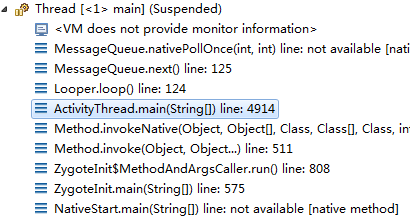
本文透過 DDMS 對一個簡單 Demo 做除錯標記,暫停主執行緒後觀察呼叫堆疊,逐層拆解 Activity 從被啟動到畫面真正呈現的完整路徑。一、起點:Activity
 Android 熱修復 Tinker 接入實戰與源碼淺析
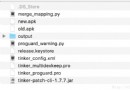
一、為什麼需要熱修復 熱修復已經是中型以上項目的標配模塊。原因很現實:應用上線之後出問題幾乎是常態,而靠發版修復的成本實在太高——重新走一遍商店審核、等用戶升級,修復窗口
 Android Studio 簽名打包流程圖解
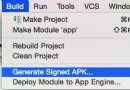
前言 使用 Android Studio 進行簽名打包時,流程與 Eclipse 概念相似,但操作介面不同。以下依步驟說明如何建立簽名檔、設定參數、選擇建置類型並找到輸出