

編輯:Android 資訊
Toast 是 Android 中最常被用來向使用者傳達簡短訊息的元件,無論是操作成功、失敗還是需要注意的地方,都能以極低的干擾度即時呈現。本文將透過五種由淺入深的實作範例,帶你完整掌握 Toast 的用法,並打造屬於自己的客製化提示樣式。
在動手之前,先釐清幾個關鍵常數與方法:
LENGTH_LONG——讓提示較長時間顯示
LENGTH_SHORT——讓提示較短時間顯示
setGravity(int gravity, int xOffset, int yOffset)——設定提示在螢幕上的顯示位置
setDuration(int duration)——設定提示顯示的持續時間
一、預設樣式
最基礎的用法,一行程式碼即可完成。
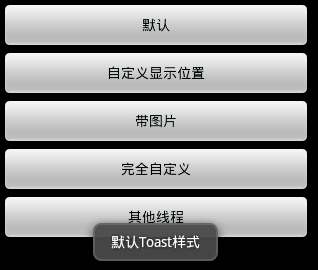
Toast.makeText(getApplicationContext(), "默認Toast樣式", Toast.LENGTH_SHORT).show();
二、自訂顯示位置
透過 setGravity 就能把提示放到螢幕中央或其他自訂座標。
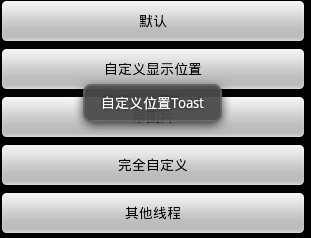
toast = Toast.makeText(getApplicationContext(), "自定義位置Toast", Toast.LENGTH_LONG); toast.setGravity(Gravity.CENTER, 0, 0); toast.show();
三、加入圖片
取得 Toast 內部的檢視容器後,即可動態插入 ImageView,讓提示同時具備文字與圖示。
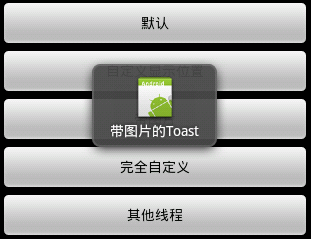
toast = Toast.makeText(getApplicationContext(), "帶圖片的Toast", Toast.LENGTH_LONG); toast.setGravity(Gravity.CENTER, 0, 0); LinearLayout toastView = (LinearLayout) toast.getView(); ImageView imageCodeProject = new ImageView(getApplicationContext()); imageCodeProject.setImageResource(R.drawable.icon); toastView.addView(imageCodeProject, 0); toast.show();
四、完全客製化
透過 LayoutInflater 載入自訂版面配置,就能做出標題、圖示、內文俱全的完整提示卡片。
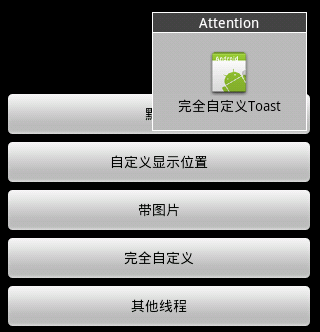
LayoutInflater inflater = getLayoutInflater(); View layout = inflater.inflate(R.layout.custom, (ViewGroup) findViewById(R.id.llToast)); ImageView image = (ImageView) layout .findViewById(R.id.tvImageToast); image.setImageResource(R.drawable.icon); TextView title = (TextView) layout.findViewById(R.id.tvTitleToast); title.setText("Attention"); TextView text = (TextView) layout.findViewById(R.id.tvTextToast); text.setText("完全自定義Toast"); toast = new Toast(getApplicationContext()); toast.setGravity(Gravity.RIGHT | Gravity.TOP, 12, 40); toast.setDuration(Toast.LENGTH_LONG); toast.setView(layout); toast.show();
五、從其他執行緒呼叫
由於 UI 操作需在主執行緒進行,若要在背景執行緒彈出提示,可透過 Handler 將工作拋回主執行緒。
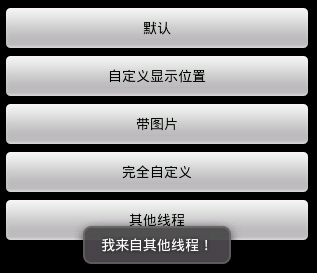
new Thread(new Runnable() { public void run() { showToast(); } }).start();
完整程式碼
1. Main.java
package com.wjq.toast; import android.app.Activity; import android.os.Bundle; import android.os.Handler; import android.view.Gravity; import android.view.LayoutInflater; import android.view.View; import android.view.ViewGroup; import android.view.View.OnClickListener; import android.widget.ImageView; import android.widget.LinearLayout; import android.widget.TextView; import android.widget.Toast; public class Main extends Activity implements OnClickListener { Handler handler = new Handler(); @Override public void onCreate(Bundle savedInstanceState) { super.onCreate(savedInstanceState); setContentView(R.layout.main); findViewById(R.id.btnSimpleToast).setOnClickListener(this); findViewById(R.id.btnSimpleToastWithCustomPosition).setOnClickListener( this); findViewById(R.id.btnSimpleToastWithImage).setOnClickListener(this); findViewById(R.id.btnCustomToast).setOnClickListener(this); findViewById(R.id.btnRunToastFromOtherThread).setOnClickListener(this); } public void showToast() { handler.post(new Runnable() { @Override public void run() { Toast.makeText(getApplicationContext(), "我來自其他線程!", Toast.LENGTH_SHORT).show(); } }); } @Override public void onClick(View v) { Toast toast = null; switch (v.getId()) { case R.id.btnSimpleToast: Toast.makeText(getApplicationContext(), "默認Toast樣式", Toast.LENGTH_SHORT).show(); break; case R.id.btnSimpleToastWithCustomPosition: toast = Toast.makeText(getApplicationContext(), "自定義位置Toast", Toast.LENGTH_LONG); toast.setGravity(Gravity.CENTER, 0, 0); toast.show(); break; case R.id.btnSimpleToastWithImage: toast = Toast.makeText(getApplicationContext(), "帶圖片的Toast", Toast.LENGTH_LONG); toast.setGravity(Gravity.CENTER, 0, 0); LinearLayout toastView = (LinearLayout) toast.getView(); ImageView imageCodeProject = new ImageView(getApplicationContext()); imageCodeProject.setImageResource(R.drawable.icon); toastView.addView(imageCodeProject, 0); toast.show(); break; case R.id.btnCustomToast: LayoutInflater inflater = getLayoutInflater(); View layout = inflater.inflate(R.layout.custom, (ViewGroup) findViewById(R.id.llToast)); ImageView image = (ImageView) layout .findViewById(R.id.tvImageToast); image.setImageResource(R.drawable.icon); TextView title = (TextView) layout.findViewById(R.id.tvTitleToast); title.setText("Attention"); TextView text = (TextView) layout.findViewById(R.id.tvTextToast); text.setText("完全自定義Toast"); toast = new Toast(getApplicationContext()); toast.setGravity(Gravity.RIGHT | Gravity.TOP, 12, 40); toast.setDuration(Toast.LENGTH_LONG); toast.setView(layout); toast.show(); break; case R.id.btnRunToastFromOtherThread: new Thread(new Runnable() { public void run() { showToast(); } }).start(); break; } } }
2. main.xml
<?xml version="1.0" encoding="utf-8"?> <LinearLayout xmlns:android="https://schemas.android.com/apk/res/android" android:orientation="vertical" android:layout_width="fill_parent" android:layout_height="fill_parent" android:padding="5dip" android:gravity="center"> <Button android:layout_height="wrap_content" android:layout_width="fill_parent" android:id="@+id/btnSimpleToast" android:text="默認"></Button> <Button android:layout_height="wrap_content" android:layout_width="fill_parent" android:text="自定義顯示位置" android:id="@+id/btnSimpleToastWithCustomPosition"></Button> <Button android:layout_height="wrap_content" android:layout_width="fill_parent" android:id="@+id/btnSimpleToastWithImage" android:text="帶圖片"></Button> <Button android:layout_height="wrap_content" android:layout_width="fill_parent" android:text="完全自定義" android:id="@+id/btnCustomToast"></Button> <Button android:layout_height="wrap_content" android:layout_width="fill_parent" android:text="其他線程" android:id="@+id/btnRunToastFromOtherThread"></Button> </LinearLayout>
3. custom.xml
<?xml version="1.0" encoding="utf-8"?> <LinearLayout xmlns:android="https://schemas.android.com/apk/res/android" android:layout_height="wrap_content" android:layout_width="wrap_content" android:background="#ffffffff" android:orientation="vertical" android:id="@+id/llToast" > <TextView android:layout_height="wrap_content" android:layout_margin="1dip" android:textColor="#ffffffff" android:layout_width="fill_parent" android:gravity="center" android:background="#bb000000" android:id="@+id/tvTitleToast" /> <LinearLayout android:layout_height="wrap_content" android:orientation="vertical" android:id="@+id/llToastContent" android:layout_marginLeft="1dip" android:layout_marginRight="1dip" android:layout_marginBottom="1dip" android:layout_width="wrap_content" android:padding="15dip" android:background="#44000000" > <ImageView android:layout_height="wrap_content" android:layout_gravity="center" android:layout_width="wrap_content" android:id="@+id/tvImageToast" /> <TextView android:layout_height="wrap_content" android:paddingRight="10dip" android:paddingLeft="10dip" android:layout_width="wrap_content" android:gravity="center" android:textColor="#ff000000" android:id="@+id/tvTextToast" /> </LinearLayout> </LinearLayout>
 每個 Android 開發者都值得掌握的 6 個 SDK 與 API
在 Android 開發中,語言只是基礎,真正決定產品品質與開發效率的,往往是你是否熟悉平台生態系中的 SDK 與 API。本文整理六個常見且實用的元件,涵蓋介面設計、圖
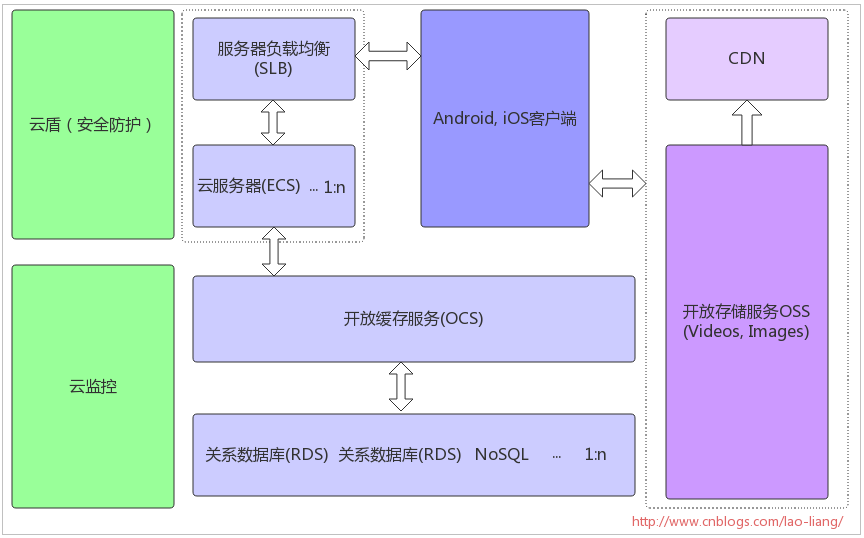 從零開始:一個真實 Android 項目的架構落地全記錄
本文用一個具體場景把「從零搭架構」這件事走完一遍。場景:新手父母有強烈的記錄需求,但市場上缺少專門的育兒記錄 App。A 公司看到機會,要求團隊盡快交付 Android
 Android View 佈局定位流程解析
在 Android 的 View 繪製流程中,測量完成之後,下一步就是佈局定位。這個階段決定每個 View 在父容器中的位置與大小。本文將跟蹤 performLayout
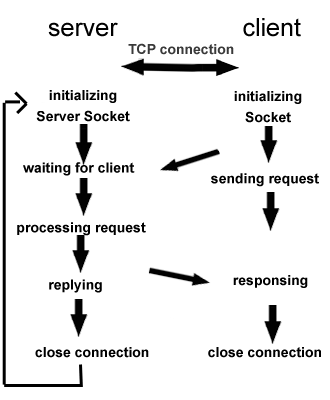 Android 中 TCP 與 UDP 通訊的實作方式
幾乎每一款需要連網的 App,都離不開底層的資料傳輸,而 TCP 與 UDP 正是傳輸層最基礎的兩種協定。它們在 Android 開發中的用法,其實和傳統 Java 網路