

編輯:關於 Android 程式設計
下拉刷新幾乎是移動端列表頁的標配交互。本文以一個可反覆複用的 RefreshView 為例,把實現過程拆成四個步驟,讀完就能直接搬進自己的項目。
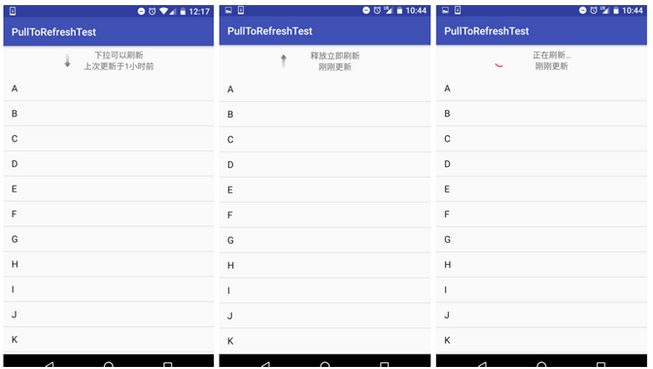
用到的圖形素材如下:


先把下拉過程中需要切換的幾句提示語放進 strings.xml,後續代碼只負責按狀態取用,避免把中文寫死在邏輯裡。
<resources>
    <string name="app_name">PullToRefreshTest</string>
    <string name="pull_to_refresh">下拉可以刷新</string>
    <string name="release_to_refresh">釋放立即刷新</string>
    <string name="refreshing">正在刷新...</string>
    <string name="not_updated_yet">暫未更新過</string>
    <string name="updated_at">上次更新於%1$s前</string>
    <string name="updated_just_now">剛剛更新</string>
    <string name="time_error">時間有問題</string>
</resources>
頭部布局由「箭頭/進度條」與「兩行文字」組成,高度固定 60dp,方便後面用 topMargin 做整體位移。
<?xml version="1.0" encoding="utf-8"?>
<RelativeLayout xmlns:android="https://schemas.android.com/apk/res/android"
    android:id="@+id/pull_to_refresh_head"
    android:layout_width="match_parent"
    android:layout_height="60dp">

    <LinearLayout
        android:layout_width="200dp"
        android:layout_height="60dp"
        android:layout_centerInParent="true"
        android:orientation="horizontal">

        <RelativeLayout
            android:layout_width="0dp"
            android:layout_height="60dp"
            android:layout_weight="3">
            <ImageView
                android:id="@+id/arrow"
                android:layout_width="wrap_content"
                android:layout_height="wrap_content"
                android:layout_centerInParent="true"
                android:src="@mipmap/indicator_arrow" />
            <ProgressBar
                android:id="@+id/progress_bar"
                android:layout_width="30dp"
                android:layout_height="30dp"
                android:layout_centerInParent="true"
                android:visibility="gone" />
        </RelativeLayout>

        <LinearLayout
            android:layout_width="0dp"
            android:layout_height="60dp"
            android:layout_weight="12"
            android:orientation="vertical">
            <TextView
                android:id="@+id/description"
                android:layout_width="match_parent"
                android:layout_height="0dp"
                android:layout_weight="1"
                android:gravity="center_horizontal|bottom"
                android:text="@string/pull_to_refresh" />
            <TextView
                android:id="@+id/updated_at"
                android:layout_width="match_parent"
                android:layout_height="0dp"
                android:layout_weight="1"
                android:gravity="center_horizontal|top"
                android:text="@string/updated_at" />
        </LinearLayout>
    </LinearLayout>
</RelativeLayout>
這個類繼承 LinearLayout 並實現 OnTouchListener,把「狀態機 + 位移動畫 + 更新時間格式化」三件事全部收攏在內部。幾個關鍵設計點:
PULL_STATUS 枚舉管理四種狀態:下拉中、釋放即刷新、正在刷新、刷新結束;並記錄上一次狀態,避免重複刷新 UI。topMargin 的偏移實現頭部的滑入滑出,隱藏位置記在 hideHeaderHeight。ableToPull 判斷當前是否允許下拉,只有列表滾到頂部(或沒有數據)時才攔截手勢。SharedPreferences,並用傳入的 id 做後綴,避免多個界面互相覆蓋。AsyncTask 裡逐幀 publishProgress,避免阻塞主線程。public class RefreshView extends LinearLayout implements View.OnTouchListener {
private static final String TAG = RefreshView.class.getSimpleName();
public enum PULL_STATUS {
STATUS_PULL_TO_REFRESH(0), // 下拉狀態
STATUS_RELEASE_TO_REFRESH(1), // 釋放立即刷新狀態
STATUS_REFRESHING(2), // 正在刷新狀態
STATUS_REFRESH_FINISHED(3); // 刷新完成或未刷新狀態
private int status;
PULL_STATUS(int value) { this.status = value; }
public int getValue() { return this.status; }
}
public static final int SCROLL_SPEED = -20; // 頭部回滾速度
public static final long ONE_MINUTE = 60 * 1000;
public static final long ONE_HOUR = 60 * ONE_MINUTE;
public static final long ONE_DAY = 24 * ONE_HOUR;
public static final long ONE_MONTH = 30 * ONE_DAY;
public static final long ONE_YEAR = 12 * ONE_MONTH;
private static final String UPDATED_AT = "updated_at";
private PullToRefreshListener mListener;
private SharedPreferences preferences;
private View header;
private ListView listView;
private ProgressBar progressBar;
private ImageView arrow;
private TextView description;
private TextView updateAt;
private MarginLayoutParams headerLayoutParams;
private long lastUpdateTime;
private int mId = -1; // 區分不同界面的更新時間
private int hideHeaderHeight;
private PULL_STATUS currentStatus = PULL_STATUS.STATUS_REFRESH_FINISHED;
private PULL_STATUS lastStatus = currentStatus;
private float yDown;
private int touchSlop;
private boolean loadOnce;
private boolean ableToPull;
public RefreshView(Context context, AttributeSet attrs) {
super(context, attrs);
preferences = PreferenceManager.getDefaultSharedPreferences(context);
header = LayoutInflater.from(context).inflate(R.layout.pull_to_refresh, null, true);
progressBar = (ProgressBar) header.findViewById(R.id.progress_bar);
arrow = (ImageView) header.findViewById(R.id.arrow);
description = (TextView) header.findViewById(R.id.description);
updateAt = (TextView) header.findViewById(R.id.updated_at);
touchSlop = ViewConfiguration.get(context).getScaledTouchSlop();
refreshUpdatedAtValue();
setOrientation(VERTICAL);
addView(header, 0);
}
@Override
protected void onLayout(boolean changed, int l, int t, int r, int b) {
super.onLayout(changed, l, t, r, b);
if (changed && !loadOnce) {
hideHeaderHeight = -header.getHeight();
headerLayoutParams = (MarginLayoutParams) header.getLayoutParams();
headerLayoutParams.topMargin = hideHeaderHeight;
listView = (ListView) getChildAt(1);
listView.setOnTouchListener(this);
loadOnce = true;
}
}
@Override
public boolean onTouch(View v, MotionEvent event) {
setCanAbleToPull(event);
if (ableToPull) {
switch (event.getAction()) {
case MotionEvent.ACTION_DOWN:
yDown = event.getRawY();
break;
case MotionEvent.ACTION_MOVE:
float yMove = event.getRawY();
int distance = (int) (yMove - yDown);
if (distance <= 0 && headerLayoutParams.topMargin <= hideHeaderHeight) {
return false;
}
if (distance < touchSlop) {
return false;
}
if (currentStatus != PULL_STATUS.STATUS_REFRESHING) {
if (headerLayoutParams.topMargin > 0) {
currentStatus = PULL_STATUS.STATUS_RELEASE_TO_REFRESH;
} else {
currentStatus = PULL_STATUS.STATUS_PULL_TO_REFRESH;
}
headerLayoutParams.topMargin = (distance / 2) + hideHeaderHeight;
header.setLayoutParams(headerLayoutParams);
}
break;
case MotionEvent.ACTION_UP:
default:
if (currentStatus == PULL_STATUS.STATUS_RELEASE_TO_REFRESH) {
new RefreshingTask().execute();
} else if (currentStatus == PULL_STATUS.STATUS_PULL_TO_REFRESH) {
new HideHeaderTask().execute();
}
break;
}
if (currentStatus == PULL_STATUS.STATUS_PULL_TO_REFRESH
|| currentStatus == PULL_STATUS.STATUS_RELEASE_TO_REFRESH) {
updateHeaderView();
listView.setPressed(false);
listView.setFocusable(false);
listView.setFocusableInTouchMode(false);
lastStatus = currentStatus;
return true; // 攔截 ListView 自身的滾動
}
}
return false;
}
public void setOnRefreshListener(PullToRefreshListener listener, int id) {
mListener = listener;
mId = id;
}
/** 刷新邏輯結束後必須調用,否則列表會一直停在刷新中 */
public void finishRefreshing() {
currentStatus = PULL_STATUS.STATUS_REFRESH_FINISHED;
preferences.edit().putLong(UPDATED_AT + mId, System.currentTimeMillis()).commit();
new HideHeaderTask().execute();
}
private void setCanAbleToPull(MotionEvent event) {
View firstChild = listView.getChildAt(0);
if (firstChild != null) {
int firstVisiblePos = listView.getFirstVisiblePosition();
if (firstVisiblePos == 0 && firstChild.getTop() == 0) {
if (!ableToPull) {
yDown = event.getRawY();
}
ableToPull = true;
} else {
if (headerLayoutParams.topMargin != hideHeaderHeight) {
headerLayoutParams.topMargin = hideHeaderHeight;
header.setLayoutParams(headerLayoutParams);
}
ableToPull = false;
}
} else {
ableToPull = true; // 沒有數據時同樣允許下拉
}
}
private void updateHeaderView() {
if (lastStatus != currentStatus) {
if (currentStatus == PULL_STATUS.STATUS_PULL_TO_REFRESH) {
description.setText(getResources().getString(R.string.pull_to_refresh));
arrow.setVisibility(View.VISIBLE);
progressBar.setVisibility(View.GONE);
rotateArrow();
} else if (currentStatus == PULL_STATUS.STATUS_RELEASE_TO_REFRESH) {
description.setText(getResources().getString(R.string.release_to_refresh));
arrow.setVisibility(View.VISIBLE);
progressBar.setVisibility(View.GONE);
rotateArrow();
} else if (currentStatus == PULL_STATUS.STATUS_REFRESHING) {
description.setText(getResources().getString(R.string.refreshing));
progressBar.setVisibility(View.VISIBLE);
arrow.clearAnimation();
arrow.setVisibility(View.GONE);
}
refreshUpdatedAtValue();
}
}
private void rotateArrow() {
float pivotX = arrow.getWidth() / 2f;
float pivotY = arrow.getHeight() / 2f;
float fromDegrees = 0f;
float toDegrees = 0f;
if (currentStatus == PULL_STATUS.STATUS_PULL_TO_REFRESH) {
fromDegrees = 180f; toDegrees = 360f;
} else if (currentStatus == PULL_STATUS.STATUS_RELEASE_TO_REFRESH) {
fromDegrees = 0f; toDegrees = 180f;
}
RotateAnimation animation = new RotateAnimation(fromDegrees, toDegrees, pivotX, pivotY);
animation.setDuration(100);
animation.setFillAfter(true);
arrow.startAnimation(animation);
}
private void refreshUpdatedAtValue() {
lastUpdateTime = preferences.getLong(UPDATED_AT + mId, -1);
long currentTime = System.currentTimeMillis();
long timePassed = currentTime - lastUpdateTime;
long timeIntoFormat;
String updateAtValue;
if (lastUpdateTime == -1) {
updateAtValue = getResources().getString(R.string.not_updated_yet);
} else if (timePassed < 0) {
updateAtValue = getResources().getString(R.string.time_error);
} else if (timePassed < ONE_MINUTE) {
updateAtValue = getResources().getString(R.string.updated_just_now);
} else if (timePassed < ONE_HOUR) {
timeIntoFormat = timePassed / ONE_MINUTE;
updateAtValue = String.format(getResources().getString(R.string.updated_at), timeIntoFormat + "分鐘");
} else if (timePassed < ONE_DAY) {
timeIntoFormat = timePassed / ONE_HOUR;
updateAtValue = String.format(getResources().getString(R.string.updated_at), timeIntoFormat + "小時");
} else if (timePassed < ONE_MONTH) {
timeIntoFormat = timePassed / ONE_DAY;
updateAtValue = String.format(getResources().getString(R.string.updated_at), timeIntoFormat + "天");
} else if (timePassed < ONE_YEAR) {
timeIntoFormat = timePassed / ONE_MONTH;
updateAtValue = String.format(getResources().getString(R.string.updated_at), timeIntoFormat + "個月");
} else {
timeIntoFormat = timePassed / ONE_YEAR;
updateAtValue = String.format(getResources().getString(R.string.updated_at), timeIntoFormat + "年");
}
updateAt.setText(updateAtValue);
}
class RefreshingTask extends AsyncTask<Void, Integer, Void> {
@Override
protected Void doInBackground(Void... params) {
int topMargin = headerLayoutParams.topMargin;
while (true) {
topMargin = topMargin + SCROLL_SPEED;
if (topMargin <= 0) { topMargin = 0; break; }
publishProgress(topMargin);
SystemClock.sleep(10);
}
currentStatus = PULL_STATUS.STATUS_REFRESHING;
publishProgress(0);
if (mListener != null) {
mListener.onRefresh();
}
return null;
}
@Override
protected void onProgressUpdate(Integer... topMargin) {
updateHeaderView();
headerLayoutParams.topMargin = topMargin[0];
header.setLayoutParams(headerLayoutParams);
}
}
class HideHeaderTask extends AsyncTask<Void, Integer, Integer> {
@Override
protected Integer doInBackground(Void... params) {
int topMargin = headerLayoutParams.topMargin;
while (true) {
topMargin = topMargin + SCROLL_SPEED;
if (topMargin <= hideHeaderHeight) { topMargin = hideHeaderHeight; break; }
publishProgress(topMargin);
SystemClock.sleep(10);
}
return topMargin;
}
@Override
protected void onProgressUpdate(Integer... topMargin) {
headerLayoutParams.topMargin = topMargin[0];
header.setLayoutParams(headerLayoutParams);
}
@Override
protected void onPostExecute(Integer topMargin) {
headerLayoutParams.topMargin = topMargin;
header.setLayoutParams(headerLayoutParams);
currentStatus = PULL_STATUS.STATUS_REFRESH_FINISHED;
}
}
public interface PullToRefreshListener {
/** 此方法運行於子線程,可直接在內部做耗時請求 */
void onRefresh();
}
}
把 RefreshView 當作容器使用,ListView 作為它唯一的子 View。
<?xml version="1.0" encoding="utf-8"?>
<RelativeLayout xmlns:android="https://schemas.android.com/apk/res/android"
    xmlns:tools="https://schemas.android.com/tools"
    android:layout_width="match_parent"
    android:layout_height="match_parent"
    tools:context=".MainActivity" >

    <com.dragon.android.tofreshlayout.RefreshView
        android:id="@+id/refreshable_view"
        android:layout_width="match_parent"
        android:layout_height="match_parent" >

        <ListView
            android:id="@+id/list_view"
            android:layout_width="match_parent"
            android:layout_height="match_parent" >
        </ListView>
    </com.dragon.android.tofreshlayout.RefreshView>
</RelativeLayout>
Activity 裡只需要做三件事:綁定控件、灌數據、注册刷新回調。回調裡記得調用 finishRefreshing() 收尾。
public class MainActivity extends AppCompatActivity {
    RefreshView refreshableView;
    ListView listView;
    ArrayAdapter<String> adapter;
    private static int NUM = 30;
    String[] items = new String[NUM];

    @Override
    protected void onCreate(Bundle savedInstanceState) {
        super.onCreate(savedInstanceState);
        setContentView(R.layout.activity_main);
        getSupportActionBar().hide();
        for (int i = 0; i < items.length; i++) {
            items[i] = "列表項" + i;
        }
        refreshableView = (RefreshView) findViewById(R.id.refreshable_view);
        listView = (ListView) findViewById(R.id.list_view);
        adapter = new ArrayAdapter<>(this, android.R.layout.simple_list_item_1, items);
        listView.setAdapter(adapter);
        refreshableView.setOnRefreshListener(new RefreshView.PullToRefreshListener() {
            @Override
            public void onRefresh() {
                SystemClock.sleep(3000);
                refreshableView.finishRefreshing();
            }
        }, 0);
    }
}
完整 Demo:鏈接 https://pan.baidu.com/s/1ge6Llw3 密碼 skna
如果還要複用於 RecyclerView、GridView 或自定義滾動容器,建議把「是否可下拉」的判斷抽成接口,由外部容器實現,這樣封裝會更乾淨。
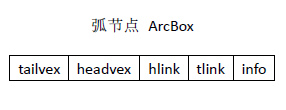 有向圖的十字鏈結串列:建圖、增刪弧與雙向遍歷輸出
本文討論有向圖的十字鏈結串列(Orthogonal List)表示法,涵蓋建圖、新增弧、刪除弧,以及以鄰接表格式輸出圖形(分為兩種視角:同尾弧串成的鏈、同頭弧串成的鏈),
 MIUI 8應用鎖怎麼設定?密碼與指紋解鎖的完整教學
手機借人看一下照片,順便把整個訊息列表都看完了——這種尷尬用應用鎖就能避免。MIUI 8 的應用鎖可以為指定 App 加上密碼或指紋驗證,設定一次之後每次開啟都需要解鎖。
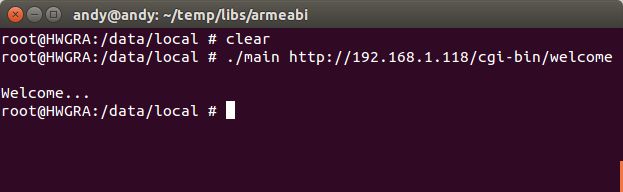 在 Ubuntu 上把 libcurl 交叉編譯移植到 Android 平台
最近接連移植了不少 C++ 平台上的庫,很多都是後端開發常用的基礎庫。由於日後很可能會接觸 NDK 開發,索性提前做一些預研,把踩過的坑記錄下來。 libcurl 是一個
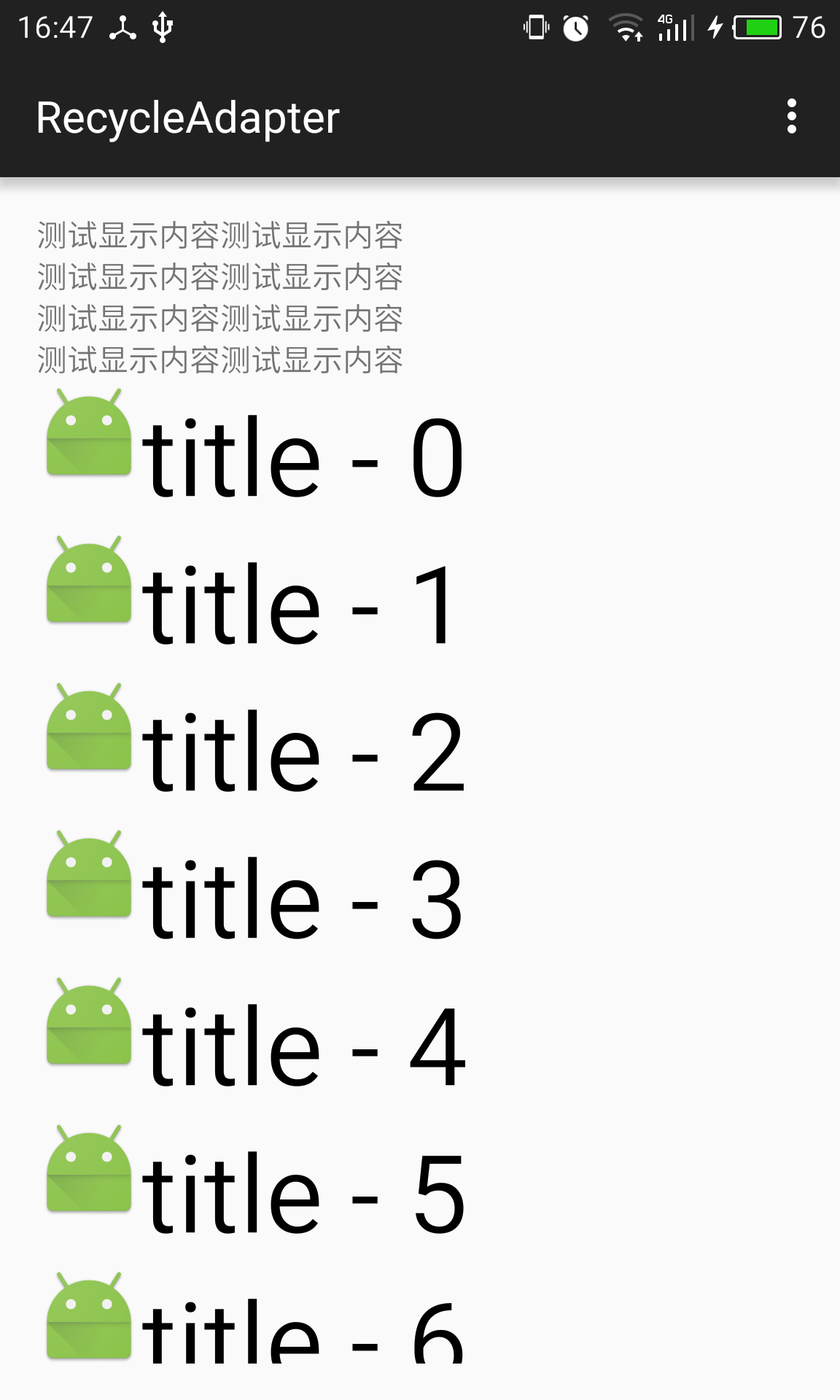 用裝飾者模式打造 ExtraViewWrapperAdapter:為 RecyclerView 加上可擴充的頭尾視圖
緣起 ListView 天生自帶 addHeaderView 與 addFooterView,但到了 RecyclerView,情況就變了。它只負責維護緩存的 View,