

編輯:關於 Android 程式設計
Toast 是 Android 中最簡單的通知機制:在螢幕上顯示一段簡短訊息,一段時間後自動消失,不需要使用者互動。本文整理從最簡單到完全自定義的六種用法。
Toast.makeText(getApplicationContext(), "預設 Toast 樣式",
        Toast.LENGTH_SHORT).show();
LENGTH_SHORT 約顯示 2 秒,LENGTH_LONG 約 3.5 秒。要注意這只是提示,實際顯示時間由系統與通知佇列決定,並非精確計時。
Fragment 沒有 getApplicationContext() 以外的 Context 已取得時,用 getActivity() 即可:
Toast.makeText(getActivity(), "網路連線錯誤,請檢查網路設定",
        Toast.LENGTH_LONG).show();
不過要注意 Fragment 可能已 detach,此時 getActivity() 會回傳 null。較穩妥的做法是改用 requireContext()(在 Fragment 已 attach 的前提下),或於 onDetach 時清空引用。
toast = Toast.makeText(getApplicationContext(), "自定義位置 Toast", Toast.LENGTH_LONG);
toast.setGravity(Gravity.CENTER, 0, 0);
toast.show();
setGravity 的第二、三個參數是相對於該 gravity 的 x、y 位移。要注意在 Android 4.1 之後,只有使用系統提供的 Toast 才支援偏移;自定義版面(setView)時,位移參數會被忽略。
toast = Toast.makeText(getApplicationContext(), "帶圖片的 Toast", Toast.LENGTH_LONG);
toast.setGravity(Gravity.CENTER, 0, 0);
LinearLayout toastView = (LinearLayout) toast.getView();
ImageView imageCodeProject = new ImageView(getApplicationContext());
imageCodeProject.setImageResource(R.drawable.icon);
toastView.addView(imageCodeProject, 0);
toast.show();
這個做法是在系統預設的 Toast 版面上「塞」一個 ImageView。它能用,但依賴系統內部版面結構,屬於非官方支援的用法,在不同 ROM 上可能失效。
LayoutInflater inflater = getLayoutInflater();
View layout = inflater.inflate(R.layout.custom,
        (ViewGroup) findViewById(R.id.llToast));

ImageView image = (ImageView) layout.findViewById(R.id.tvImageToast);
image.setImageResource(R.drawable.icon);

TextView title = (TextView) layout.findViewById(R.id.tvTitleToast);
title.setText("Attention");

TextView text = (TextView) layout.findViewById(R.id.tvTextToast);
text.setText("完全自定義 Toast");

toast = new Toast(getApplicationContext());
toast.setGravity(Gravity.RIGHT | Gravity.TOP, 12, 40);
toast.setDuration(Toast.LENGTH_LONG);
toast.setView(layout);
toast.show();
Toast 必須在主執行緒建立,若要在背景執行緒顯示,需透過 Handler 拋回主執行緒:
Handler handler = new Handler(Looper.getMainLooper());

public void showToast() {
    handler.post(new Runnable() {
        @Override
        public void run() {
            Toast.makeText(getApplicationContext(), "我來自其他執行緒!",
                    Toast.LENGTH_SHORT).show();
        }
    });
}
Main.java
package com.wjq.toast;

import android.app.Activity;
import android.os.Bundle;
import android.os.Handler;
import android.os.Looper;
import android.view.Gravity;
import android.view.LayoutInflater;
import android.view.View;
import android.view.ViewGroup;
import android.view.View.OnClickListener;
import android.widget.ImageView;
import android.widget.LinearLayout;
import android.widget.TextView;
import android.widget.Toast;

public class Main extends Activity implements OnClickListener {

    Handler handler = new Handler(Looper.getMainLooper());

    @Override
    public void onCreate(Bundle savedInstanceState) {
        super.onCreate(savedInstanceState);
        setContentView(R.layout.main);
        findViewById(R.id.btnSimpleToast).setOnClickListener(this);
        findViewById(R.id.btnSimpleToastWithCustomPosition).setOnClickListener(this);
        findViewById(R.id.btnSimpleToastWithImage).setOnClickListener(this);
        findViewById(R.id.btnCustomToast).setOnClickListener(this);
        findViewById(R.id.btnRunToastFromOtherThread).setOnClickListener(this);
    }

    public void showToast() {
        handler.post(new Runnable() {
            @Override
            public void run() {
                Toast.makeText(getApplicationContext(), "我來自其他執行緒!",
                        Toast.LENGTH_SHORT).show();
            }
        });
    }

    @Override
    public void onClick(View v) {
        Toast toast = null;
        switch (v.getId()) {
            case R.id.btnSimpleToast:
                Toast.makeText(getApplicationContext(), "預設 Toast 樣式",
                        Toast.LENGTH_SHORT).show();
                break;

            case R.id.btnSimpleToastWithCustomPosition:
                toast = Toast.makeText(getApplicationContext(), "自定義位置 Toast",
                        Toast.LENGTH_LONG);
                toast.setGravity(Gravity.CENTER, 0, 0);
                toast.show();
                break;

            case R.id.btnSimpleToastWithImage:
                toast = Toast.makeText(getApplicationContext(), "帶圖片的 Toast",
                        Toast.LENGTH_LONG);
                toast.setGravity(Gravity.CENTER, 0, 0);
                LinearLayout toastView = (LinearLayout) toast.getView();
                ImageView imageCodeProject = new ImageView(getApplicationContext());
                imageCodeProject.setImageResource(R.drawable.icon);
                toastView.addView(imageCodeProject, 0);
                toast.show();
                break;

            case R.id.btnCustomToast:
                LayoutInflater inflater = getLayoutInflater();
                View layout = inflater.inflate(R.layout.custom,
                        (ViewGroup) findViewById(R.id.llToast));
                ImageView image = (ImageView) layout.findViewById(R.id.tvImageToast);
                image.setImageResource(R.drawable.icon);
                TextView title = (TextView) layout.findViewById(R.id.tvTitleToast);
                title.setText("Attention");
                TextView text = (TextView) layout.findViewById(R.id.tvTextToast);
                text.setText("完全自定義 Toast");
                toast = new Toast(getApplicationContext());
                toast.setGravity(Gravity.RIGHT | Gravity.TOP, 12, 40);
                toast.setDuration(Toast.LENGTH_LONG);
                toast.setView(layout);
                toast.show();
                break;

            case R.id.btnRunToastFromOtherThread:
                new Thread(new Runnable() {
                    public void run() {
                        showToast();
                    }
                }).start();
                break;
        }
    }
}
main.xml
<?xml version="1.0" encoding="utf-8"?>
<LinearLayout xmlns:android="https://schemas.android.com/apk/res/android"
    android:layout_width="fill_parent"
    android:layout_height="fill_parent"
    android:gravity="center"
    android:orientation="vertical"
    android:padding="5dip" >
    <Button android:id="@+id/btnSimpleToast"
        android:layout_width="fill_parent"
        android:layout_height="wrap_content"
        android:text="預設" />
    <Button android:id="@+id/btnSimpleToastWithCustomPosition"
        android:layout_width="fill_parent"
        android:layout_height="wrap_content"
        android:text="自定義顯示位置" />
    <Button android:id="@+id/btnSimpleToastWithImage"
        android:layout_width="fill_parent"
        android:layout_height="wrap_content"
        android:text="帶圖片" />
    <Button android:id="@+id/btnCustomToast"
        android:layout_width="fill_parent"
        android:layout_height="wrap_content"
        android:text="完全自定義" />
    <Button android:id="@+id/btnRunToastFromOtherThread"
        android:layout_width="fill_parent"
        android:layout_height="wrap_content"
        android:text="其他執行緒" />
</LinearLayout>
custom.xml
<?xml version="1.0" encoding="utf-8"?>
<LinearLayout xmlns:android="https://schemas.android.com/apk/res/android"
    android:id="@+id/llToast"
    android:layout_width="wrap_content"
    android:layout_height="wrap_content"
    android:background="#ffffffff"
    android:orientation="vertical" >
    <TextView android:id="@+id/tvTitleToast"
        android:layout_width="fill_parent"
        android:layout_height="wrap_content"
        android:layout_margin="1dip"
        android:background="#bb000000"
        android:gravity="center"
        android:textColor="#ffffffff" />
    <LinearLayout android:id="@+id/llToastContent"
        android:layout_width="wrap_content"
        android:layout_height="wrap_content"
        android:layout_marginBottom="1dip"
        android:layout_marginLeft="1dip"
        android:layout_marginRight="1dip"
        android:background="#44000000"
        android:orientation="vertical"
        android:padding="15dip" >
        <ImageView android:id="@+id/tvImageToast"
            android:layout_width="wrap_content"
            android:layout_height="wrap_content"
            android:layout_gravity="center" />
        <TextView android:id="@+id/tvTextToast"
            android:layout_width="wrap_content"
            android:layout_height="wrap_content"
            android:gravity="center"
            android:paddingLeft="10dip"
            android:paddingRight="10dip"
            android:textColor="#ff000000" />
    </LinearLayout>
</LinearLayout>
Toast 有幾個先天限制,理解它們能避免誤用。第一,使用者無法與 Toast 互動,也不會被記住,因此不適合用來傳達重要或需要回應的訊息(例如需要確認的錯誤),這種情況應改用 Dialog 或 Snackbar。第二,Toast 不具焦點,在部分無障礙情境下閱讀器不會朗讀,可能導致資訊遺漏。第三,Android 11 之後對背景啟動的自定義 Toast 有額外限制,背景執行緒呼叫可能導致非文字 Toast 被攔截。
因此,若只是「操作成功」「已複製」這類輕量提示,Toast 很合適;若是需要使用者知曉並採取行動的訊息,建議改用 Snackbar(可內嵌動作按鈕)或 Dialog。 Material Design 也明確建議以 Snackbar 取代 Toast 作為主要的輕量回饋元件。
以上就是 Android Toast 通知的六種用法整理,希望對大家的開發有所幫助。
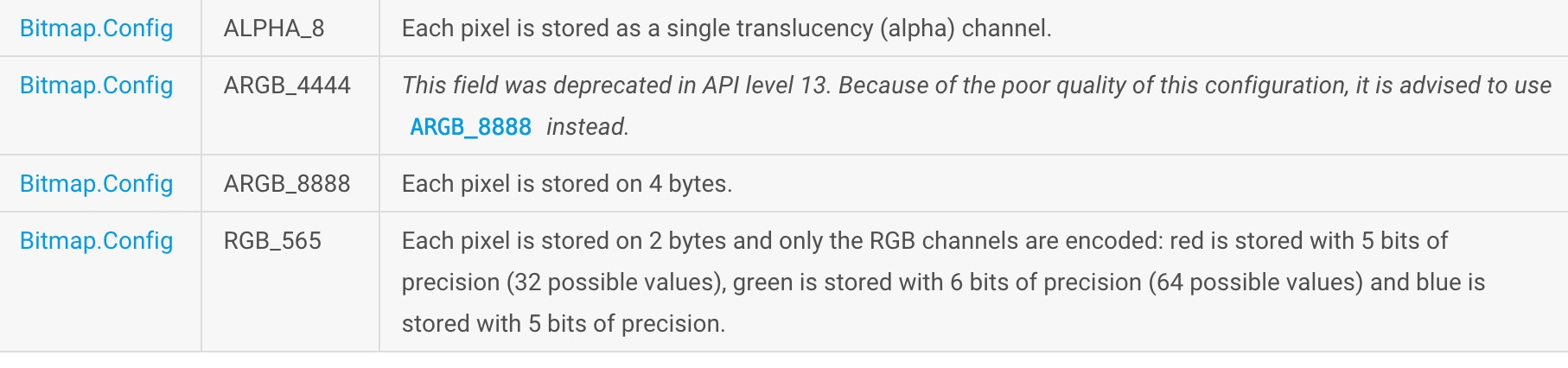 Android Bitmap 圖片壓縮整理:像素格式、取樣率與縮放策略
在 Android 中,圖片通常以 Bitmap 形式載入記憶體,而 Bitmap 的記憶體佔用會直接影響 App 的效能與穩定性。最直觀的計算方式是:圖片長度 × 圖片
 Activity 切換時共享視圖元素動畫:4.x 相容方案
Android 5.0 的 Activity Transitions 讓「一張圖片從列表平滑飛進詳情頁」變成幾行設定,但若要支援 4.x,就得靠相容庫。這裡介紹 PreL
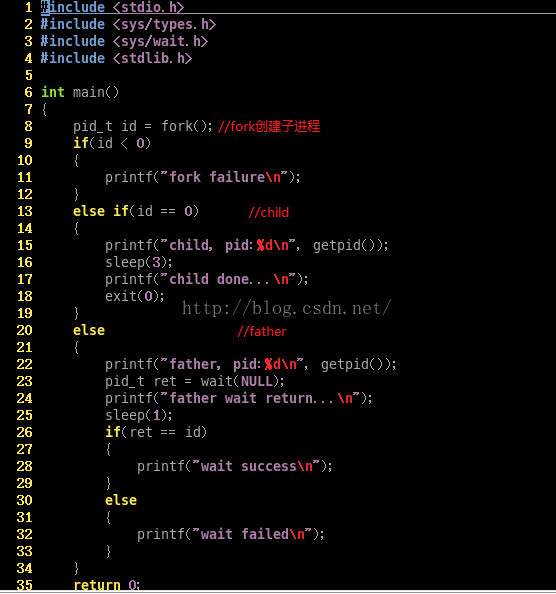 Linux 進程等待與程式替換:wait、waitpid 與 exec 函數
在 Linux 系統中,父進程通常需要等待子進程結束,以取得其退出狀態並釋放相關資源。若未妥善處理,子進程可能成為僵屍進程,佔用進程表資訊。wait 與 waitpid
 手機偷偷跑流量?四招降低背景數據消耗
手機偷跑流量可從四方面處理:改用wap接入點、移除或禁用預裝軟體、刷入精簡系統、不使用時關閉行動數據。 也可安裝流量監控工具,找出高消耗APP並限制其背景連線。