

編輯:關於 Android 程式設計
在 Android 應用中,選擇圖片是極為常見的需求。本文整理了兩種典型方案:單張選取與批量選取,並附上關鍵代碼。
第一種:單張選取
通過隱式啟動 Activity,跳轉到系統相冊選擇一張圖片並返回結果。關鍵代碼如下:
發送請求:
private static final int PICTURE = 10086; //requestcode Intent intent = new Intent(); if (Build.VERSION.SDK_INT < 19) {//因為Android SDK在4.4版本後圖片action變化了 所以在這裡先判斷一下 intent.setAction(Intent.ACTION_GET_CONTENT); } else { intent.setAction(Intent.ACTION_OPEN_DOCUMENT); } intent.setType("image/*"); intent.addCategory(Intent.CATEGORY_OPENABLE); startActivityForResult(intent, PICTURE);
接收結果:
@Override protected void onActivityResult(int requestCode, int resultCode, Intent data) { if (data == null) { this.finish(); return; } Uri uri = data.getData(); switch (requestCode) { case PICTURE: image = FileUtils.getUriPath(this, uri); //(因為4.4以後圖片uri發生了變化)通過文件工具類 對uri進行解析得到圖片路徑 break; default: break; } this.finish(); }
由於 Android 4.4 之後返回的圖片 Uri 結構發生了變化,需要借助一個文件工具類來解析出真實路徑:
public class FileUtils { private static final String TAG = "FileUtils"; private static final boolean DEBUG = false; /** * 獲取可讀的文件大小 */ public static String getReadableFileSize(int size) { final int BYTES_IN_KILOBYTES = 1024; final DecimalFormat dec = new DecimalFormat("###.#"); final String KILOBYTES = " KB"; final String MEGABYTES = " MB"; final String GIGABYTES = " GB"; float fileSize = 0; String suffix = KILOBYTES; if(size > BYTES_IN_KILOBYTES) { fileSize = size / BYTES_IN_KILOBYTES; if(fileSize > BYTES_IN_KILOBYTES) { fileSize = fileSize / BYTES_IN_KILOBYTES; if(fileSize > BYTES_IN_KILOBYTES) { fileSize = fileSize / BYTES_IN_KILOBYTES; suffix = GIGABYTES; } else { suffix = MEGABYTES; } } } return String.valueOf(dec.format(fileSize) + suffix); } /** * 獲取文件的文件名(不包括擴展名) */ public static String getFileNameWithoutExtension(String path) { if(path == null) { return null; } int separatorIndex = path.lastIndexOf(File.separator); if(separatorIndex < 0) { separatorIndex = 0; } int dotIndex = path.lastIndexOf("."); if(dotIndex < 0) { dotIndex = path.length(); } else if(dotIndex < separatorIndex) { dotIndex = path.length(); } return path.substring(separatorIndex + 1, dotIndex); } /** * 獲取文件名 */ public static String getFileName(String path) { if(path == null) { return null; } int separatorIndex = path.lastIndexOf(File.separator); return (separatorIndex < 0) ? path : path.substring(separatorIndex + 1, path.length()); } /** * 獲取擴展名 */ public static String getExtension(String path) { if(path == null) { return null; } int dot = path.lastIndexOf("."); if(dot >= 0) { return path.substring(dot); } else { return ""; } } public static File getUriFile(Context context, Uri uri) { String path = getUriPath(context, uri); if(path == null) { return null; } return new File(path); } public static String getUriPath(Context context, Uri uri) { if(uri == null) { return null; } if(Build.VERSION.SDK_INT >= Build.VERSION_CODES.KITKAT && DocumentsContract.isDocumentUri(context, uri)) { if("com.android.externalstorage.documents".equals(uri.getAuthority())) { final String docId = DocumentsContract.getDocumentId(uri); final String[] split = docId.split(":"); final String type = split[0]; if("primary".equalsIgnoreCase(type)) { return Environment.getExternalStorageDirectory() + "/" + split[1]; } } else if("com.android.providers.downloads.documents".equals(uri.getAuthority())) { final String id = DocumentsContract.getDocumentId(uri); final Uri contentUri = ContentUris.withAppendedId(Uri.parse("content://downloads/public_downloads"), Long.valueOf(id)); return getDataColumn(context, contentUri, null, null); } else if("com.android.providers.media.documents".equals(uri.getAuthority())) { final String docId = DocumentsContract.getDocumentId(uri); final String[] split = docId.split(":"); final String type = split[0]; Uri contentUri = null; if("image".equals(type)) { contentUri = MediaStore.Images.Media.EXTERNAL_CONTENT_URI; } else if("video".equals(type)) { contentUri = MediaStore.Video.Media.EXTERNAL_CONTENT_URI; } else if("audio".equals(type)) { contentUri = MediaStore.Audio.Media.EXTERNAL_CONTENT_URI; } final String selection = "_id=?"; final String[] selectionArgs = new String[] {split[1]}; return getDataColumn(context, contentUri, selection, selectionArgs); } } else if("content".equalsIgnoreCase(uri.getScheme())) { if("com.google.android.apps.photos.content".equals(uri.getAuthority())) { return uri.getLastPathSegment(); } return getDataColumn(context, uri, null, null); } else if("file".equalsIgnoreCase(uri.getScheme())) { return uri.getPath(); } return null; } public static String getDataColumn(Context context, Uri uri, String selection, String[] selectionArgs) { Cursor cursor = null; final String column = "_data"; final String[] projection = {column}; try { cursor = context.getContentResolver().query(uri, projection, selection, selectionArgs, null); if(cursor != null && cursor.moveToFirst()) { final int column_index = cursor.getColumnIndexOrThrow(column); return cursor.getString(column_index); } } finally { if(cursor != null) cursor.close(); } return null; } }
第二種:批量選擇圖片
如果我們需要類似微信那樣一次選取多張圖片,第一種方式顯然無法滿足需求。遺憾的是,Android 並沒有提供像單張選取那樣現成的批量選取接口,因此只能自己從數據庫中讀取。
這裡要認識一個關鍵類 MediaStore:Android 中所有的多媒體文件(圖片、視頻、音頻等)都存儲在這個數據庫中,並通過 ContentProvider 向其他進程提供數據接口。要從中取數據,就需要使用與 ContentProvider 配套的 ContentResolver。
關鍵代碼:
final String[] projectionPhotos = { MediaStore.Images.Media._ID,//每一列的ID 圖片的ID MediaStore.Images.Media.BUCKET_ID,//圖片所在文件夾ID MediaStore.Images.Media.BUCKET_DISPLAY_NAME,//圖片所在文件夾名稱 MediaStore.Images.Media.DATA,//圖片路徑 MediaStore.Images.Media.DATE_TAKEN,//圖片創建時間 }; cursor = MediaStore.Images.Media.query(context.getContentResolver(), MediaStore.Images.Media.EXTERNAL_CONTENT_URI , projectionPhotos, "", null, MediaStore.Images.Media.DATE_TAKEN + " DESC");
所有圖片信息都保存在 Cursor 中,再逐條取出即可實現批量選取。
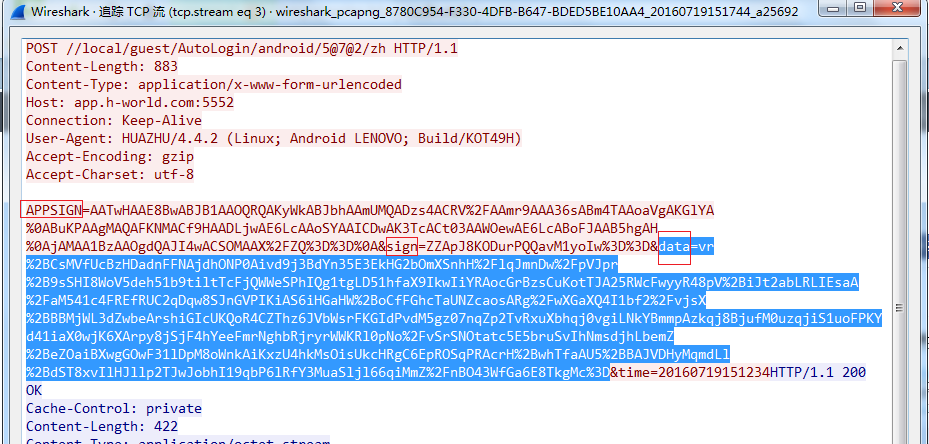 Android 逆向分析實例:某酒店 App 登陸請求的加解密還原
為了練手、順便補一下逆向分析的知識,這次挑了一個很典型的題目:分析某酒店 App 的登陸請求。 目標很明確——弄清登陸請求資料的加解密原理,把傳出去的密文還原成明文,順便
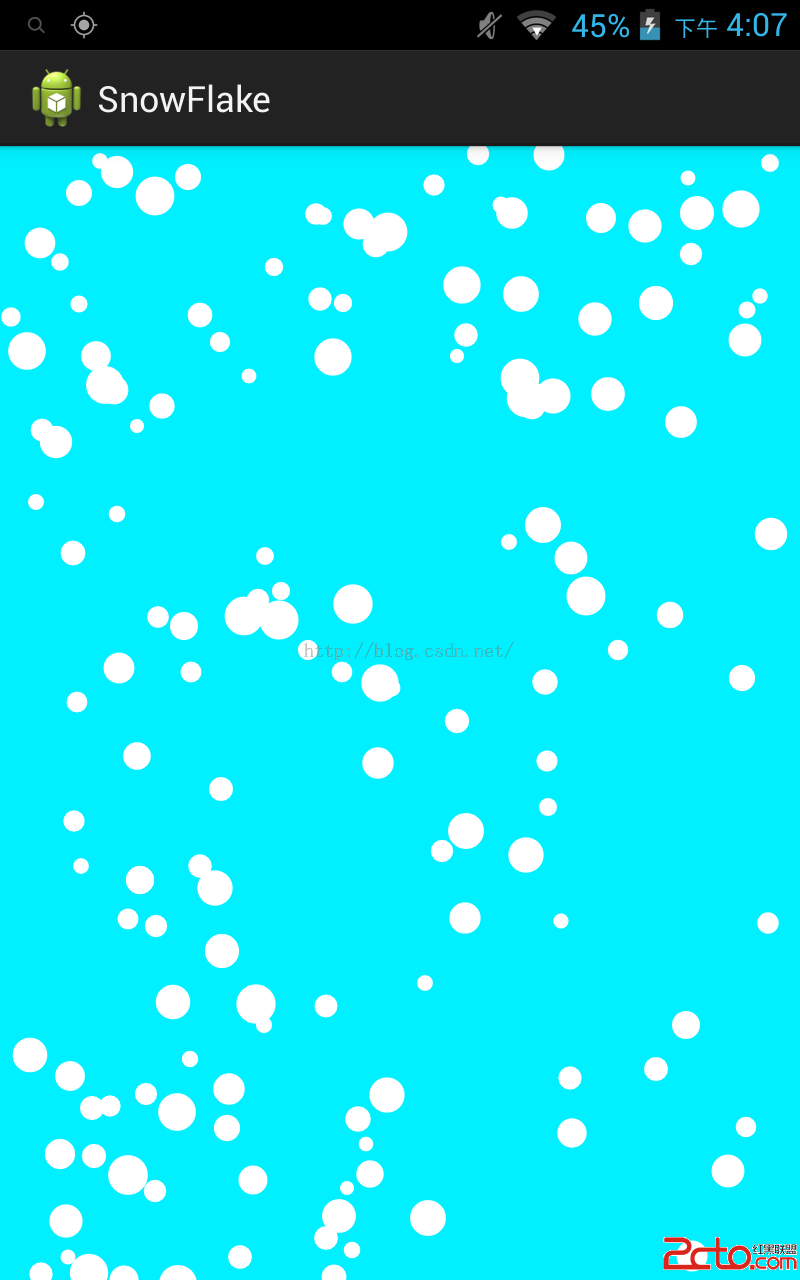 Android 實現漫天飛舞雪花以及下雨天效果
前言 這個效果的原作者是國外一位大神,我在其基礎上進行了測試,在代碼中補充了不少註釋並做了局部修改。後來我又根據漫天飛舞的雪花效果,改進實現了下雨天場景。原作者的項目是
 Android 屬性動畫深度剖析:從傳統動畫的先天缺陷說起
一句話說清主題 做產品時,恰到好處的動畫能顯著提升用戶體驗,平移、縮放、旋轉都是常見手法。這類動畫在 Android 早期版本就已具備,我們習慣稱之為「傳統動畫」,它分為
 Android 三級聯動下拉框:Spinner 實作指南
實作思路三級聯動下拉框的核心是動態載入各層級的 Adapter。當上層 Spinner 的選項改變時,重新建立下層 Spinner 的資料源,並設定新的 ArrayAda