

編輯:關於 Android 程式設計
VideoView 是最省事的播放方案:它內建 MediaPlayer 與 SurfaceView,只要指定影片來源再呼叫 start() 就能播。搭配 MediaController 還能免費得到播放/暫停與拖拉進度的控制列。
public class Activity01 extends Activity
{
    /** Called when the activity is first created. */
    @Override
    public void onCreate(Bundle savedInstanceState)
    {
        super.onCreate(savedInstanceState);

        setContentView(R.layout.main);

        final VideoView videoView = (VideoView) findViewById(R.id.VideoView01);

        Button PauseButton = (Button) this.findViewById(R.id.PauseButton);
        Button LoadButton = (Button) this.findViewById(R.id.LoadButton);
        Button PlayButton = (Button) this.findViewById(R.id.PlayButton);

        // 載入
        LoadButton.setOnClickListener(new OnClickListener() {
            public void onClick(View arg0)
            {
                // videoView.setVideoPath("/sdcard/test.mp4");
                videoView.setVideoPath("android.resource://com.homer/" + R.raw.china);
                videoView.setMediaController(new MediaController(Activity01.this));
                videoView.requestFocus();
            }
        });

        // 播放
        PlayButton.setOnClickListener(new OnClickListener() {
            public void onClick(View arg0)
            {
                videoView.start();
            }
        });

        // 暫停
        PauseButton.setOnClickListener(new OnClickListener() {
            public void onClick(View arg0)
            {
                videoView.pause();
            }
        });
    }
}
<?xml version="1.0" encoding="utf-8"?>
<AbsoluteLayout xmlns:android="https://schemas.android.com/apk/res/android"
    android:layout_width="fill_parent"
    android:layout_height="fill_parent"
    android:orientation="vertical" >

    <TextView
        android:layout_width="fill_parent"
        android:layout_height="wrap_content"
        android:text="@string/hello" />

    <VideoView
        android:id="@+id/VideoView01"
        android:layout_width="320px"
        android:layout_height="240px" />

    <Button
        android:id="@+id/LoadButton"
        android:layout_width="80px"
        android:layout_height="wrap_content"
        android:layout_x="30px"
        android:layout_y="300px"
        android:text="裝載" />

    <Button
        android:id="@+id/PlayButton"
        android:layout_width="80px"
        android:layout_height="wrap_content"
        android:layout_x="120px"
        android:layout_y="300px"
        android:text="播放" />

    <Button
        android:id="@+id/PauseButton"
        android:layout_width="80px"
        android:layout_height="wrap_content"
        android:layout_x="210px"
        android:layout_y="300px"
        android:text="暫停" />

</AbsoluteLayout>
範例中同時出現了兩種來源,實際上有三種常見形式:
videoView.setVideoPath("/sdcard/test.mp4")setVideoPath("android.resource://包名/" + R.raw.china)setVideoUri(Uri.parse("https://.../video.mp4")),此時務必加上 INTERNET 權限。dip 而非 px,否則在不同解析度的裝置上會嚴重變形。AbsoluteLayout 已被棄用,建議改用 RelativeLayout 或 ConstraintLayout。VideoView 不支援所有編碼格式,MP4(H.264)相容性最好;播放前可先用 MediaMetadataRetriever 檢查。onPause() 中呼叫 videoView.pause(),離開頁面時停止播放,避免聲音繼續跑。MediaController 的預設樣式可能不夠用,可以繼承改寫。 Android 客戶端與服務端 JSP 中文傳輸的解決方案
為了兼容簡體、繁體及其他語系,推薦統一採用 UTF-8 編碼。下面我們分別從 Android 端與服務端來看該如何處理。先看 Android 端:在發送前,應對參數值進行
 小米「請勿遮擋橙色區域」怎麼解?防誤觸與距離感測器校正
小米手機出現請勿遮擋橙色區域,通常是防誤觸或距離感測器作用。可先到設定、鎖屏和密碼,關閉防誤觸模式。 若仍異常,可在撥號盤輸入工程模式,進入距離感應器測試,將手指靠近感測
 Android 架構模式詳解:MVC、MVP 與 MVVM 的區別與實踐
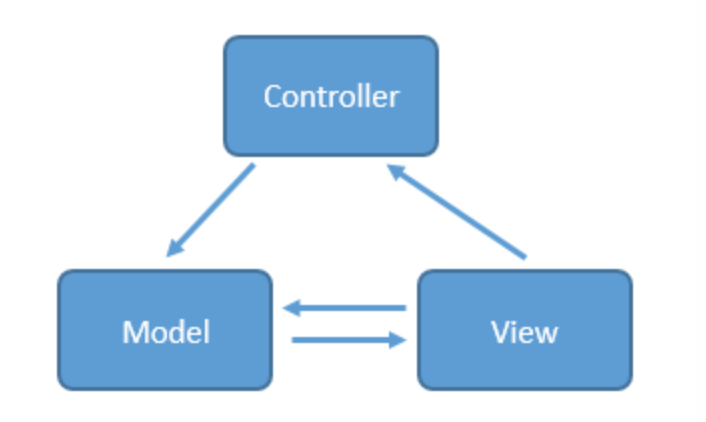
MVC、MVP、MVVM,這三個名字相信大家都耳熟能詳。作為 Android 開發中最常被提及的架構模式,它們的應用範圍極廣。但對不少新手來說,光是分清三者就已頗具挑戰,
 Android SlidingMenu 側滑菜單使用詳解:從入門到實戰
許多 App 都具備側滑菜單功能,部分甚至左右兩側皆有。開源專案 SlidingMenu 能很好地幫助我們實現側滑效果。本文先透過範例介紹幾種常見的引入方式,接著展示一個