

編輯:關於 Android 程式設計
輸入法相關的操作看起來零碎,但幾乎每個有輸入框的 App 都會遇到。以下整理三個最常用的場景。
((InputMethodManager) getSystemService(INPUT_METHOD_SERVICE))
        .hideSoftInputFromWindow(
                WidgetSearchActivity.this.getCurrentFocus().getWindowToken(),
                InputMethodManager.HIDE_NOT_ALWAYS);
關鍵是取得目前焦點 View 的 windowToken。實務上建議先判空,因為使用者可能已經按下返回鍵或畫面正在切換,此時 getCurrentFocus() 會回傳 null:
InputMethodManager imm = (InputMethodManager) getSystemService(INPUT_METHOD_SERVICE);
View focus = getCurrentFocus();
if (focus != null) {
    imm.hideSoftInputFromWindow(focus.getWindowToken(), 0);
}
((InputMethodManager) getSystemService(INPUT_METHOD_SERVICE))
        .showSoftInput(view, 0);
傳入的 View 可以是 EditText、TextView 等可輸入的控件。若希望畫面跳進來就自動聚焦並叫出鍵盤,記得該 View 必須是 focusableInTouchMode。
帶有 EditText 的畫面第一次顯示時會自動取得焦點並彈出鍵盤,這在只需要「展示內容」的頁面上很惱人。有兩種解法。
方法一:在 Manifest 中設定 Activity 屬性
android:windowSoftInputMode="stateHidden"
或
android:windowSoftInputMode="stateUnchanged"
stateHidden 是「進入畫面時若鍵盤開著就收起來」,stateUnchanged 則是「保持原狀、不主動改變」。兩者差別在於是否要主動去關掉已經開啟的鍵盤。
方法二:把焦點搶走
在版面中放一個隱形的 TextView,於 onCreate() 時讓它 requestFocus():
<TextView
    android:id="@+id/text_notuse"
    android:layout_width="wrap_content"
    android:layout_height="wrap_content"
    android:focusable="true"
    android:focusableInTouchMode="true" />
TextView textView = (TextView) findViewById(R.id.text_notuse);
textView.requestFocus();
注意:這個 TextView 不要設成 android:visibility="gone",否則會失效。看不見又拿不到焦點的 View 無法承接焦點移轉;若真的不想佔位,改用 android:visibility="invisible",或乾脆用方法一。
上述方法在 Activity 上最直接。若在 Fragment 中使用,getCurrentFocus() 要換成 getActivity().getCurrentFocus();在 RecyclerView 中切換頁面時,記得在 onViewRecycled 或離開畫面前主動收起鍵盤,否則容易出現「鍵盤還開著但頁面已經換了」的尷尬狀態。
 Servlet 異常處理:聲明式與程式化兩大方式詳解
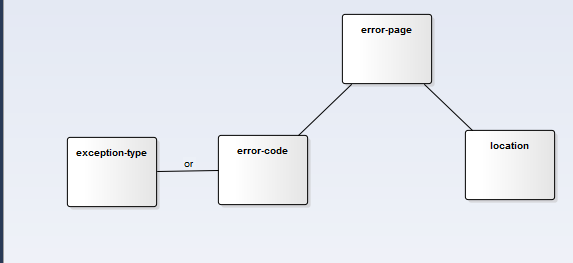
一、聲明式異常處理 所謂「聲明式」,就是在 web.xml 中針對各種異常宣告對應的處理方式。它透過 <error-page> 元素來宣告,底下包含幾個子元素
 Android 編譯系統剖析(五):system.img 是怎麼誕生的
完整編譯 Android 系統時,最終會產生幾個關鍵鏡像檔,如 system.img、userdata.img、ramdisk.img 等。本文聚焦於 system.im
 Android Framework 啟動流程解析:從 Zygote 到 SystemServer
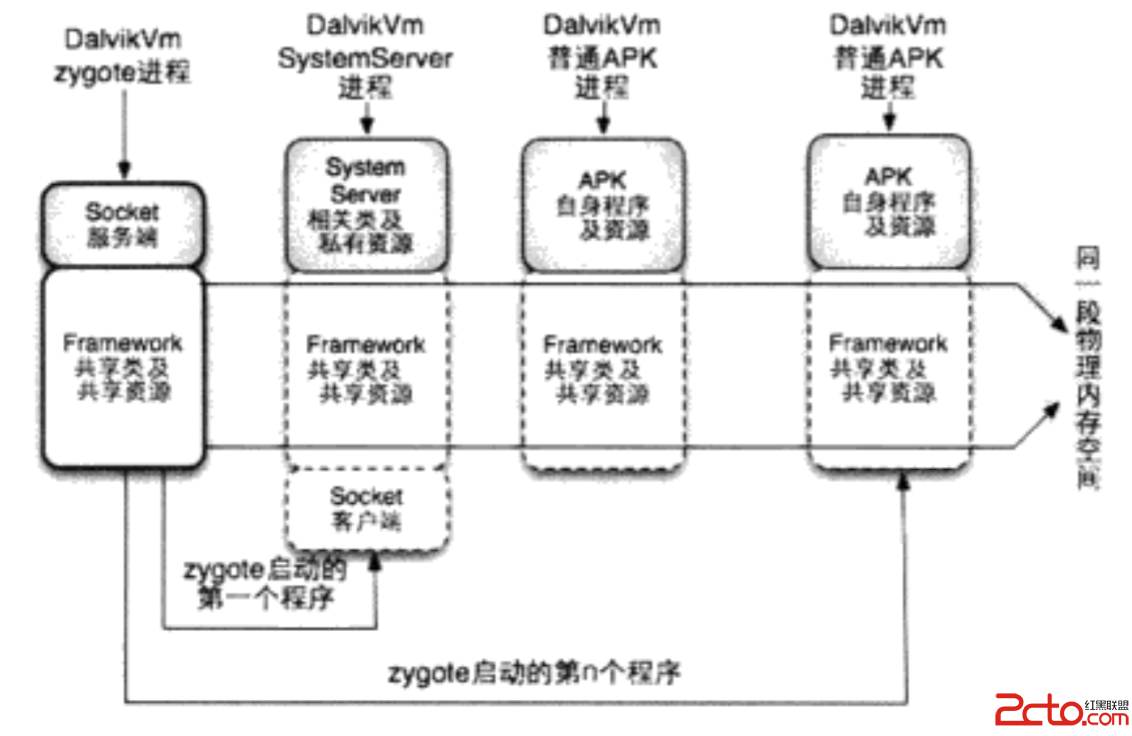
Framework 啟動的整體目標Android 開機的過程,可以視為逐步建立系統運行所需環境的過程。從核心層、init 到 Zygote,再到 SystemServer
 Android 高仿 QQ6.0 側滑刪除實作教學
實作概念 仿 QQ6.0 的側滑刪除效果,核心在於讓列表項本身可以拖動,後方預先放好刪除等操作按鈕。當使用者向左滑動時,前景內容移動並露出後方按鈕;右滑或放開手勢後,再依