

編輯:關於 Android 程式設計
Dialog 並不繼承自 View,所以一般對 View 使用的 startAnimation() 在它身上是行不通的。翻一下 Dialog 的原始碼就會發現,Dialog 內部其實是由 Window 實作的,因此正確的做法是透過 Window 的 API 來設定動畫。
下面示範一個 AlertDialog 從頂部彈入、關閉時回到頂部消失的效果。
res/anim/anim_in.xml —— 進場動畫
<?xml version="1.0" encoding="utf-8"?>
<set xmlns:android="https://schemas.android.com/apk/res/android"
    android:duration="500">
    <translate android:fromYDelta="-100%p" android:toYDelta="0" />
    <alpha android:fromAlpha="0.0" android:toAlpha="1.0" />
</set>
res/anim/anim_out.xml —— 退場動畫
<?xml version="1.0" encoding="utf-8"?>
<set xmlns:android="https://schemas.android.com/apk/res/android"
    android:duration="500">
    <translate android:fromYDelta="0" android:toYDelta="-100%p" />
    <alpha android:fromAlpha="1.0" android:toAlpha="0.0" />
</set>
進場從螢幕上方外側滑入並淡入,退場則反向滑回上方並淡出。若想要不同的手感,把 translate 的 Y 軸改成其他比例即可。
關鍵在於兩個屬性:android:windowEnterAnimation 對應顯示時的動畫,android:windowExitAnimation 對應隱藏時的動畫。
<style name="CustomDialog" parent="android:style/Theme.Dialog">
    <item name="android:windowEnterAnimation">@anim/anim_in</item>
    <item name="android:windowExitAnimation">@anim/anim_out</item>
</style>
// 建立 Builder 並設定內容
AlertDialog.Builder builder = new AlertDialog.Builder(this)
        .setMessage("message")
        .setTitle("標題")
        .setPositiveButton("確定", new DialogInterface.OnClickListener() {
            @Override
            public void onClick(DialogInterface dialog, int which) { }
        })
        .setNegativeButton("取消", new DialogInterface.OnClickListener() {
            @Override
            public void onClick(DialogInterface dialog, int which) { }
        });

// 建立 AlertDialog 物件
AlertDialog alertDialog = builder.create();

// 取得 Dialog 所在的 Window
Window window = alertDialog.getWindow();

// 為 Window 設定動畫樣式
window.setWindowAnimations(R.style.CustomDialog);

// 顯示
alertDialog.show();
show() 之前設定 windowAnimations,顯示後再設不會有效果。window.setWindowAnimations() 傳入程式動態產生的 Animation 資源 id。getWindow() 取得視窗後設定。 基於 Android 的 3D 視頻播放示例代碼解析
作者:Mark Liu 簡介 本文介紹一個名為 Video3D 的示例應用,它基於 Android 4.0 Ice Cream Sandwich(ICS)的 Media
 Android 照片牆實作:用 LruCache 避免圖片太多導致崩潰
照片牆的常見問題照片牆是許多應用常見的展示形式,通常用 GridView 或其他可捲動容器呈現大量圖片。問題在於,當使用者不斷捲動時,若沒有適當的記憶體管理機制,圖片會持
 Android AlertDialog 點擊外部自動消失的成因與兩個解法
開發時遇到一個惱人的現象:手指一碰到對話框以外的區域,它就自己關掉了。查了一下才發現,從 Android 4.0 開始,AlertDialog 的預設行為變了——點擊對話
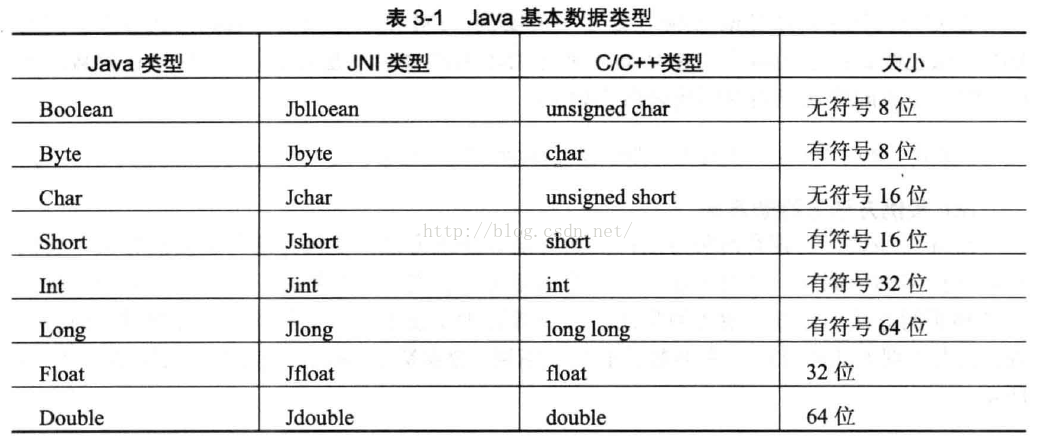 JNI 中 Java 與原生代碼的通信規則詳解
一、前言 透過 JNI,可以讓 Java 與原生語言互相通信。這個通信不僅是資訊傳遞,還包括方法調用與參數傳遞。但由於 Java 的數據類型與原生語言的數據類型有所差異,