

編輯:關於 Android 程式設計
以下示範一個類似 Android 圖片庫的輪播效果:圖片每隔一段時間自動切換,使用者也可以手動滑動,滑動期間暫停自動播放,放手後恢復。
#import "ViewController.h"

#define ImageViewCount 5

@interface ViewController () <UIScrollViewDelegate>
@property (weak, nonatomic) IBOutlet UIScrollView *imageScrollView;
@property (weak, nonatomic) IBOutlet UIPageControl *imageViewPageControl;
@property (strong, nonatomic) NSTimer *timer;
@end

@implementation ViewController

- (void)viewDidLoad {
    [super viewDidLoad];

    [self addImageView2ScrollView];

    self.imageScrollView.contentSize =
            CGSizeMake(self.imageScrollView.frame.size.width * ImageViewCount, 0);
    self.imageScrollView.delegate = self;
    self.imageScrollView.pagingEnabled = YES;   // 讓滑動以整頁為單位吸附
    self.imageViewPageControl.numberOfPages = ImageViewCount;

    [self addScrollTimer];
}

/** 自動切換到下一張 */
- (void)rotatePic {
    NSInteger currentPageIndex = self.imageViewPageControl.currentPage;
    if (++currentPageIndex == ImageViewCount) {
        currentPageIndex = 0;
    }
    CGFloat offsetX = currentPageIndex * self.imageScrollView.frame.size.width;
    [UIView animateWithDuration:1 animations:^{
        self.imageScrollView.contentOffset = CGPointMake(offsetX, 0);
    }];
}

/** 把圖片鋪進 ScrollView */
- (void)addImageView2ScrollView {
    CGFloat imageWidth = self.imageScrollView.frame.size.width;
    CGFloat imageHeight = self.imageScrollView.frame.size.height;

    for (int i = 0; i < ImageViewCount; i++) {
        UIImageView *imageInScroll = [[UIImageView alloc] init];
        imageInScroll.frame = CGRectMake(i * imageWidth, 0, imageWidth, imageHeight);
        imageInScroll.image = [UIImage imageNamed:
                [NSString stringWithFormat:@"img_%02d", i + 1]];
        [self.imageScrollView addSubview:imageInScroll];
    }
}

/** 滑動過程中同步頁碼指示器 */
- (void)scrollViewDidScroll:(UIScrollView *)scrollView {
    CGFloat offX = scrollView.contentOffset.x;
    NSInteger currentPageIndex =
            (offX + 0.5f * scrollView.frame.size.width) / scrollView.frame.size.width;
    self.imageViewPageControl.currentPage = currentPageIndex;
}

- (void)addScrollTimer {
    self.timer = [NSTimer timerWithTimeInterval:2
                                         target:self
                                       selector:@selector(rotatePic)
                                       userInfo:nil
                                        repeats:YES];
    // 加入 RunLoop 的 CommonModes,滑動期間計時器才不會被延後
    [[NSRunLoop mainRunLoop] addTimer:self.timer forMode:NSRunLoopCommonModes];
}

- (void)removeScrollTimer {
    [self.timer invalidate];
    self.timer = nil;
}

/** 開始拖動時暫停自動播放 */
- (void)scrollViewWillBeginDragging:(UIScrollView *)scrollView {
    [self removeScrollTimer];
}

/** 結束拖動後恢復自動播放 */
- (void)scrollViewDidEndDragging:(UIScrollView *)scrollView
                 willDecelerate:(BOOL)decelerate {
    [self addScrollTimer];
}

@end
scrollViewDidScroll: 等回呼不會被觸發,頁碼指示器就無法同步。timerWithTimeInterval: 只是建立物件,要透過 addTimer:forMode: 掛上執行緒的 RunLoop 才會真正計時。NSDefaultRunLoopMode,使用者在滑動時計時器會被暫停(因為此時 RunLoop 處於 tracking 模式),畫面會出現「滑完才又開始跳」的頓感。改用 NSRunLoopCommonModes 可讓計時在滑動期間持續。dealloc 或 viewDidDisappear 中確保清除。目前的做法是把所有圖片一次性鋪進 ScrollView,頁數多時記憶體吃緊。若要支援大量圖片,建議改為「只保留前後各一頁」的複用策略,或直接使用 UICollectionView 搭配 isPagingEnabled,讓系統自動回收離開畫面的 cell。 timer 也可換成 CADisplayLink,它能與畫面刷新同步,在動畫場景下更平順。
 Android 線性佈局與表格佈局實戰:屬性詳解與混合排版技巧
這次實驗只動 XML,Java 端完全不碰——純粹練習畫面排版。因為只是介面設計,所有想呈現的效果都能靠宣告式語法完成。 一、線性佈局(LinearLayout) 顧
 Volley 深度實戰:從 Request 到自訂框架封裝
Volley 是 Google 在 I/O 2013 端出的官方網路通訊庫。在它出現之前,Android 開發者多半在幾個成熟的三方庫之間做選擇——android-asy
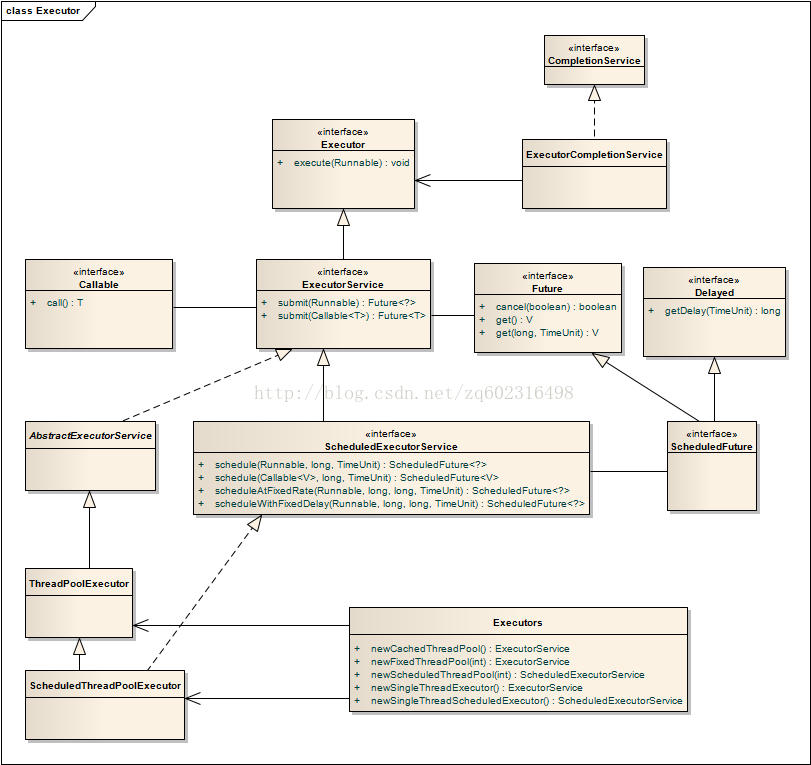 Android 線程與線程池知識總結(二):線程池全景
前言 線程是操作系統調度的最小單元,同時也是一種受限資源:不能無限創建,創建與銷毀都有開銷。系統靠時間片輪轉來調度每一個線程,因此除非線程數不超過 CPU 核心數,否則不
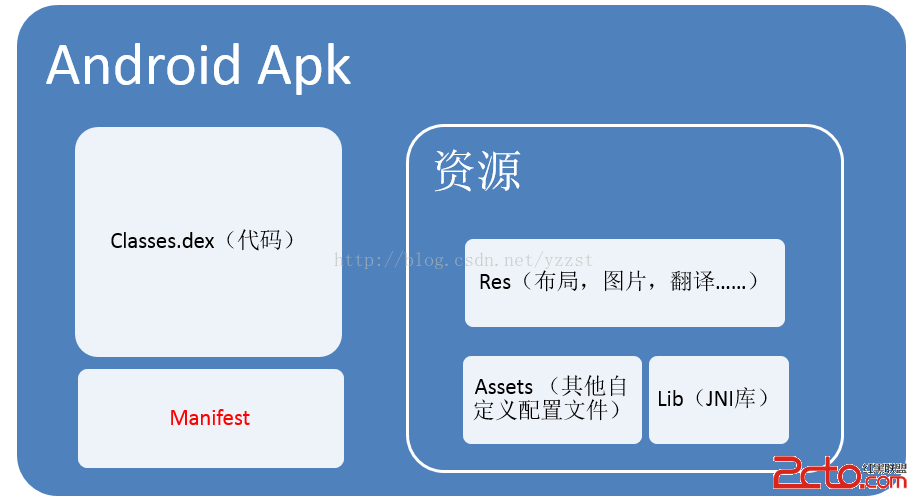 Android 插件化開發入門:從 Java 動態加載到 Activity 插件實作
Android 插件化已經討論多年,但真正成熟穩定的開源框架仍不多。本文嘗試先對照 Java 中的插件化流程,再逐步把這套思路移植到 Android 上。文中部分代碼來自