

編輯:關於 Android 程式設計
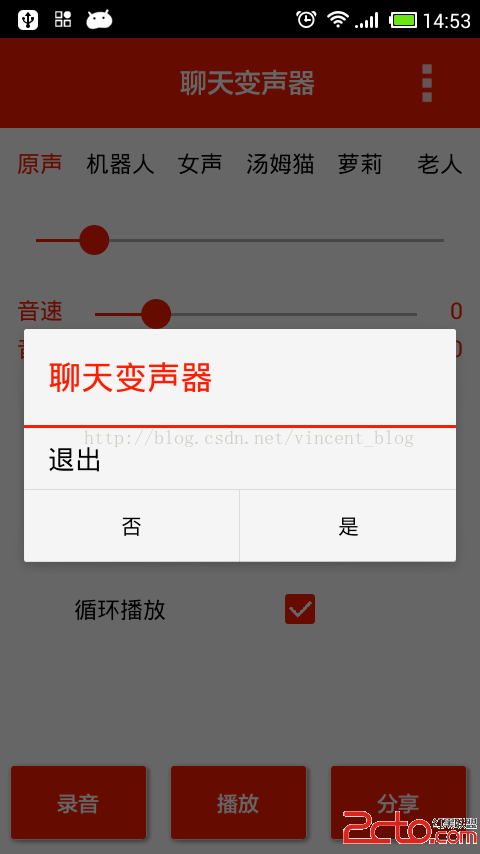
先來看效果。系統對話框的標題文字是藍色的,下面還有一根藍色的分隔線。做主題換膚時,這兩個顏色往往必須一起改;但又實在懶得為此定制一整套 Dialog,於是有了下面這個取巧的辦法。
public static void dialogTitleLineColor(Dialog dialog, int titleColor, int dividerColor) {
    Context context = dialog.getContext();

    // 修改標題文字顏色
    int titleId = context.getResources()
            .getIdentifier("android:id/alertTitle", null, null);
    TextView title = (TextView) dialog.findViewById(titleId);
    if (title != null) {
        title.setTextColor(titleColor);
    }

    // 修改標題下方的分隔線顏色
    int dividerId = context.getResources()
            .getIdentifier("android:id/titleDivider", null, null);
    View divider = dialog.findViewById(dividerId);
    if (divider != null) {
        divider.setBackgroundColor(dividerColor);
    }
}
它借用 Resources.getIdentifier(),在運行期透過字串名稱反查系統資源的數字 ID,再用 findViewById 把對應的 View 撈出來,最後直接改它的屬性。標題文字與分隔線是兩個不同的資源 ID,所以分兩步處理。
使用時機很關鍵:必須在 dialog.show() 之後呼叫,因為對話框的內部 View 是在 show 過程中才被創建並掛載的。放在 show 之前,findViewById 會拿到 null。
Dialog dialog = new AlertDialog.Builder(context)
        .setTitle("提示")
        .setMessage("內容……")
        .create();
dialog.show();
dialogTitleLineColor(dialog, ContextCompat.getColor(context, R.color.title),
        ContextCompat.getColor(context, R.color.divider));
想改系統控件的任何屬性,思路都是同一套:取得資源 ID → 取得該資源的實例 → 修改屬性。
不過這招屬於「侵入內部實現」,實戰中請留意幾點:
colorAccent、android:textColorAlertDialogListItem 等公開屬性控制配色。順帶一提,Android 5.0 之後有了 Material Design,作者也把自己很久以前做的 App 按新風格翻新了一遍,可到應用市場下載體驗。
 Zxing 圖片識別實戰:從相冊選取二維碼圖片進行解析總結
在 Zxing 掃描識別和圖片識別中,解析的對象其實是相同的。 本文分三個步驟: 1 獲取相冊的照片 2 解析二維碼圖片 3 返回結果 1)獲取相冊照片 Google 對
 Android Scroll 詳解(三):一次完整的視圖繪制之旅
本文轉載請注明原作者、文章來源與鏈接,版權歸原文作者所有。 這是 Android Scroll 系列的最後一篇,主題是 Android 的視圖繪制機制。由於整個系列
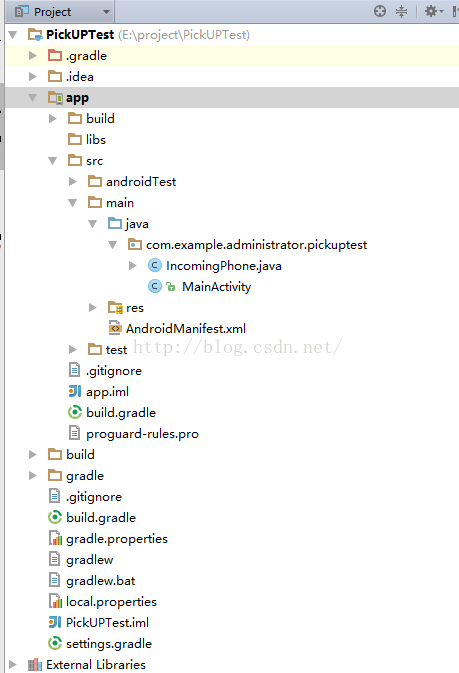 Android 自定義滑動接聽電話控制元件
本範例示範如何自製一個滑動接聽電話的控制元件,並可進一步封裝成 jar 供其他專案使用。整體概念是將接聽與掛斷兩個可滑動元件放入 RelativeLayout,再透過事件
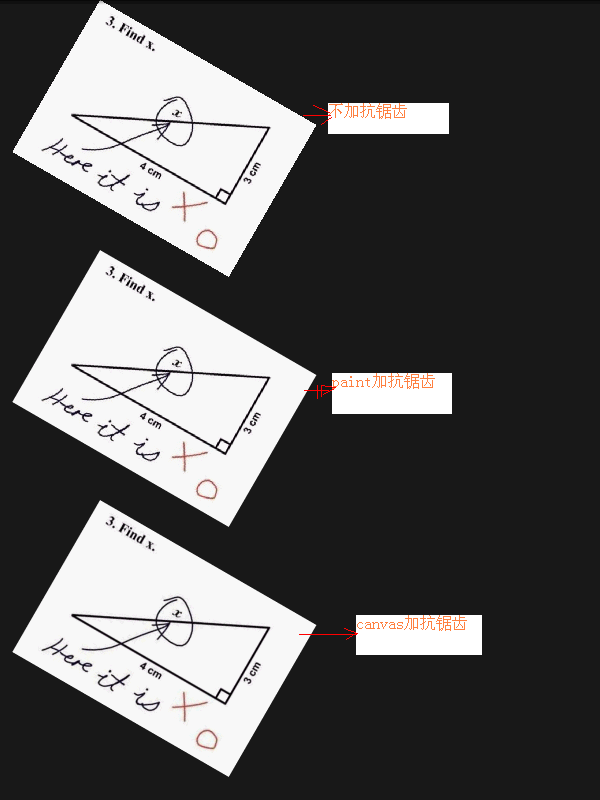 Android 繪圖抗鋸齒實戰:兩種方法消除圖片縮放的毛邊
在做圖形繪製時,如果對圖片進行旋轉或縮放,邊緣往往會出現那種不甚美觀的鋸齒。所幸 Android 本身就內建了解決方案,本文就來介紹兩種簡單有效的抗鋸齒做法。 方法一:為