

編輯:關於 Android 程式設計
Unity 提供了兩種方式,讓開發者的 Android 設備連接到 Profiler 進行性能分析:
1. 通過 WiFi,讓 Android 設備和計算機處於同一個 WLAN 中;
2. 通過 USB 連接 ADB。
一般情況下我們的計算機都是用網線上網,所以這裡採用 ADB 的方式。相比 WiFi,ADB 也能更即時地反映設備的性能數據。
官方的英文文檔要點如下:
For ADB profiling, follow these steps: Attach your device to your Mac/PC via cable and make sure ADB recognizes the device (i.e. it shows in adb devices list). Check the "Development Build" checkbox in Unity's build settings dialog, and hit "Build & Run". When the app launches on the device, open the profiler window in Unity Editor (Window->Profiler). Select the AndroidProfiler(ADB@127.0.0.1:54999) from the Profiler Window Active Profiler drop down menu. Note: The Unity editor will automatically create an adb tunnel for your application when you press "Build & Run". If you want to profile another application or you restart the adb server you have to setup this tunnel manually. To do this, enter: adb forward tcp:54999 localabstract:Unity-[bundle identifier]. Note: If you are using a firewall, make sure that ports 54998 to 55511 are open in the firewall's outbound rules.
按照文檔的步驟,這裡翻譯並梳理一下操作流程:
第一步,設置 ADB。打開 CMD 命令行窗口,輸入以下命令(把後面的包名換成你自己應用的包名):
adb forward tcp:54999 localabstract:Unity-com.thisisgame.gamedemo
第二步,從 Unity 中 Export Android 工程的時候,一定要勾選 Development Build。
第三步,在手機上打開遊戲。
第四步,打開 Unity 的 Profiler 窗口,在 Active Profiler 下拉菜單中選擇 ADB@127.0.0.1:54999。

然後就能在 Profiler 中實時查看性能分析數據了。
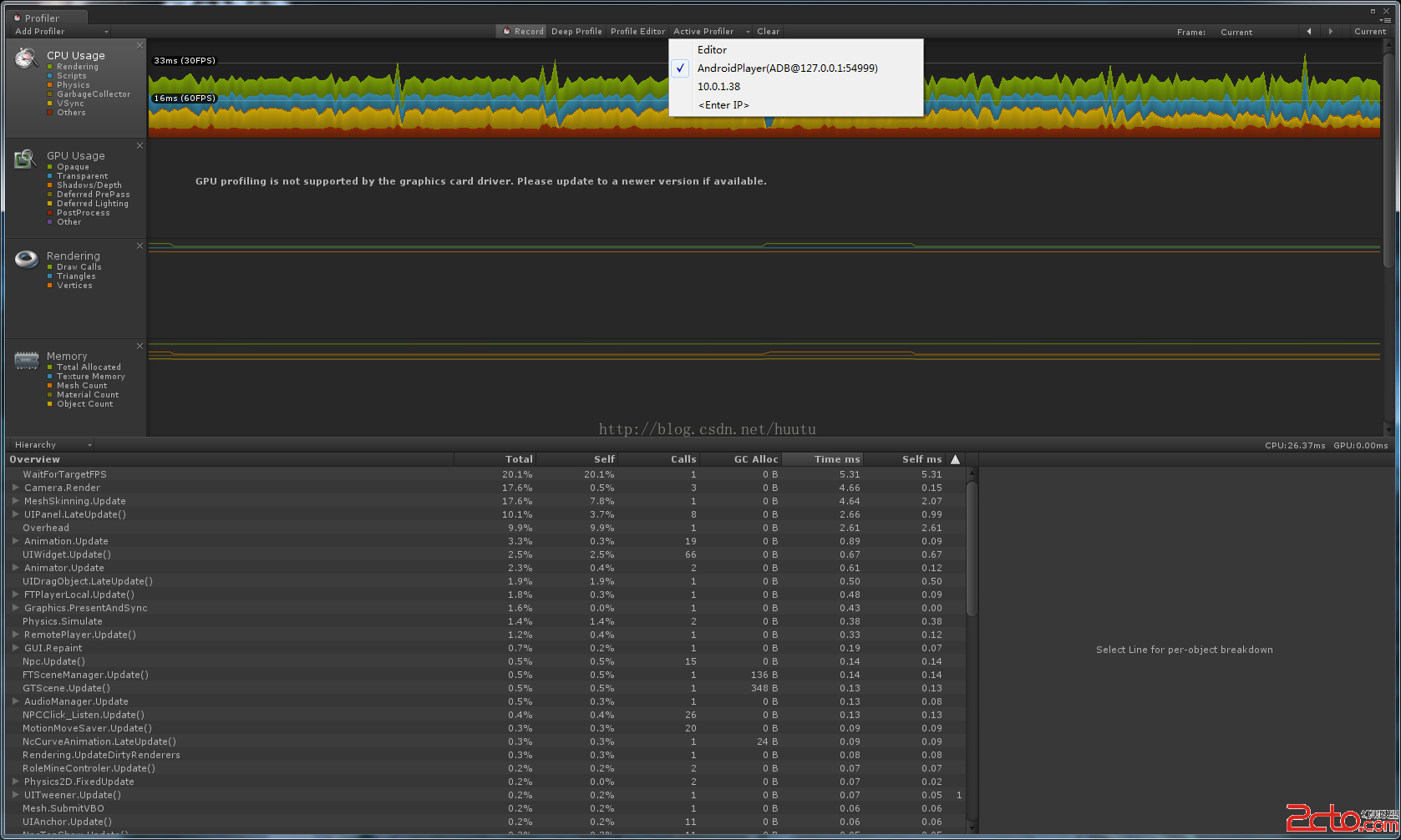
小提示:如果重啟了 adb server 或想分析其他應用,需要手動重新執行 adb forward 命令建立隧道;另外如果使用了防火牆,記得放行 54998 到 55511 這段端口。
 Android NDK 環境搭建與第一個 JNI 實例
一、NDK 與 JNI 簡介 NDK 全稱 Native Development Kit,即本地語言(C/C++)開發包。與之對應的是我們更常接觸的 Android SD
 仿 QQ 分組管理:可拖動排序的 ListView 完整實現
項目裡需要實現分組管理,其中一項功能是列表項可長按拖動排序。查資料並參考了一些現有實現之後把功能跑了起來,這裡整理代碼與思路,方便複盤。 整體思路 核心是重寫 ListV
 Android Service 入門(一):淺談 Service 的類型、生命週期與通信方式
一、Service 是什麼 Service 常被形容為「在後台運行的 Activity」,但它並不是獨立進程,也不具備界面。你只要告訴它要做什麼,它便老老實實執行;若需要
 Android 後台啟動 Activity:moveTaskToBack 用法與生命週期觀察
實務上有這樣的需求:需要啟動某個 Activity 讓它執行初始化或保持服務,但又不希望它的畫面跳出來干擾使用者,同時也不能直接 finish() 把它結束掉。這種情況就