

編輯:關於 Android 程式設計
Interpolator 定義了動畫的變化速率,framework 內建的幾種:
MainActivity.java:
public class MainActivity extends Activity {

    private Button button = null;
    private ImageView imageView = null;

    @Override
    protected void onCreate(Bundle savedInstanceState) {
        super.onCreate(savedInstanceState);
        setContentView(R.layout.activity_main);

        button = (Button) findViewById(R.id.buttonId);
        button.setOnClickListener(new buttonListener());

        imageView = (ImageView) findViewById(R.id.imageViewId);
    }

    class buttonListener implements OnClickListener {
        @Override
        public void onClick(View v) {
            // 方法一:直接從 xml 載入一組動畫
            // Animation animation =
            //     AnimationUtils.loadAnimation(MainActivity.this, R.anim.flishes);
            // imageView.startAnimation(animation);

            // 方法二:用程式碼組出 AnimationSet
            AnimationSet animationSet = new AnimationSet(true); // true 表示共用一個 Interpolator
            animationSet.setInterpolator(new AccelerateDecelerateInterpolator());

            ScaleAnimation scaleAnimation = new ScaleAnimation(
                    1, 0.1f, 1, 0.1f,
                    Animation.RELATIVE_TO_SELF, 0.5f,
                    Animation.RELATIVE_TO_SELF, 0.5f);

            RotateAnimation rotateAnimation = new RotateAnimation(
                    0, 360,
                    Animation.RELATIVE_TO_PARENT, 1f,
                    Animation.RELATIVE_TO_PARENT, 0f);

            animationSet.addAnimation(rotateAnimation);
            animationSet.addAnimation(scaleAnimation);
            animationSet.setDuration(2000);
            animationSet.setStartOffset(500);

            imageView.startAnimation(animationSet);
        }
    }
}
檔案放在 res/anim/flishes.xml:
<set xmlns:android="https://schemas.android.com/apk/res/android"
    android:interpolator="@android:anim/accelerate_interpolator"
    android:shareInterpolator="true">

    <!-- shareInterpolator="true":讓底下的 scale、alpha 共用同一個 Interpolator -->

    <scale
        android:fromXScale="1.0"
        android:toXScale="0.0"
        android:fromYScale="1.0"
        android:toYScale="0.0"
        android:pivotX="50%"
        android:pivotY="50%"
        android:duration="2000" />

    <alpha
        android:fromAlpha="1.0"
        android:toAlpha="0.0"
        android:startOffset="500"
        android:duration="500" />
</set>
這裡 startOffset 的效果值得留意:scale 先跑,alpha 延後 500 毫秒才啟動,於是視覺上會看到「先縮小、再淡出」的錯落感,而不是兩個效果同時開始。
<RelativeLayout xmlns:android="https://schemas.android.com/apk/res/android"
    android:layout_width="match_parent"
    android:layout_height="match_parent">

    <Button
        android:id="@+id/buttonId"
        android:layout_width="fill_parent"
        android:layout_height="wrap_content"
        android:layout_alignParentBottom="true"
        android:text="測試動畫效果" />

    <LinearLayout
        android:layout_width="fill_parent"
        android:layout_height="fill_parent"
        android:layout_alignParentTop="true"
        android:orientation="vertical">

        <ImageView
            android:id="@+id/imageViewId"
            android:layout_width="wrap_content"
            android:layout_height="wrap_content"
            android:layout_margin="50px"
            android:src="@drawable/ic_launcher" />
    </LinearLayout>
</RelativeLayout>
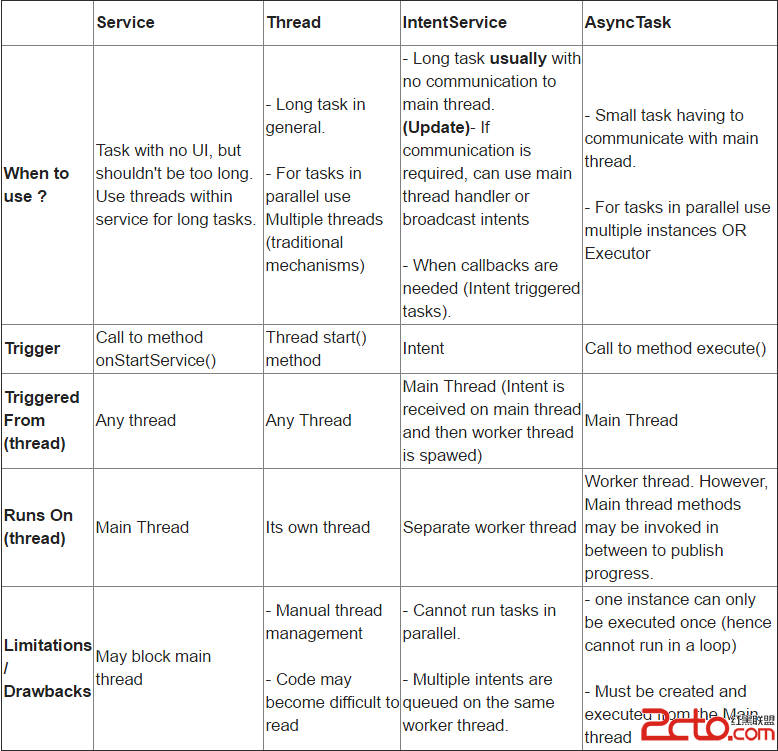 Android 的線程模型與線程池:從 Thread 到 IntentService
Java 中一個進程默認只有一個線程,也就是主線程,其餘都是子線程(工作線程)。Android 沿用了這個模型:主線程負責界面相關的一切,子線程則承擔耗時操作。由於線程的
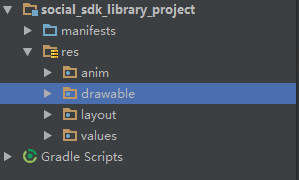 友盟 5.0 推送與分享踩坑總結
友盟 5.0 的變化 友盟 5.0 相較於舊版,推送與分享可以透過 Module 形式整合,資源與程式碼都更精簡。不過剛改版時,常會遇到與舊版不同的配置方式,因此需要重新
 OkHttp 進階用法:同步異步、快取策略與請求取消
OkHttp 是一款高效的 HTTP 客戶端:同一主機的連線可共享同一個 socket、透過連線池降低響應延遲、透明 GZIP 壓縮、響應快取(主頁:https://gi
 Android Studio 效率插件推薦:從接口調試到模擬器加速
工欲善其事,必先利其器。Android Studio 本身已經足夠強大,但裝上幾個合適的插件之後,日常開發的效率會有明顯提升。以下按使用頻次由高到低整理,前面幾個是幾乎每