

編輯:關於 Android 程式設計
本文以一個會隨按鈕移動的小人與可點擊產生的笑臉為例,示範 Android 遊戲開發中 SurfaceView 的基礎用法。
程式運行效果如下:
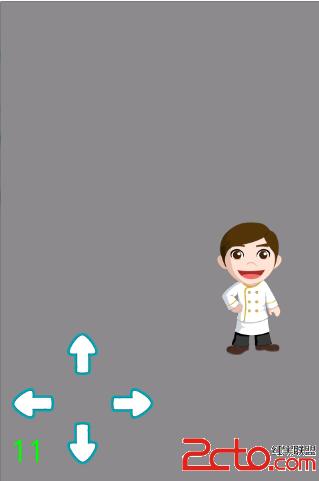
1、MainActivity:負責把畫面交給自訂的 MySurfaceView,並攔截觸摸事件:
package com.njupt.surface;

import android.os.Bundle;
import android.app.Activity;
import android.view.Menu;
import android.view.MotionEvent;
import android.view.View;
import android.view.View.OnClickListener;

public class MainActivity extends Activity implements OnClickListener {

    @Override
    protected void onCreate(Bundle savedInstanceState) {
        super.onCreate(savedInstanceState);
        setContentView(new MySurfaceView(this));
    }

    @Override
    public boolean onCreateOptionsMenu(Menu menu) {
        getMenuInflater().inflate(R.menu.main, menu);
        return true;
    }

    @Override
    public void onClick(View v) { }

    @Override
    public boolean dispatchTouchEvent(MotionEvent ev) {
        GameData.clickX = (int) ev.getX();
        GameData.clickY = (int) ev.getY();
        switch (ev.getAction()) {
            case MotionEvent.ACTION_DOWN:
                GameData.clickType = GameData.DOWN;
                break;
            case MotionEvent.ACTION_MOVE:
                GameData.clickType = GameData.MOVE;
                break;
            case MotionEvent.ACTION_UP:
                GameData.clickType = GameData.UP;
                break;
            default:
                break;
        }
        return super.dispatchTouchEvent(ev);
    }
}
2、MySurfaceView:負責承擔遊戲畫面的繪製與邏輯控制,是整個範例的核心:
package com.njupt.surface;

import java.util.ArrayList;
import android.content.Context;
import android.content.res.Resources;
import android.graphics.Bitmap;
import android.graphics.BitmapFactory;
import android.graphics.Canvas;
import android.graphics.Color;
import android.graphics.Paint;
import android.graphics.Point;
import android.util.AttributeSet;
import android.view.SurfaceHolder;
import android.view.SurfaceView;

/**
 * ① 展現遊戲界面 ② 控制遊戲界面
 */
public class MySurfaceView extends SurfaceView implements SurfaceHolder.Callback, Runnable {

    private SurfaceHolder sh;
    private boolean isDestroy = false;
    private Canvas canvas;   // 畫紙
    private Paint paint;     // 畫筆
    private int sW = 0;
    private int sH = 0;
    private ArrayList list = new ArrayList();
    private Resources res;

    public MySurfaceView(Context context) {
        super(context);
        res = context.getResources();
        init();
        sh = this.getHolder();
        sh.addCallback(this);
        paint = new Paint();
        paint.setTextSize(30);
        paint.setAntiAlias(true);
    }

    private Bitmap[] bm = new Bitmap[10];

    // 加載圖片資源
    private void init() {
        bm[0] = BitmapFactory.decodeResource(res, R.drawable.left01);
        bm[1] = BitmapFactory.decodeResource(res, R.drawable.left02);
        bm[2] = BitmapFactory.decodeResource(res, R.drawable.top);
        bm[3] = BitmapFactory.decodeResource(res, R.drawable.top2);
        bm[4] = BitmapFactory.decodeResource(res, R.drawable.right01);
        bm[5] = BitmapFactory.decodeResource(res, R.drawable.right02);
        bm[6] = BitmapFactory.decodeResource(res, R.drawable.bottom);
        bm[7] = BitmapFactory.decodeResource(res, R.drawable.bottom2);
        bm[8] = BitmapFactory.decodeResource(res, R.drawable.avatar_boy); // 人物
        bm[9] = BitmapFactory.decodeResource(res, R.drawable.rating_small); // 笑臉
    }

    @Override
    public void surfaceChanged(SurfaceHolder holder, int format, int width, int height) {
        sW = this.getWidth();
        sH = this.getHeight();
        GameData.screenX = sW;
        GameData.screenY = sH;
    }

    @Override
    public void surfaceCreated(SurfaceHolder holder) {
        new Thread(this).start();
        fpsThread();
    }

    private int fps = 0;
    private int count = 0;

    private void fpsThread() {
        new Thread(new Runnable() {
            @Override
            public void run() {
                while (!isDestroy) {
                    fps = count;
                    count = 0;
                    try {
                        Thread.sleep(1000);
                    } catch (InterruptedException e) {
                        e.printStackTrace();
                    }
                }
            }
        }).start();
    }

    @Override
    public void surfaceDestroyed(SurfaceHolder holder) {
        isDestroy = true;
    }

    @Override
    public void run() {
        while (!isDestroy) {
            canvas = sh.lockCanvas(); // 鎖定畫布
            draw();
            count++;
            sh.unlockCanvasAndPost(canvas); // 提交畫布顯示到螢幕
        }
    }

    private int px = 10;  // 小人初始位置
    private int py = 30;
    private int space = 5; // 小人移動距離

    // 遊戲界面繪製
    private void draw() {
        paint.setColor(Color.GRAY);
        canvas.drawRect(0, 0, sW, sH, paint);
        paint.setColor(Color.GREEN);
        canvas.drawText(String.valueOf(fps), 10, sH - 20, paint);
        tickBtn();     // 處理事件
        drawBtn();     // 繪製按鈕
        canvas.drawBitmap(bm[8], px, py, null); // 繪製小人
        drawSmile();   // 繪製笑臉
    }

    private void drawSmile() {
        for (int i = list.size() - 1; i >= 0; --i) {
            Smile smile = list.get(i);
            if (smile.isDestroy()) {
                list.remove(i);
            }
        }
        for (int i = 0; i < list.size(); ++i) {
            list.get(i).draw(canvas);
        }
    }

    private void tickBtn() {
        switch (GameData.clickType) {
            case GameData.DOWN:
                if (!btn()) {
                    createSmile();
                    GameData.clickType = 0; // 防止笑臉一直創建
                }
                break;
            case GameData.MOVE:
                btn();
                break;
            case GameData.UP:
                left = top = right = bottom = 0;
                break;
            default:
                break;
        }
    }

    private void createSmile() {
        Smile smile = new Smile(bm[9], new Point(px + 50, py + 50),
                new Point(GameData.clickX, GameData.clickY), 0.02f);
        list.add(smile);
    }

    // 點擊按鈕時切換圖片並移動小人;回傳 boolean 避免點按鈕時也產生笑臉
    private boolean btn() {
        int x = GameData.clickX;
        int y = GameData.clickY;
        if (10 < x && x < 10 + bm[0].getWidth() && sH - 100 < y && y < sH - 100 + bm[0].getHeight()) {
            left = 1;
            px -= space;
            return true;
        }
        if (60 < x && x < 60 + bm[2].getWidth() && sH - 150 < y && y < sH - 150 + bm[2].getHeight()) {
            top = 1;
            py -= space;
            return true;
        }
        if (110 < x && x < 100 + bm[0].getWidth() && sH - 100 < y && y < sH - 100 + bm[0].getHeight()) {
            right = 1;
            px += space;
            return true;
        }
        if (60 < x && x < 60 + bm[2].getWidth() && sH - 60 < y && y < sH - 60 + bm[2].getHeight()) {
            bottom = 1;
            py += space;
            return true;
        }
        return false;
    }

    private int left = 0;
    private int top = 0;
    private int right = 0;
    private int bottom = 0;

    private void drawBtn() {
        canvas.drawBitmap(bm[0 + left], 10, sH - 100, null);
        canvas.drawBitmap(bm[2 + top], 60, sH - 150, null);
        canvas.drawBitmap(bm[4 + right], 110, sH - 100, null);
        canvas.drawBitmap(bm[6 + bottom], 60, sH - 60, null);
    }
}
3、GameData:以靜態變量保存觸摸座標、事件類型與螢幕尺寸等全域狀態:
package com.njupt.surface;

public class GameData {
    public static int clickX = 0;
    public static int clickY = 0;
    public static int clickType = 0; // 記錄當前與螢幕交換的狀態
    public final static int DOWN = 1;
    public final static int MOVE = 2;
    public final static int UP = 3;
    public static int screenX = 0;
    public static int screenY = 0;
}
4、Smile:負責每個笑臉的繪製與移動,超出螢幕範圍即標記為銷毀:
package com.njupt.surface;

import android.graphics.Bitmap;
import android.graphics.Canvas;
import android.graphics.Point;

public class Smile {

    private Bitmap bm;
    private Point sp;   // 笑臉起點
    private Point ep;   // 笑臉終點
    private float space;
    private int px = 0;
    private int py = 0;
    private boolean isDestroy = false;

    public Smile(Bitmap bm, Point sp, Point ep, float space) {
        this.bm = bm;
        this.sp = sp;
        this.ep = ep;
        this.space = space;
        px = sp.x;
        py = sp.y;
    }

    public void draw(Canvas canvas) {
        canvas.drawBitmap(bm, px, py, null);
        tick();
        if (GameData.screenX < px || px < -bm.getWidth()
                || py < -bm.getHeight() || py > GameData.screenY) {
            isDestroy = true;
        }
    }

    // 依起終點逐步改變笑臉位置
    private void tick() {
        if (ep.x > sp.x) {
            px += (ep.x - sp.x) * space;
        } else if (sp.x > ep.x) {
            px -= (sp.x - ep.x) * space;
        }
        if (ep.y > sp.y) {
            py += (ep.y - sp.y) * space;
        } else {
            py -= (sp.y - ep.y) * space;
        }
    }

    public boolean isDestroy() {
        return isDestroy;
    }
}
整體架構很清楚:MySurfaceView 在背景執行緒中不斷鎖定畫布、繪製、再提交顯示;觸摸事件經由 GameData 傳遞狀態,控制小人移動與笑臉產生。這正是使用 SurfaceView 進行遊戲開發的典型模式。
 用 RecyclerView 實作拖拽交換項目位置
ItemTouchHelper 的角色在 RecyclerView 中實作拖拽交換,最方便的方式是使用 ItemTouchHelper。透過 attachToRecycl
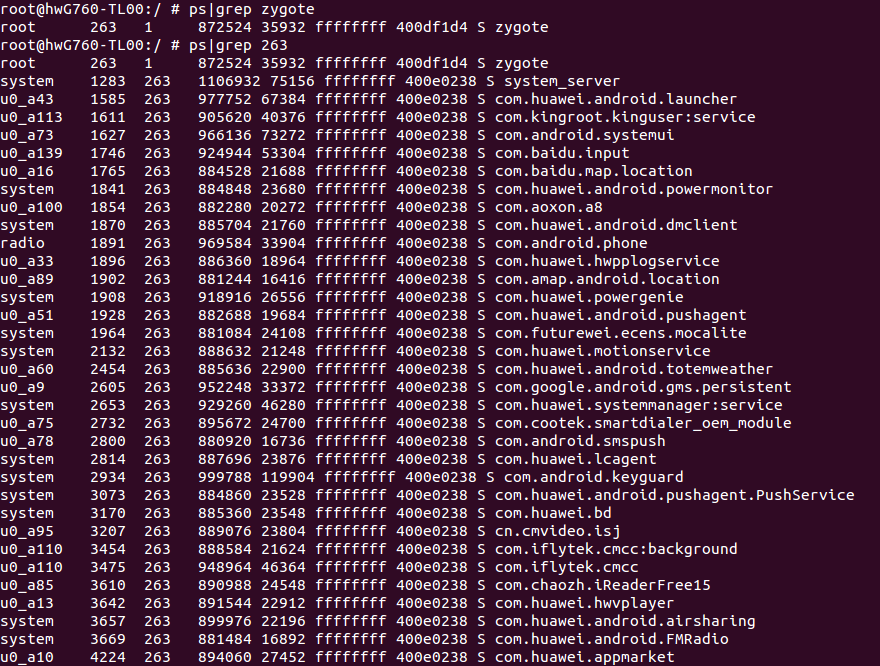 Zygote 源碼解析:Android 應用進程的起點
什麼是 ZygoteZygote 是 Android 中非常關鍵的一個進程。大多數應用程式進程,以及系統服務所在的 System 進程,都是由 Zygote 負責創建。由
 Android 通用下拉刷新與上拉加載控件:一套 PullToRefreshLayout 搞定多種 View
通用下拉刷新與上拉加載的需求 在 Android 應用中,下拉刷新與上拉加載是非常常見的互動模式。早期很多實作只針對 ListView,導致 GridView、Scrol
 小米5尊享版與標準版有何差別?規格價格對比
小米5尊享版和標準版有什麼區別?備受期待的小米5於2月24日正式發布,一口氣推出三個版本,分別是標準版、高配版與尊享版。其中標準版與高配版僅記憶體配置不同,而尊享版則在規