

編輯:關於 Android 程式設計
在 Android 中,若要讓 Dialog 呈現不同於系統預設的外觀,可以透過自訂 Drawable 與 Style 來完成。整體概念是先定義一個背景形狀,再建立一個繼承自 Dialog 主題的樣式,最後將樣式套用到 Activity。
首先在 res/drawable 目錄建立 filled_box.xml,用來定義對話框背景:
<?xml version="1.0" encoding="utf-8"?>
<shape xmlns:android="https://schemas.android.com/apk/res/android">
    <solid android:color="#ffff0000" />
    <stroke android:width="3dp" color="#00ffff80" />
    <corners android:radius="2dp" />
    <padding android:left="10dp" android:top="10dp" android:right="10dp" android:bottom="10dp" />
</shape>
這個 shape 預設為矩形,因此沒有特別指定 android:shape。solid 用來設定填滿色,stroke 用來設定邊框,corners 用來設定圓角,padding 則控制內容與邊界的間距。
接著在 res/values 目錄建立 styles.xml:
<?xml version="1.0" encoding="utf-8"?>
<resources>
    <style name="Theme.CustomDialog" parent="android:style/Theme.Dialog">
        <item name="android:windowBackground">@drawable/filled_box</item>
    </style>
</resources>
這裡自訂的主題名稱是 Theme.CustomDialog,parent 指定為 android:style/Theme.Dialog,表示沿用系統 Dialog 的基本行為,再透過 android:windowBackground 把背景換成 filled_box。
完成樣式後,在 AndroidManifest.xml 中為要使用自訂對話框的 Activity 加上 android:theme 屬性:
android:theme="@style/Theme.CustomDialog"執行專案後,即可看到自訂顏色、邊框與圓角的對話框效果。這種做法很適合用來快速調整 Dialog 的視覺風格,也能與後續的版面配置搭配。
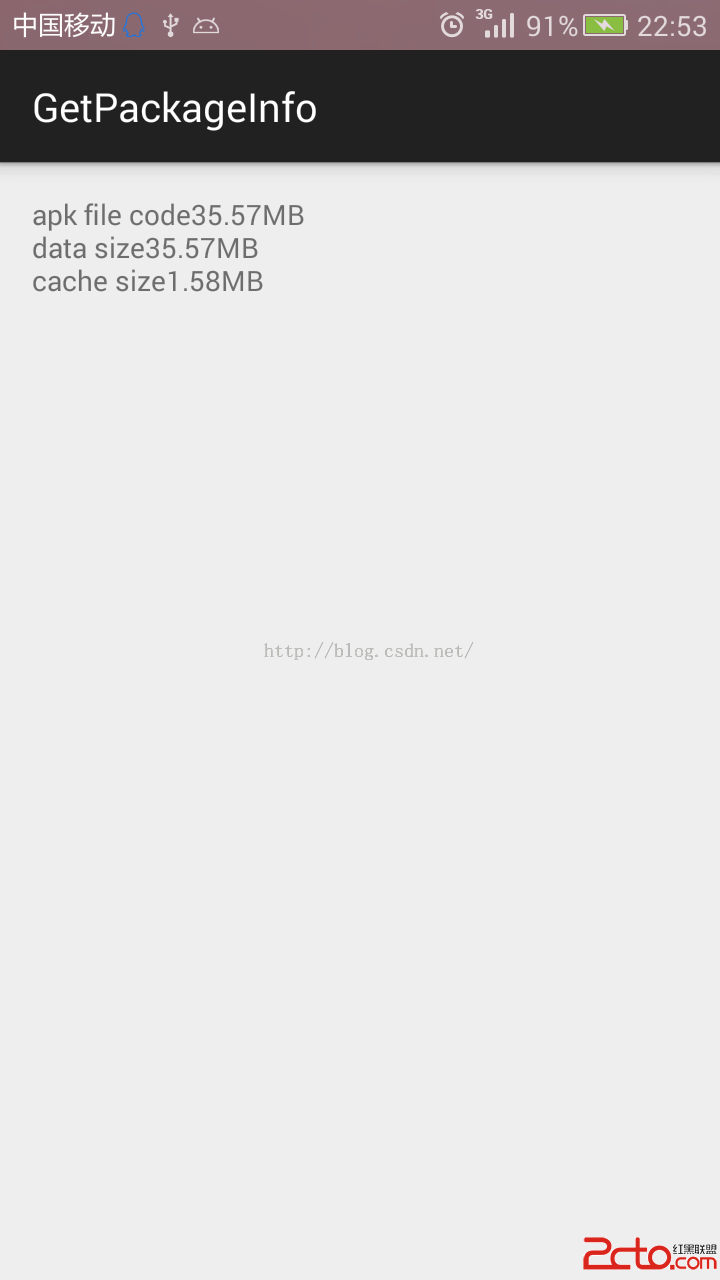 Android 取得應用程式資訊:查詢快取大小與套件統計
為何需要查詢應用程式快取 許多應用需要在設定頁或清理頁面顯示快取大小,讓使用者知道目前佔用空間並決定是否清理。Android 本身有相關 API,但直接呼叫方式較繁瑣,因
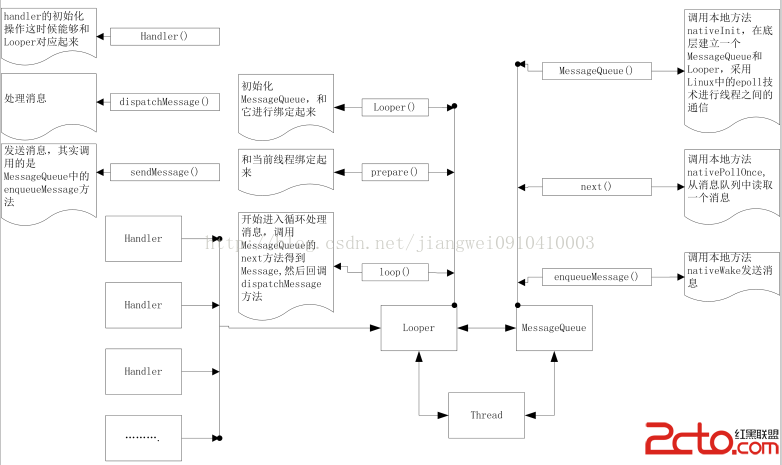 Android 消息機制(Handler)深度再解讀
最近在子線程中操作 Handler 遇到一些問題,於是又翻起了源代碼。Handler 我之前研究過,但這篇想講得更深入一些。摘要Android 中的應用程序都是消息驅動的
 徹底搞懂 Android Intent Filter 的匹配機制
Intent 是什麼 在 Android 的世界裡,Intent 扮演著應用彼此溝通、協作的核心角色。你可以把它理解成一張「任務派工單」:它描述了這次操作要做什麼(動作)
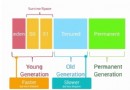 Android 內存優化完全指南:從內存管理機制到告別 OOM 的實踐總結
內存優化是 Android 性能優化中最關鍵的一環,而避免 OOM(Out Of Memory)更是其中的核心。本文系統性地梳理了 Android 的內存管理機制、OOM