

編輯:關於 Android 開發
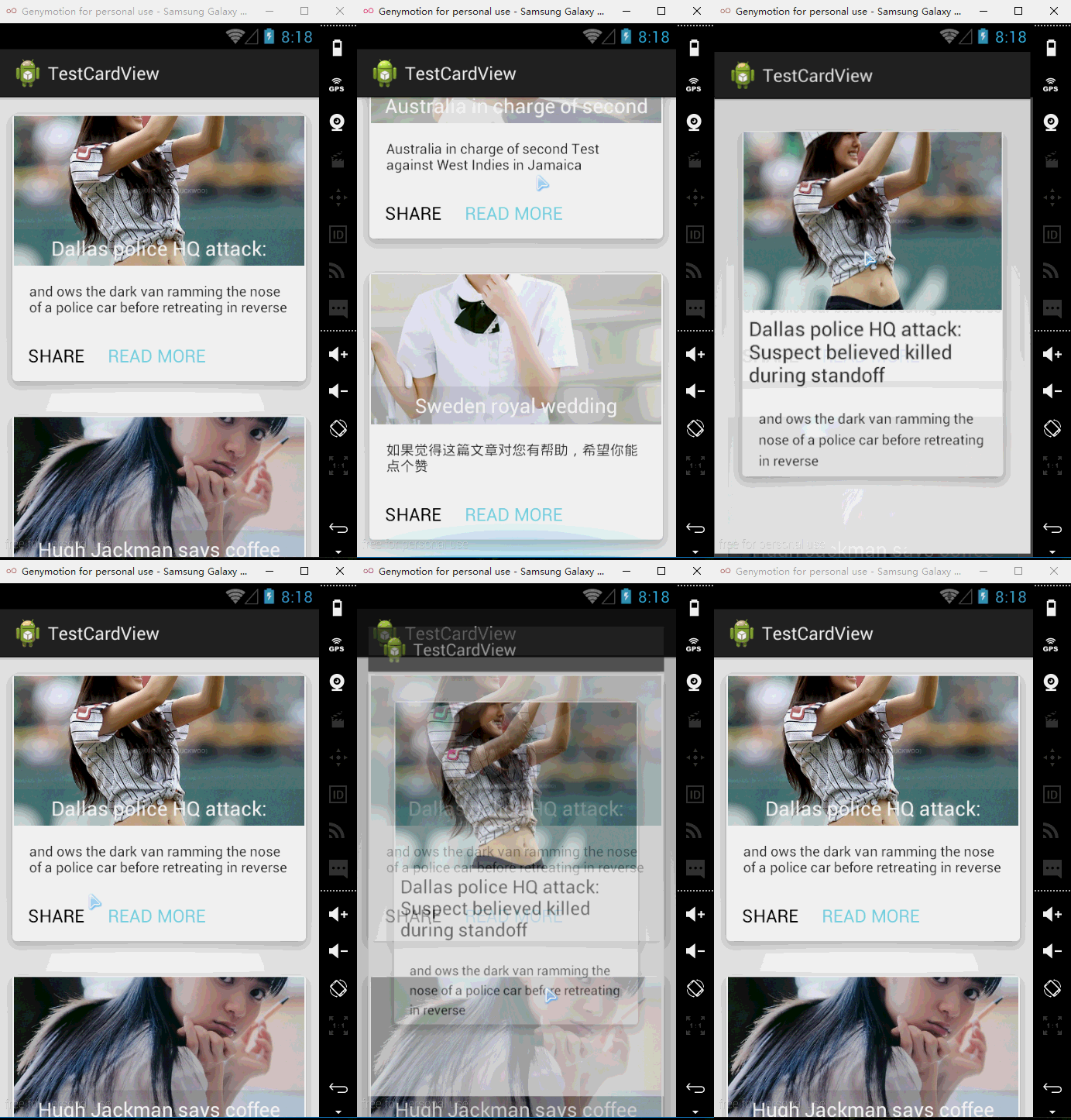
Material Design 風格裡,卡片式列表可說是最常見的布局之一。本文用 RecyclerView 搭配 CardView,做出一個點綴著圓角陰影的新聞卡片列表。
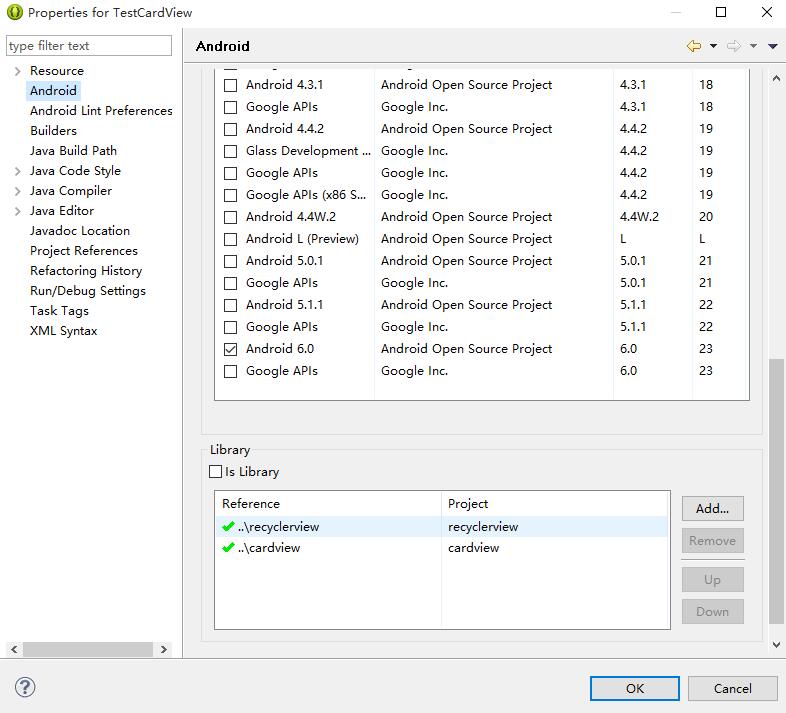
引入的依賴:
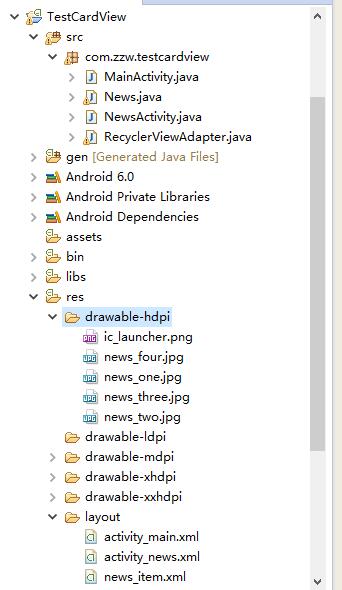
demo 結構:
先定義一個可序列化的新聞數據類,包含標題、內容與配圖:
package com.zzw.testcardview; import java.io.Serializable; public class News implements Serializable { private String title; private String desc; private int photoId; public News(String title, String desc, int photoId) { super(); this.title = title; this.desc = desc; this.photoId = photoId; } public String getTitle() { return title; } public void setTitle(String title) { this.title = title; } public String getDesc() { return desc; } public void setDesc(String desc) { this.desc = desc; } public int getPhotoId() { return photoId; } public void setPhotoId(int photoId) { this.photoId = photoId; } }
用 LinearLayoutManager 佈置 RecyclerView,並灌入一批測試數據:
package com.zzw.testcardview; import java.util.ArrayList; import java.util.List; import android.app.Activity; import android.os.Bundle; import android.support.v7.widget.LinearLayoutManager; import android.support.v7.widget.RecyclerView; public class MainActivity extends Activity { private RecyclerView recyclerView; private List<News> newsList; private RecyclerViewAdapter adapter; @Override protected void onCreate(Bundle savedInstanceState) { super.onCreate(savedInstanceState); setContentView(R.layout.activity_main); LinearLayoutManager layoutManager = new LinearLayoutManager(this); recyclerView = (RecyclerView) findViewById(R.id.recyclerView); initPersonData(); adapter = new RecyclerViewAdapter(newsList, MainActivity.this); recyclerView.setHasFixedSize(true); recyclerView.setLayoutManager(layoutManager); recyclerView.setAdapter(adapter); } private void initPersonData() { newsList = new ArrayList<>(); newsList.add(new News(getString(R.string.news_one_title), getString(R.string.news_one_desc), R.drawable.news_one)); newsList.add(new News(getString(R.string.news_two_title), getString(R.string.news_two_desc), R.drawable.news_two)); newsList.add(new News(getString(R.string.news_three_title), getString(R.string.news_three_desc), R.drawable.news_three)); newsList.add(new News(getString(R.string.news_four_title), getString(R.string.news_four_desc), R.drawable.news_four)); } }
自定義 ViewHolder 綁定卡片內的各個控件,並為卡片、分享、閱讀更多按鈕設置點擊事件:
package com.zzw.testcardview; import java.util.List; import android.content.Context; import android.content.Intent; import android.graphics.Color; import android.support.v7.widget.CardView; import android.support.v7.widget.RecyclerView; import android.support.v7.widget.RecyclerView.Adapter; import android.view.LayoutInflater; import android.view.View; import android.view.ViewGroup; import android.widget.Button; import android.widget.ImageView; import android.widget.TextView; public class RecyclerViewAdapter extends Adapter<RecyclerViewAdapter.NewsViewHolder> { private List<News> newses; private Context context; public RecyclerViewAdapter(List<News> newses, Context context) { super(); this.newses = newses; this.context = context; } static class NewsViewHolder extends RecyclerView.ViewHolder { CardView cardView; ImageView news_photo; TextView news_title; TextView news_desc; Button share; Button readMore; public NewsViewHolder(View itemView) { super(itemView); cardView = (CardView) itemView.findViewById(R.id.card_view); news_photo = (ImageView) itemView.findViewById(R.id.news_photo); news_title = (TextView) itemView.findViewById(R.id.news_title); news_desc = (TextView) itemView.findViewById(R.id.news_desc); share = (Button) itemView.findViewById(R.id.btn_share); readMore = (Button) itemView.findViewById(R.id.btn_more); news_title.setBackgroundColor(Color.argb(20, 0, 0, 0)); } } @Override public int getItemCount() { return newses == null ? 0 : newses.size(); } @Override public void onBindViewHolder(RecyclerViewAdapter.NewsViewHolder personViewHolder, int position) { final int j = position; personViewHolder.news_photo.setImageResource(newses.get(position).getPhotoId()); personViewHolder.news_title.setText(newses.get(position).getTitle()); personViewHolder.news_desc.setText(newses.get(position).getDesc()); personViewHolder.cardView.setOnClickListener(new View.OnClickListener() { @Override public void onClick(View v) { Intent intent = new Intent(context, NewsActivity.class); intent.putExtra("News", newses.get(j)); context.startActivity(intent); } }); personViewHolder.share.setOnClickListener(new View.OnClickListener() { @Override public void onClick(View v) { Intent intent = new Intent(Intent.ACTION_SEND); intent.setType("text/plain"); intent.putExtra(Intent.EXTRA_SUBJECT, "分享"); intent.putExtra(Intent.EXTRA_TEXT, newses.get(j).getDesc()); intent.setFlags(Intent.FLAG_ACTIVITY_NEW_TASK); context.startActivity(Intent.createChooser(intent, newses.get(j).getTitle())); } }); personViewHolder.readMore.setOnClickListener(new View.OnClickListener() { @Override public void onClick(View v) { Intent intent = new Intent(context, NewsActivity.class); intent.putExtra("News", newses.get(j)); context.startActivity(intent); } }); } @Override public RecyclerViewAdapter.NewsViewHolder onCreateViewHolder(ViewGroup viewGroup, int arg1) { View view = LayoutInflater.from(context).inflate(R.layout.news_item, null); NewsViewHolder nvh = new NewsViewHolder(view); return nvh; } }
點擊卡片後進入的詳情頁,負責展示單條新聞的完整內容:
package com.zzw.testcardview; import android.app.Activity; import android.content.Intent; import android.os.Bundle; import android.widget.ImageView; import android.widget.TextView; public class NewsActivity extends Activity{ private ImageView newsPhoto; private TextView newsTitle; private TextView newsDesc; @Override protected void onCreate(Bundle savedInstanceState) { super.onCreate(savedInstanceState); setContentView(R.layout.activity_news); newsPhoto= (ImageView) findViewById(R.id.news_info_photo); newsTitle= (TextView) findViewById(R.id.news_info_title); newsDesc= (TextView) findViewById(R.id.news_info_desc); Intent intent=getIntent(); News item= (News) intent.getSerializableExtra("News"); newsPhoto.setImageResource(item.getPhotoId()); newsTitle.setText(item.getTitle()); newsDesc.setText(item.getDesc()); } }
activity_main.xml 只放一個 RecyclerView:
<?xml version="1.0" encoding="utf-8"?> <android.support.v7.widget.RecyclerView xmlns:android="https://schemas.android.com/apk/res/android" android:id="@+id/recyclerView" android:layout_width="match_parent" android:layout_height="match_parent"> </android.support.v7.widget.RecyclerView>
news_item.xml 是卡片的核心,用 CardView 包住圖片、標題、摘要與按鈕。這裡幾個關鍵屬性值得記住:android:clickable="true" 讓卡片可點擊(默認不可點擊),app:cardCornerRadius 控制圓角,app:cardElevation 控制陰影:
<?xml version="1.0" encoding="utf-8"?> <RelativeLayout xmlns:android="https://schemas.android.com/apk/res/android" xmlns:app="https://schemas.android.com/apk/res-auto" android:layout_width="match_parent" android:layout_height="match_parent" android:padding="5dp" > <android.support.v7.widget.CardView android:id="@+id/card_view" android:layout_width="match_parent" android:layout_height="wrap_content" android:clickable="true" android:foreground="?android:attr/selectableItemBackground" app:cardCornerRadius="3dp" app:cardElevation="8dp" > <RelativeLayout android:layout_width="match_parent" android:layout_height="wrap_content" > <RelativeLayout android:id="@+id/news_header" android:layout_width="match_parent" android:layout_height="wrap_content" > <ImageView android:id="@+id/news_photo" android:layout_width="match_parent" android:layout_height="150dp" android:layout_alignParentTop="true" android:scaleType="centerCrop" /> <TextView android:id="@+id/news_title" android:layout_width="match_parent" android:layout_height="wrap_content" android:layout_alignParentBottom="true" android:layout_alignParentLeft="true" android:gravity="center" android:maxLines="1" android:padding="5dp" android:textColor="#ffffff" android:textSize="20sp" /> </RelativeLayout> <TextView android:id="@+id/news_desc" android:layout_width="wrap_content" android:layout_height="wrap_content" android:layout_below="@+id/news_header" android:layout_margin="15dp" android:maxLines="2" /> <LinearLayout android:layout_width="match_parent" android:layout_height="wrap_content" android:layout_below="@+id/news_desc" android:orientation="horizontal" > <Button android:id="@+id/btn_share" android:layout_width="wrap_content" android:layout_height="wrap_content" android:layout_marginLeft="10dp" android:layout_marginRight="20dp" android:background="#00000000" android:text="SHARE" /> <Button android:id="@+id/btn_more" android:layout_width="wrap_content" android:layout_height="wrap_content" android:background="#00000000" android:text="READ MORE" android:textColor="#7AD3E0" /> </LinearLayout> </RelativeLayout> </android.support.v7.widget.CardView> </RelativeLayout>
activity_news.xml 是詳情頁的卡片布局:
<?xml version="1.0" encoding="utf-8"?> <RelativeLayout xmlns:android="https://schemas.android.com/apk/res/android" xmlns:app="https://schemas.android.com/apk/res-auto" android:layout_width="match_parent" android:layout_height="match_parent" android:padding="20dp"> <android.support.v7.widget.CardView android:id="@+id/card_view" android:layout_width="match_parent" android:layout_height="wrap_content" android:foreground="?android:attr/selectableItemBackground" android:clickable="true" app:cardCornerRadius="3dp" app:cardElevation="8dp"> <RelativeLayout android:layout_width="match_parent" android:layout_height="wrap_content"> <RelativeLayout android:id="@+id/news_header" android:layout_width="match_parent" android:layout_height="wrap_content" android:layout_alignParentTop="true" android:layout_alignParentLeft="true" android:layout_alignParentStart="true"> <ImageView android:id="@+id/news_info_photo" android:scaleType="centerCrop" android:layout_alignParentTop="true" android:layout_width="match_parent" android:layout_height="180dp"/> <TextView android:id="@+id/news_info_title" android:layout_alignParentLeft="true" android:layout_below="@+id/news_info_photo" android:textSize="20sp" android:padding="5dp" android:layout_width="match_parent" android:layout_height="wrap_content"/> </RelativeLayout> <TextView android:id="@+id/news_info_desc" android:lineSpacingExtra="5dp" android:layout_below="@+id/news_header" android:layout_margin="15dp" android:layout_width="wrap_content" android:layout_height="wrap_content"/> </RelativeLayout> </android.support.v7.widget.CardView> </RelativeLayout>
 Android SwipeRefreshLayout:下拉刷新+上拉加載+側滑刪除一站式實現
 SwipeRefreshLayout是Google官方推出的下拉刷新控件,被
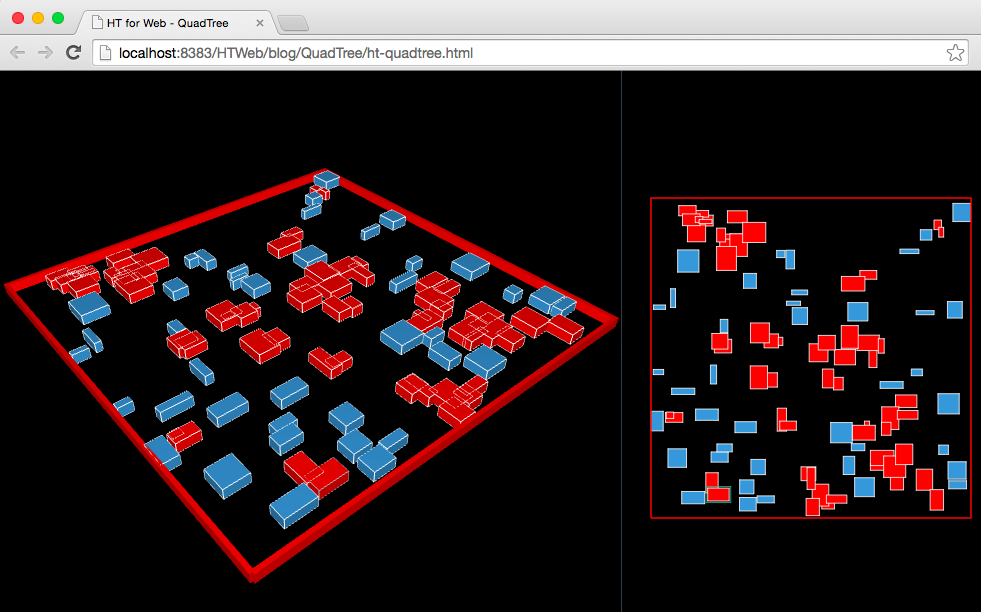 HTML5 四叉樹碰撞檢測:以 Canvas 與 WebGL 呈現 2D/3D 可視化
QuadTree 是什麼QuadTree 四叉樹是一種樹狀資料結構,每個節點通常有四個子節點,可將二維平面遞迴分割成更小的區域。它常用於空間索引、可視區域裁剪與碰撞檢測,
 ListView 搭配 PopupWindow 實作滑動刪除
實作概念 這個範例要在 ListView 項目上由右向左滑動時顯示刪除按鈕。相較同時覆寫 dispatchTouchEvent 與 onTouchEvent,只處理 on
 Android 自學筆記(Android Studio)4.3:ImageView 及其子孫類別完整整理
一、開場:ImageView 到底是什麼 ImageView 直接繼承自 View,顧名思義是拿來顯示圖片的元件。但它的能力比名字更寬廣——任何 Drawable 物件都