

編輯:關於 Android 開發
一般應用的標題欄(Title)都是建立應用時在 AndroidManifest.xml 中配置的,或以 setTitle 設定一個簡單的字串。如果想在標題欄中加入按鈕、圖片等多個複雜的布局,就需要以下方法:在視窗建立時,把一個 XML 布局設定成該應用的 Title。
功能目標:把標題欄設定成「一個字串加上一個按鈕」的組合。
public void onCreate(Bundle savedInstanceState) {
super.onCreate(savedInstanceState);
requestWindowFeature(Window.FEATURE_CUSTOM_TITLE); // 注意順序,要在 setContentView 之前
setContentView(R.layout.main);
// 注意順序,setFeatureInt 最好在 setContentView 之後
getWindow().setFeatureInt(Window.FEATURE_CUSTOM_TITLE, R.layout.title);
}
<?xml version="1.0" encoding="utf-8"?>
<RelativeLayout xmlns:android="https://schemas.android.com/apk/res/android"
android:layout_width="wrap_content"
android:layout_height="wrap_content">
<TextView android:id="@+id/text"
android:layout_width="wrap_content"
android:layout_height="wrap_content"
android:layout_alignParentLeft="true"
android:text="text" />
<Button android:id="@+id/button"
android:layout_width="wrap_content"
android:layout_height="30px"
android:text="button" />
</RelativeLayout>
第一,務必留意順序:requestWindowFeature 要在 setContentView 之前呼叫,而 getWindow().setFeatureInt 最好放在 setContentView 之後。
第二,requestWindowFeature(Window.FEATURE_CUSTOM_TITLE) 不要與其他針對 Title 的 requestWindowFeature(xxxx) 設定一起使用,以免彼此衝突。
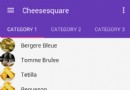 Material Design 實作:TabLayout 選項卡與 ViewPager 聯動
TabLayout 是 Design Support Library 提供的選項卡版面元件。用選項卡切換內容並不是 Material Design 才有的新概念,但這個元
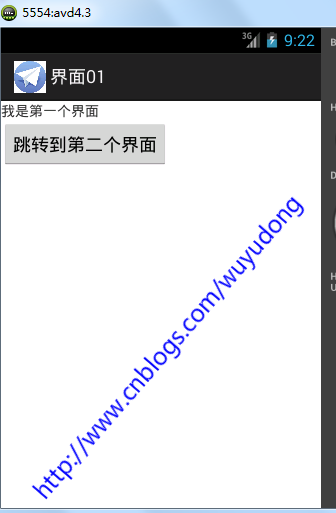 Android Activity 跳轉與系統應用啟動方式整理
切換到新的 Activity 建立新的 Activity 時,除了撰寫 Java 類別與版面檔,也必須在 AndroidManifest.xml 中註冊。按下按鈕後,可用
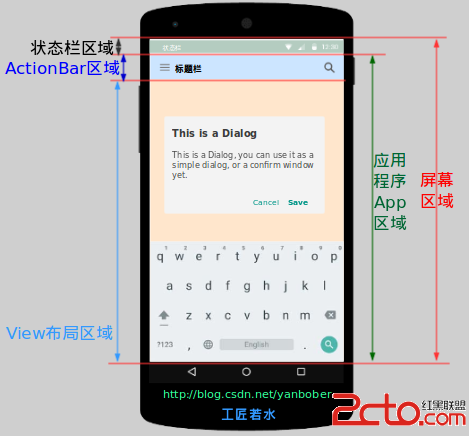 Android 座標系統全面詳解
座標系統的重要性自定義 View 的核心之一,是理解 Android 的座標系統。無論是排版、動畫、手勢或滑動,都離不開座標計算。螢幕區域Android 螢幕可區分為狀態
 Android JNI 入門:概念、用途與 NDK 介紹
 JNI 簡介 JNI(Java Native Interface)即 Java 的本地介面,是 Java 眾多開