

編輯:關於 Android 開發
寫 Android 版面時,最常被搞混的莫過於那幾個排列與對齊屬性。它們名字相似、作用卻截然不同,一旦分不清楚,畫面就會出現「怎麼調都不對」的窘境。以下逐一釐清。
這個屬性控制子元素的排列軸向。horizontal 讓所有子元素由左至右水平排開,vertical 則讓它們由上至下垂直堆疊。
兩者字面上只差一個前綴,意義卻完全不同:
android:gravity:指定本元素的子元素相對它自己的對齊方式。android:layout_gravity:指定本元素相對它父容器的對齊方式。換句話說,gravity 是「我怎麼擺我的小孩」,layout_gravity 是「我的父親怎麼擺我」。
看個例子。以下 LinearLayout 把 android:gravity 設為 right,於是它的兩個子元素 Button01 與 Button02 都會被推到右側:
<?xml version="1.0" encoding="utf-8"?>
<LinearLayout xmlns:android="https://schemas.android.com/apk/res/android"
    android:orientation="vertical"
    android:layout_width="fill_parent"
    android:layout_height="fill_parent"
    android:gravity="right">
    <Button android:text="button01" android:id="@+id/Button01"
        android:layout_width="wrap_content" android:layout_height="wrap_content"></Button>
    <Button android:text="button02" android:id="@+id/Button02"
        android:layout_width="wrap_content" android:layout_height="wrap_content"></Button>
</LinearLayout>
再來看 layout_gravity。這次父層不做任何對齊設定,改由子元素各自表明立場:Button01 靠左、Button02 靠右:
<?xml version="1.0" encoding="utf-8"?>
<LinearLayout xmlns:android="https://schemas.android.com/apk/res/android"
    android:orientation="vertical"
    android:layout_width="fill_parent"
    android:layout_height="fill_parent">

    <Button
        android:layout_gravity="left"
        android:text="button01"
        android:id="@+id/Button01"
        android:layout_width="wrap_content"
        android:layout_height="wrap_content"></Button>

    <Button
        android:layout_gravity="right"
        android:text="button02"
        android:id="@+id/Button02"
        android:layout_width="wrap_content"
        android:layout_height="wrap_content"></Button>
</LinearLayout>
實務上的判斷很簡單:想讓整組子元素一起靠邊,用父層的 gravity;想讓某幾個子元素各自站位,用子層的 layout_gravity。
FrameLayout 是所有版面容器中最簡單的一個。它被設計成螢幕上一塊空白的備用區域,之後你在其中放入單一物件——例如一張要展示的圖片。它所有的子元素都會被固定在左上角,你無法為 FrameLayout 中的子元素指定位置;而後加入的子元素會直接疊在前一個之上,將其部分或全部遮住(除非後者是透明的)。正因如此,它常被拿來做圖片與文字的堆疊、 Loading 遮罩,或是需要手動控制可見性的重疊場景。
先用 XML 描述界面,再由 Activity 的 setContentView() 依這份「設計圖」生成真正的控制項物件——這個分工是 Android 版面的基本模型。FrameLayout 可用的屬性來自三處:從父類繼承而來、由嵌套類別定義、以及自身定義。
android:id
這個屬性繼承自 android.view.View,為 FrameLayout 提供一個唯一識別碼。之後程式可以透過 View.findViewById() 或 Activity.findViewById() 把它找回來。
android:layout_width 與 android:layout_height
分別定義布局寬與高,取值通常是 fill_parent 或 wrap_content。前者表示在該軸向上撐滿父容器的空間,後者則表示有多少內容就取多大。這兩個屬性定義在 android.widget.FrameLayout.LayoutParams 這個嵌套類別之中。
android:background 與 android:foreground
顧名思義,分別是背景與前景。FrameLayout 因為子元素會互相遮疊,前景屬性特別好用——例如想在所有內容之上蓋一層半透明遮罩或邊框,用 foreground 會比多加一層子 View 更乾淨。
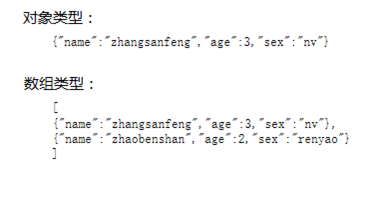 Android JSON 與 XML 解析比較
JSON 與 XML 解析 JSON 與 XML 都是常見的資料交換格式。JSON 以鍵值對為核心,可分為物件、陣列與混合結構;XML 則以標籤描述資料,適合結構化文件。
 ListView 自適應表格實作:讓每個單元格都能自訂尺寸
用 ListView 拼出一張會自適應的表格,是不少 Android 新手會卡住的地方。老實說,如果只講「自適應表格」,GridView 其實更好寫;但 GridView
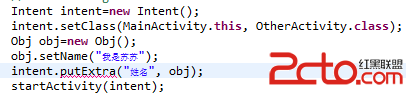 Android Activity 物件傳遞:Serializable 實作方式
Intent 的 putExtra 方法可以用來傳遞基本數據類型,但如果直接傳遞自訂物件,通
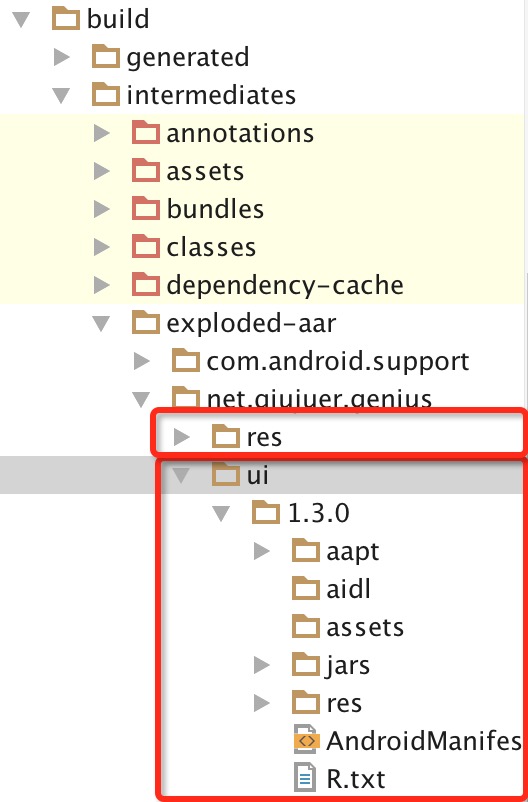 在 Eclipse 中導入 Android Studio 的 Gradle AAR 庫完整手冊
 序言 這是一篇半技術類文章。眾所周知,現在 Google 主推 Andro