

編輯:關於 Android 開發
在 CentOS 6 中,history 命令輸出的每筆操作記錄都會帶上時間與使用者身份,例如:
[root@bdkyr ~]# history
294 2017-01-06 16:46:48 root clear
295 2017-01-06 16:46:50 root ll
296 2017-01-06 16:46:52 root cat hostname.sh
297 2017-01-06 16:46:56 root cat nginxlog_cut.sh
298 2017-01-06 16:47:29 root clear
299 2017-01-06 16:47:34 root history
[root@bdkyr ~]# cat /etc/redhat-release
CentOS release 6.6 (Final)
但在 CentOS 7 上,history 預設只顯示指令本身,看不到時間與使用者:
[root@bdkyr data]# cat /etc/redhat-release
CentOS Linux release 7.2.1511 (Core)
[root@localhost data]# history 10
1268
1269 history
1270 cat /etc/redhat-release
1271 clear
...
要解決這個問題,只要在 /etc/profile 中加入以下變數即可:
export HISTTIMEFORMAT="%Y-%m-%d %H:%M:%S `whoami` "
接著執行 source /etc/profile 讓設定生效(要特別注意引號內的空格)。生效後,history 的輸出就會帶上時間與使用者:
[root@bdkyr data]# history 10
1273 2017-01-05 19:40:18 root history
1274 2017-01-05 19:40:27 root clear
1275 2017-01-05 19:40:29 root cat /etc/redhat-release
...
1282 2017-01-05 19:42:42 root history 10
至此 history 的輸出格式就完美解決了。若要清除歷史記錄,可以使用 history -c。以下是 history 的常見用法與參數:
usage: history [-c] [-d offset] [n]
   or  history -anrw [filename]
   or  history -ps arg [arg...]
參數說明:
n:數字,列出最近的 n 筆指令。
-c:清除目前 shell 中的所有 history 內容。
-a:將目前新增的 history 寫入 histfiles,若未指定則預設寫入 ~/.bash_history。
-r:將 histfiles 的內容讀進目前 shell 的 history 記憶中。
-w:將目前的 history 記憶寫入 histfiles。
 用 PopupWindow 做下拉選單:比 Spinner 更好客製的實作
最近在做下拉選單。原本想用 Spinner,無奈它達不到專案的要求;跟同學同事問了一圈,發現大家都在用 PopupWindow。&nb
 Android NetworkOnMainThreadException 原因與解法
Android NetworkOnMainThreadException 在 Android 中,若直接在主執行緒進行網路連線,可能會觸發 NetworkOnMainTh
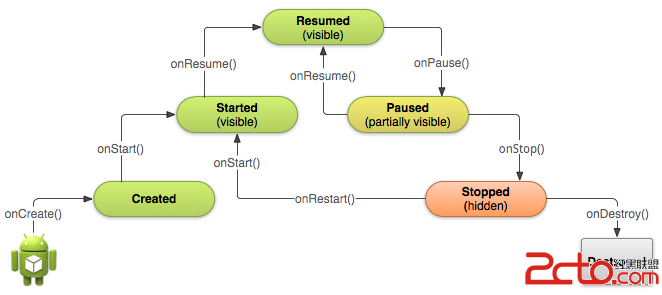 Android Activity 生命週期詳解:各回調時機與職責
 本文參考官方文檔,目的不是去總結 Activity 如何啟動、創建、暫停與銷毀,而是從實際開發出發,分
 用樹莓派打造一個能與你對話的機器人
 最近我用樹莓派做了一個能與人對話的機器人,這裡簡單分享一下整個實現過程。 樹莓派(Raspberry Pi)是目前全球最流行的微型電腦